Casio's 'earU ER-100' hearing assist earphones seamlessly blend ambient sounds with digitally corrected audio, allowing you to hear the other person's voice and music naturally.
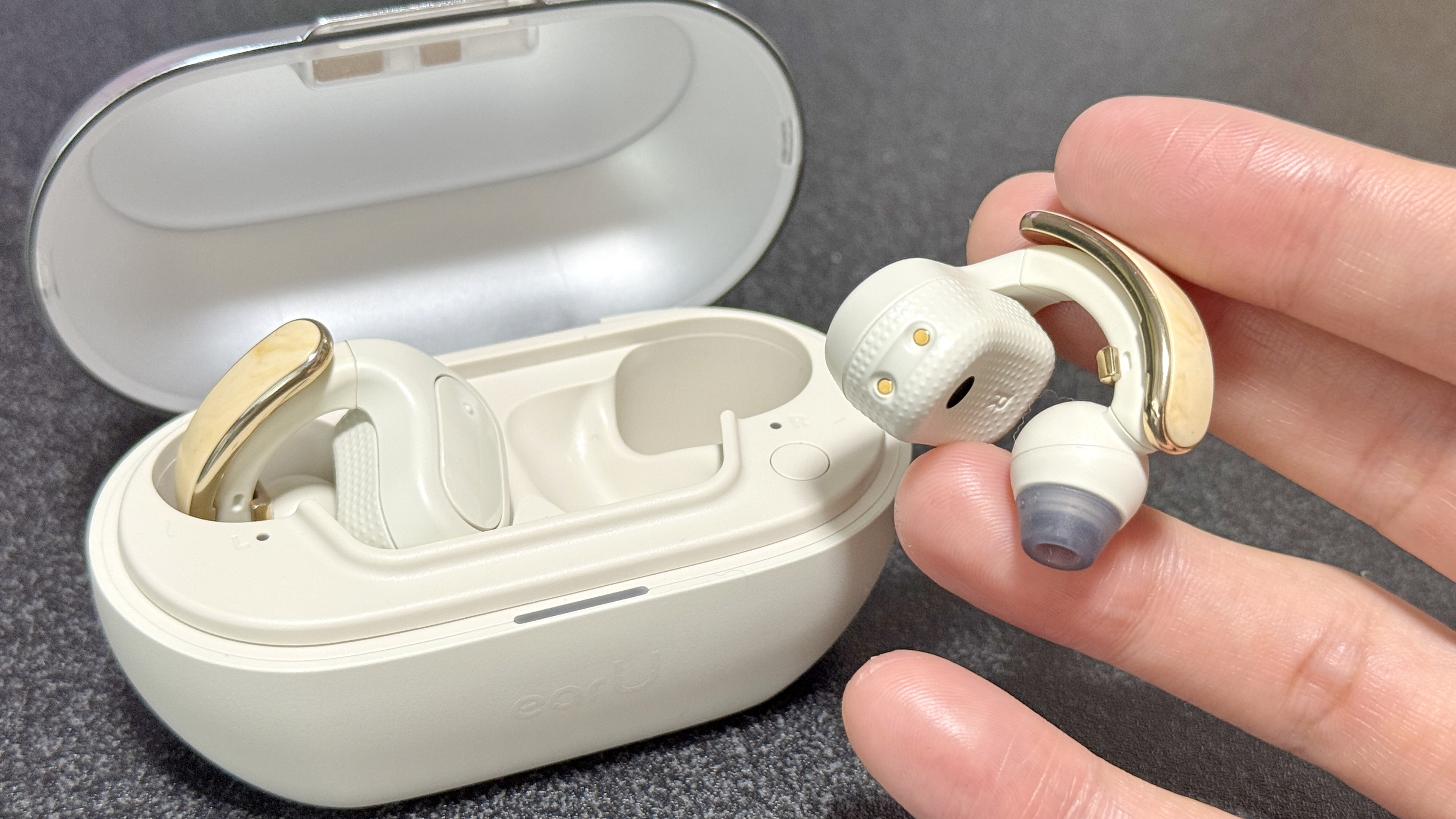
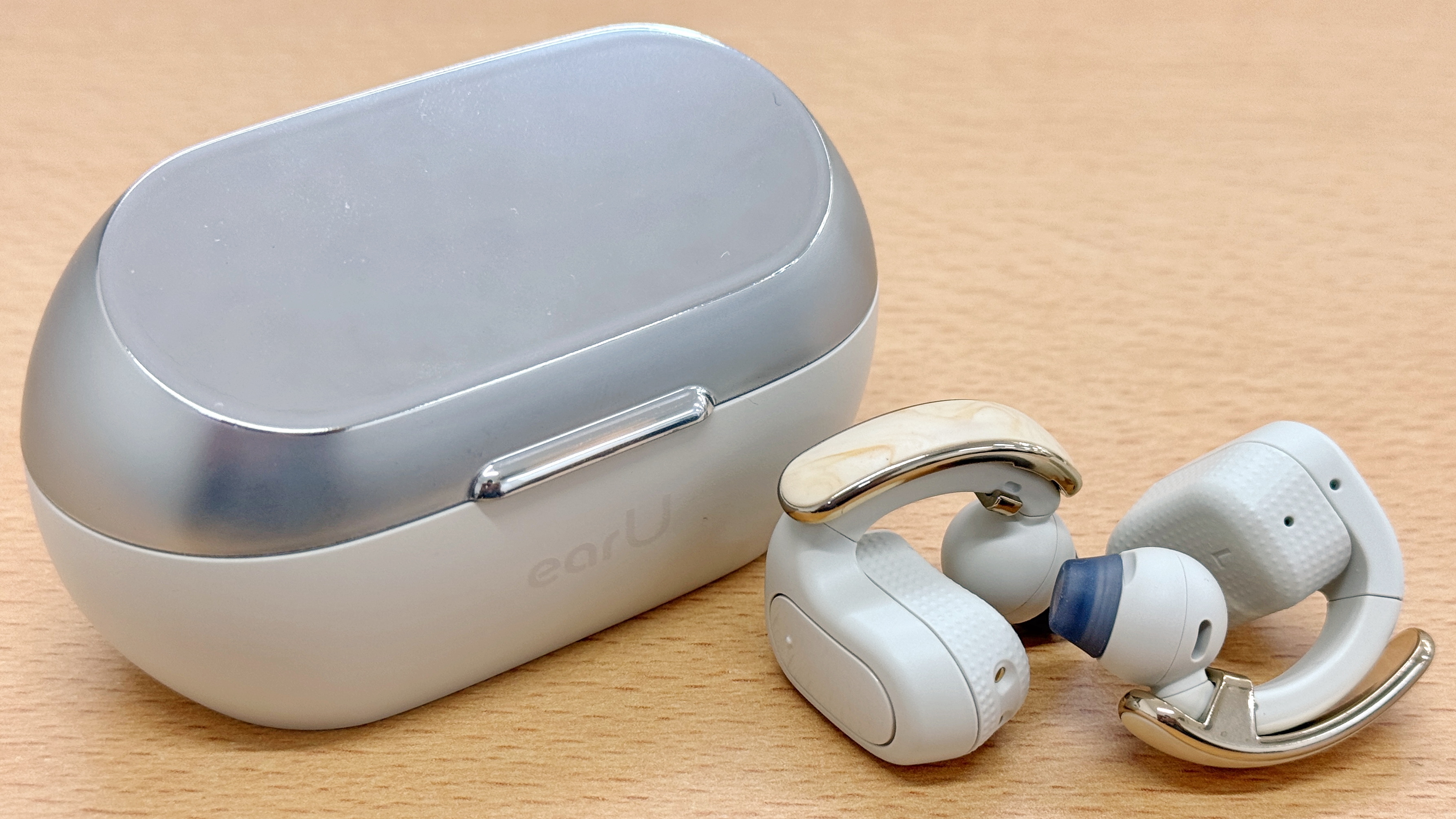
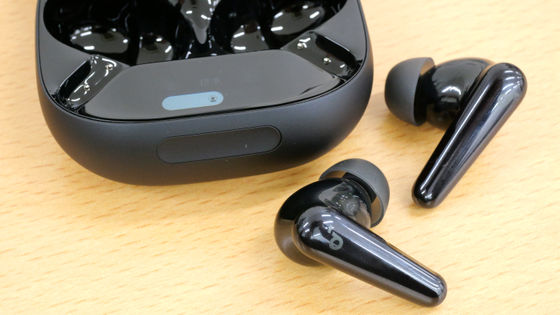
Casio Computer Co., Ltd., known for its watches and electronic musical instruments, released the ' earU ER-100 ' hearing assist earphones on May 28, 2026. The earU ER-100 is an open-ear type wireless earphone that utilizes 'Cuff Technology,' a digital voice control technology cultivated in Casio's electronic musical instruments, to make human voices easier to hear in a natural way. It can also be finely adjusted using a dedicated app. I tried out a unit borrowed from Casio Computer Co., Ltd.
Open-ear hearing assist earphones for natural-sounding audio | CASIO
You can learn more about the appearance of the earU ER-100 by reading the following article.
Casio Computer's new 'earU' brand, aiming for 'natural hearing,' presents its first product: the 'earU ER-100' hearing assist earphones - GIGAZINE exterior review
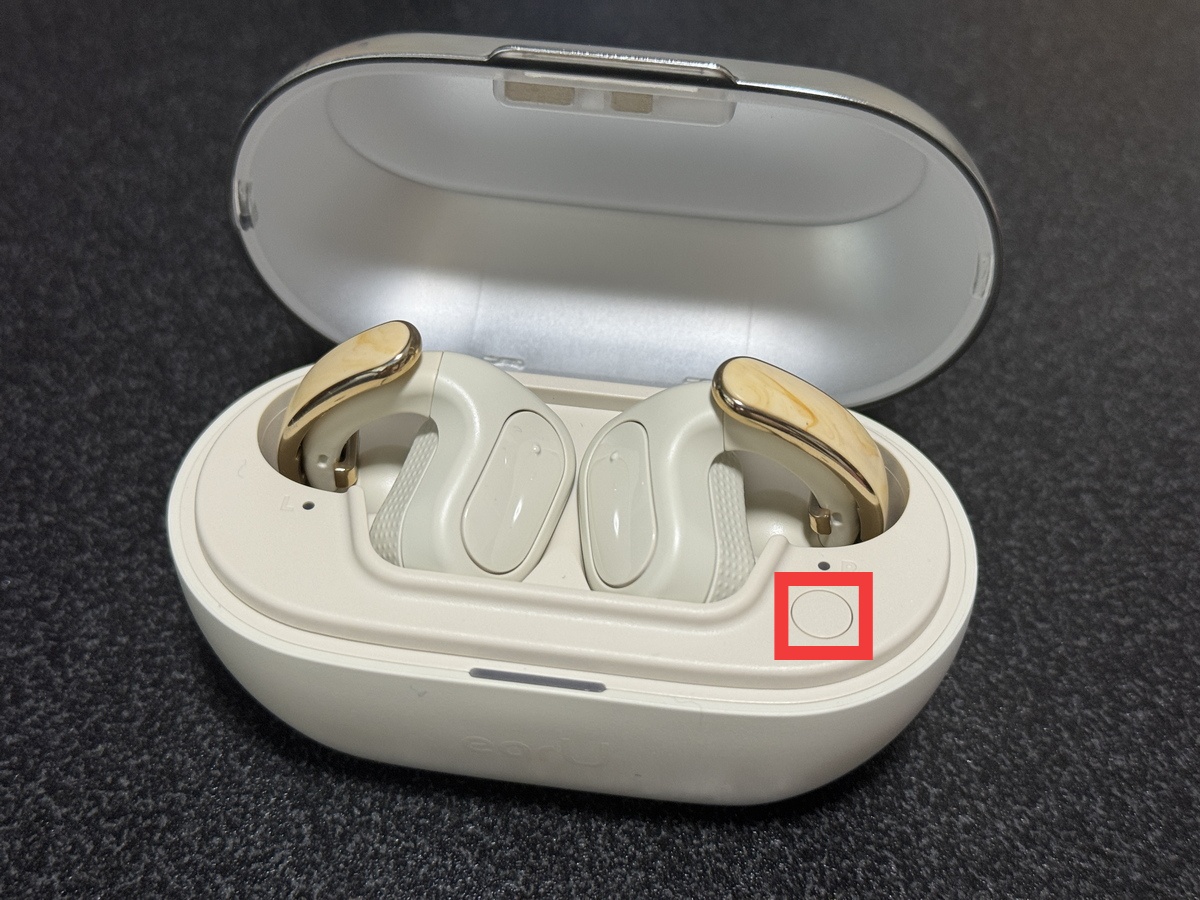
Open the earU ER-100 storage case and press and hold the button on the bottom right of the earphone for 3 seconds to enter Bluetooth pairing mode.
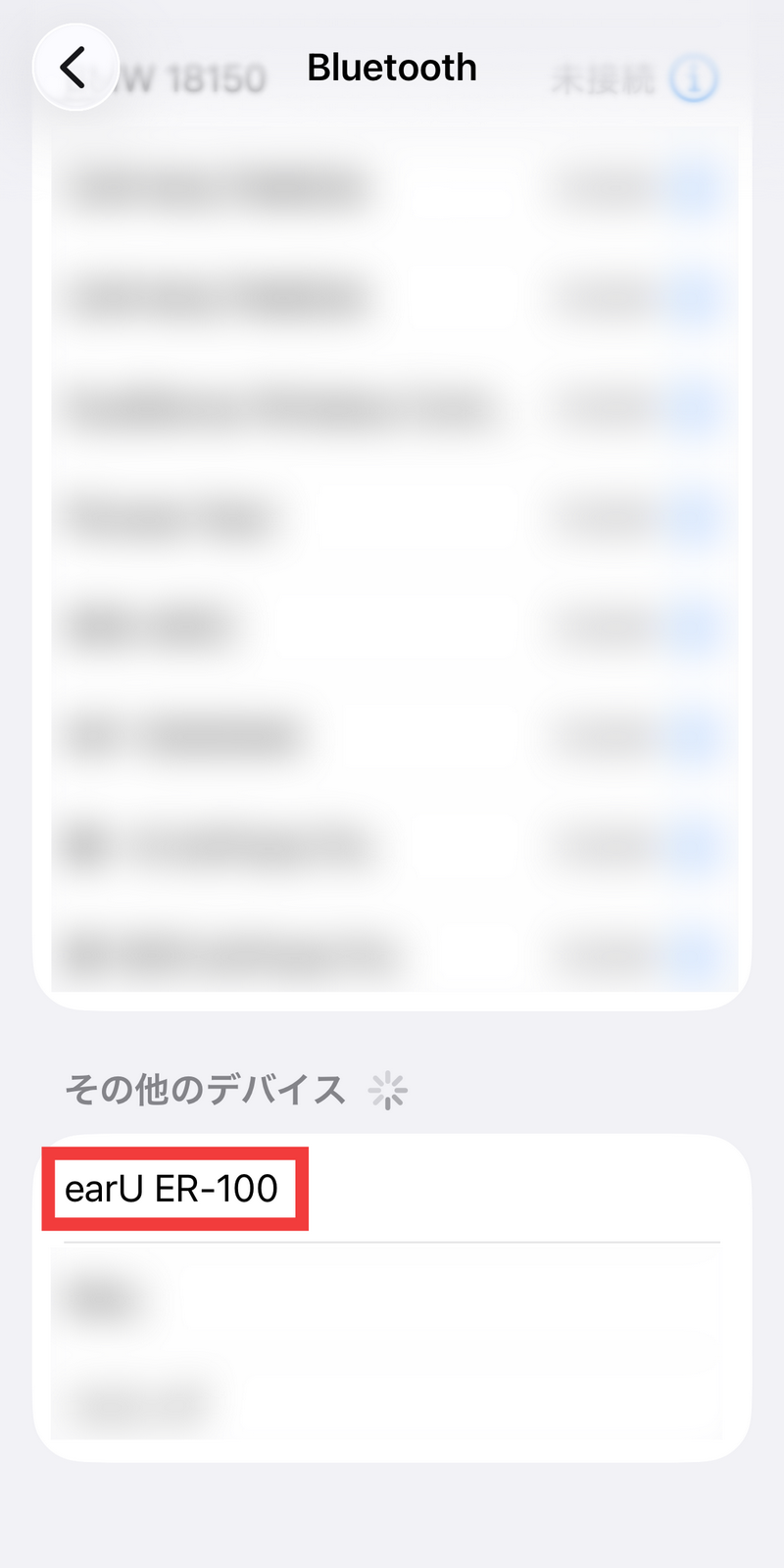
Open the Bluetooth connection screen on the smartphone you want to connect. In this case, since we are connecting to an iPhone, tap 'earU ER-100' which is displayed under 'Other devices' in 'Bluetooth' in 'Settings'.
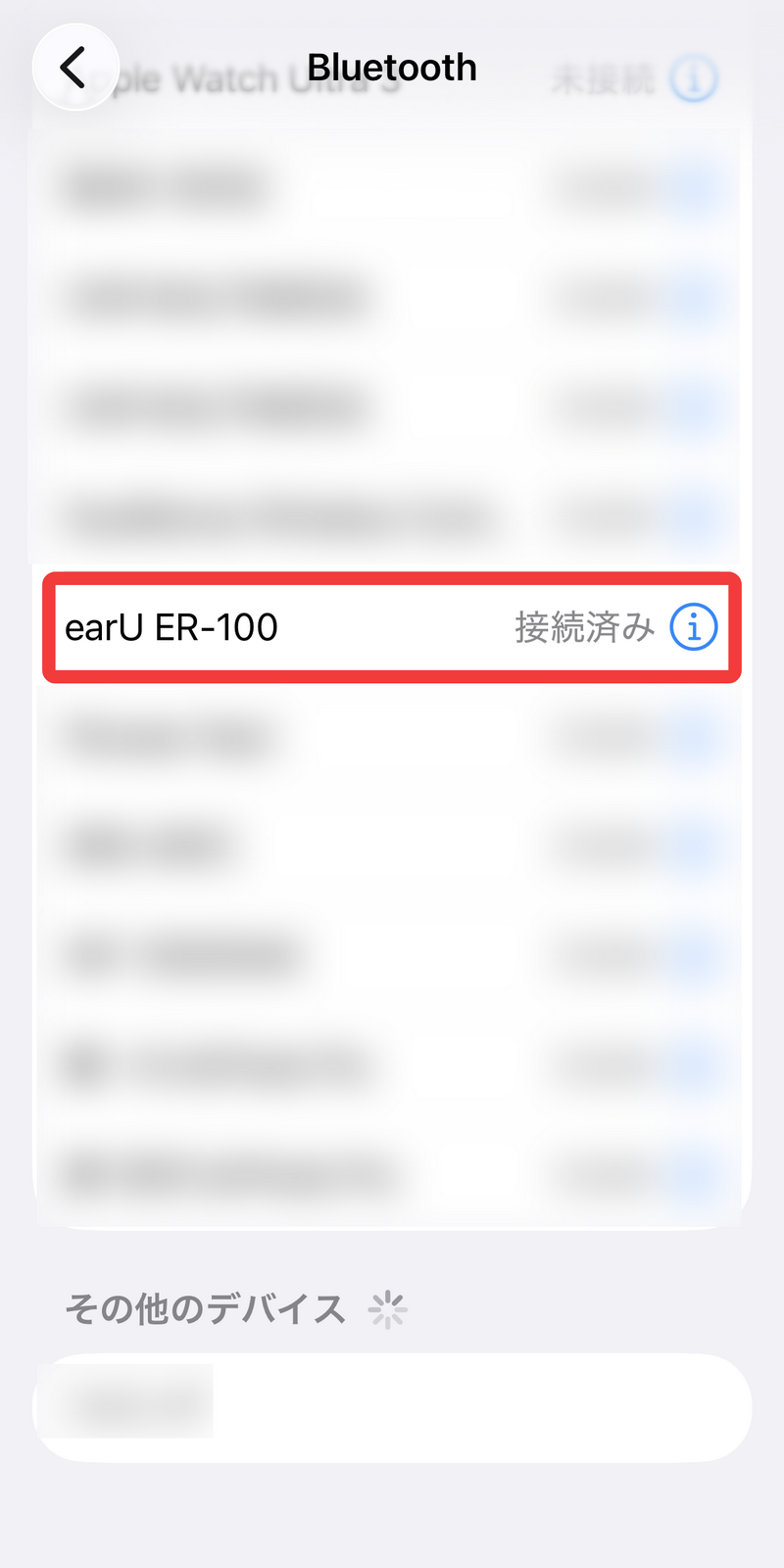
Confirm that it says 'Connected'.
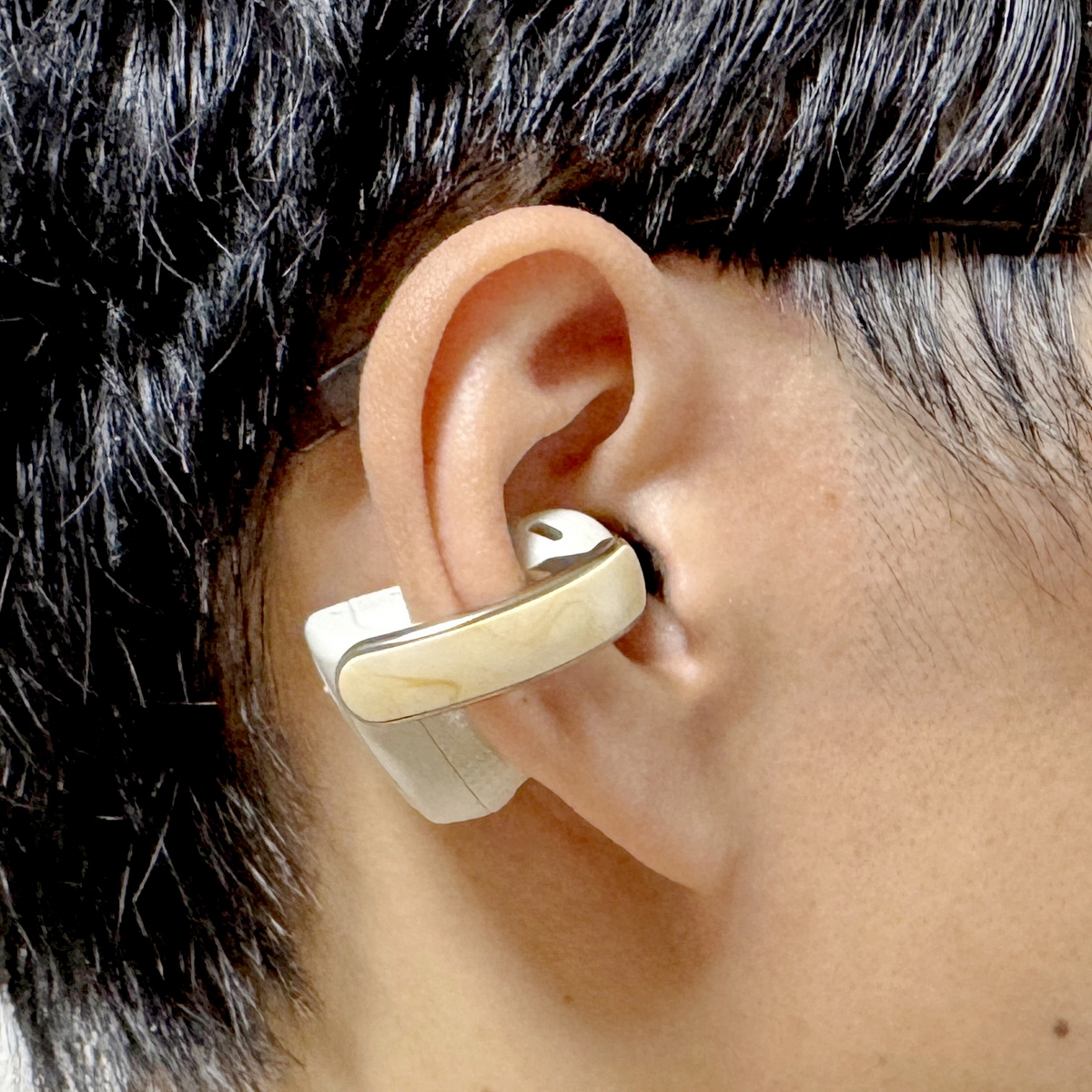
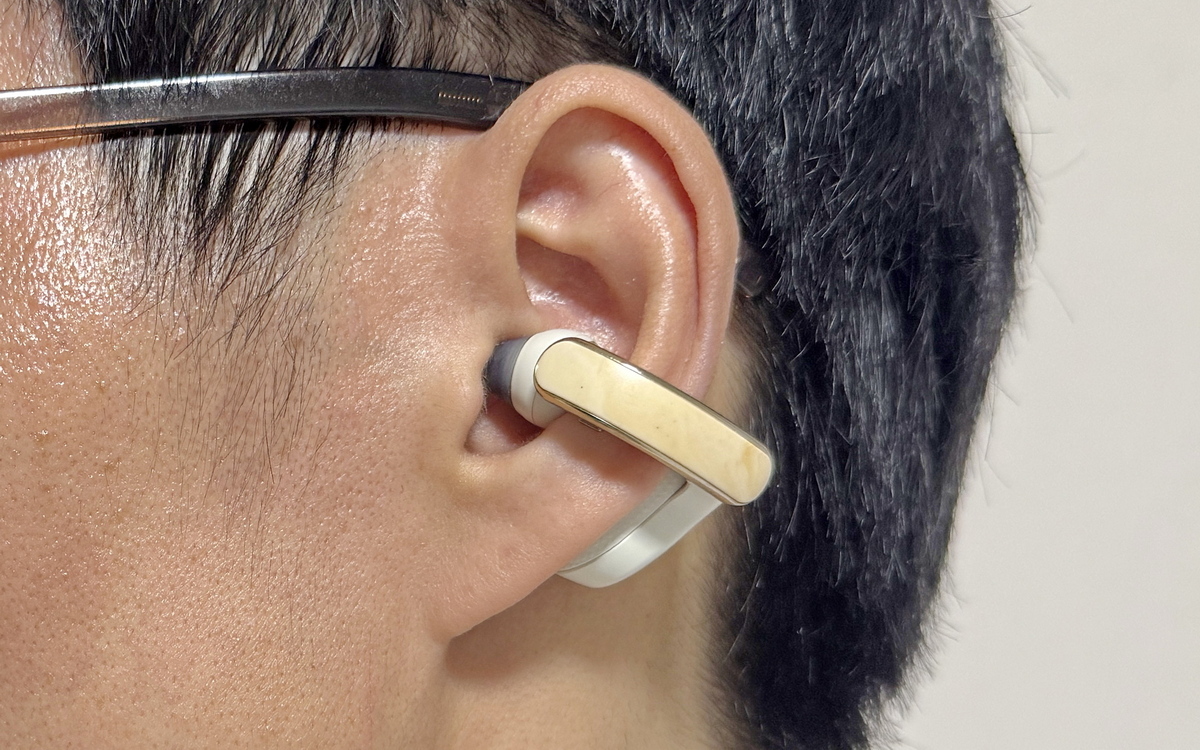
I tried wearing the earU ER-100. It's an ear cuff type, and you wear it by clipping it onto your ear.
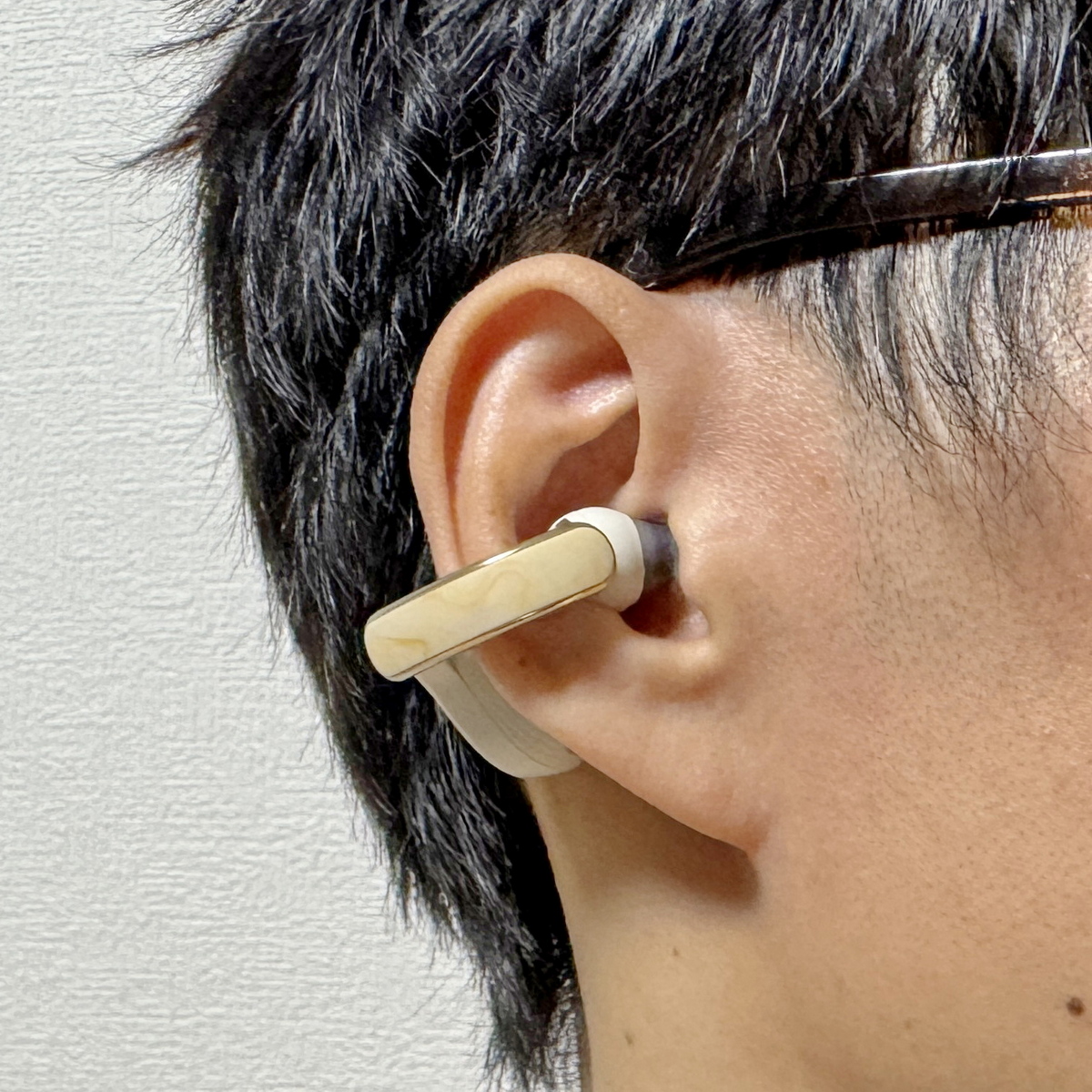
Gently press the earphones and adjust them to fit comfortably in your ears. The eartips should just barely touch your ear canals.
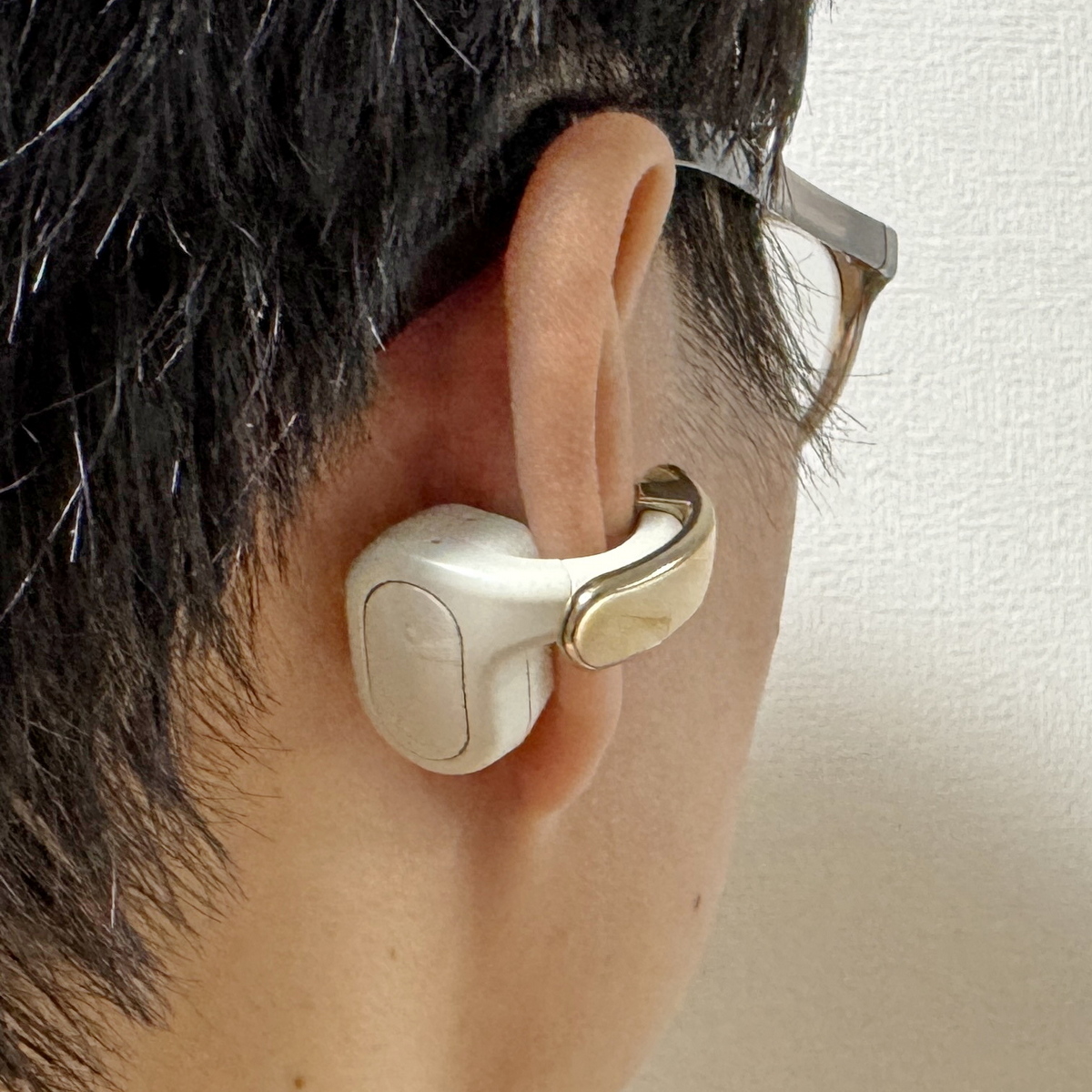
This is what it looks like when photographed from behind. The control buttons wrap around to the back of the ear. The earphones are slightly heavy at about 8g each and are designed to be held in place by clipping them onto the ear, but their shape conforms to the curve of the ear, and they don't feel too tight, so there's no pain. The eartips fit snugly into the ear canal, so the fit is stable. Another key point is that, unlike inner-ear type earphones, they don't put a strain on the ears when worn for long periods, and unlike canal-type earphones, they don't cause the ear canal to get sweaty.
Next, install the 'earU' app on your smartphone. The 'earU' app is available for both iOS and Android.
earU | Hearing Assistance App for Earphones - App Store
earU | Hearing assistance with earphones - App on Google Play
https://play.google.com/store/apps/details?id=jp.co.casio.earuapp&hl=ja&pli=1
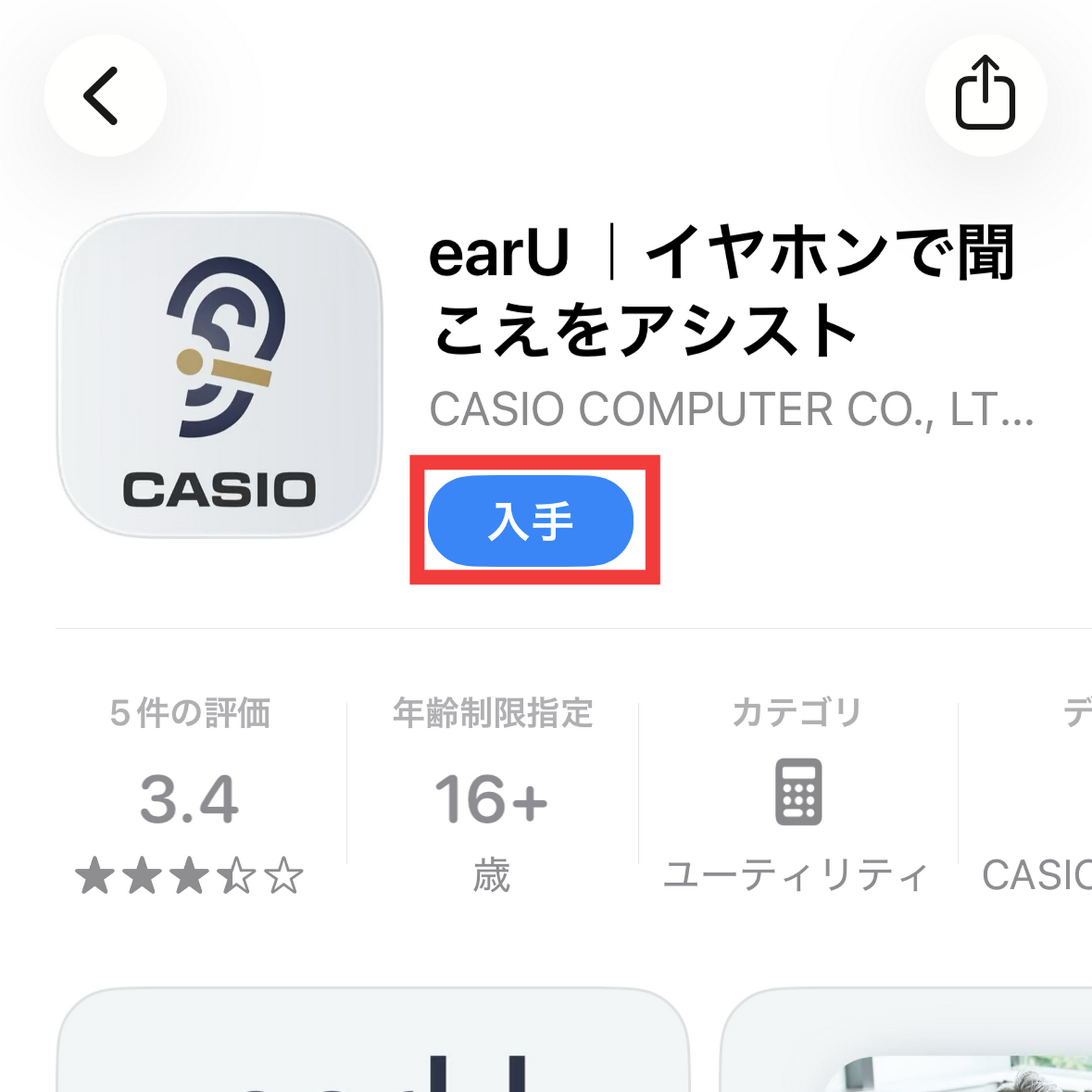
Since I was connecting to an iPhone this time, I tapped 'Get' on the App Store page and installed the iOS version.
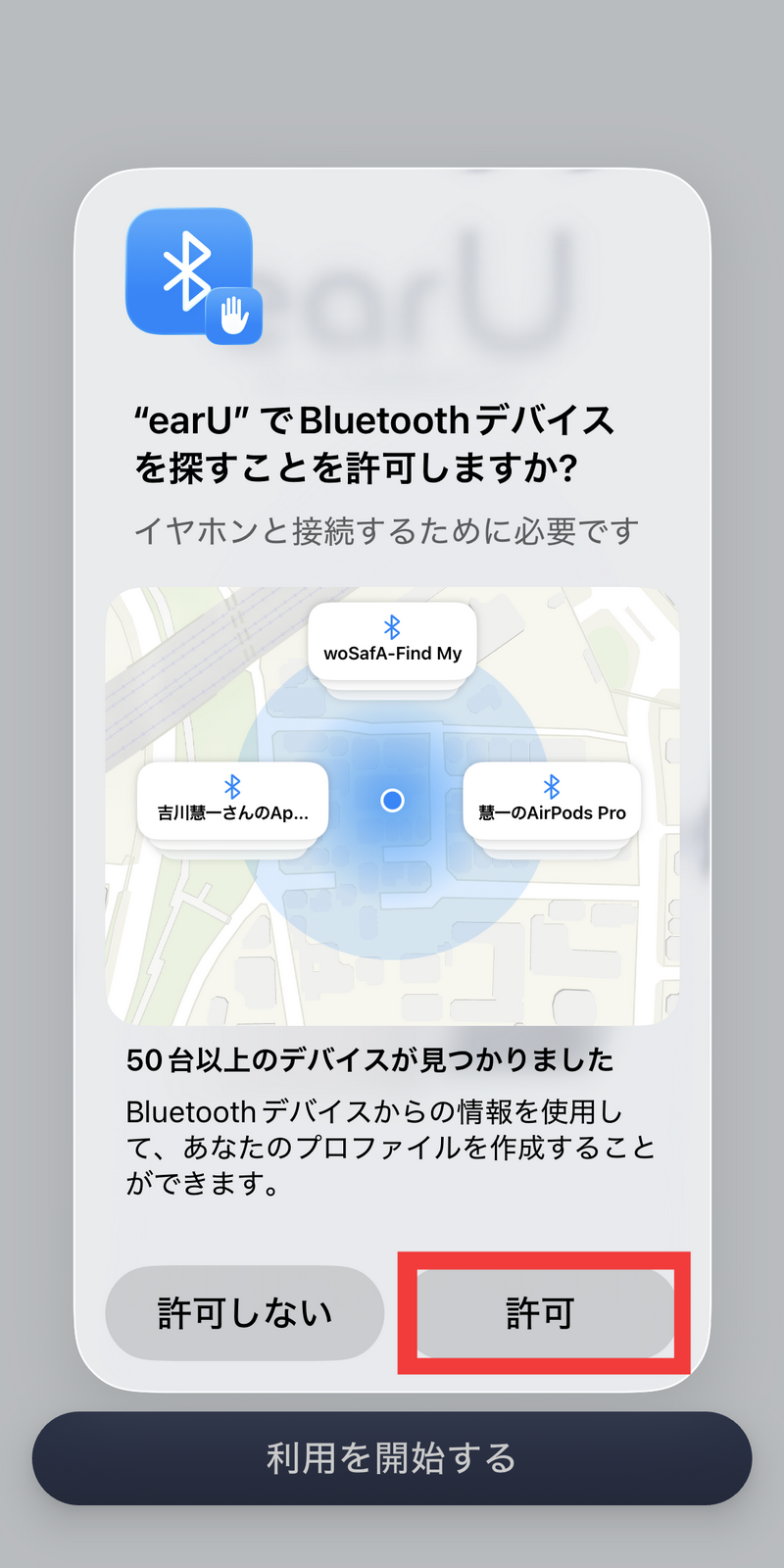
Launch the installed earU. You will be asked for permission to search for Bluetooth devices, so tap 'Allow'.
You will be asked to allow notifications to be sent, so tap 'Allow'.
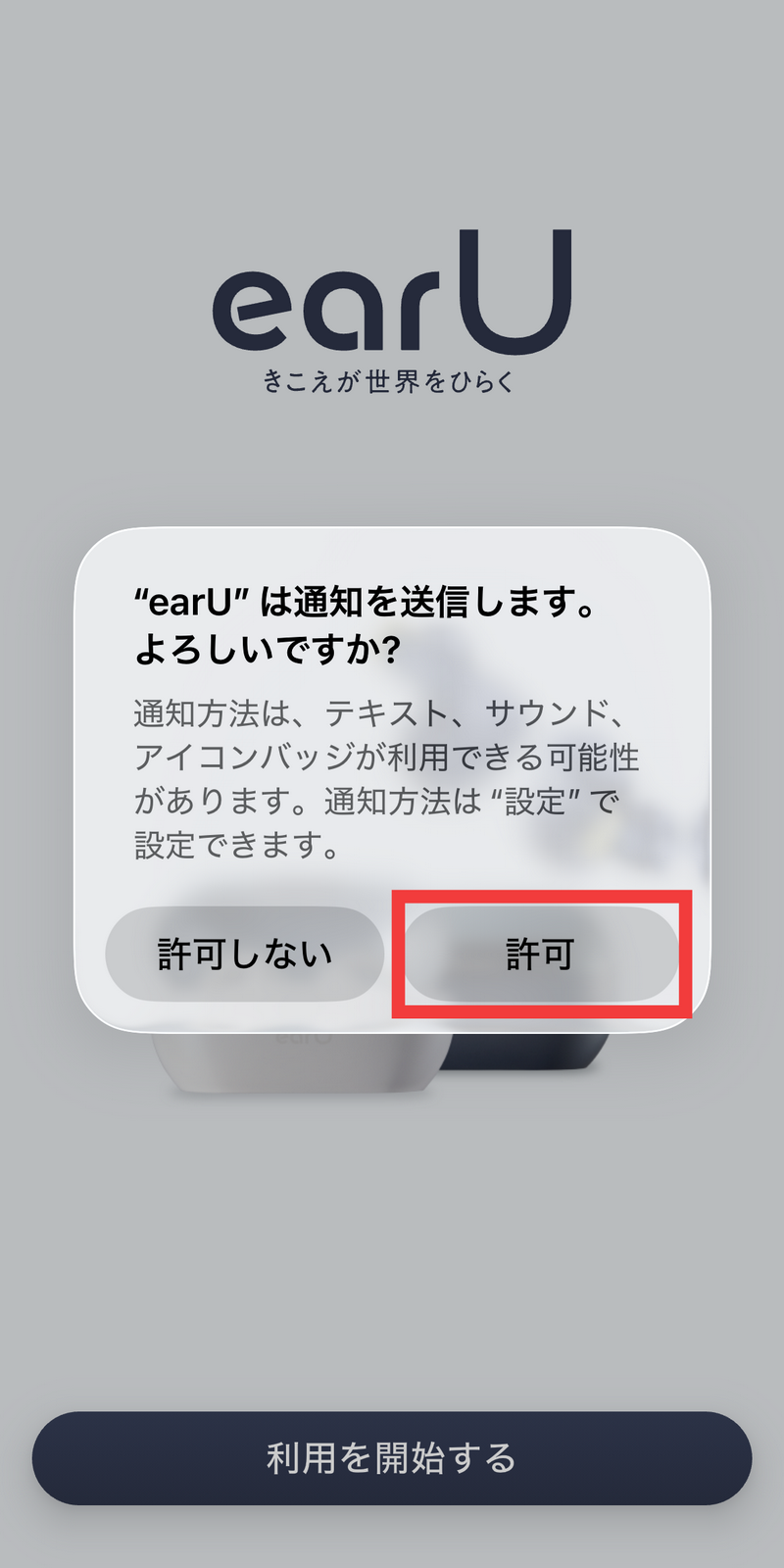
Tap 'Start using'.

The software license agreement will be displayed, so scroll all the way down and tap 'Agree'.

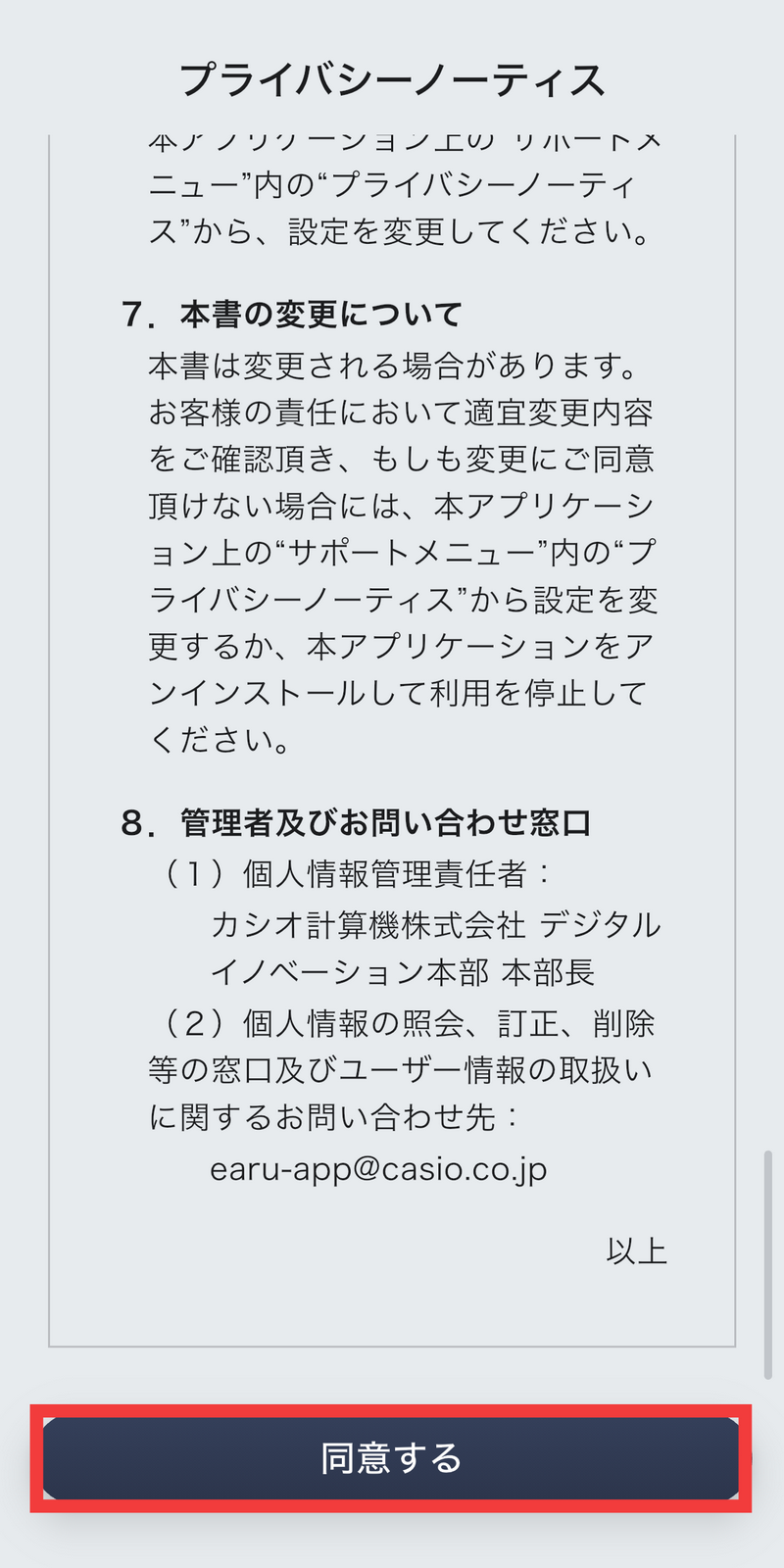
A privacy notice will be displayed, so read it all the way to the bottom and tap 'Agree'.
Tap 'Proceed to connection'.

Once 'Connection complete' is displayed, tap 'Next'.

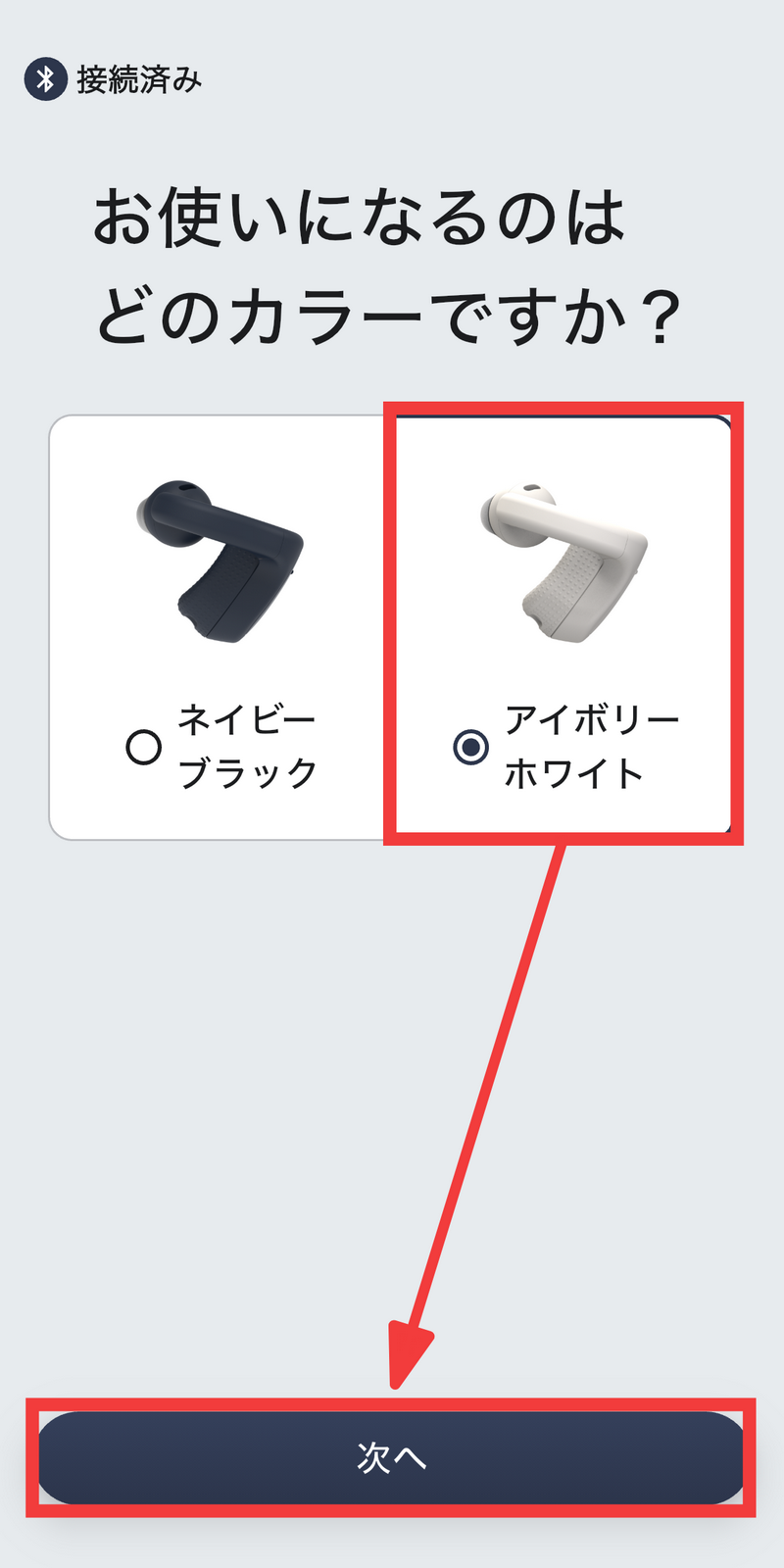
This time, we're using the ivory white version. After selecting the body color, tap 'Next'.
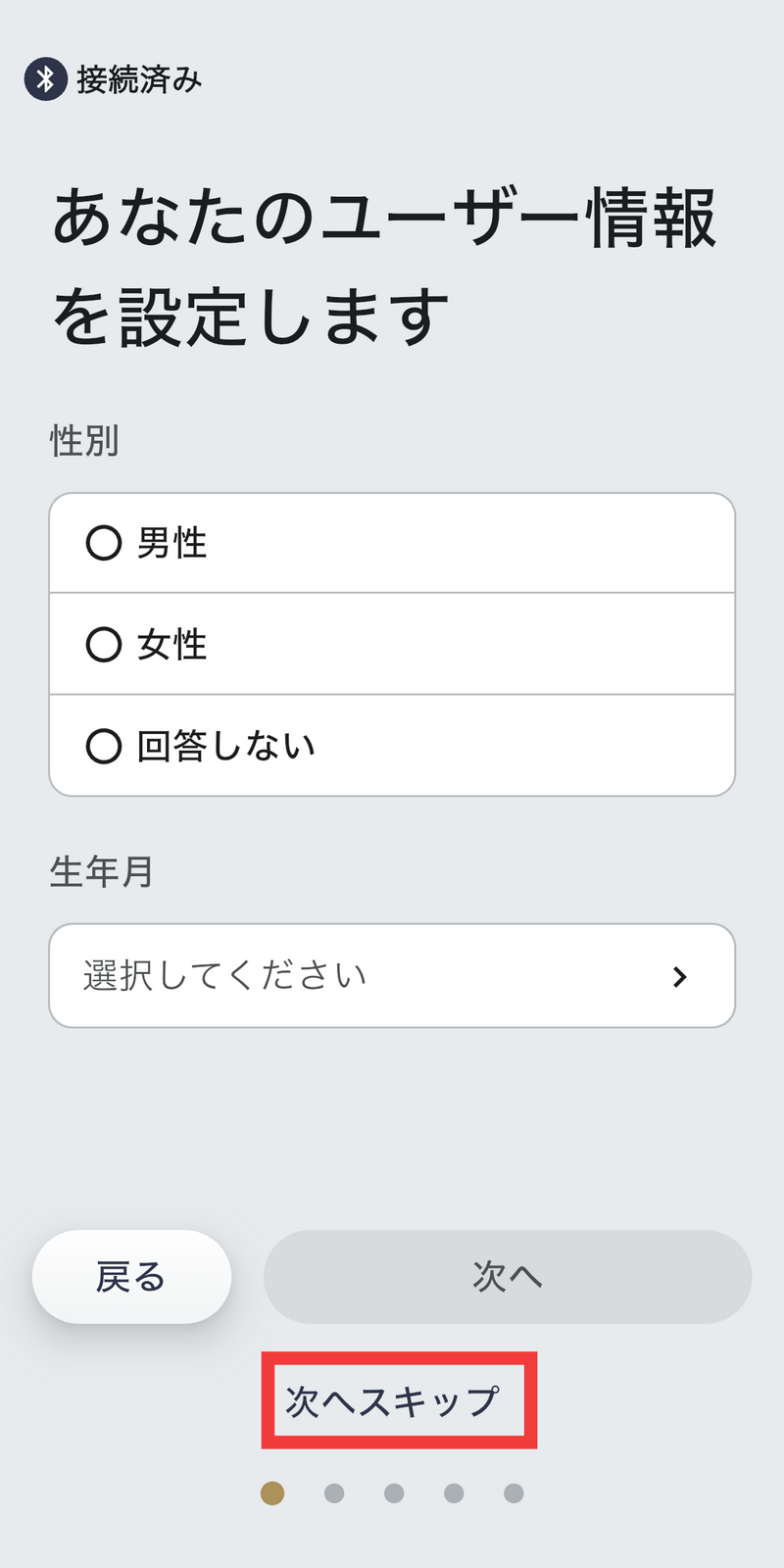
We will now proceed to user information settings. You can register your gender and date of birth, but this can be set later, so tap 'Skip to next'.
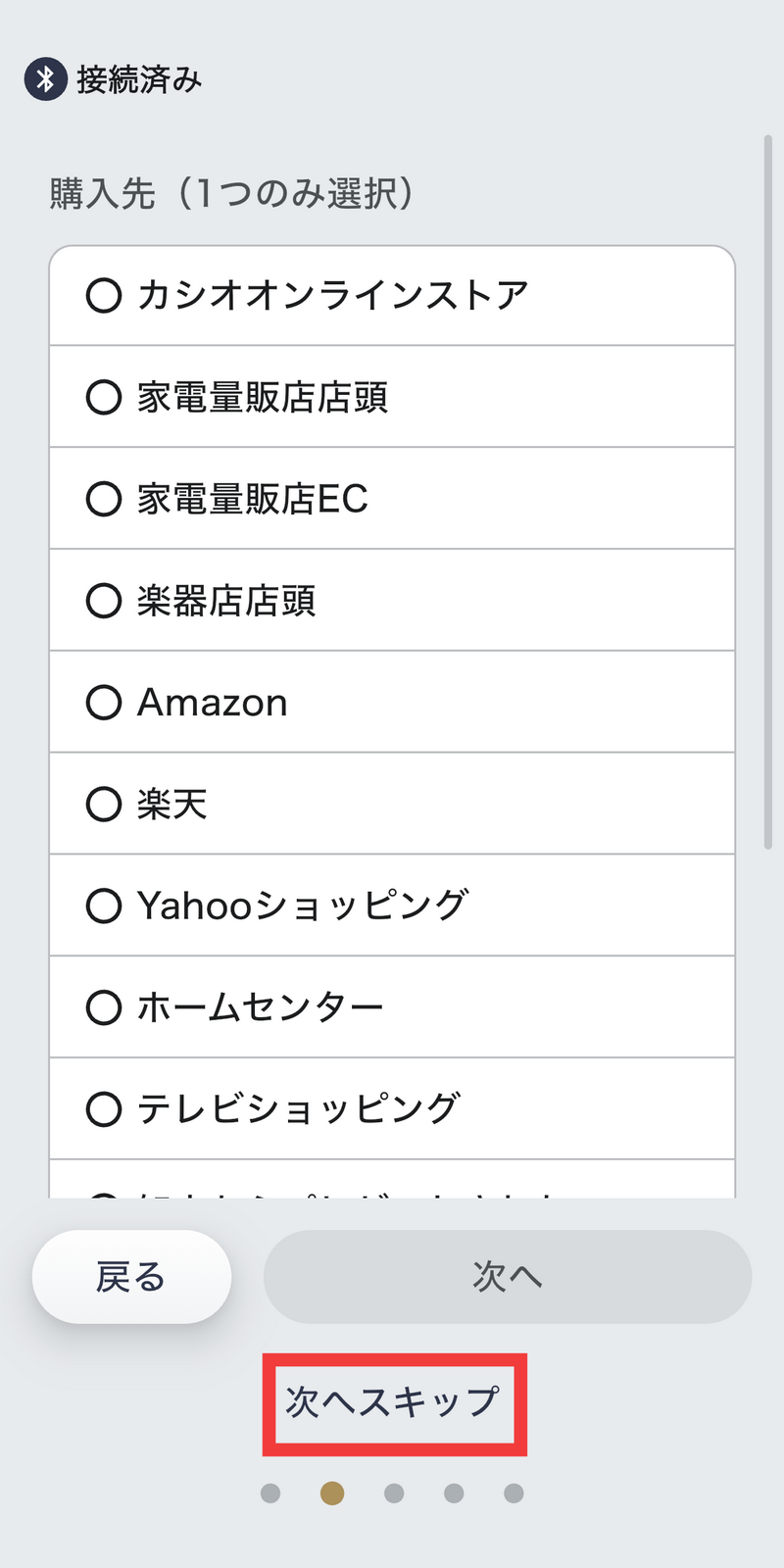
Setting the purchase location. This time, tap 'Skip to next'.
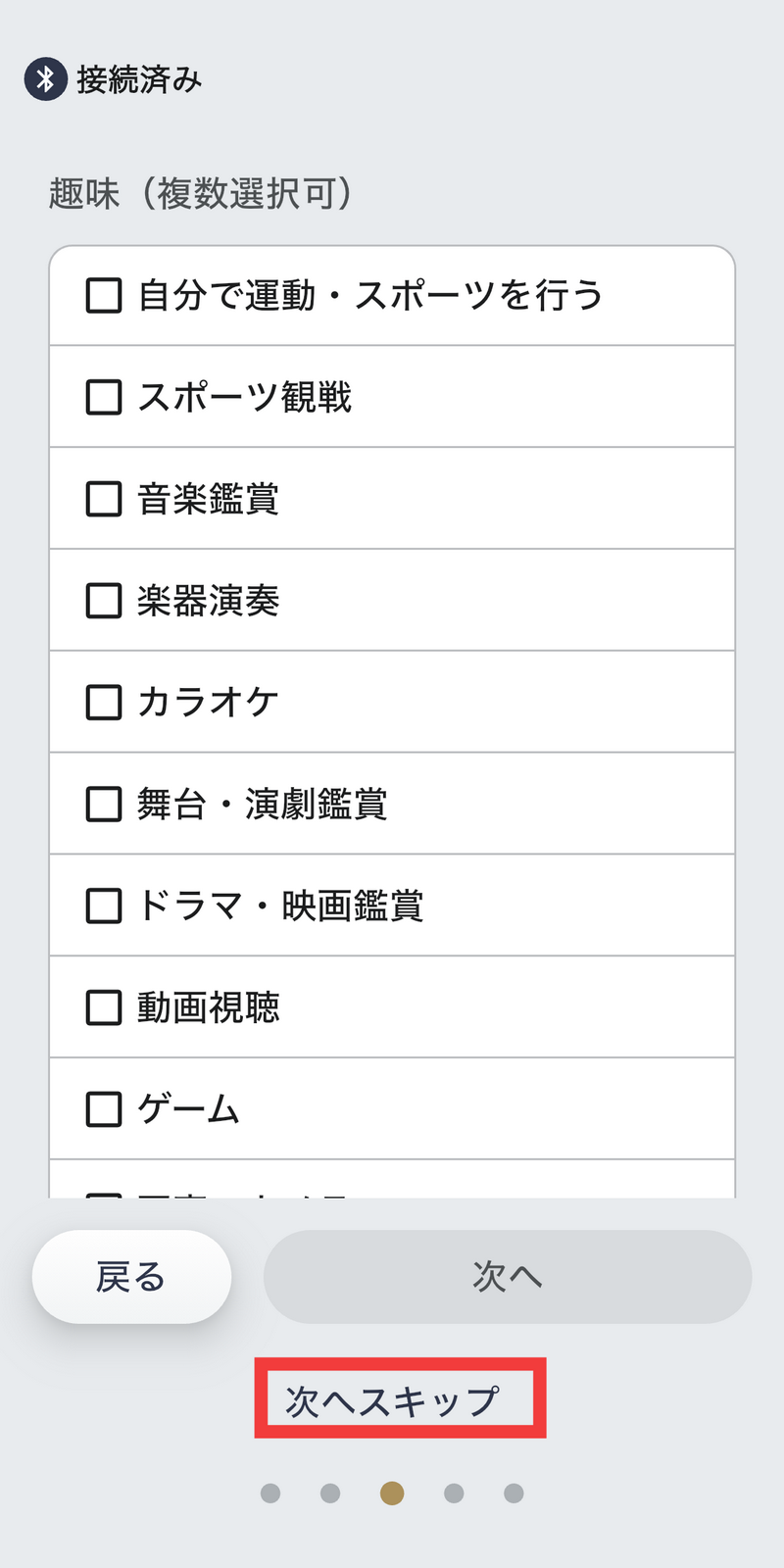
To set your hobbies, tap 'Skip to next'.
You can set your occupation, but for now, tap 'Skip to next'.
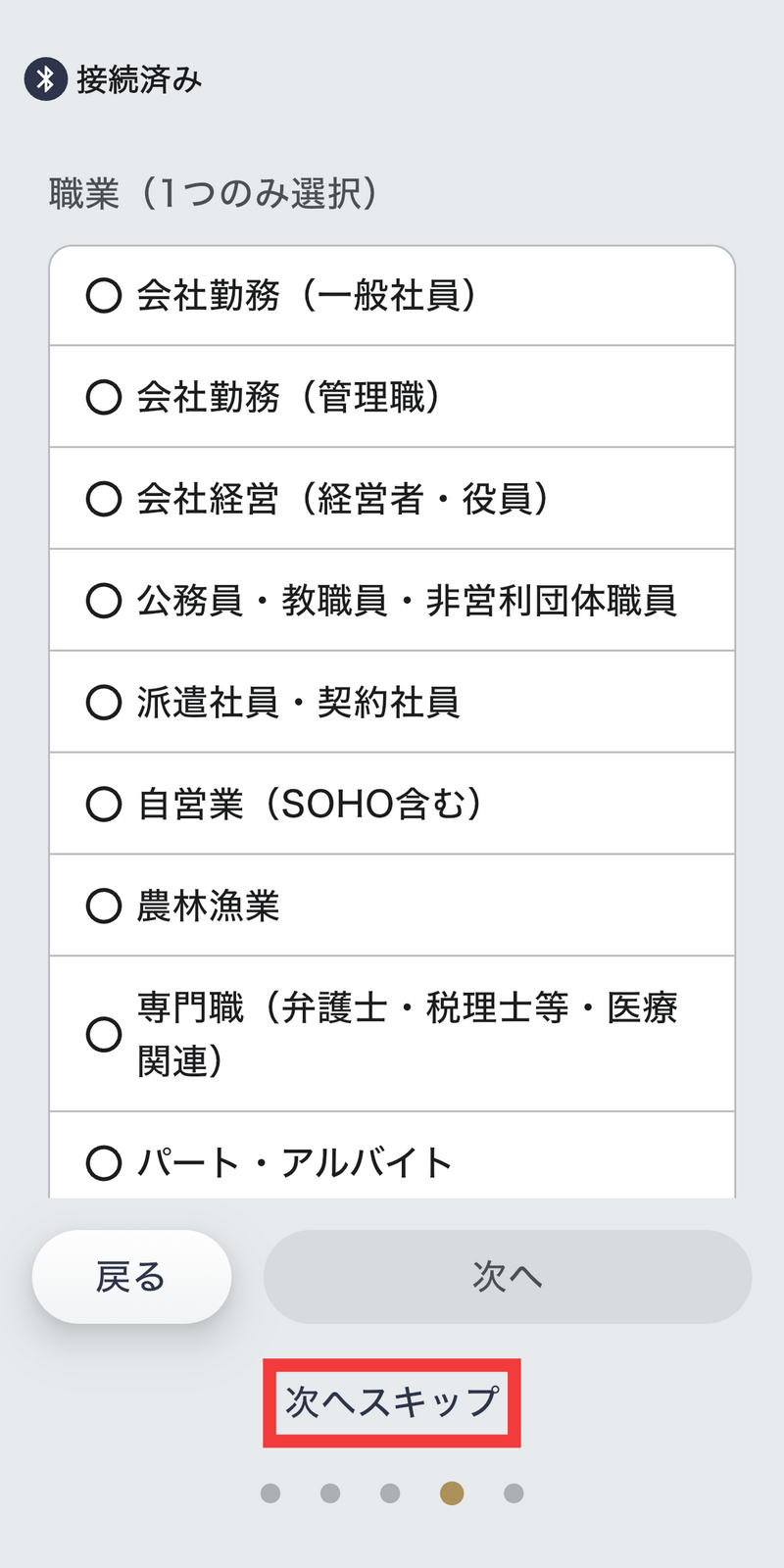
Setting your job type. This time, tap 'Skip to next'.
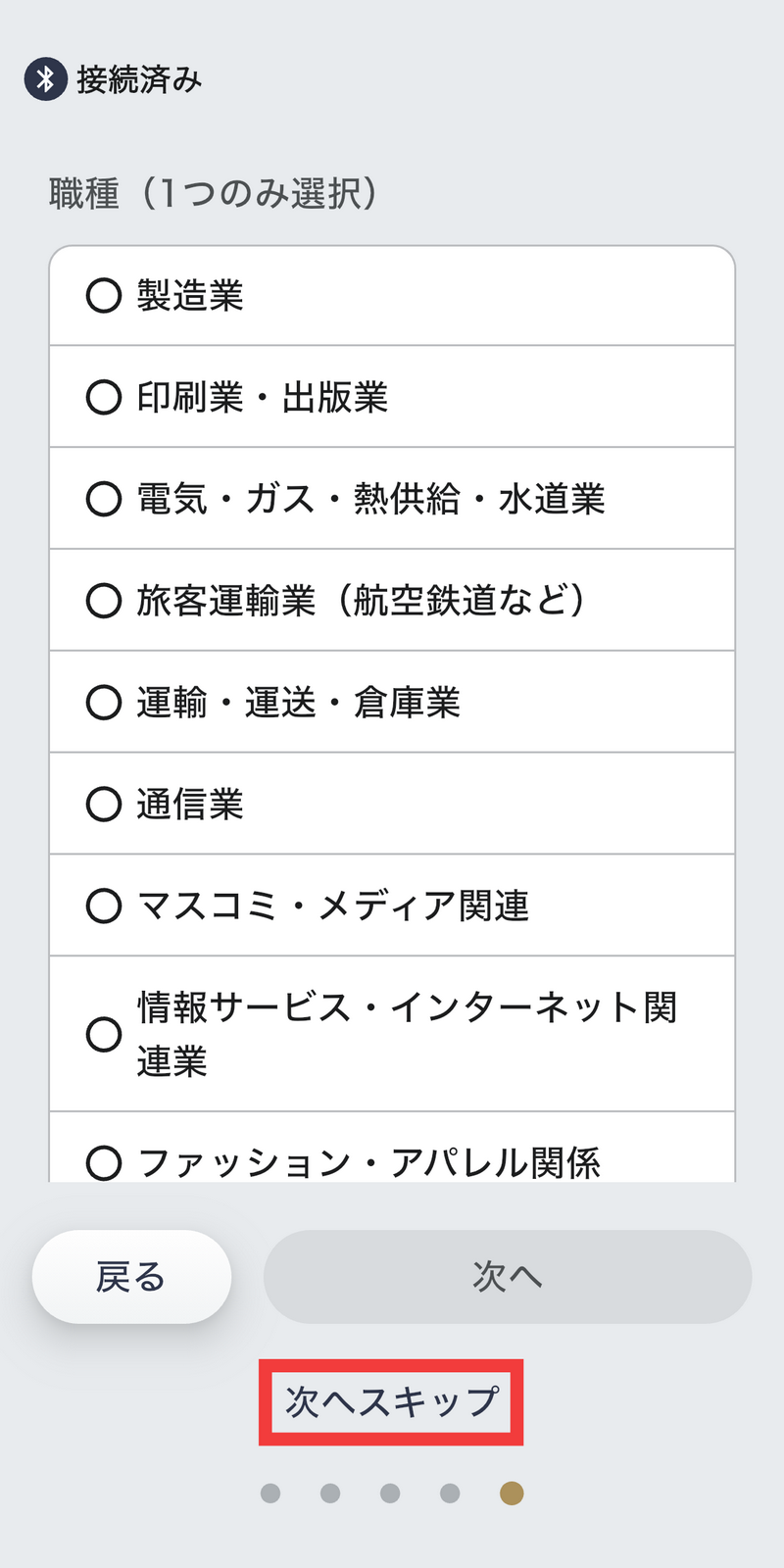
Once you have finished setting your user information, tap 'Next'.

To optimize your hearing before actually using it, tap 'Take a hearing test.'

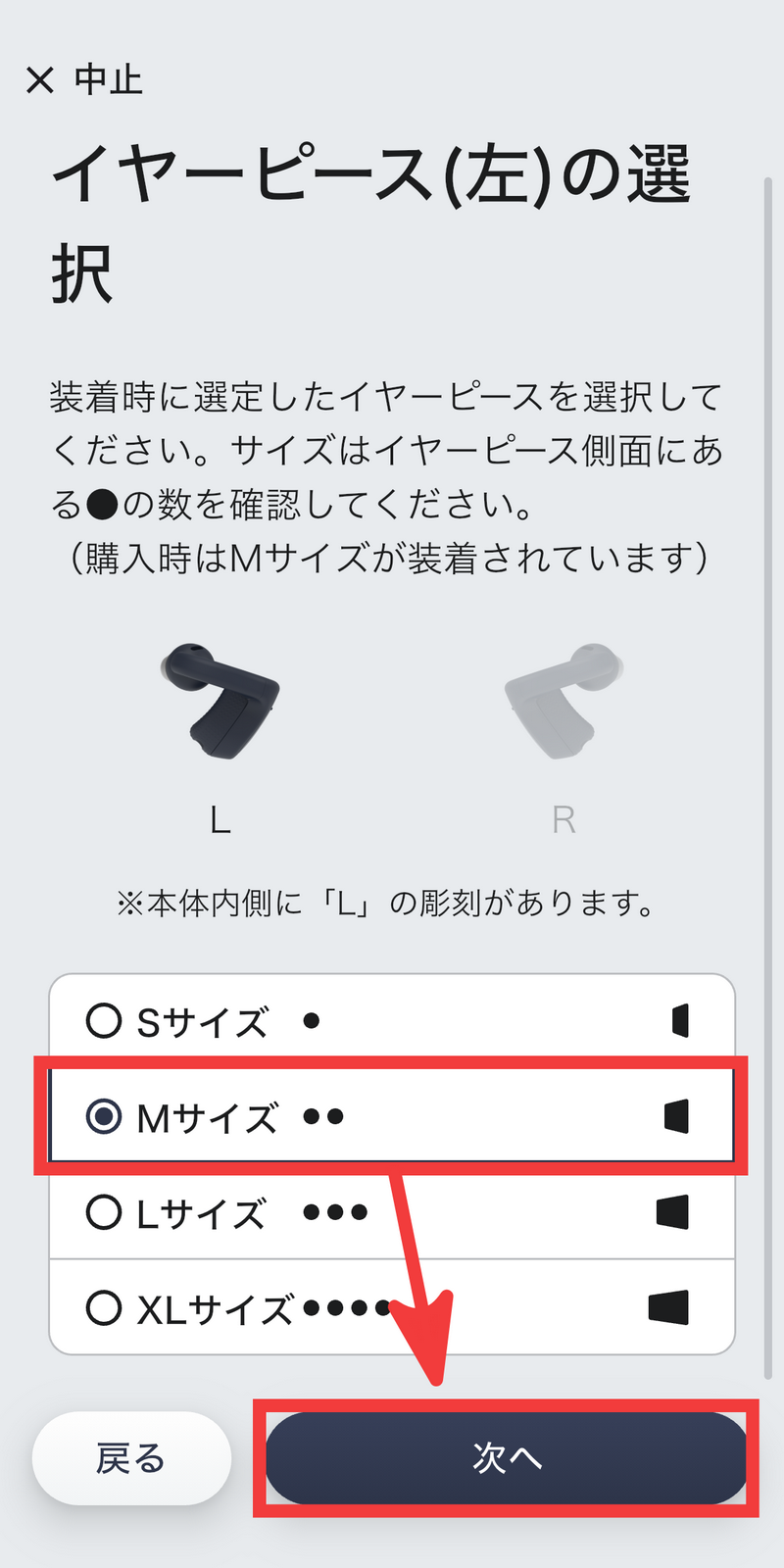
Select the size of the eartip (left) and tap 'Next'. Note that in this example, both ears are fitted with size M.
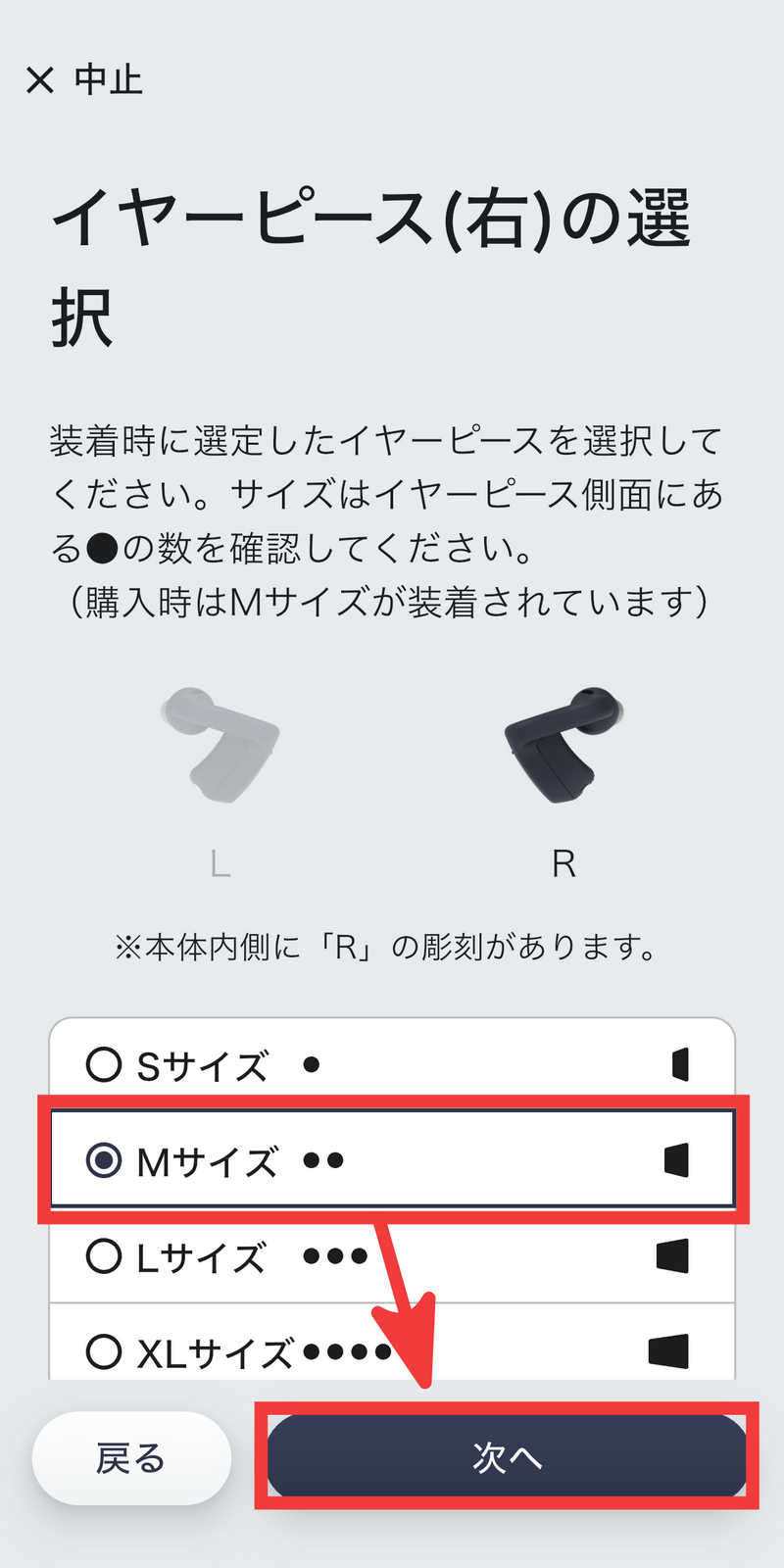
Select the size of the right earpiece and tap 'Next'.
The test must be conducted in a quiet environment with a noise level of 50 dB or less. The app screen will display the measured ambient noise level, and if it falls below 50 dB, it will display 'Suitable environment for testing.' To proceed with the test, tap 'Skip explanation and start test.'
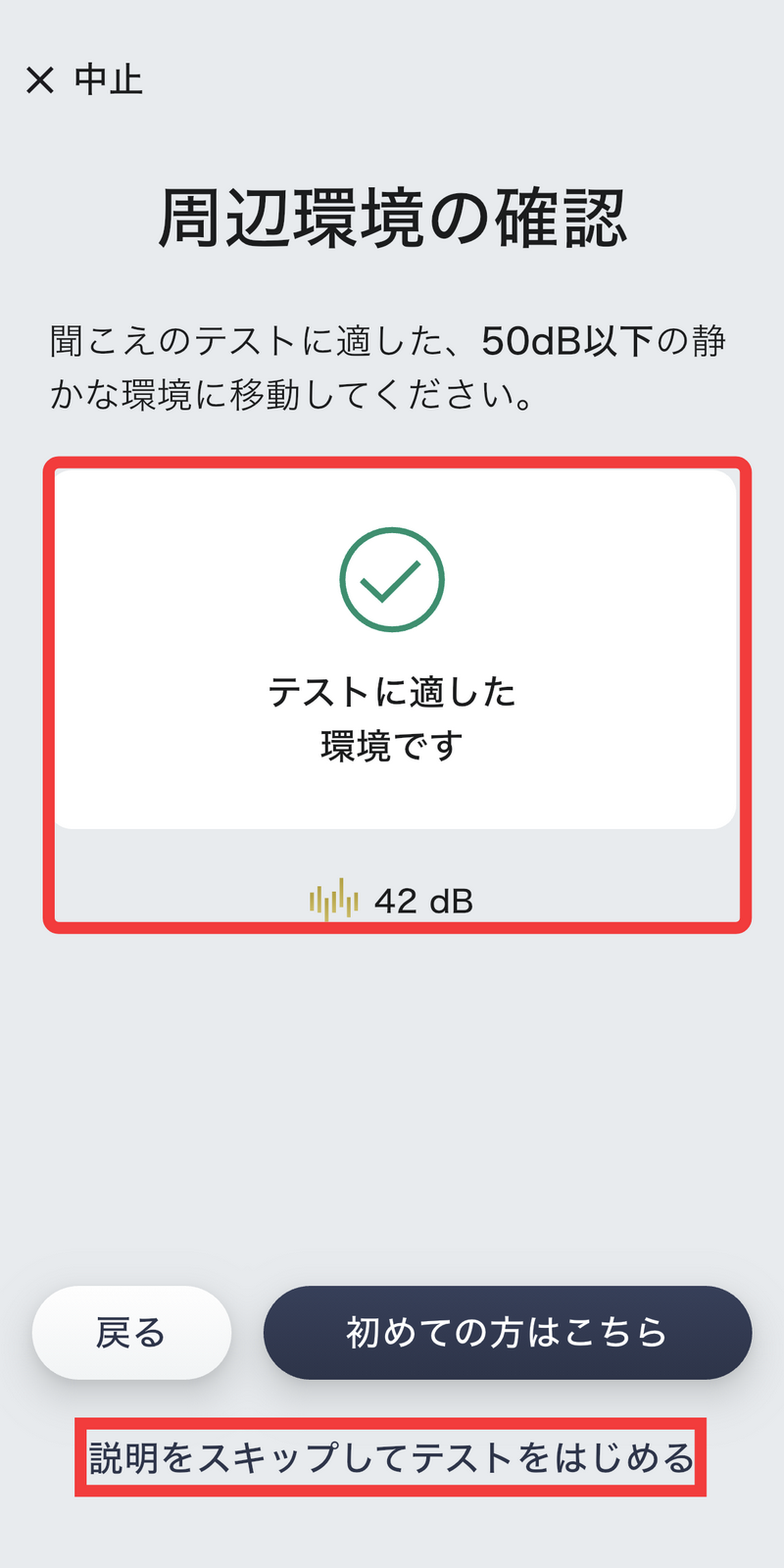
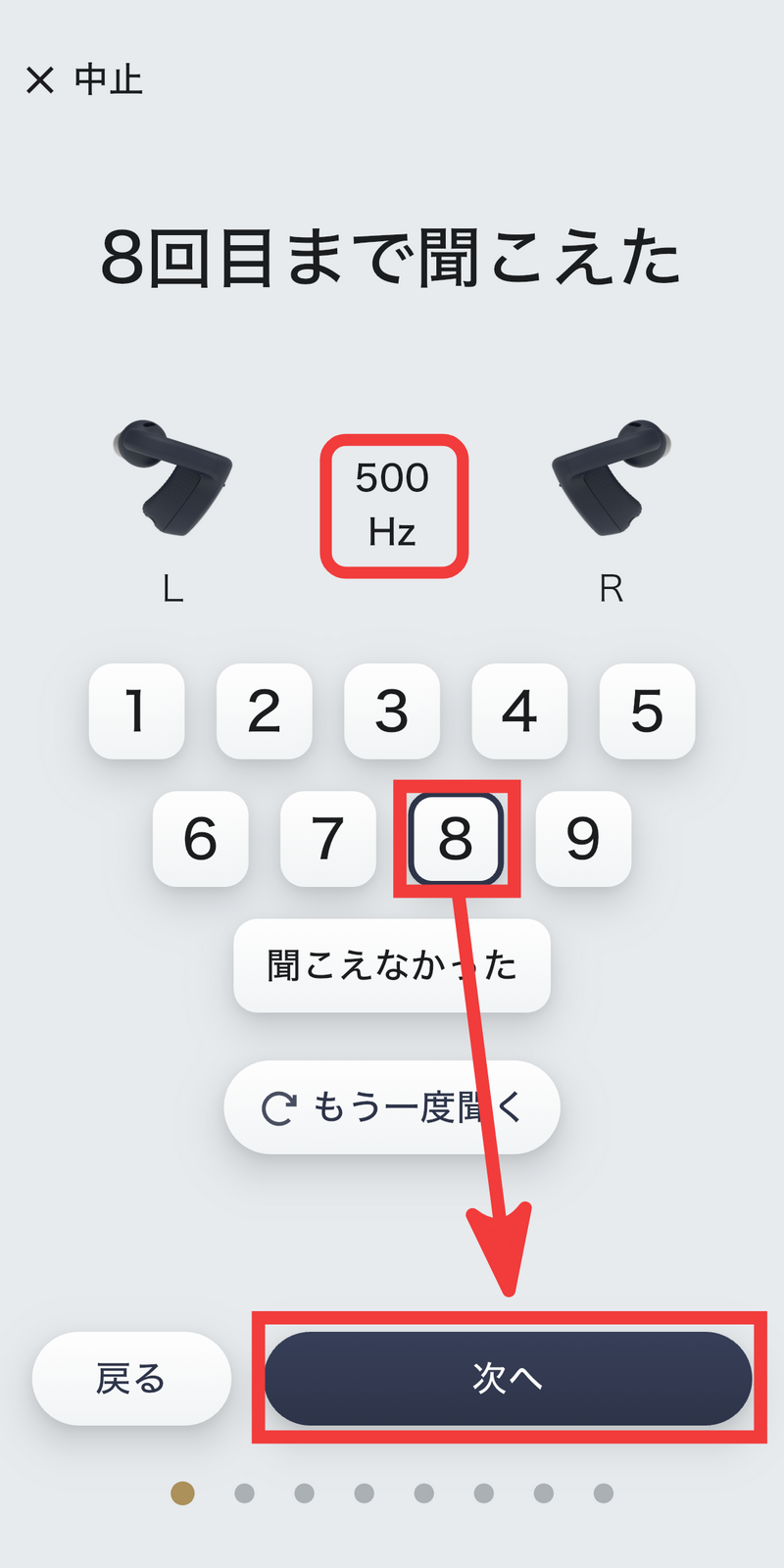
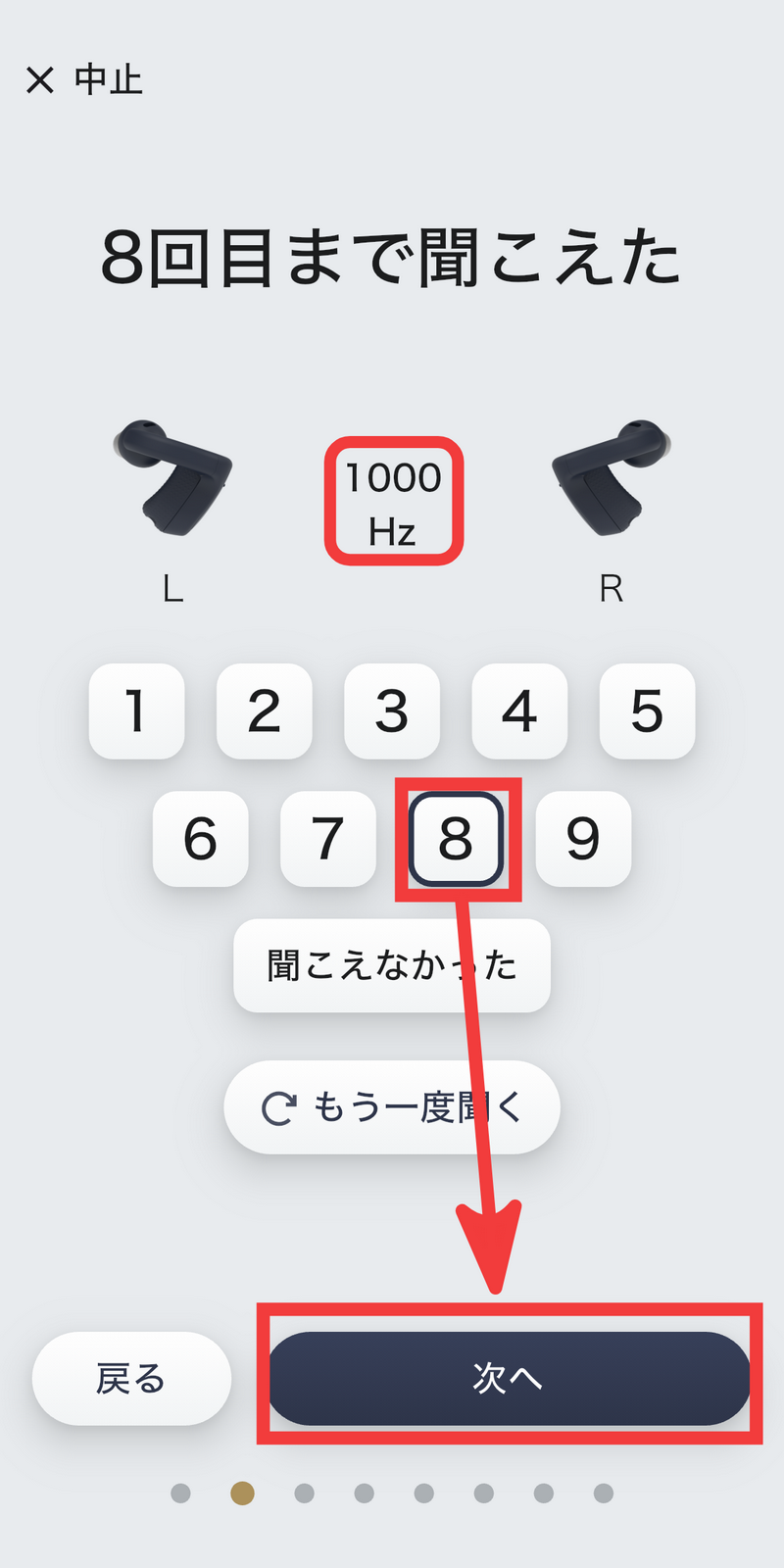
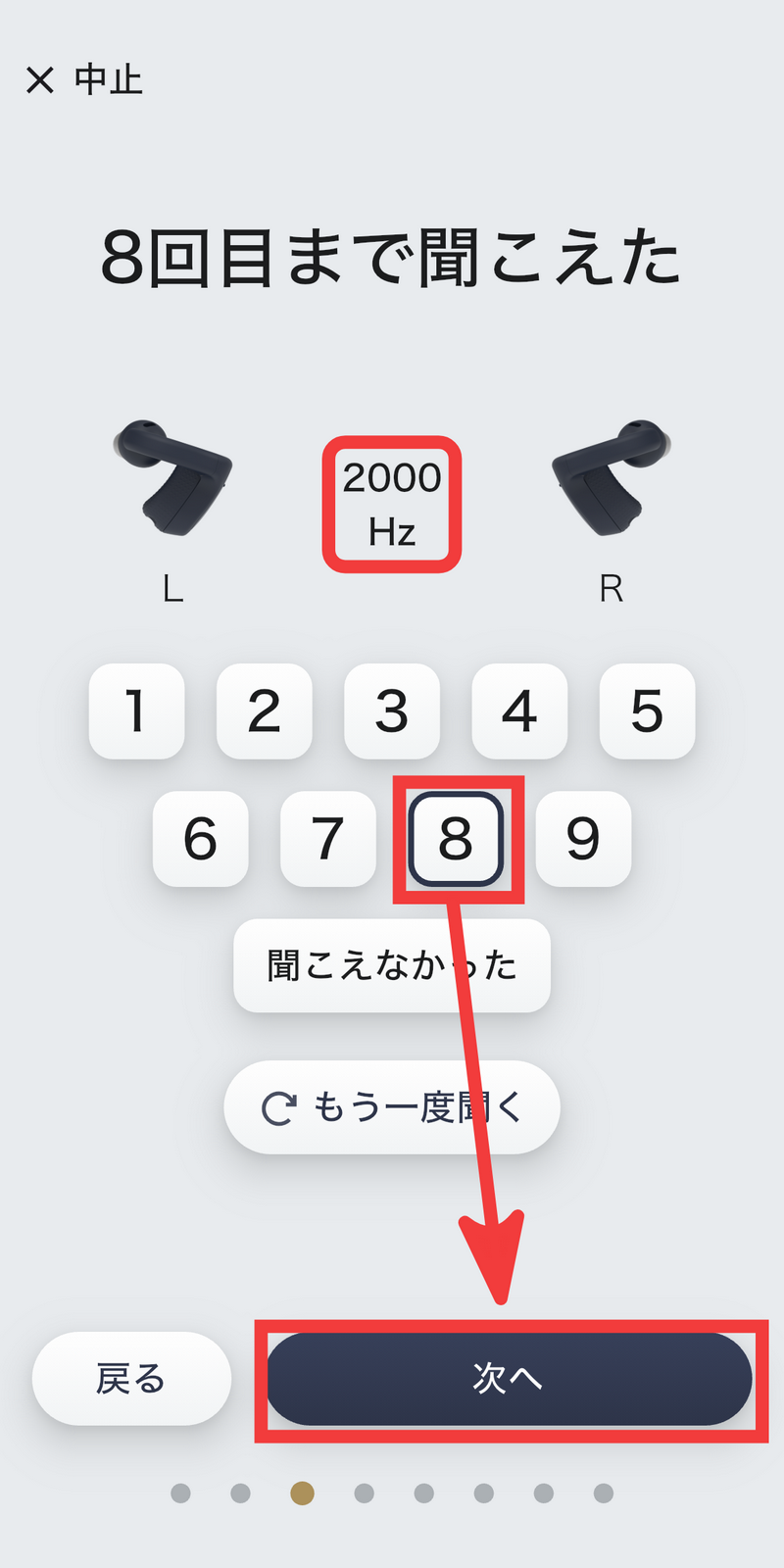
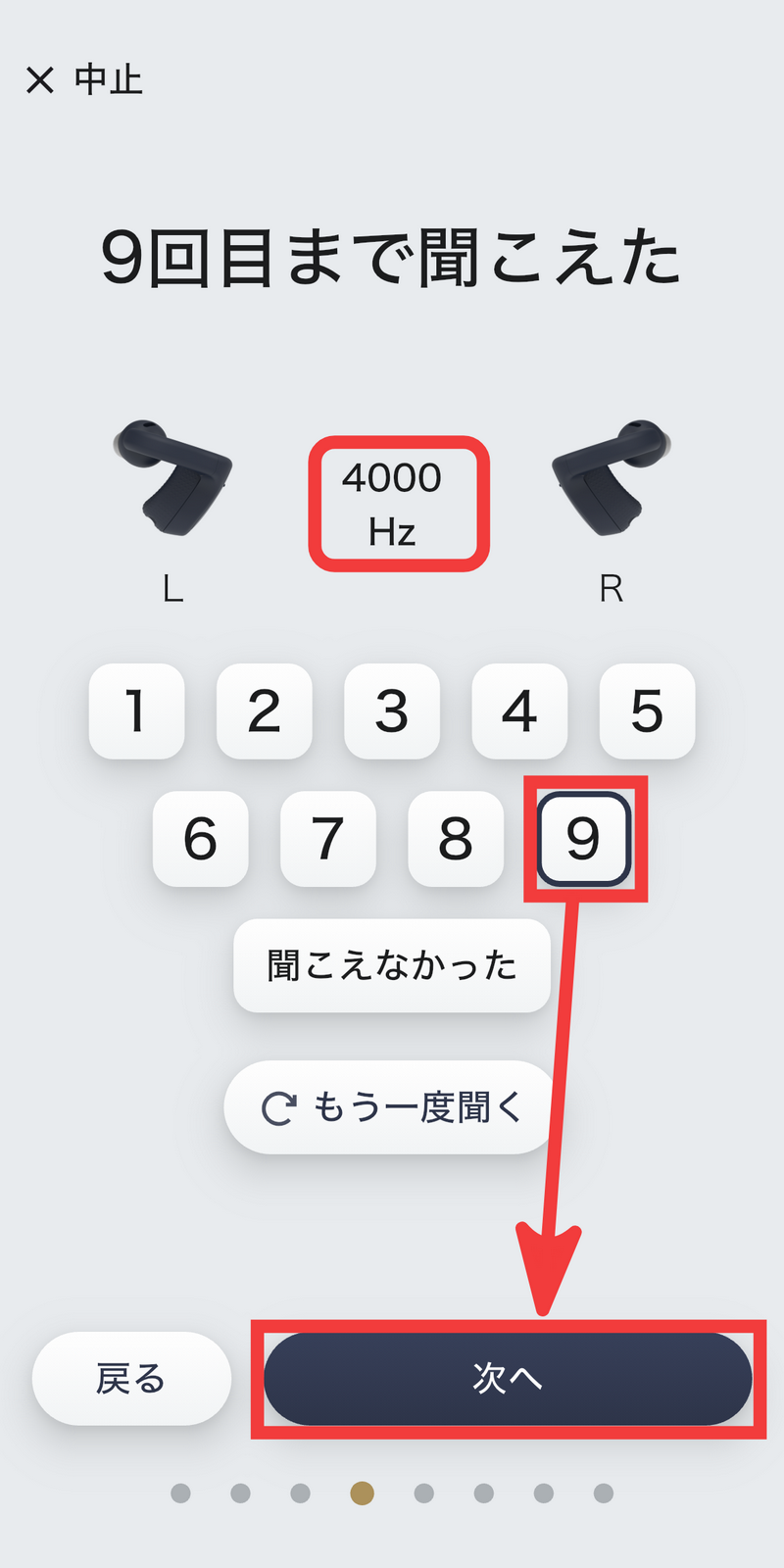
In the test, electronic sounds will be played nine times each through the earphones. The volume of the sound will gradually decrease with each repetition, so select how many times you were able to hear it and tap 'Next'. The first test is for the left ear, starting at 500Hz.
1000Hz
2000Hz
4000Hz. After you've finished with the left ear, perform the same test with the right ear.
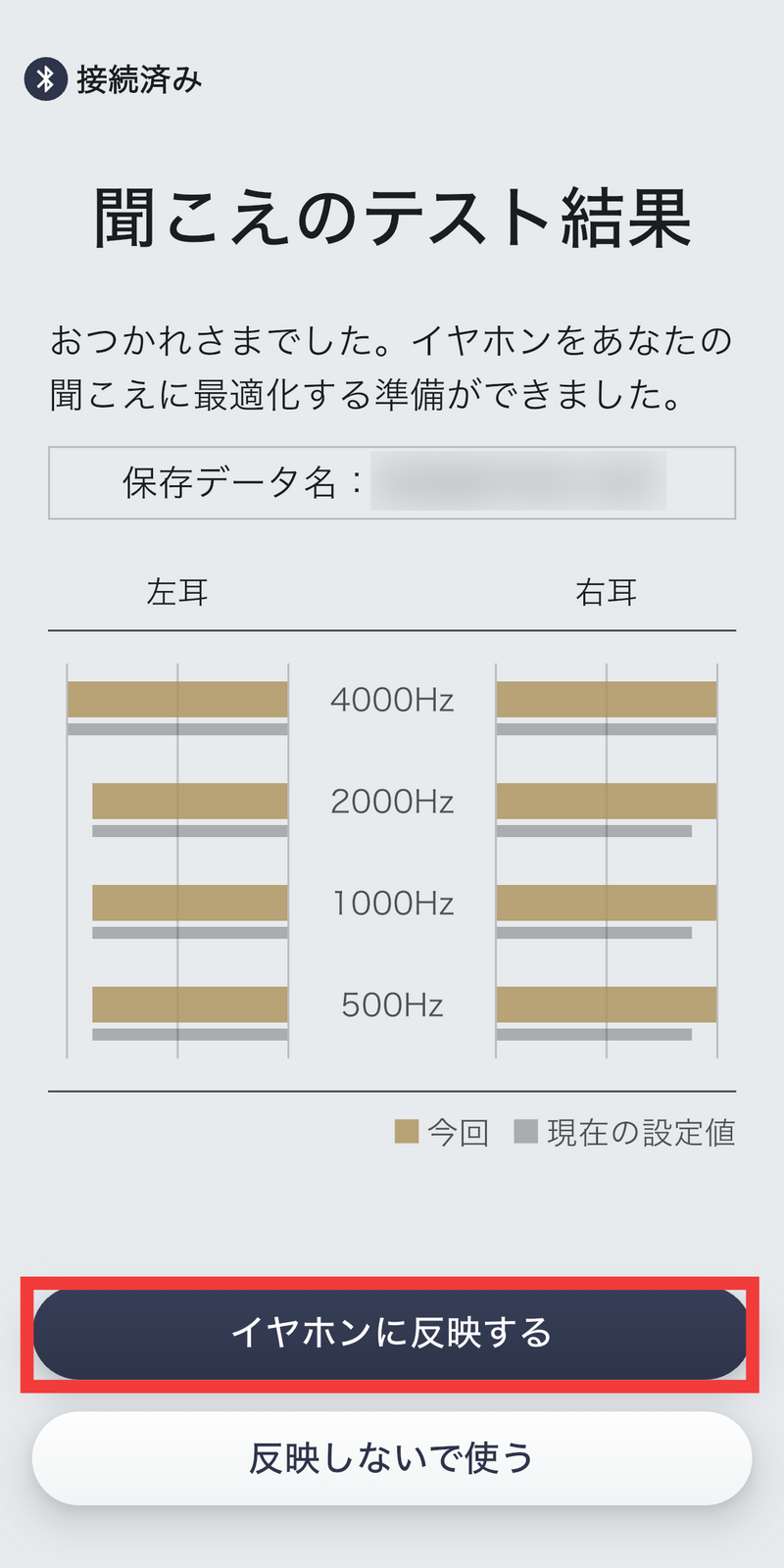
After performing the four frequency listening tests on both the left and right ears, the test results will be displayed as follows. Tap 'Apply to earphones'.
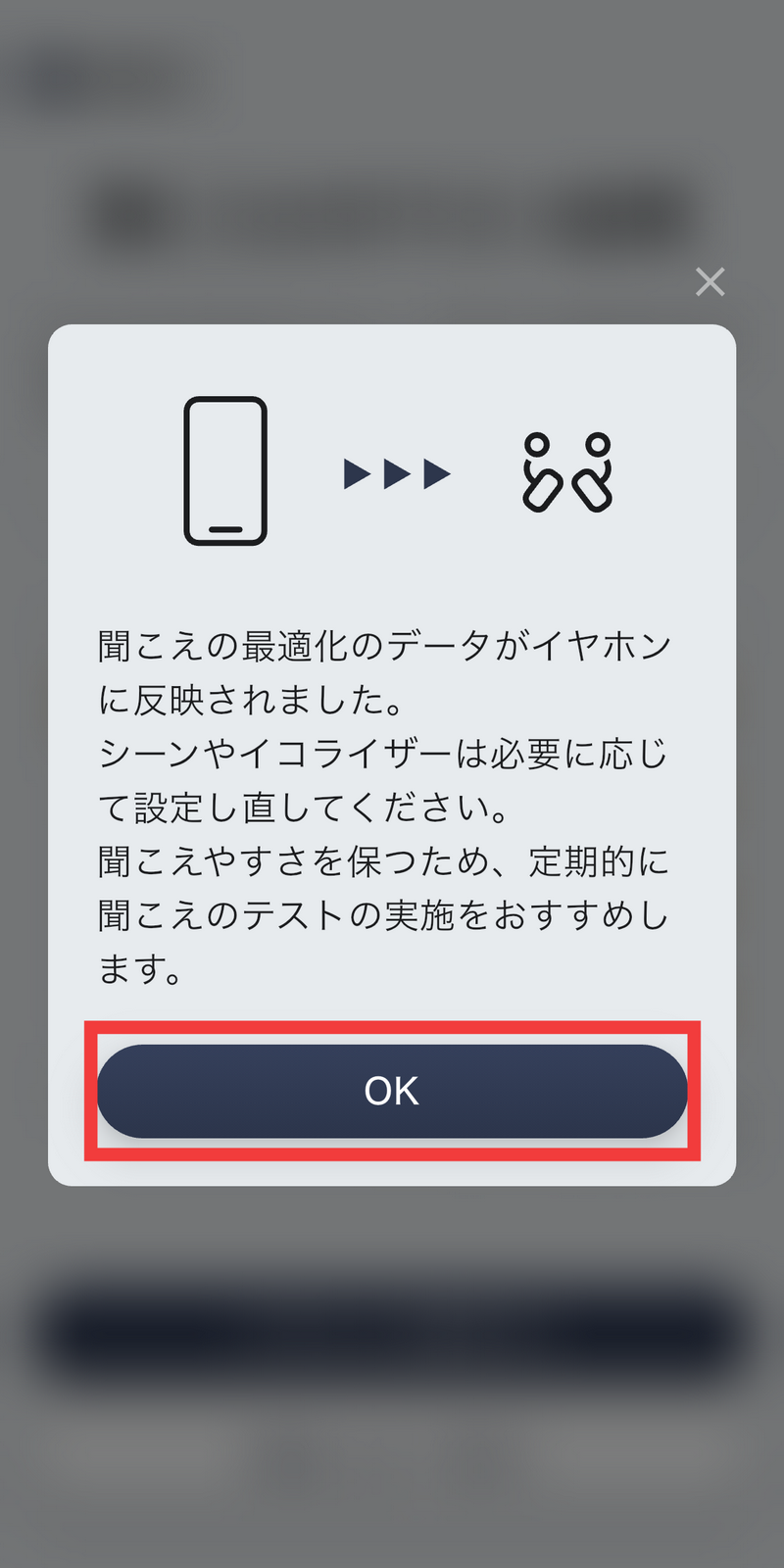
Tap 'OK'.
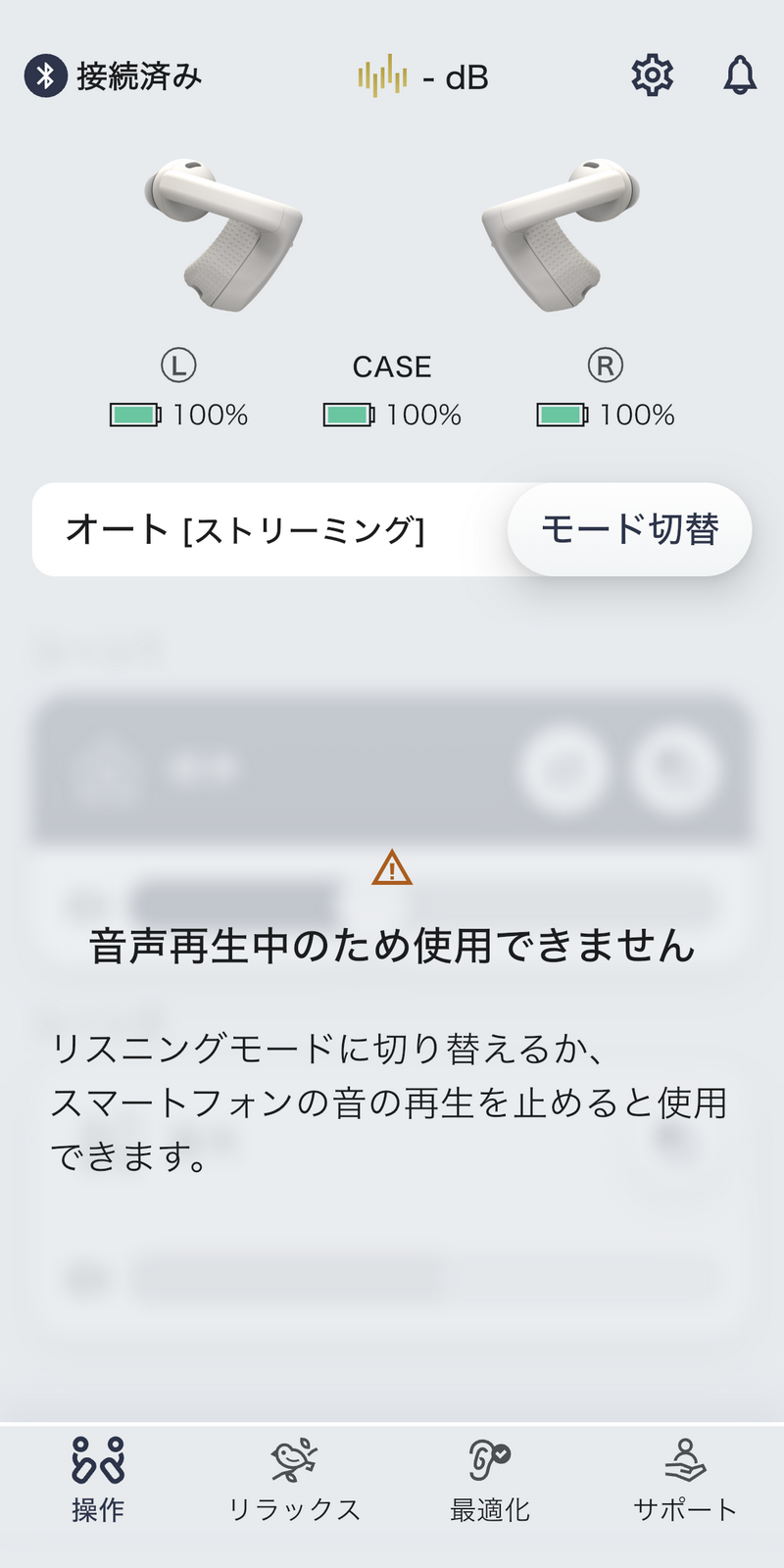
Now you're ready. The app screen looks like this, with the ambient noise level displayed at the top, and you can also check the battery levels of the earU ER-100 earbuds and charging case. You can switch the operating mode by tapping 'Mode Switching'.
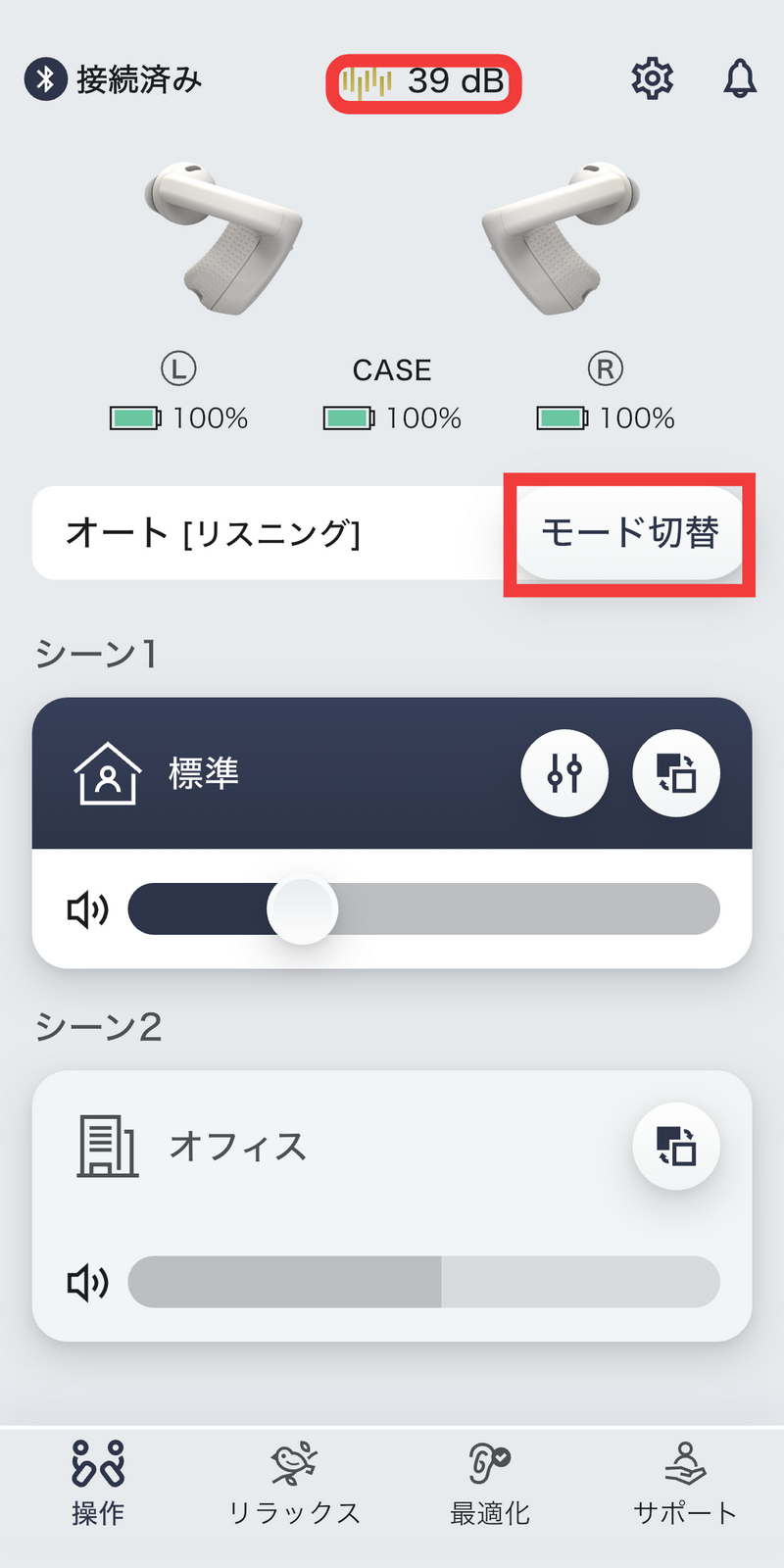
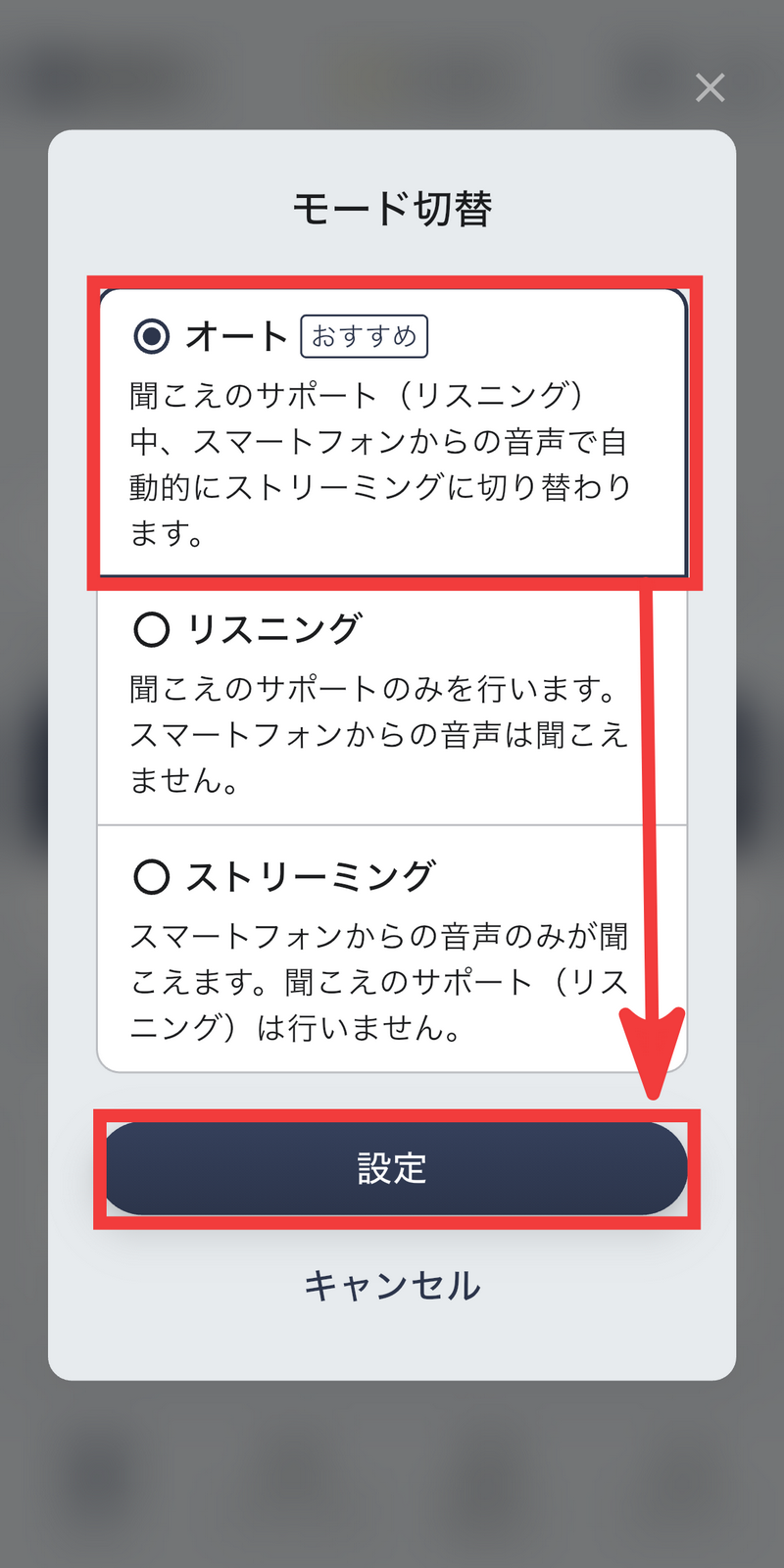
There are three operating modes: 'Auto,' 'Listening,' and 'Streaming.' 'Listening' is a mode that makes it easier to hear ambient sounds, but you won't hear audio from the connected smartphone. 'Streaming' is a mode where you can only hear audio from the smartphone. If you set it to the recommended 'Auto' mode, it will normally be in listening mode, and will automatically switch to streaming mode when audio is played on the smartphone. This time, we will select 'Auto' and tap 'Settings.'
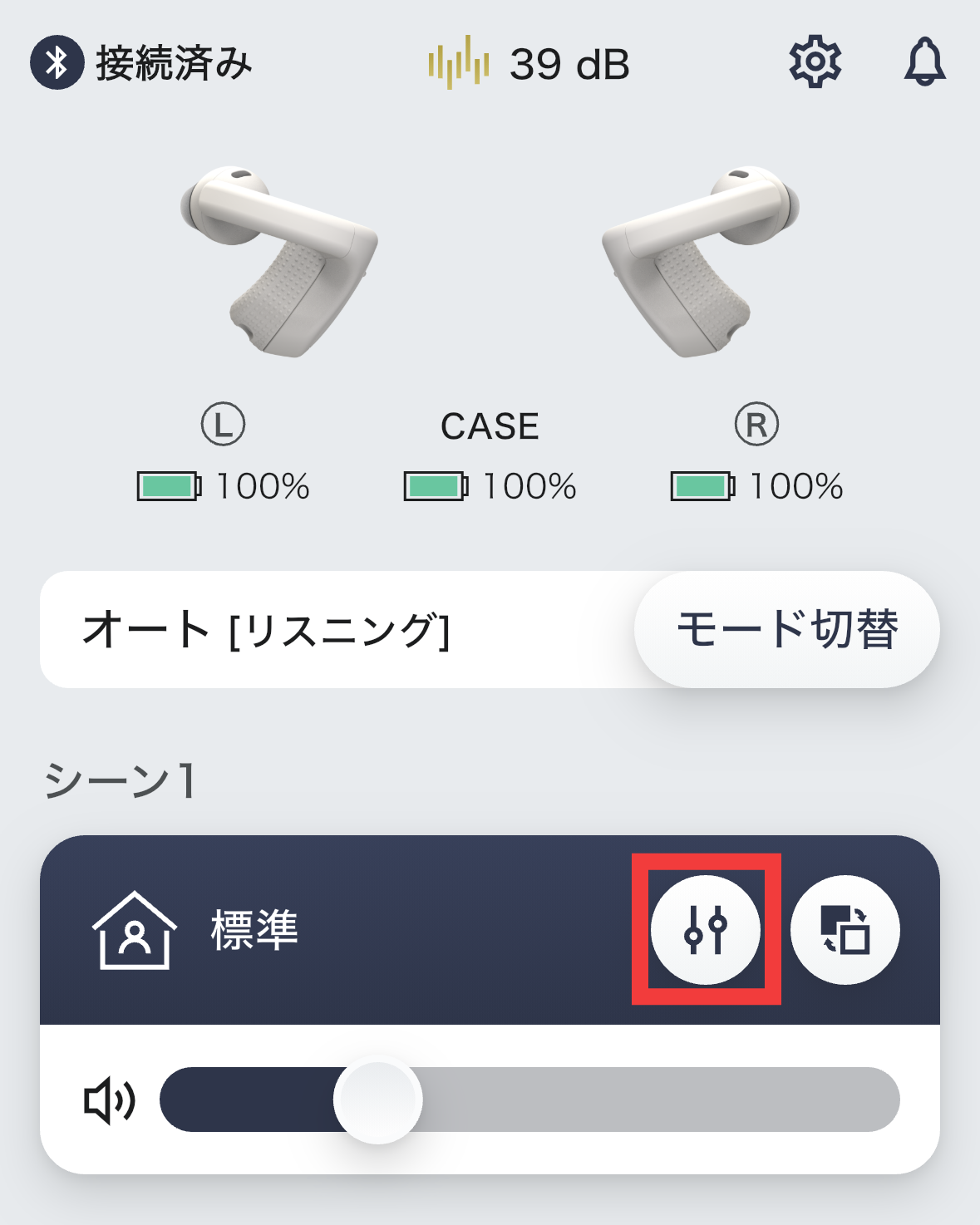
Furthermore, the app allows you to switch between scenes to optimize sound quality based on your surroundings when using the earphones in listening mode. By default, Scene 1 is set to 'Standard.' To edit the settings, tap the slide switch icon.
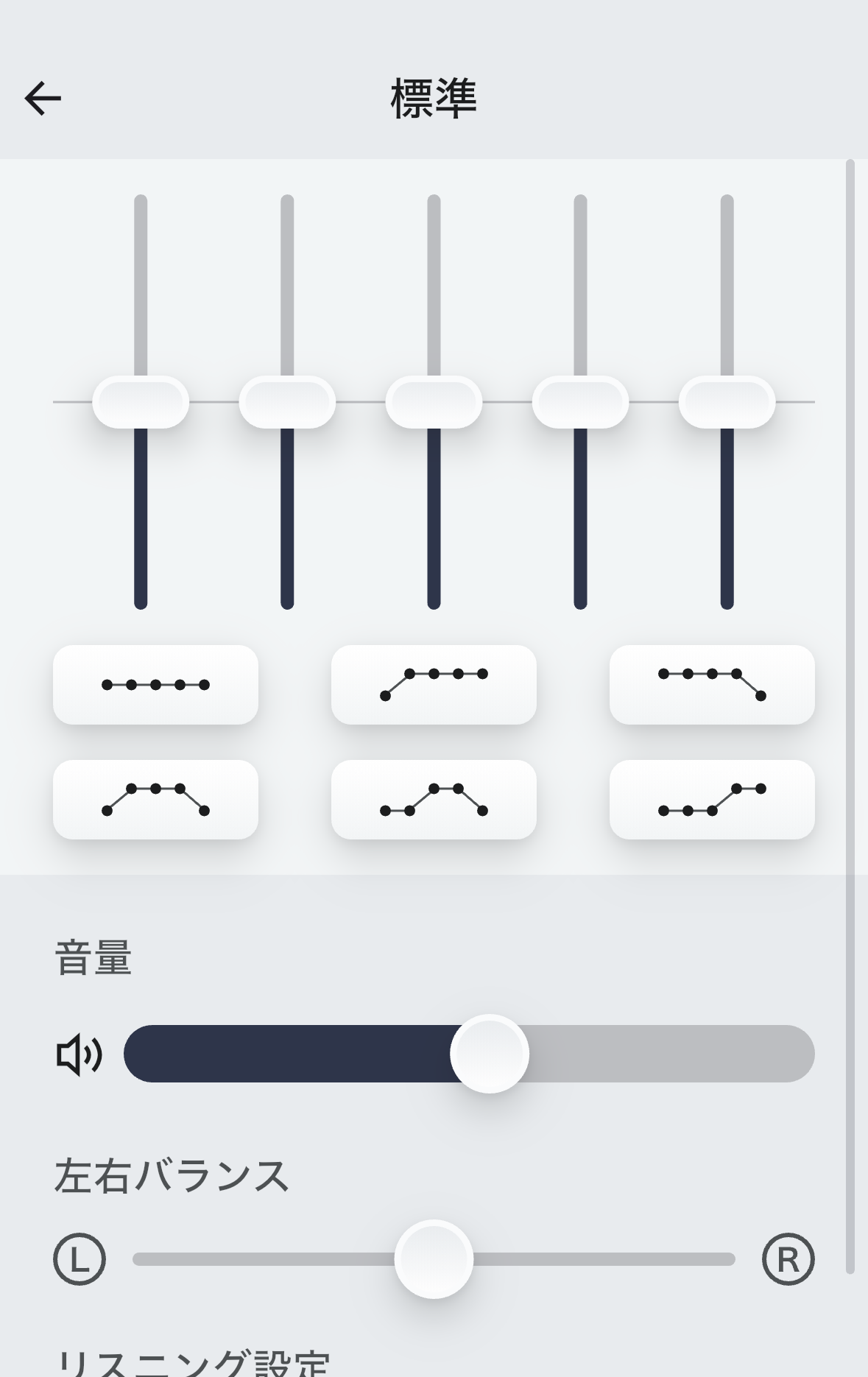
In the scene settings, you can adjust the sound balance for each frequency band. You can also adjust the overall volume and left/right balance.
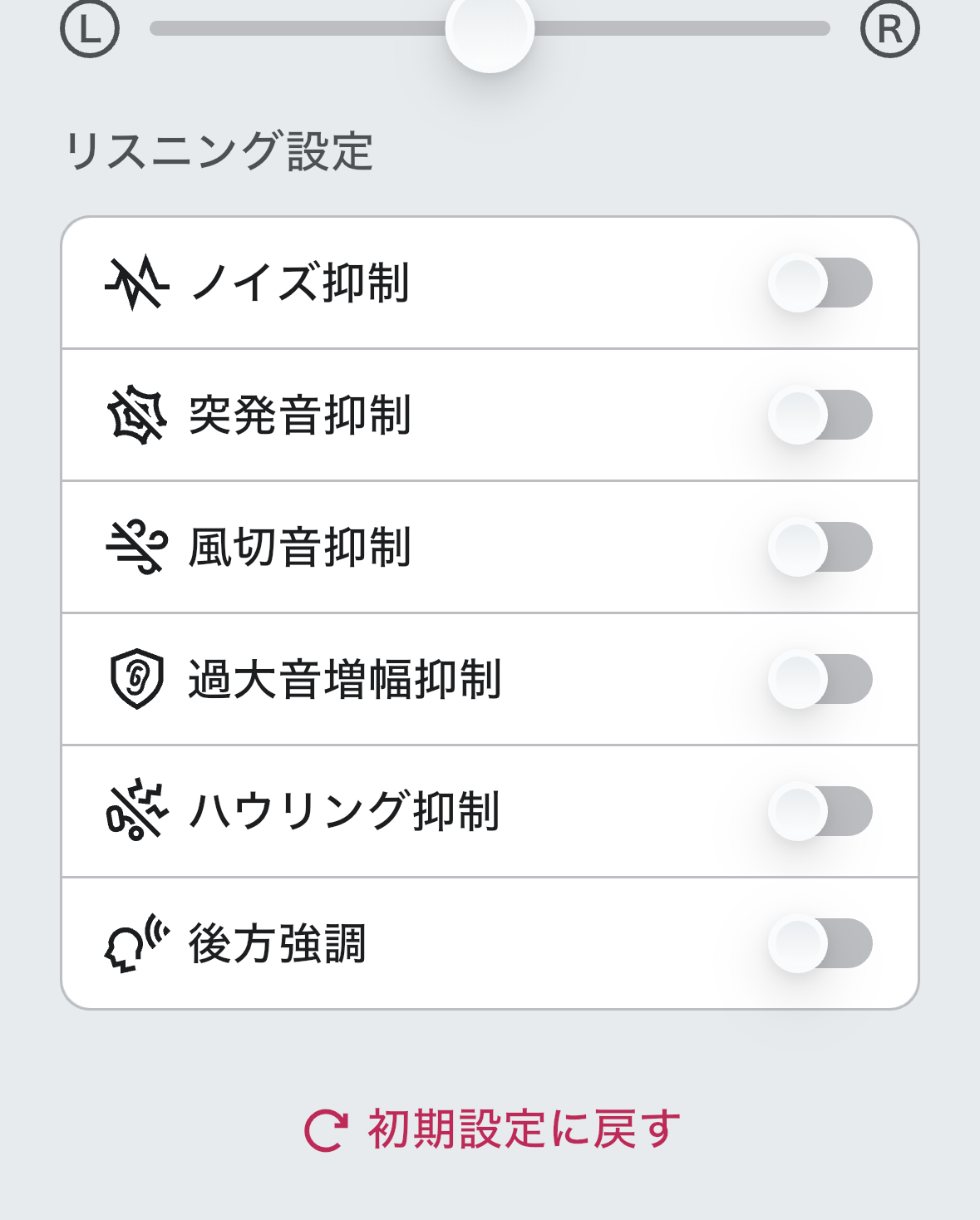
Below that, under 'Listening Settings,' you can switch on/off noise suppression, sudden sound suppression, wind noise suppression, over-amplification suppression, feedback suppression, and rear emphasis.
You can set up to two scenes. Tap the icon on the far right.
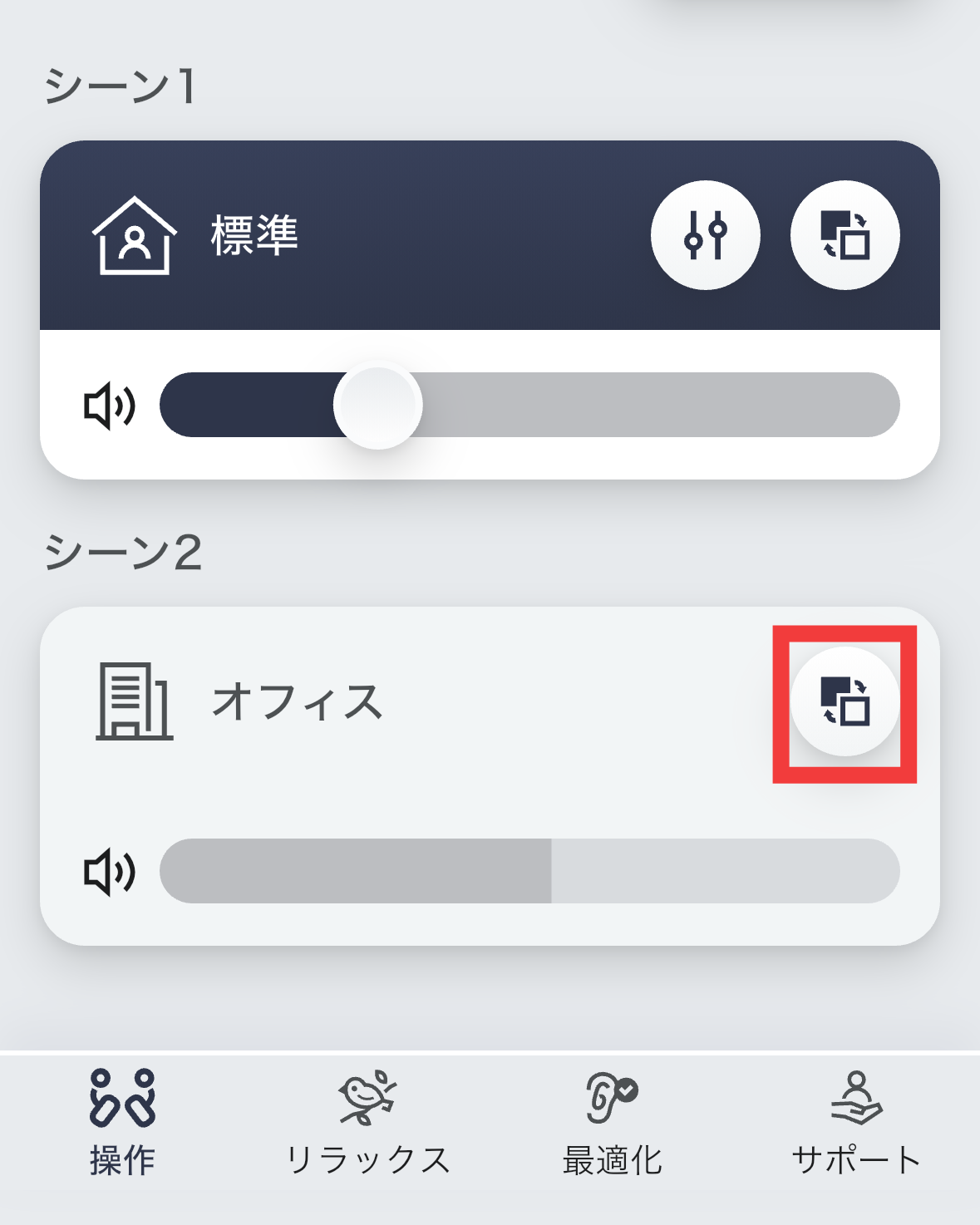
In addition to the standard scene, you can choose from office, restaurant, outdoor, conference room, and user-customized scenes.
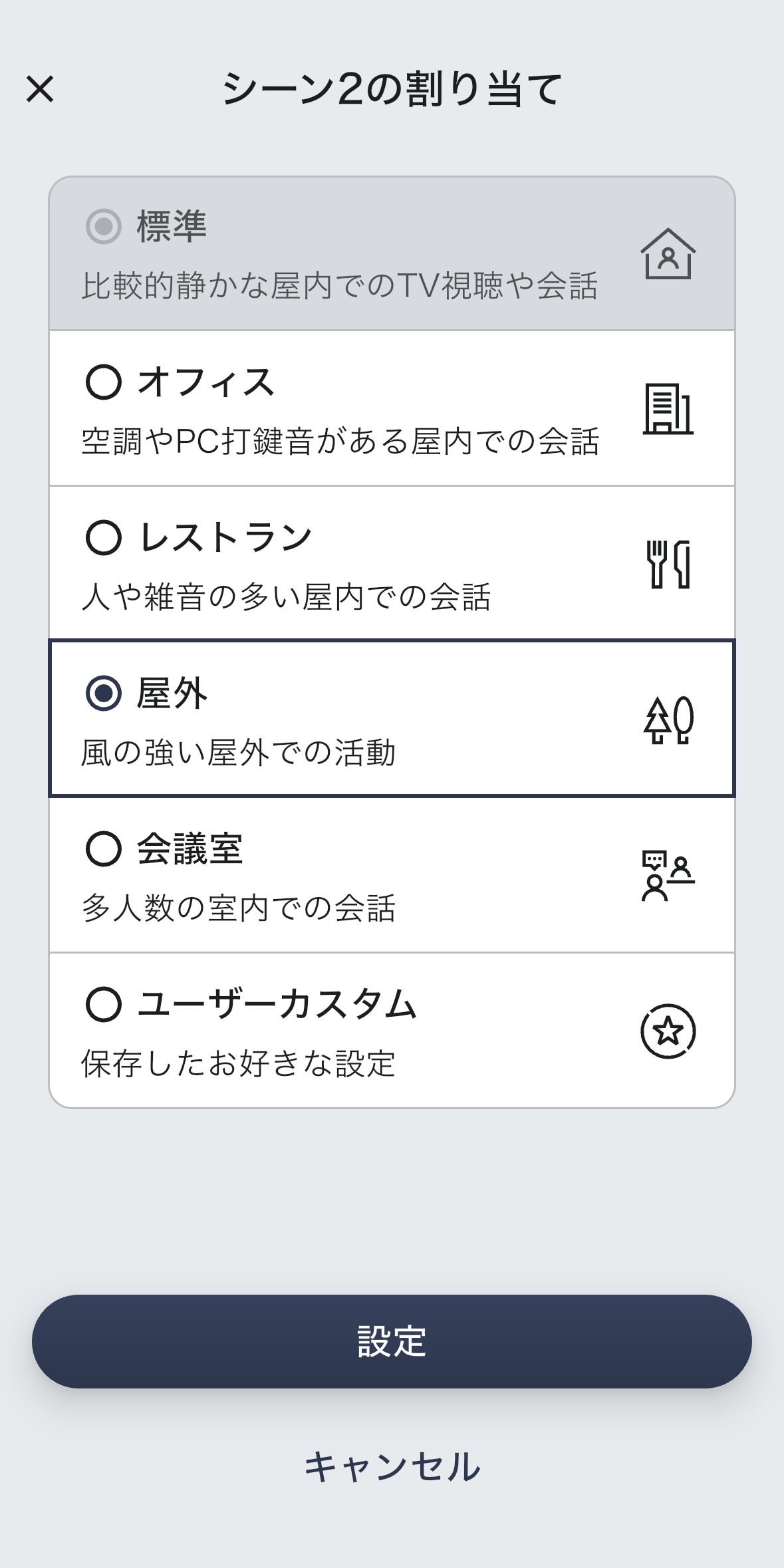
The two scenes set in the app can be switched by pressing the control button on the back of the earphones three times. Pressing the control button once increases the volume, pressing it twice decreases the volume, pressing and holding it for about 1 second pauses/plays the audio, and pressing and holding it for about 3 seconds turns the power on/off.
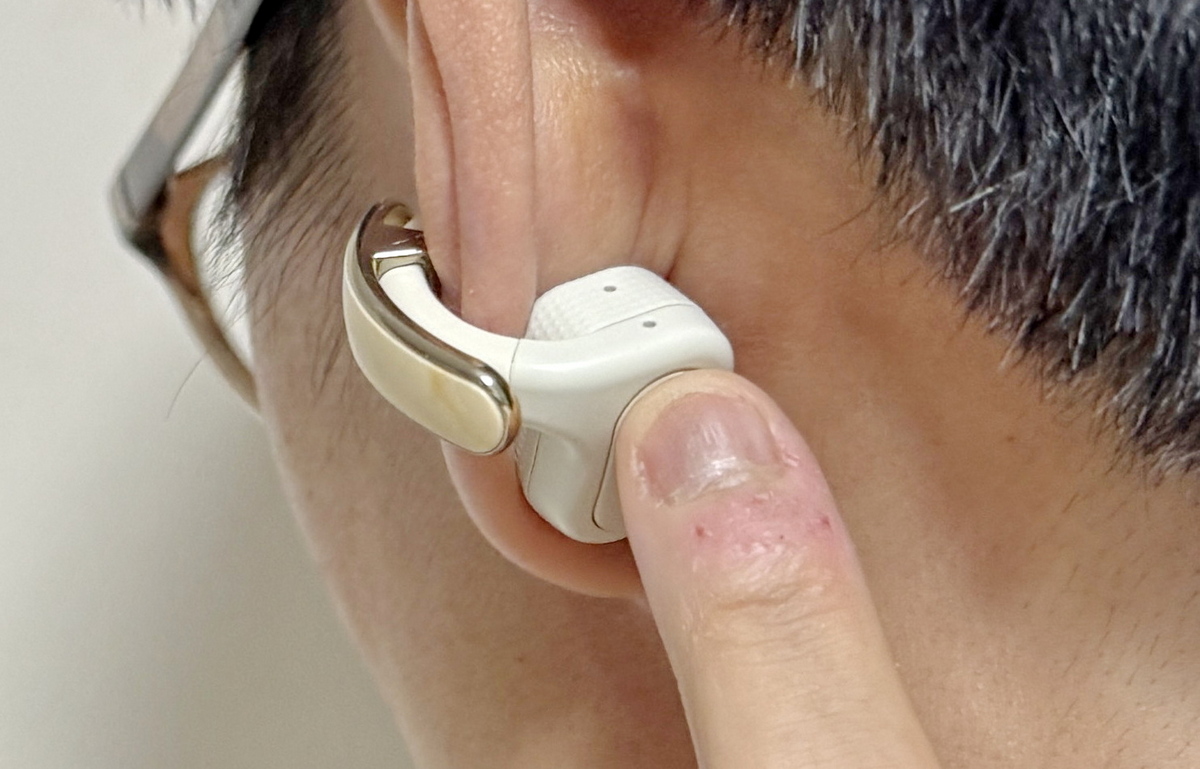
After setting them up and actually wearing them, sounds close to you are amplified and become much easier to hear. It feels like they pick up sounds occurring within a range of about 50cm around you and make them easier to hear. The earU ER-100 is an earphone that prioritizes making human voices easier to hear through digital audio processing, and when I wore them and had the TV on while talking to someone nearby, I felt that I could hear the other person's voice clearly even with the TV sound overlapping. The 'raw sound' that comes directly from outside and the 'clear sound' that has been picked up by the microphone and digitally corrected overlap naturally, and the sense of direction and distance of the sound is not lost.
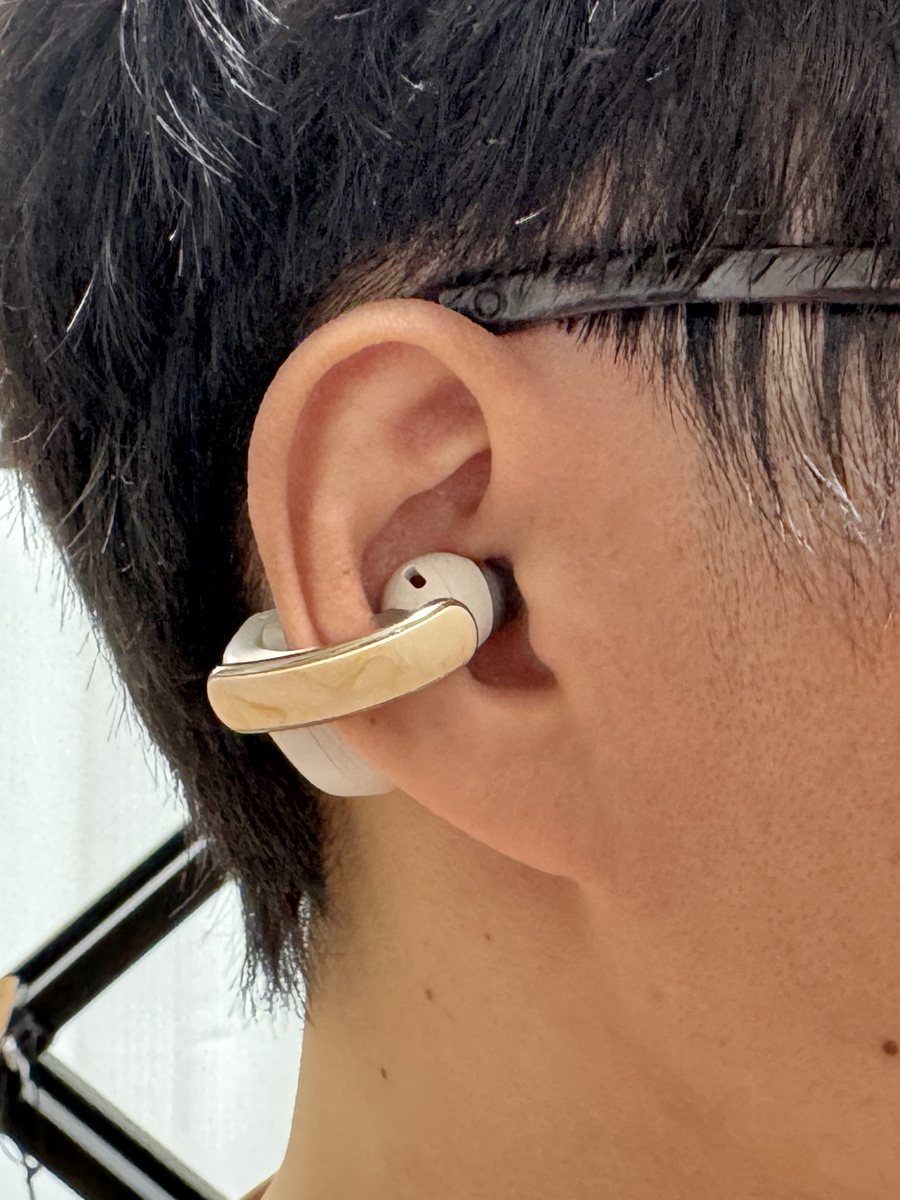
I checked the sound quality by playing music from my smartphone. The earU ER-100 is an open-ear type that doesn't block the ear canal, so the sound feels spacious. However, with Billie Eilish's 'bad guy,' the bass kick is what drives the whole song, but I didn't get the feeling that the bass was really thumping. The high frequencies, such as snaps and claps, also sounded a bit muddy, so you might find the sound lacking in impact.

When you set the operating mode to 'Auto' and play music on your smartphone, the amplification of ambient sounds will automatically stop, and the device will switch to 'Streaming' mode to play audio from your smartphone.
The theme song for the anime '

When listening to piano music, I can feel the expansiveness of the space where the piano's sound resonates, and it feels less like the sound is playing right next to my ears and more like it's flowing in the space around me. Since it doesn't block my ear canals and I can still hear ambient sounds clearly, I found it to be just right for background music while working.

The earU ER-100 uses a technology that creates out-of-phase sound waves, resulting in virtually no sound leakage. When we had other people wear the earU ER-100 and play music, they reported that 'if you play it at a high volume in a quiet room, you might hear a slight tinny sound,' but you can enjoy music without worrying about disturbing others unless you're in a library or a quiet office.
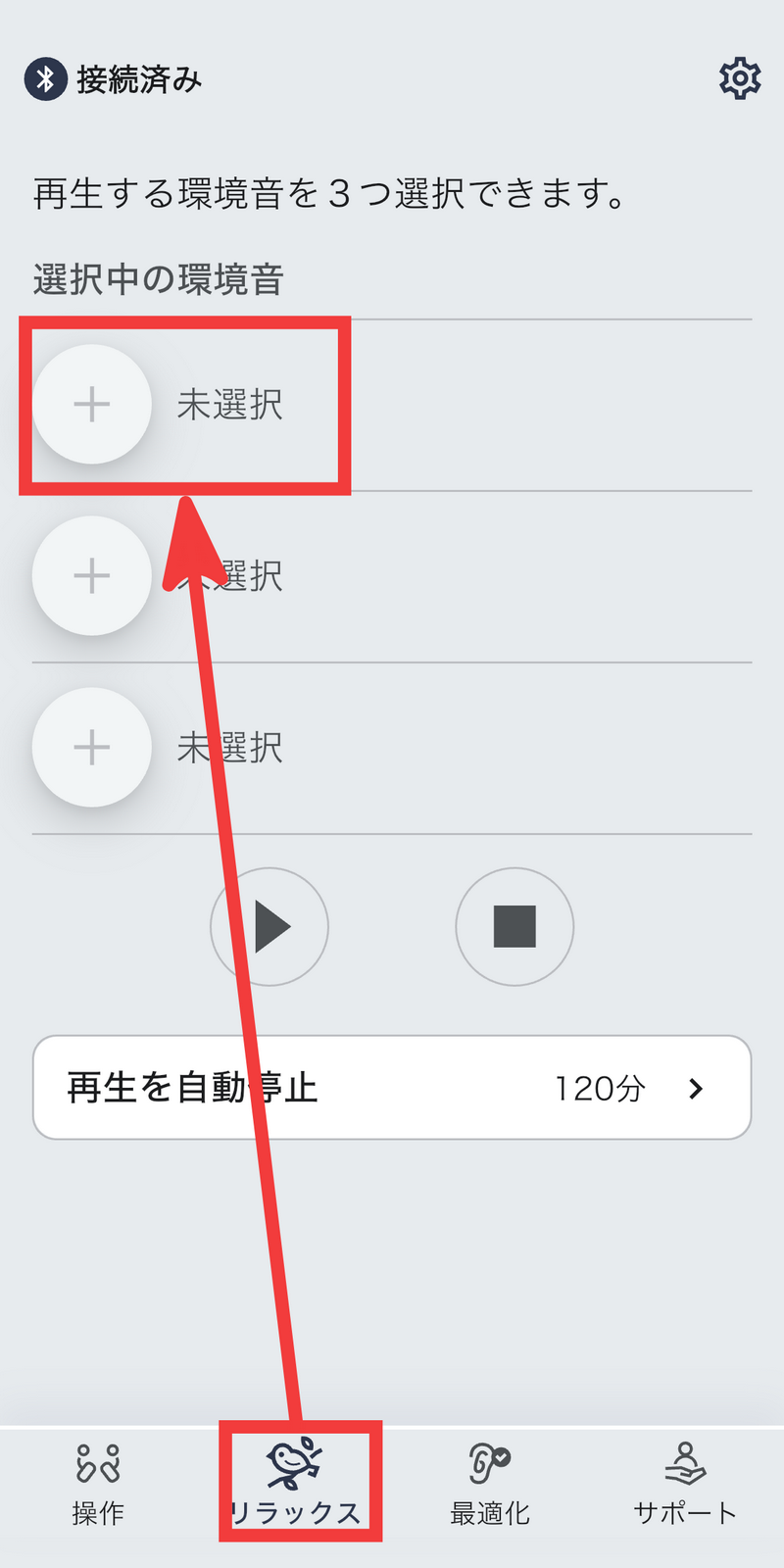
Next, select 'Relax' at the bottom of the app. This 'Relax' function plays ambient sounds such as nature sounds and background noise through your earphones to support concentration and relaxation. Tap the 'Not Selected' section under 'Selected Ambient Sounds'.
Select your preferred ambient sound and tap 'Settings'.

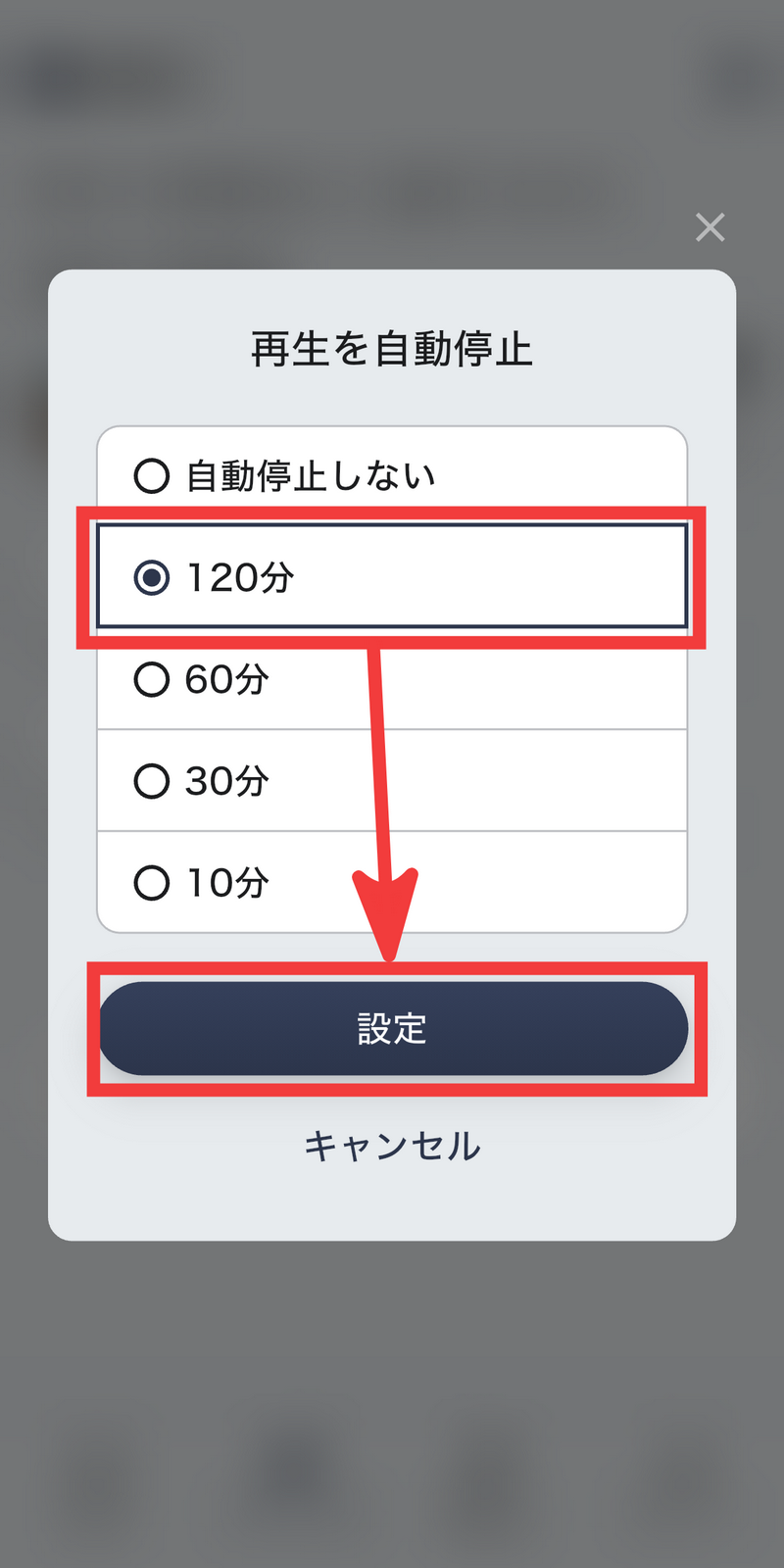
The selected ambient sound can only be played when the headphones are connected via Bluetooth, and you can adjust the volume using the slider as needed. To set the playback time, simply tap 'Automatically stop playback.'
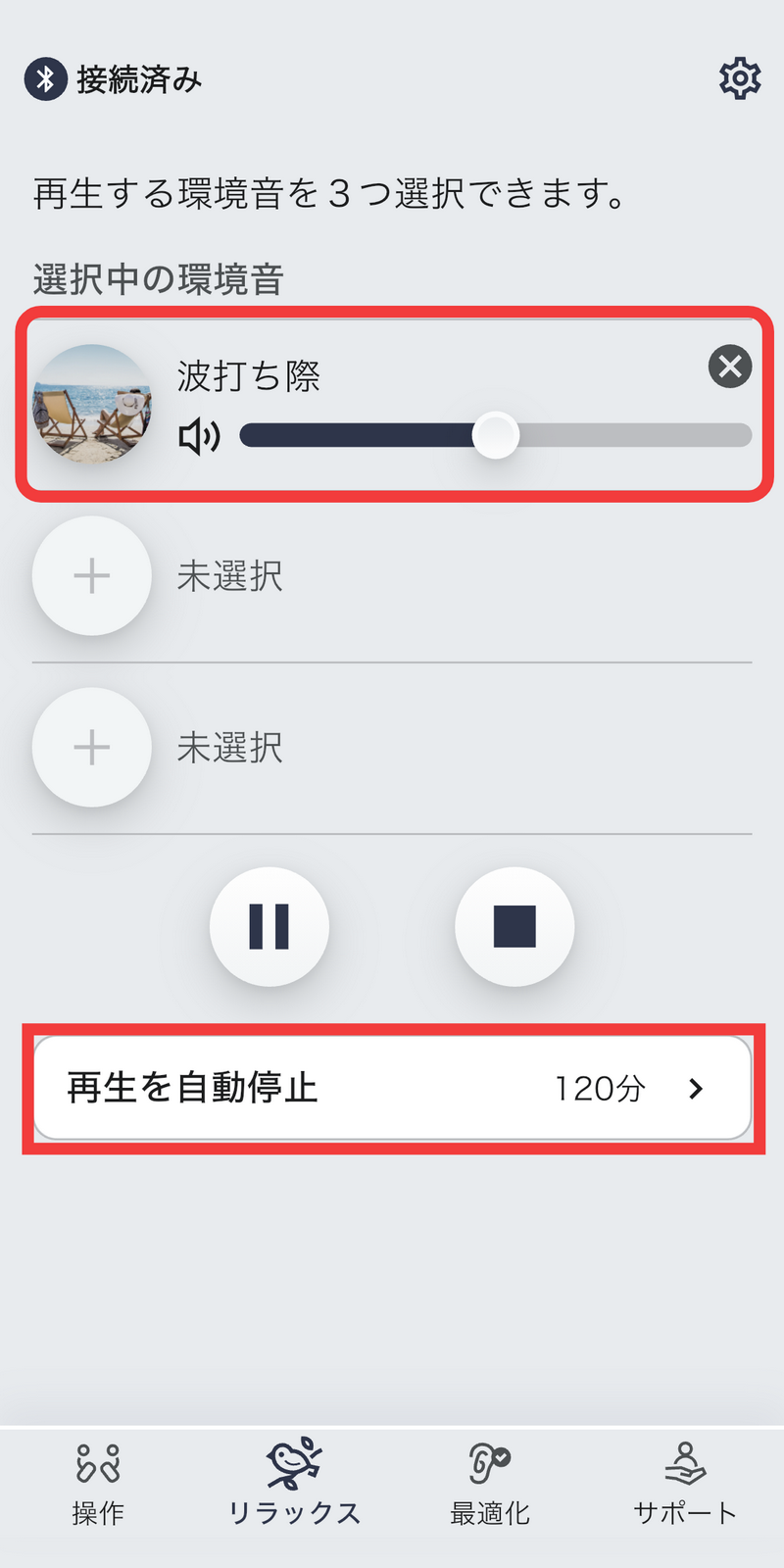
You can set the playback time to one of four options: 120 minutes, 60 minutes, 30 minutes, or 10 minutes. If you select 'Do not automatically stop,' it will play indefinitely.
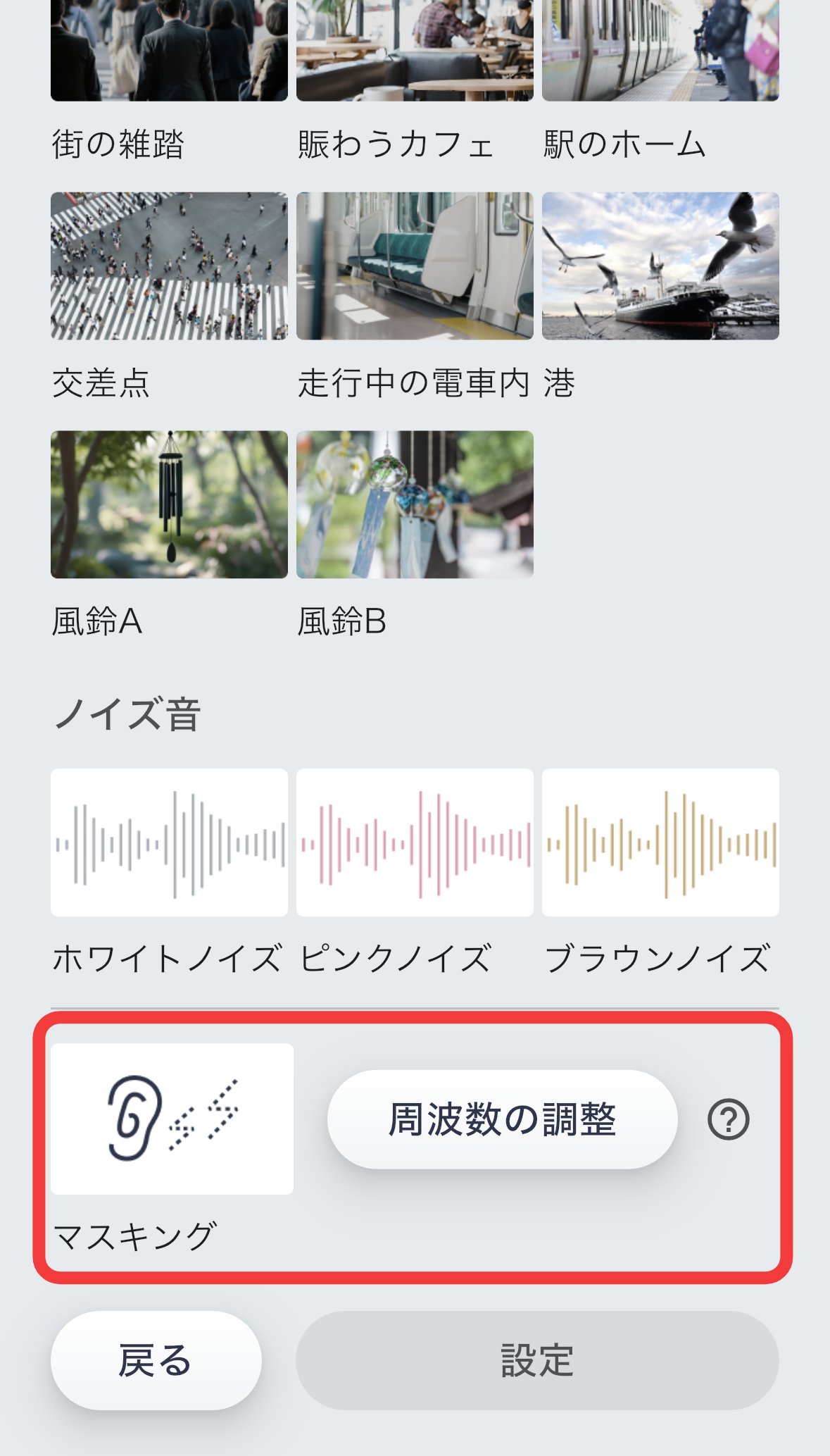
In addition to ambient sounds, the sounds that can be played in 'Relax' mode include noise and masking sounds. Masking sounds play a different sound that matches the frequency of a distracting sound in the surroundings, making that sound less noticeable.
The earU ER-100 is not a typical music earphone, but a hearing assist earphone that pursues 'ease of hearing human voices' and 'natural sound in everyday life.' With an ear cuff-type open-ear structure that does not block the ear and digital sound processing technology, ambient sounds and digitally corrected sounds blend seamlessly, providing comfortable listening even during long periods of use while having conversations or listening to background music without causing listening fatigue.
On the other hand, the earU ER-100 lacks a bit of impact in its bass and does not support high-quality codecs such as LDAC or aptX Adaptive, so it leaves something to be desired if you want to really listen to music. For this reason, the earU ER-100 is more suitable for people who want to have smooth conversations while naturally incorporating music into their lives, rather than people who want high-quality, powerful music playback.
The earU ER-100 is available for purchase at Casio Computer's official store.
earU ER-100SH-WY | CASIO
https://www.casio.com/jp/earu/product.earU ER-100SH-WY/
Related Posts:
in Hardware, Software, Smartphone, Review, Posted by log1i_yk