The image generation AI 'Krea 2' has been made open-modeled and can now generate images locally, so I tried generating realistic-looking and illustration-style images using ComfyUI. Here's my review.
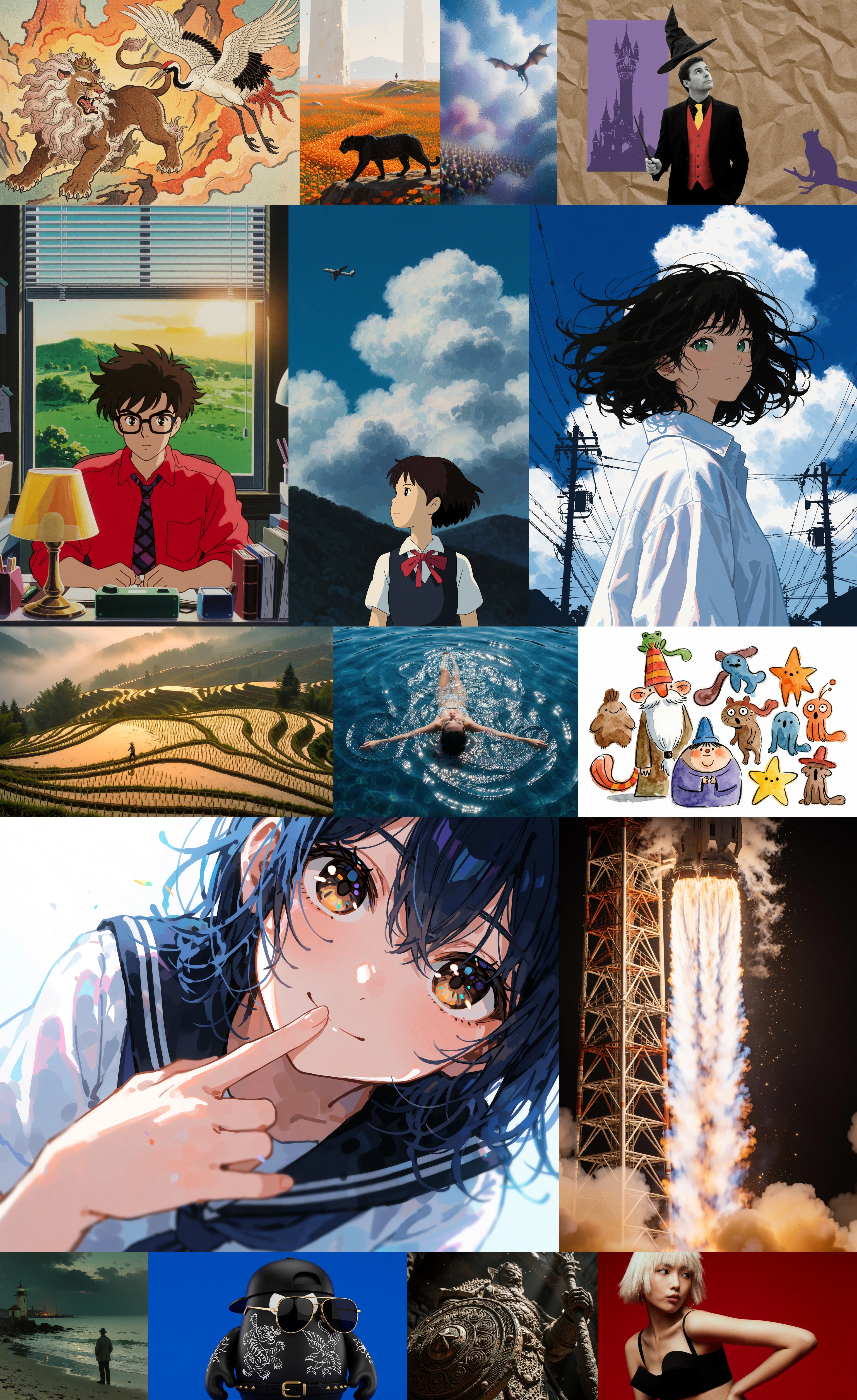
AI development company Krea has opened up its image generation AI, ' Krea 2, ' as an open model. Krea 2 can generate both realistic and illustrative images with high quality. It's already possible to generate images using
Krea 2 Technical Report - Krea
https://www.krea.ai/blog/krea-2-technical-report
today, we release the open weights of Krea 2.
— Krea (@krea_ai) June 23, 2026
welcome Krea 2 Raw and Krea 2 Turbo, an undistilled model from mid-training meant to be fine-tuned, and a fast distilled version with a wide aesthetic diversity.
read the details below 👇 pic.twitter.com/3ymzUL2bxv
Krea 2 is available as an open model in two versions: 'Krea 2 Raw,' a base model for fine-tuning, and 'Krea 2 Turbo,' which has undergone fine-tuning and distillation. Both models have 12 billion parameters and are licensed under the ' Krea 2 Community License Agreement ,' which allows commercial use under certain conditions.
krea/Krea-2-Raw · Hugging Face
https://huggingface.co/krea/Krea-2-Raw
krea/Krea-2-Turbo · Hugging Face
https://huggingface.co/krea/Krea-2-Turbo
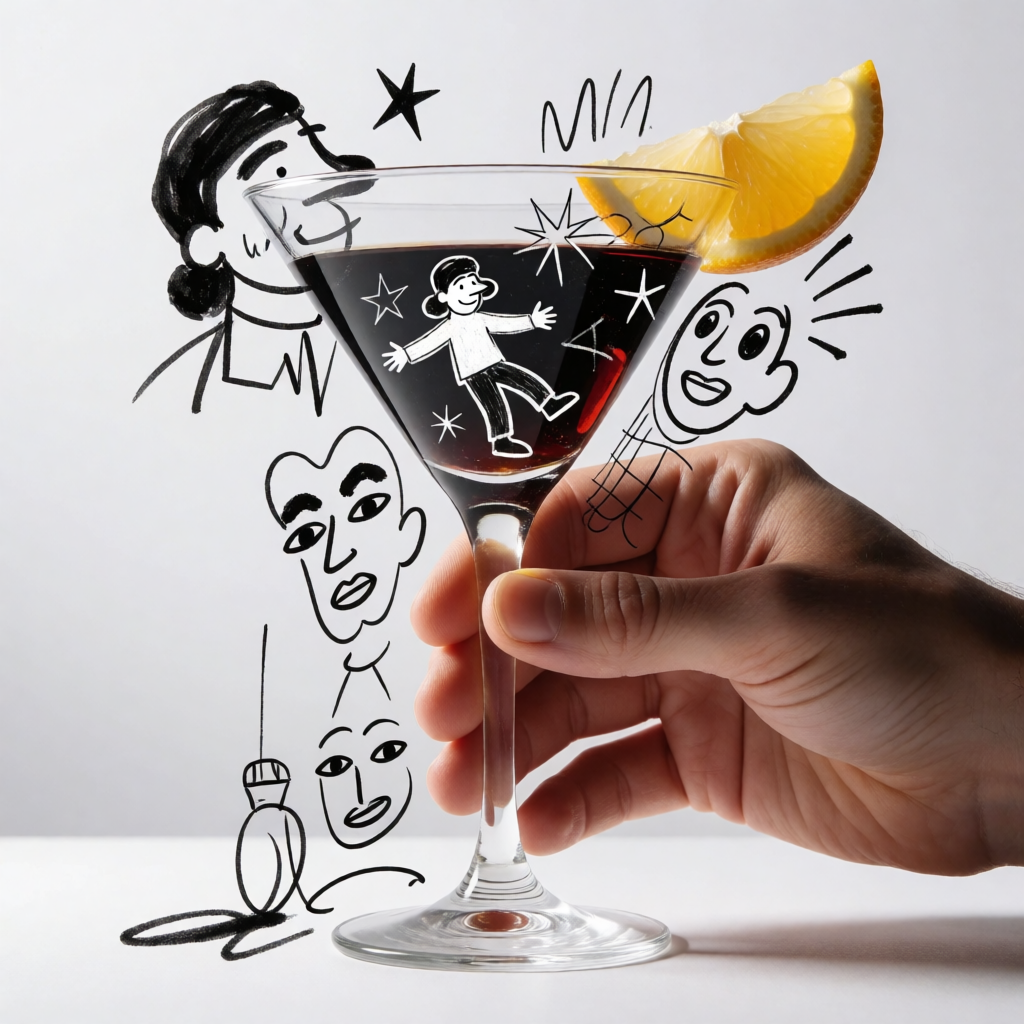
An example of generating Krea 2 Turbo is shown below.
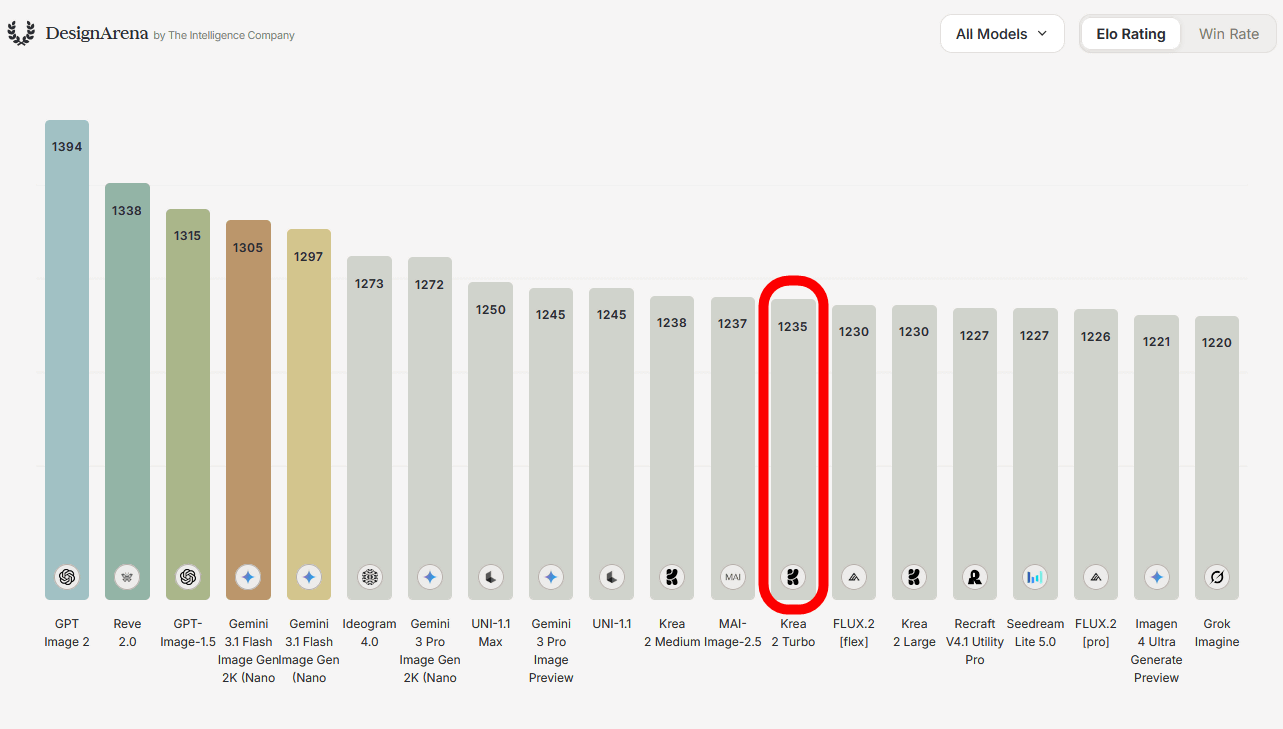
In Design Arena's
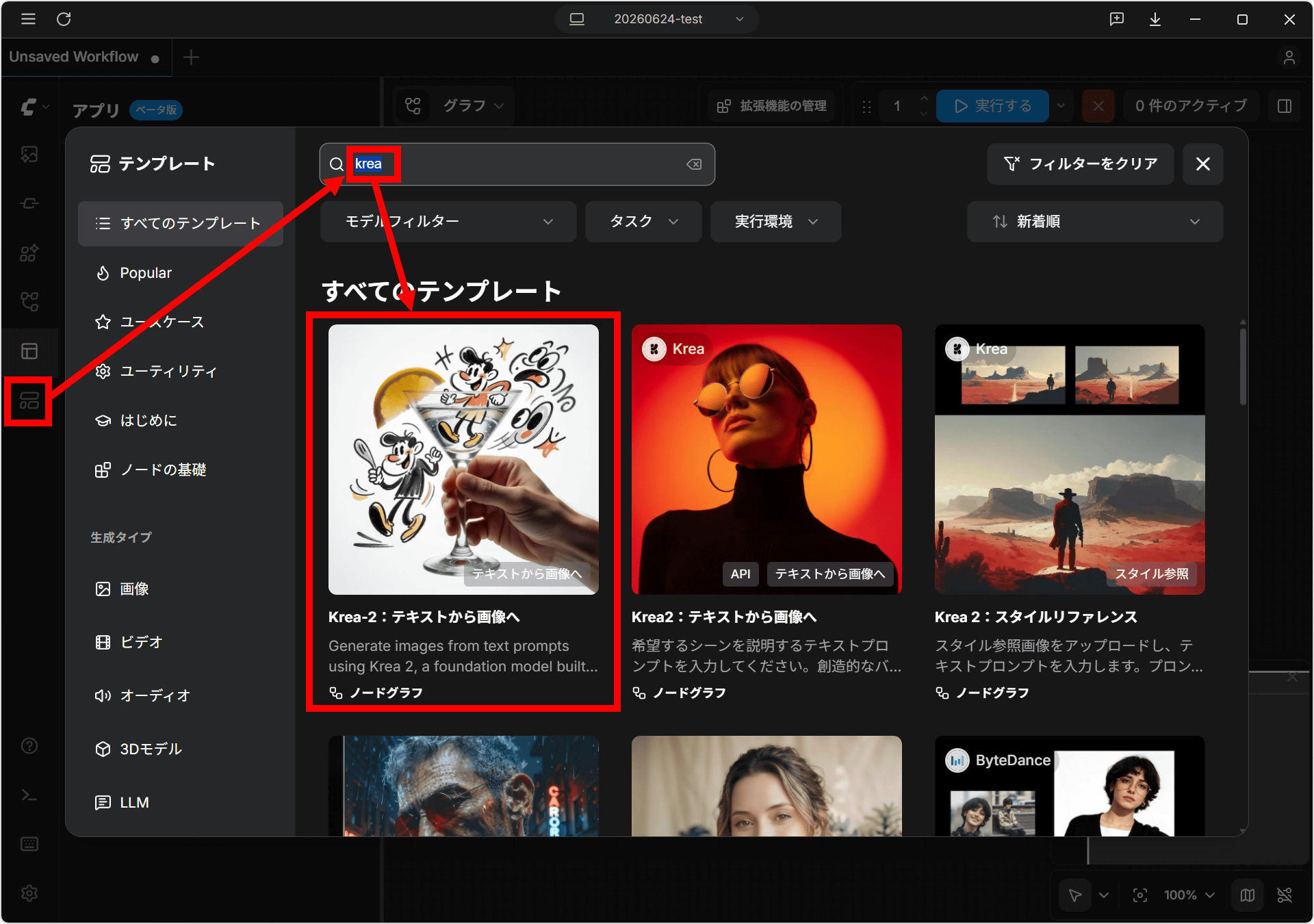
Let's actually try generating images using Krea 2 Turbo with ComfyUI. First, update ComfyUI to the latest version and search for a phrase like 'krea' in the template list screen, then click on 'Krea-2: Text to Image'. At the time of writing this article, there are two 'Krea-2: Text to Image' templates registered, and the one without 'Krea' written in the upper left corner of the thumbnail is the Krea 2 Turbo template we will be using. Note that the one with 'Krea' written in the upper left corner is a template that generates images using the Krea API.
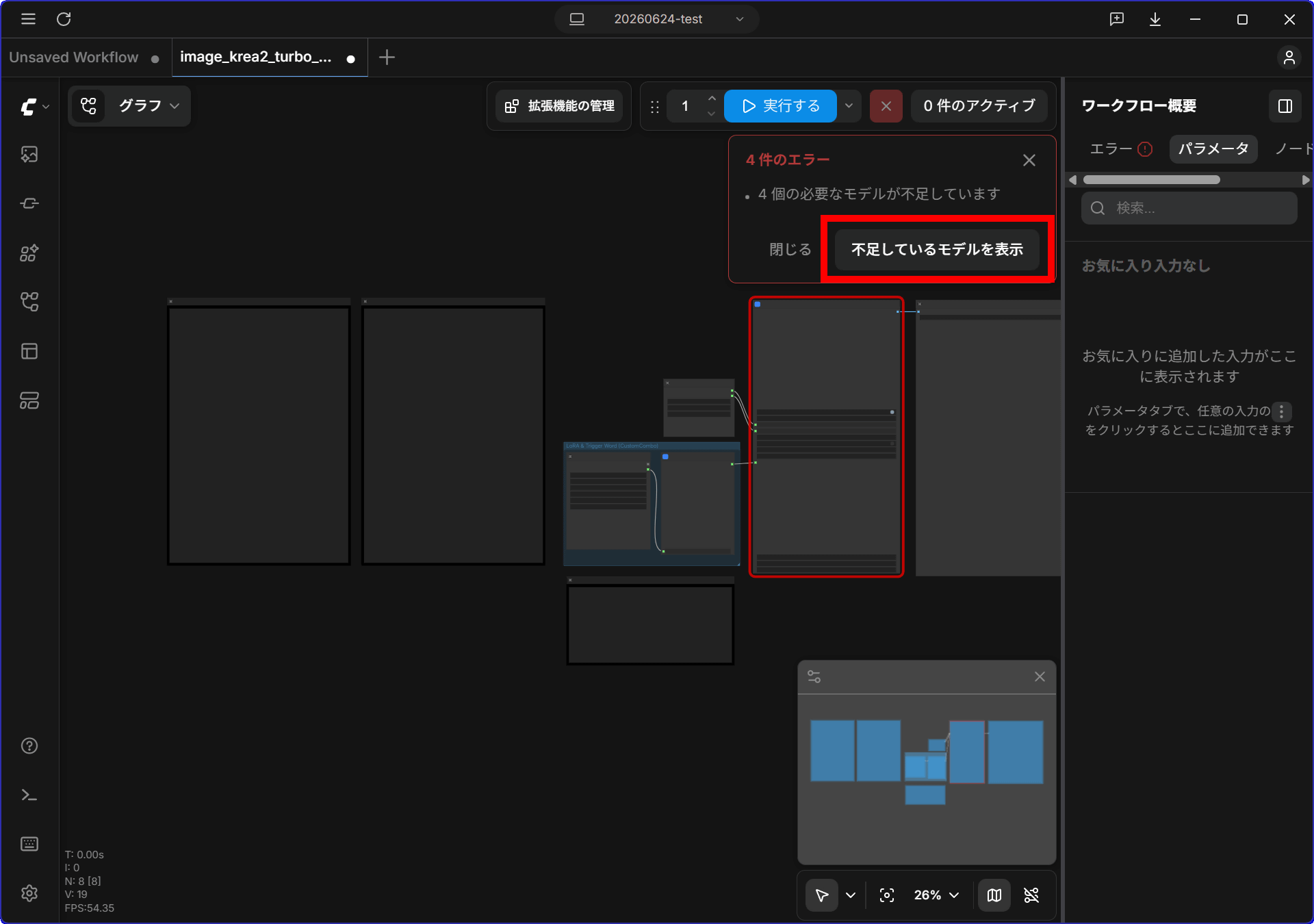
Once you open the template, click 'Show Missing Models' in the upper right corner.
Click 'Download All' to download the necessary models. The total file size is 17.8GB, so you may have to wait quite a while depending on your internet connection. Once the model download is complete, restart ComfyUI.
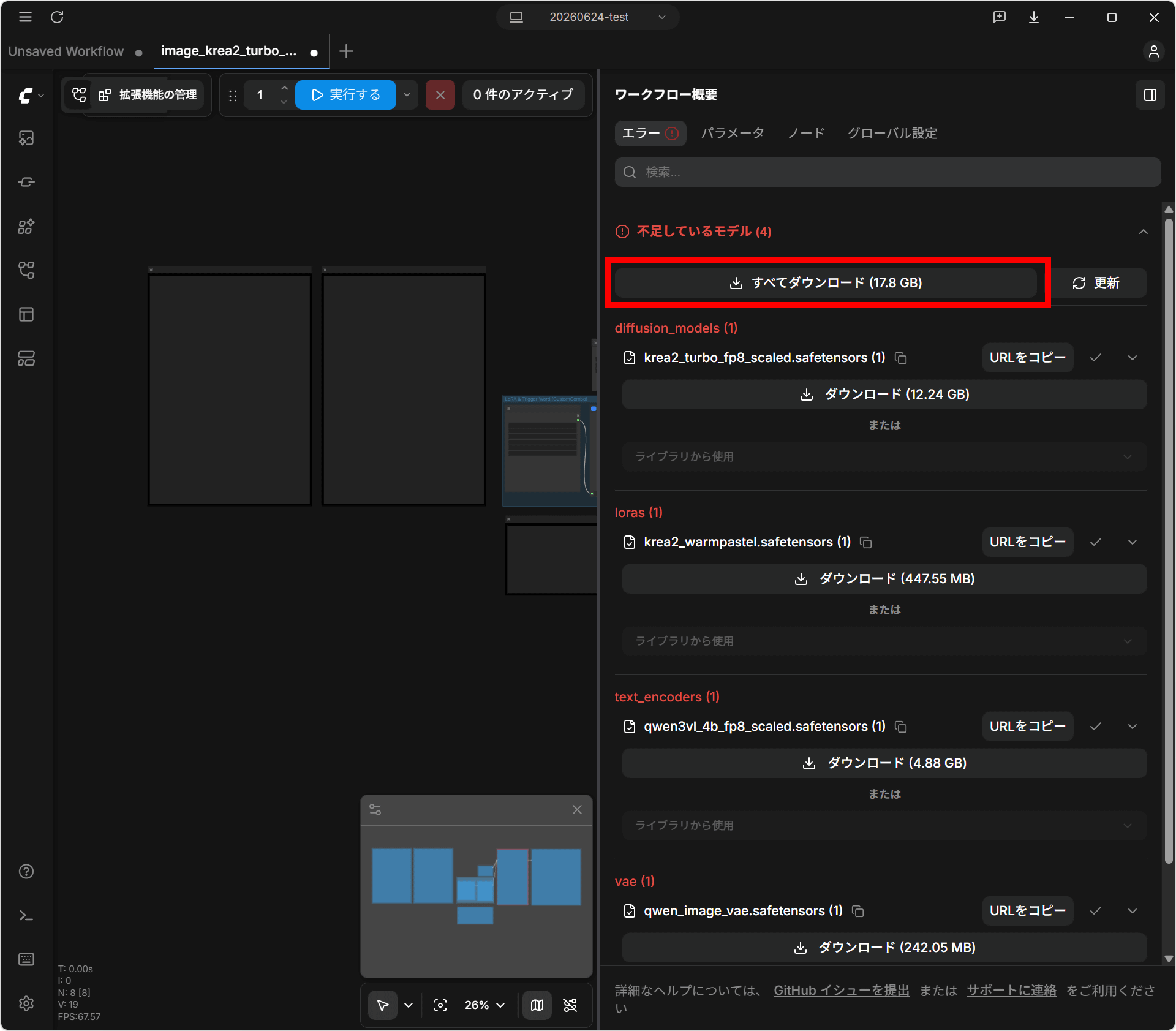
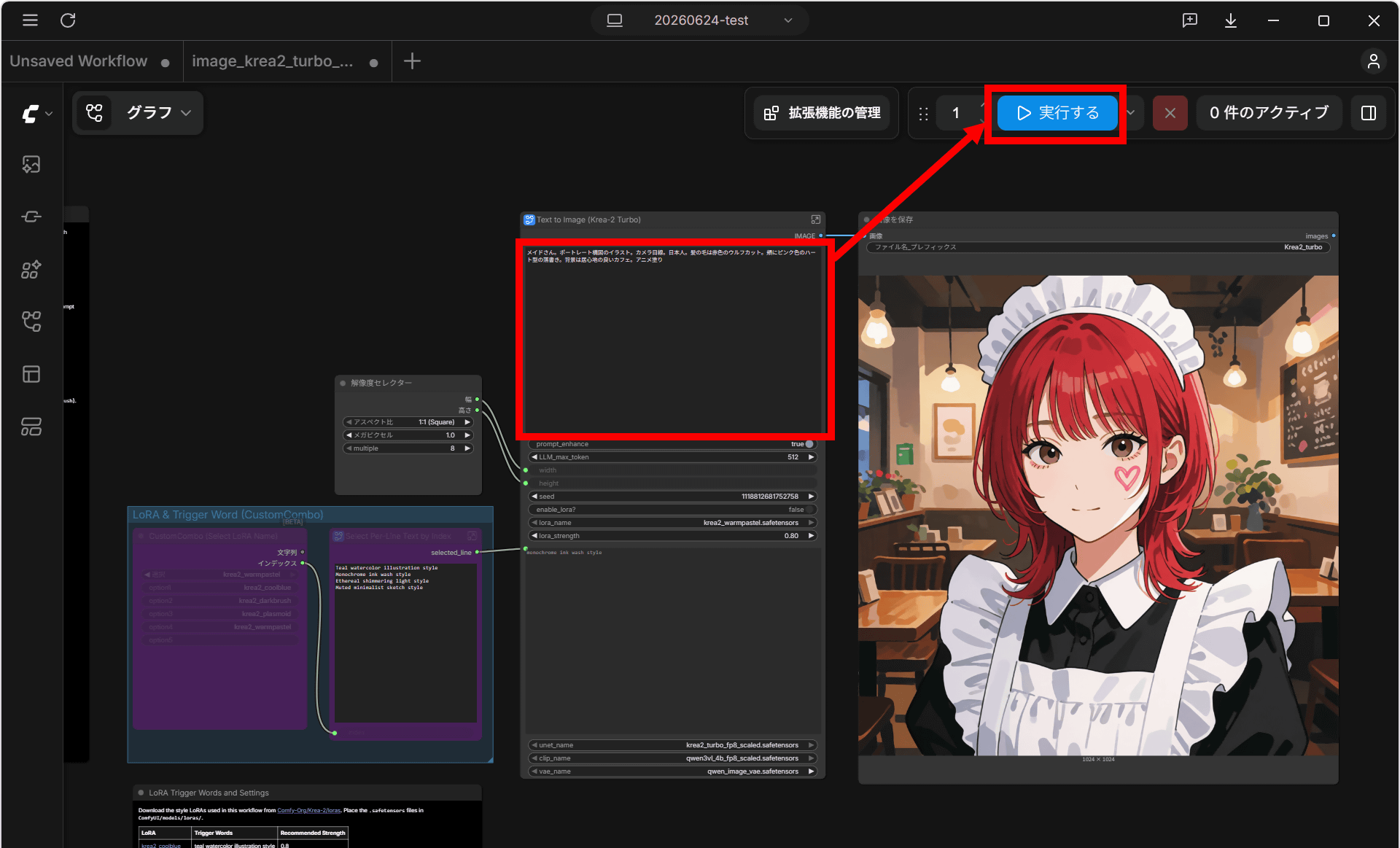
After restarting and reopening the workflow, click 'Run' in the upper right corner.
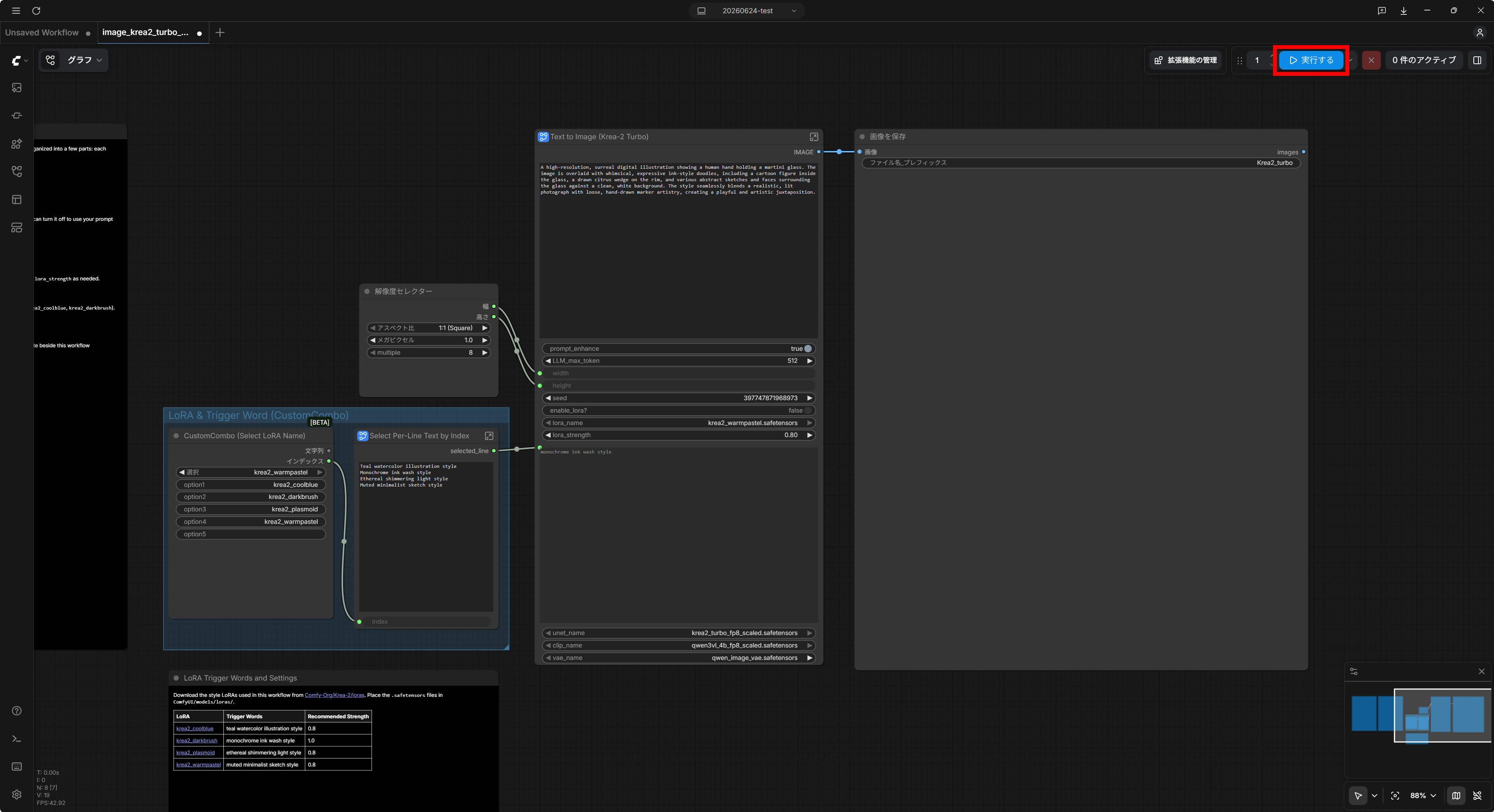
After waiting a while, a sample image corresponding to the pre-entered prompt will be displayed.
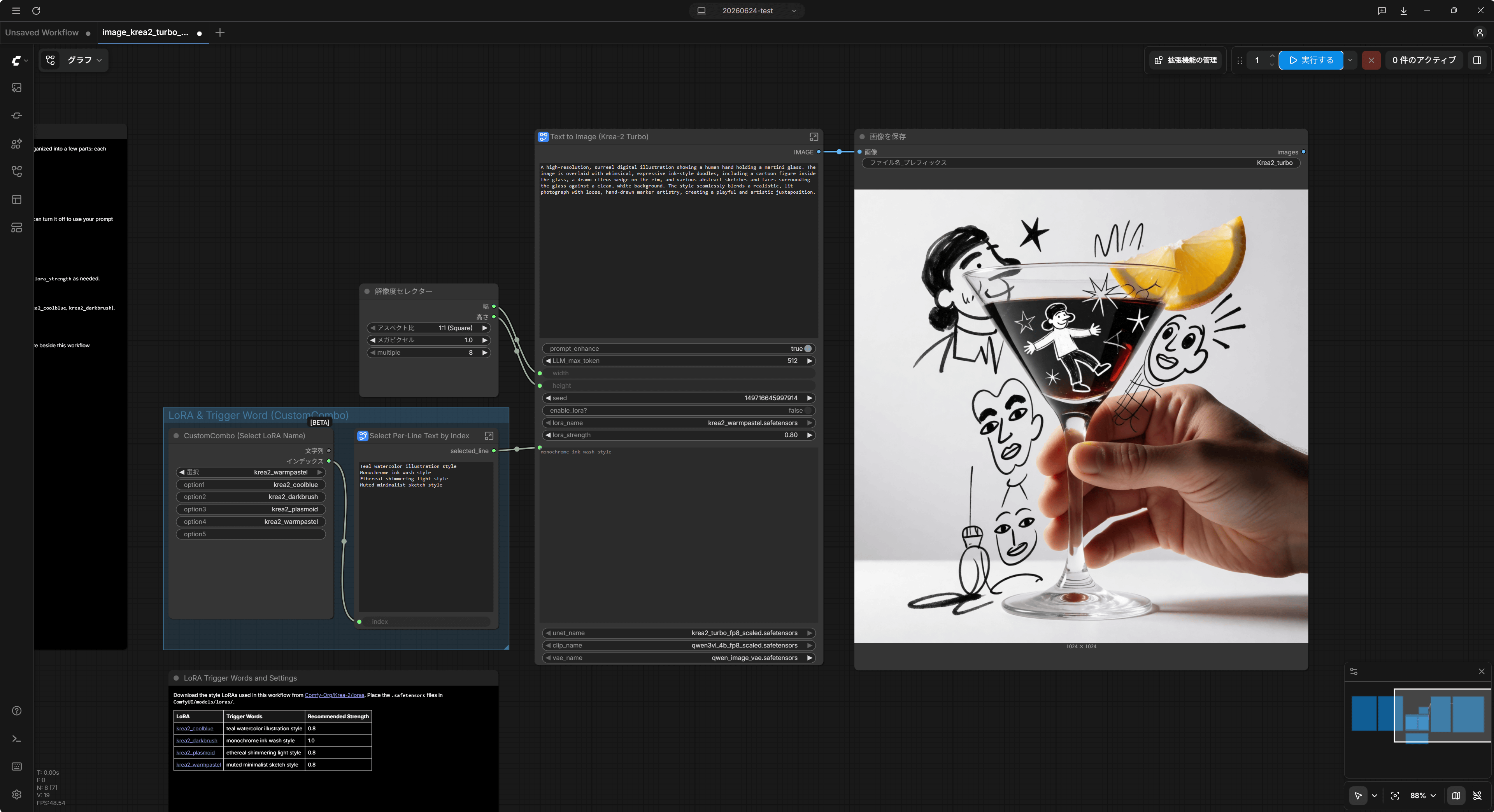
The sample image looks like this. It correctly depicts images that mix live-action photos and hand-drawn illustrations according to the instructions.
I'll try generating it by rewriting the prompts in various ways. In the initial state of the template, the LoRA called 'krea2-warmpastel' is enabled, so to disable it, right-click on the group (blue area) and click 'Byapass Group Nodes'.
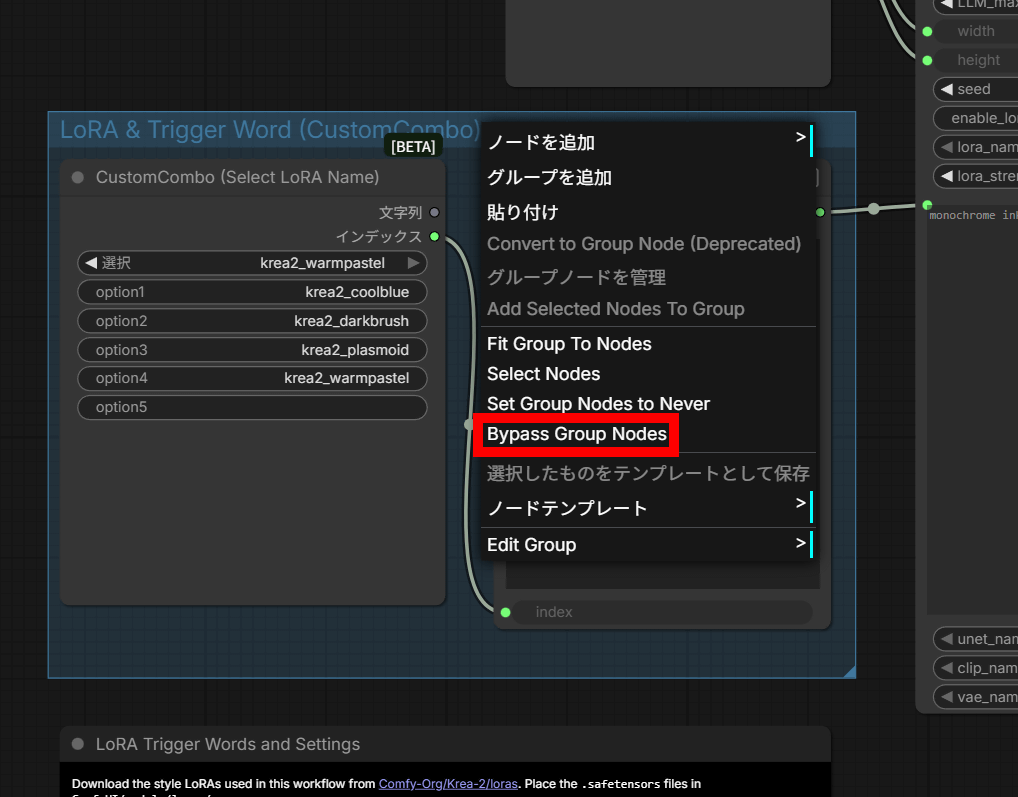
All you have to do is enter your prompt in the 'Text to Image' input field and click 'Execute'.
The following is the result of entering the Japanese text: 'A maid sitting on top of an air conditioner unit in an alley, reading a newspaper. She is Japanese. Her hair is a gradient of blue, black, and blue. The newspaper says 'GIGAZINE'.' The text describes 'alley,' 'sitting on an air conditioner unit,' 'maid,' 'gradient hair,' and 'newspaper text' exactly as instructed.
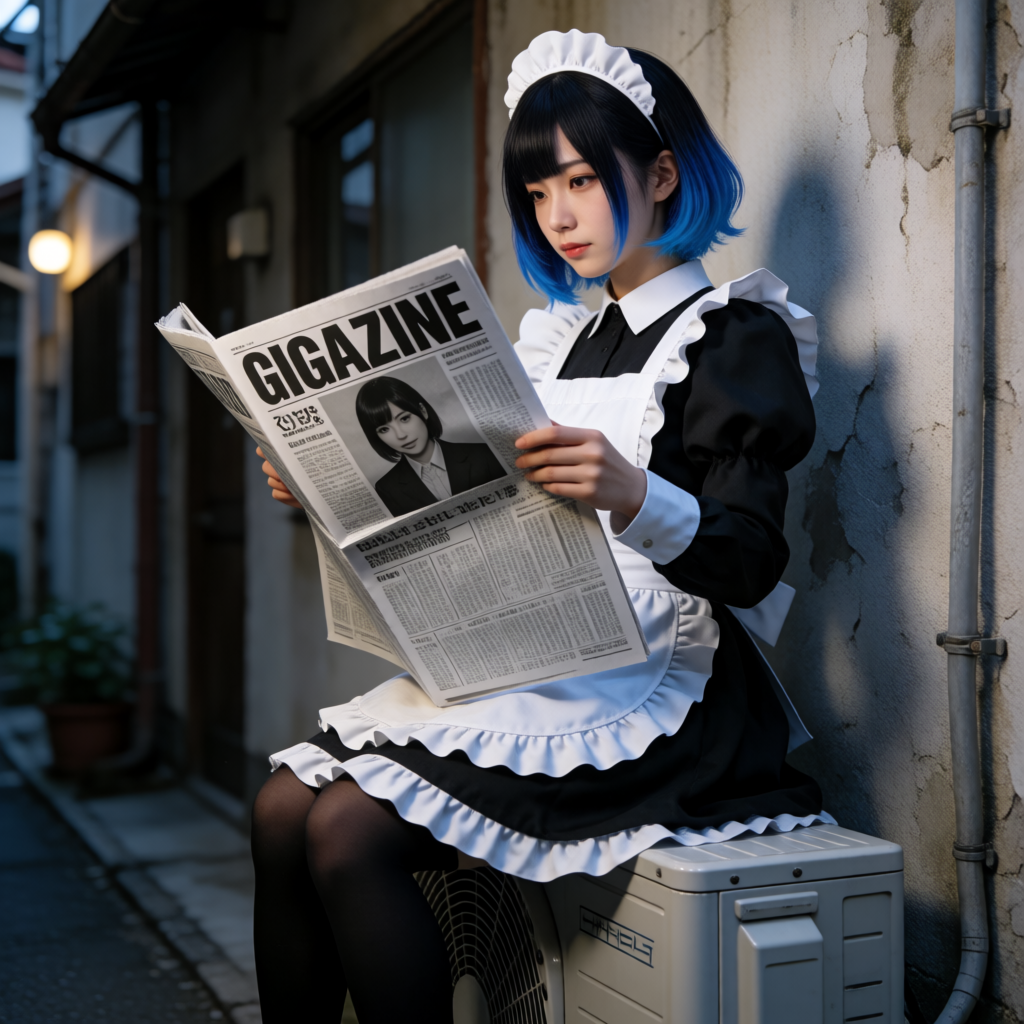
Prompt: A maid is sitting on top of an air conditioner unit in an alleyway, reading a newspaper. She is Japanese. Her hair is a gradient of blue, black, and blue. The newspaper reads 'GIGAZINE'.
Portraits are also generated.
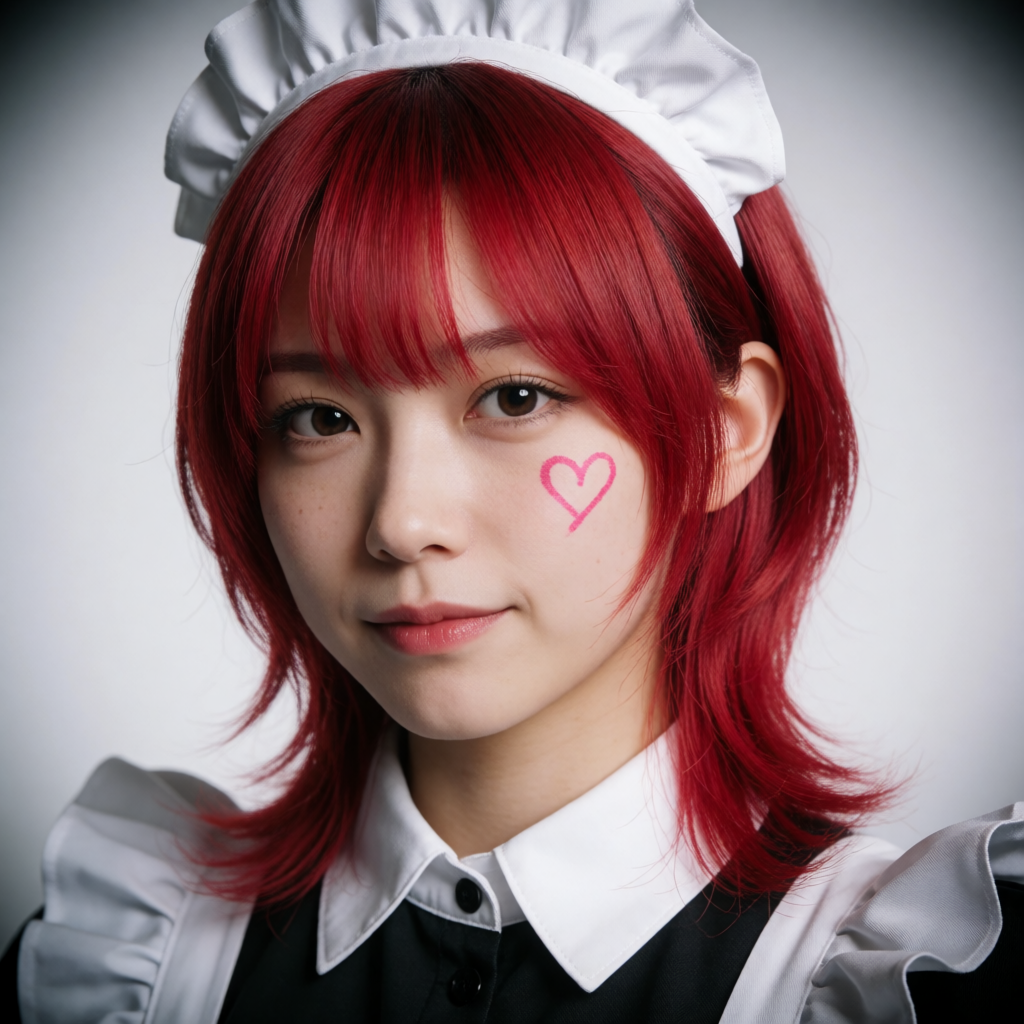
Prompt: Maid. Portrait. Looking at the camera. Japanese. Red wolf cut hair. Pink heart-shaped drawing on her cheek.
Adding the instruction 'a blurry photo like one taken by an amateur with a smartphone' significantly reduces the AI-like appearance.
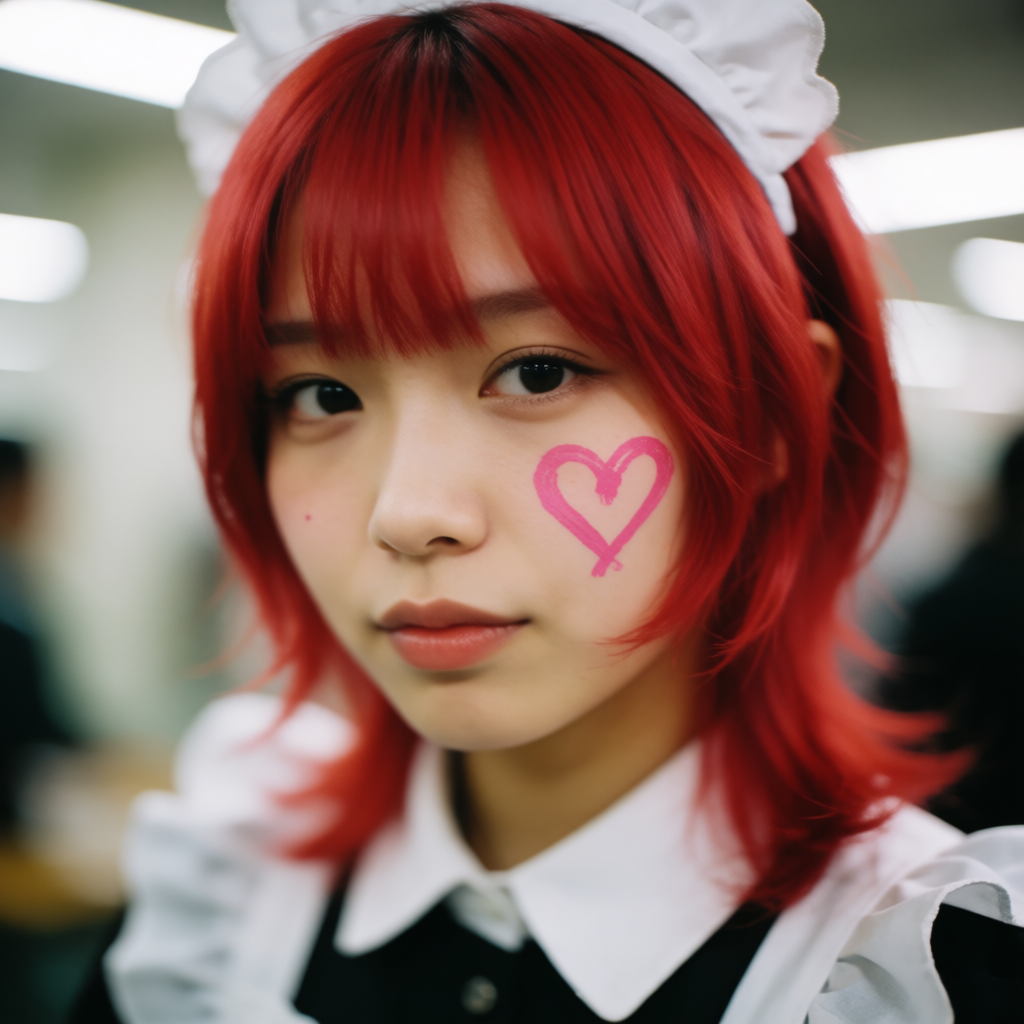
Prompt: Maid. Portrait. Looking at the camera. Japanese. Red wolf cut hair. Pink heart-shaped drawing on her cheek. Blurry photo, like one taken by an amateur with a smartphone.
High-quality illustration-style images can also be generated.
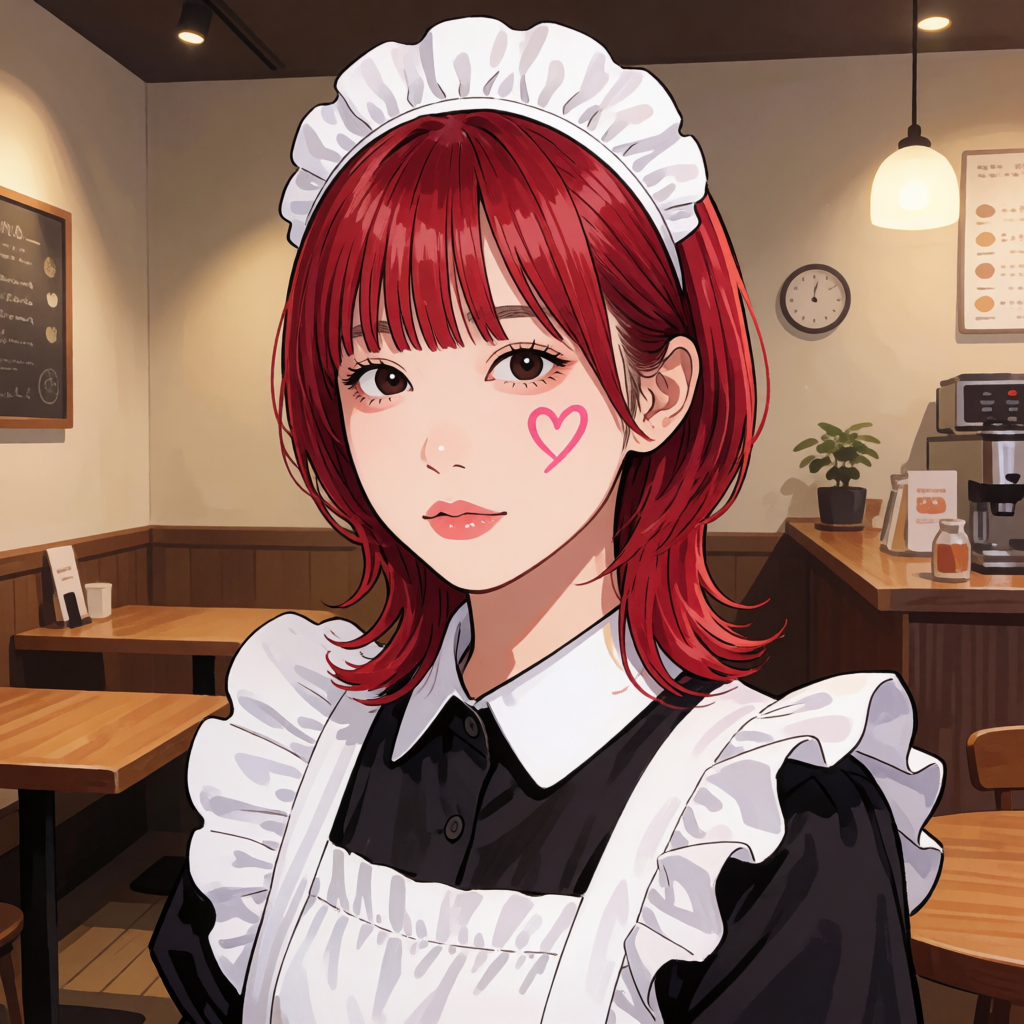
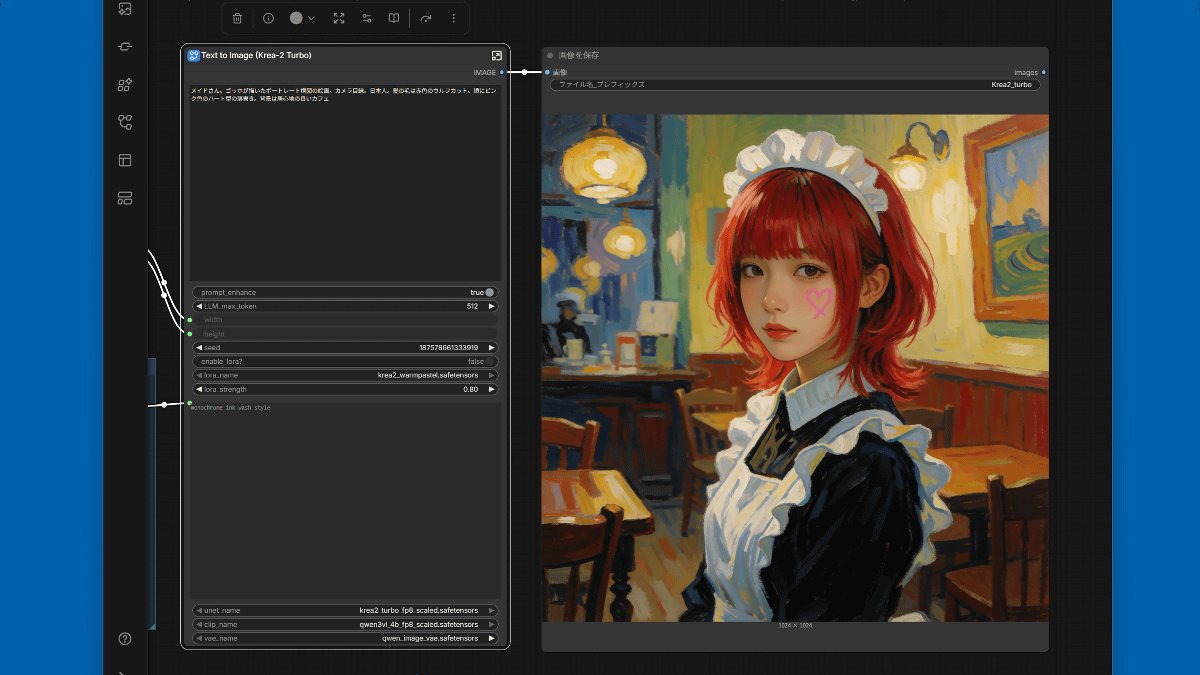
Prompt: Maid. Portrait illustration. Looking at the camera. Japanese. Red wolf cut hair. Pink heart-shaped scribble on her cheek. Cozy cafe background.
I tried to give it a watercolor-like look.
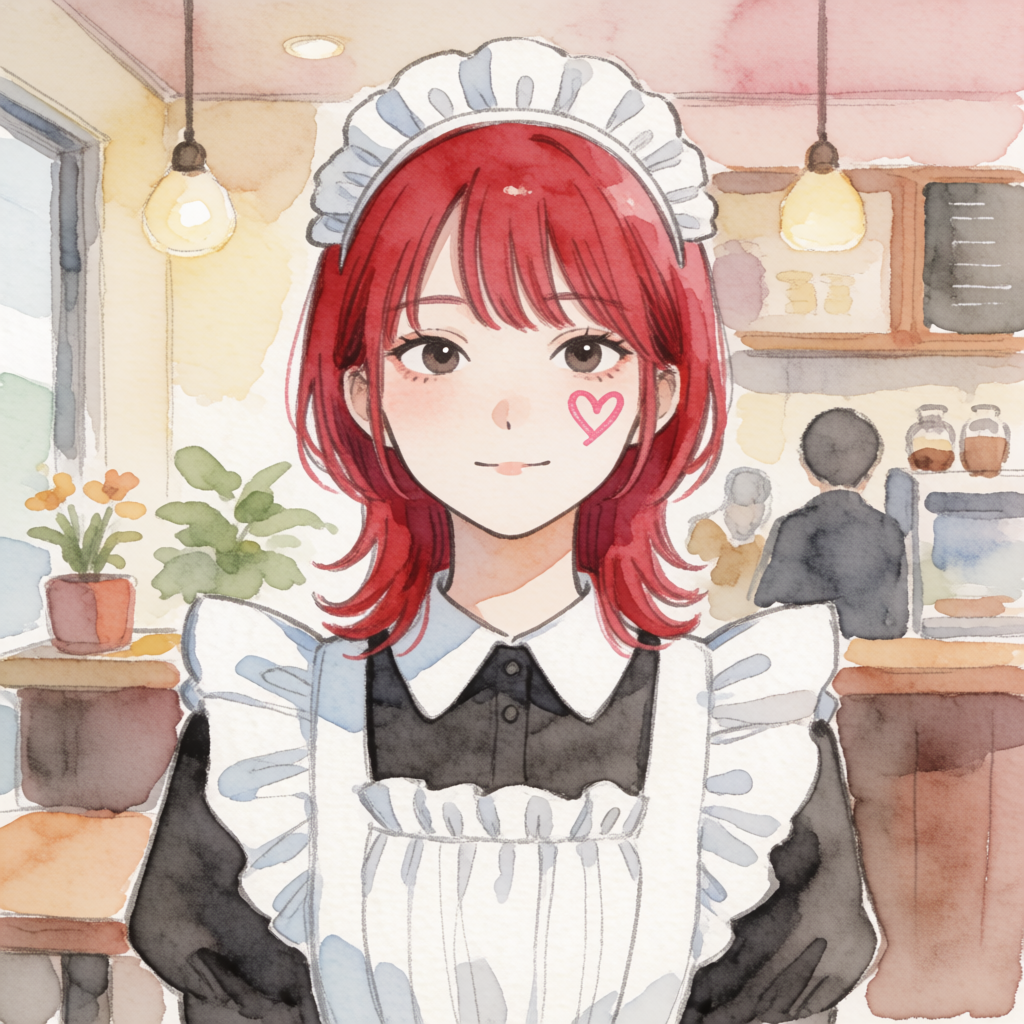
Prompt: Maid. Portrait illustration. Looking at the camera. Japanese. Red wolf cut hair. Pink heart-shaped scribble on her cheek. Cozy cafe background. Watercolor painting.
Anime-style coloring.
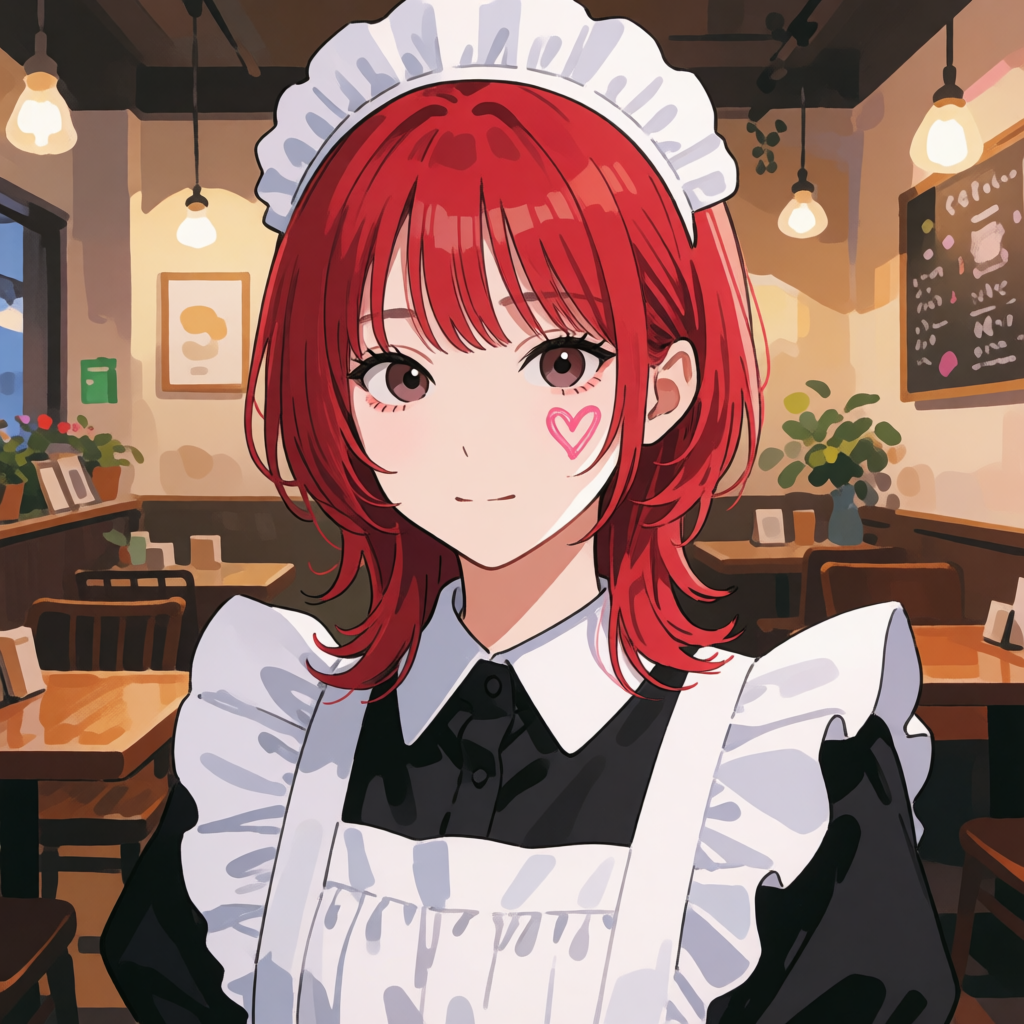
Prompt: Maid. Portrait illustration. Looking at the camera. Japanese. Red wolf cut hair. Pink heart-shaped scribble on her cheek. Cozy cafe background. Anime style coloring.
In the style of Van Gogh.
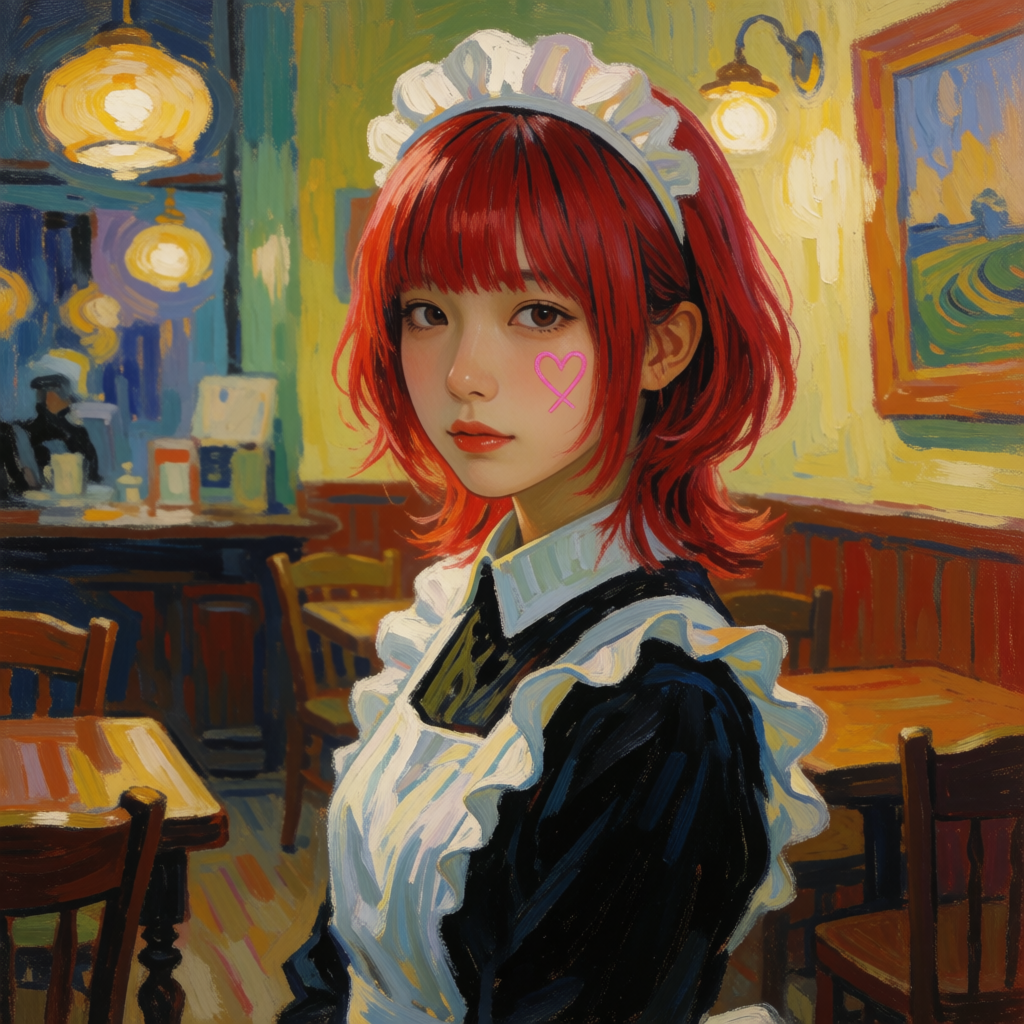
Prompt: A maid. A portrait painting by Van Gogh. Looking directly at the camera. Japanese. Red wolf cut hair. Pink heart-shaped scribbles on her cheek. A cozy cafe in the background.
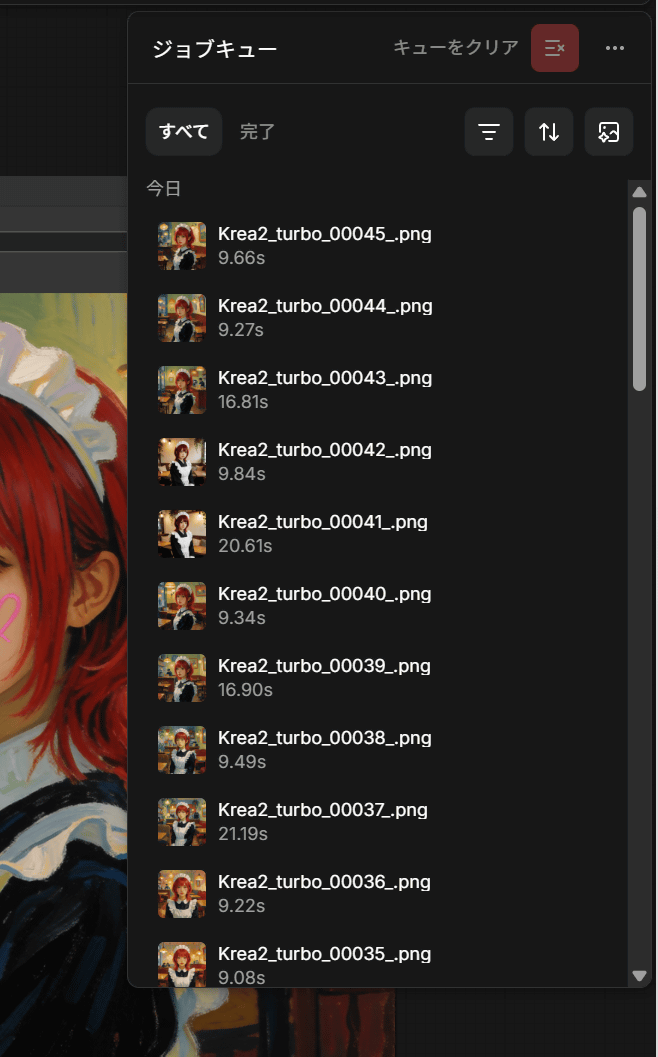
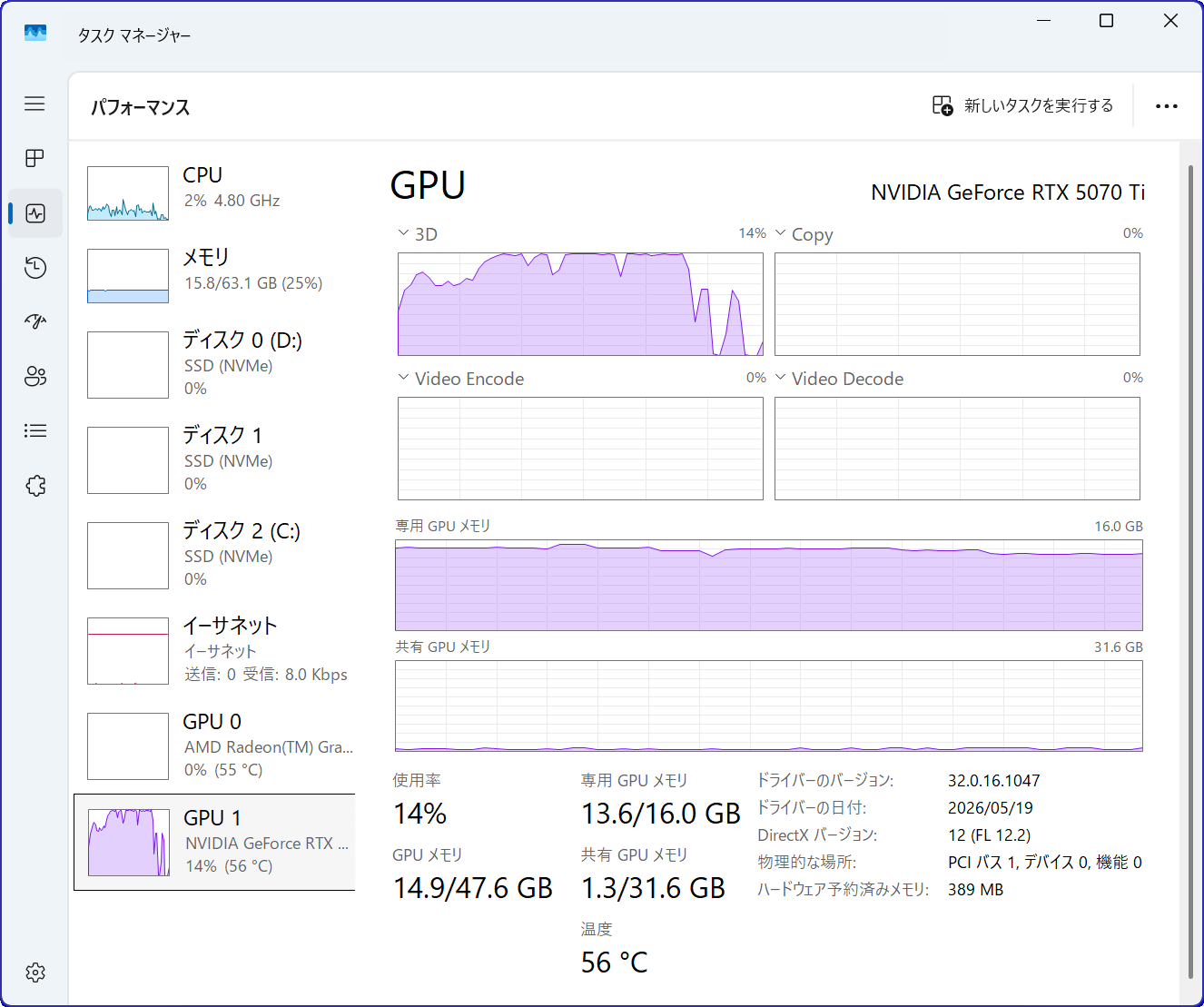
The template workflow includes a 'prompt enhancer that rewrites human-entered prompts so that Krea 2 can generate high-quality images,' which takes longer than simply generating images. On a Windows PC equipped with an AMD RYzen 5 7600X and NVIDIA GeForce RTX 5070Ti, generating a 1024x1024 pixel image took 16-25 seconds when the prompts were rewritten, and approximately 9-15 seconds when the same prompts were reused. The K sampler was generated using the default setting of 8 steps.
This is what the load on the GPU looked like during generation. It was generated without any problems on an RTX 5070Ti with 16GB of VRAM.
As mentioned above, Krea 2 is available in two forms: the base model 'Krea 2 Raw' and the distilled 'Krea 2 Turbo'. The LoRA creation tool Musubi Tuner also already supports Krea 2, and it is said that LoRA can be created in about 15 minutes on an RTX 6000 Pro Blackwell.
Musubi Tuner now supports Krea 2 on day 0. Combined with H2D-only block swap, training is possible with almost no speed reduction from 12GB of VRAM. Further speed improvements include token order optimization and native GQA support for flash attention.
— Kohya Tech (@kohya_tech) June 23, 2026
The documentation is available here: https://t.co/ZSqPGwJjv5
LoRA training results for Krea 2. It seems to be able to train in a relatively short time (about 15 minutes with this LoRA on an RTX 6000 Pro Blackwell Max-Q).
— Kohya Tech (@kohya_tech) June 23, 2026
Image 1: No LoRA, Image 2: With LoRA, Image 3: Showing the prompt response (removing glasses), Image 4: Trying a different art style. pic.twitter.com/rRZHhBVPDV
Related Posts: