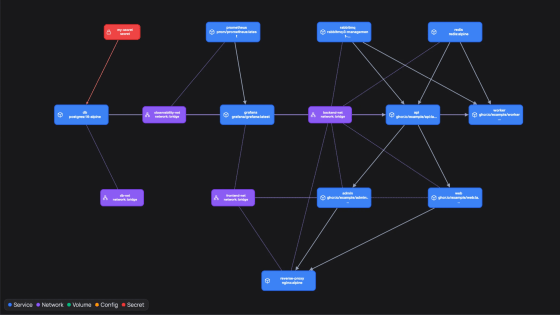
'lazydocker' is a CUI tool that supports complex Docker commands.

GitHub - jesseduffield/lazydocker: The lazier way to manage everything docker
https://github.com/jesseduffield/lazydocker
◆Introduction
The operating requirements for lazydocker are as follows:
・[Required] Docker: version 29.0.0 or later
・[Optional] Docker-Compose: Version 1.23.2
Since the Docker version is close to the latest, it may not be possible to prepare the environment due to compatibility issues with the existing environment or incompatibility with package management tools, but it is also possible to use Docker to start and run a container with the appropriate environment.
[code]
docker run --rm -it -v \
/var/run/docker.sock:/var/run/docker.sock \
-v [Host side path to save lazydocker settings]:/.config/jesseduffield/lazydocker \
lazyteam/lazydocker
[/code]
Please note that the [Host side path to save lazydocker settings] must be rewritten to suit your actual environment.
◆Process
A list of processes is displayed in the upper left corner of the screen. At the time of writing, the implementation does not seem to take into account services consisting of multiple containers, but it is planned to support multiple containers in the future.
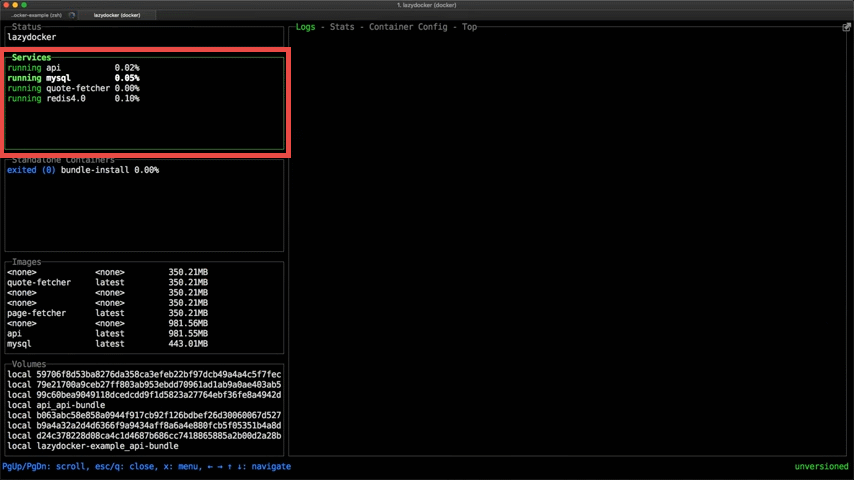
The CPU usage of each process is displayed to the right of the process name.
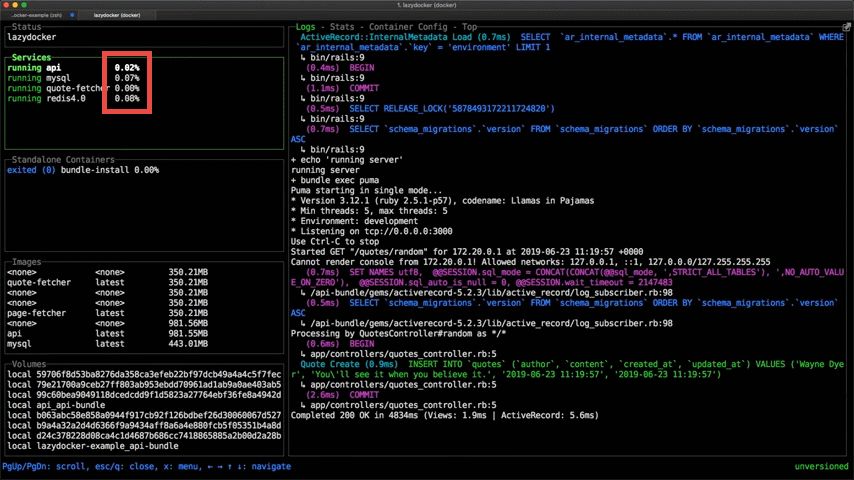
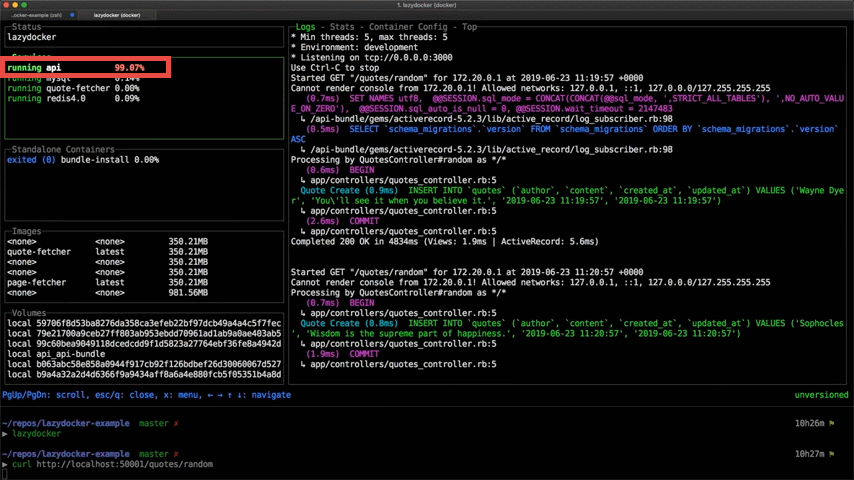
If your CPU usage spikes, it will turn red.
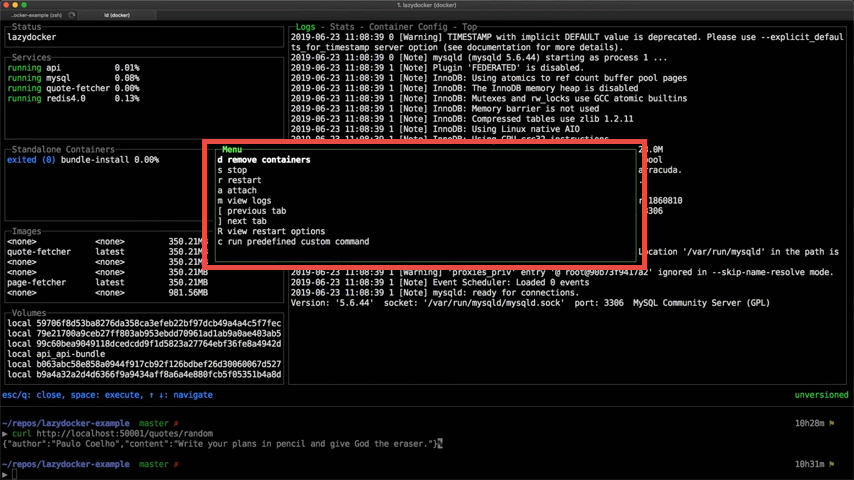
Pressing the m key displays a menu of commands that can be used on processes.
◆Statistics information
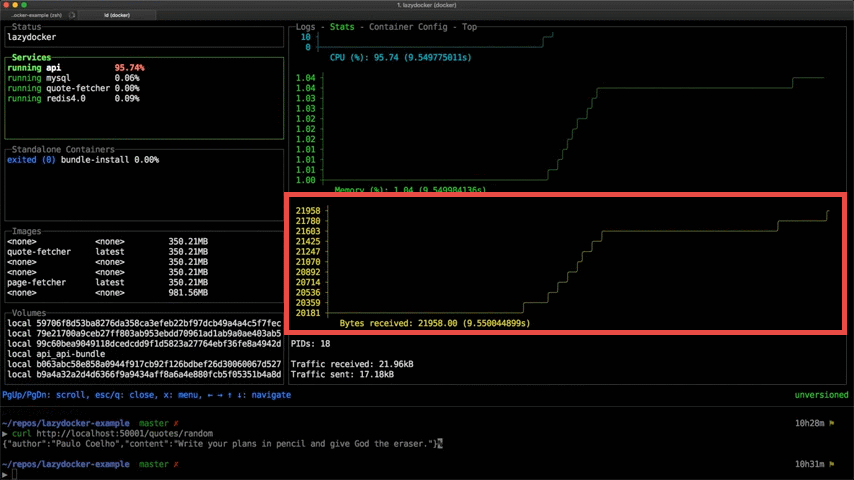
Fluctuations in CPU usage and memory usage can be checked in the statistics.
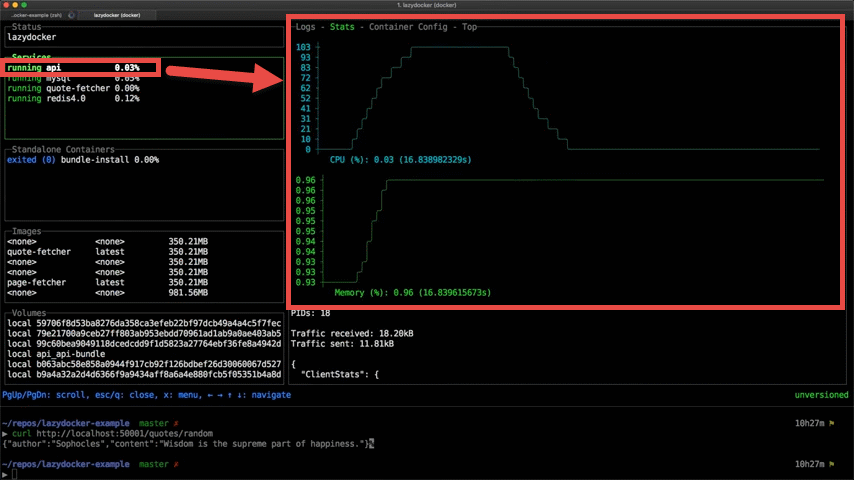
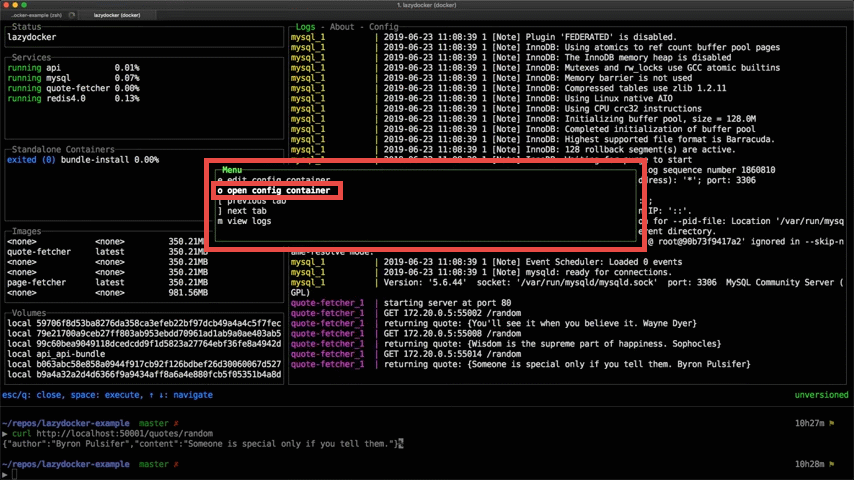
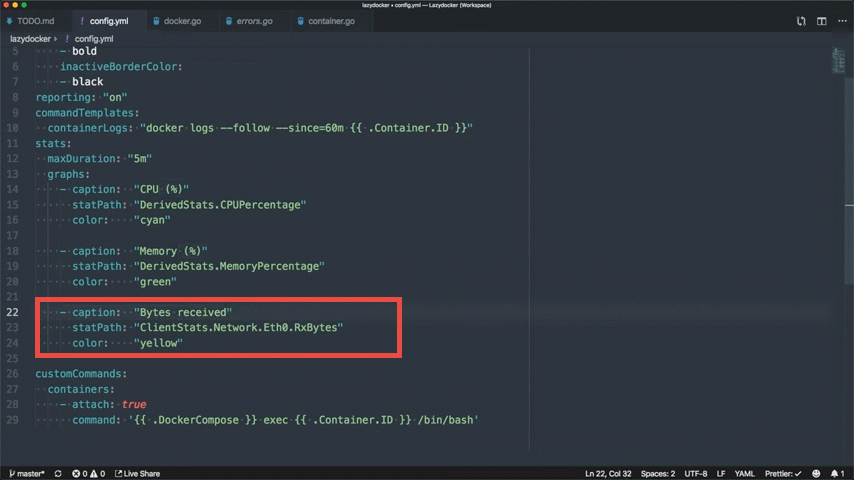
By default, the statistics displayed are 'CPU usage' and 'Memory usage,' but you can add more. First, press the m key to display the menu, then press the o key or select 'open config container' from the menu.
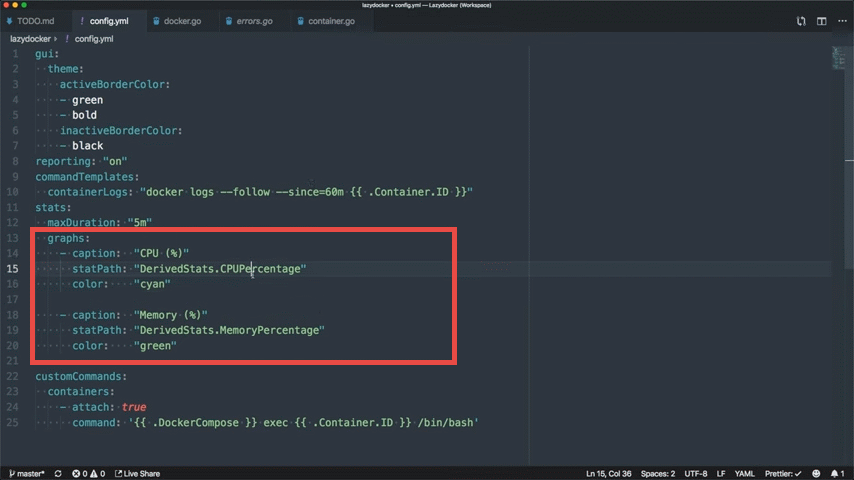
Add a graph definition. In the example below, a graph for 'Bytes received' is added.
Once the settings are applied, a graph will be added.
◆Containers, images, and volumes
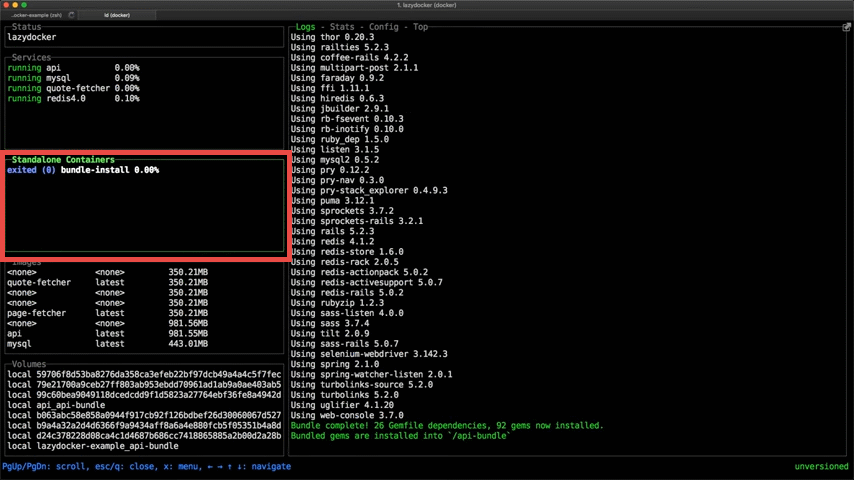
The second row from the top on the left side of the screen displays a list of containers belonging to the selected service. If the service consists of a single container, the caption will be 'Standalone Containers.'
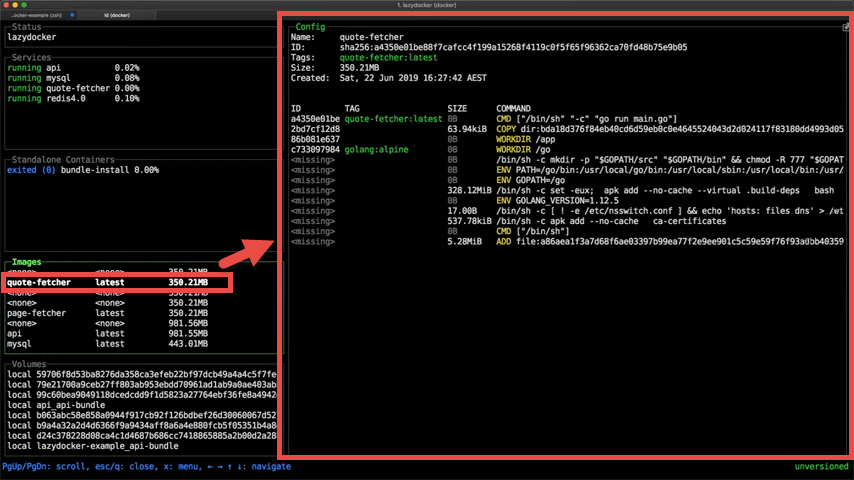
The third row from the top on the left side of the screen displays a list of images managed by Docker.
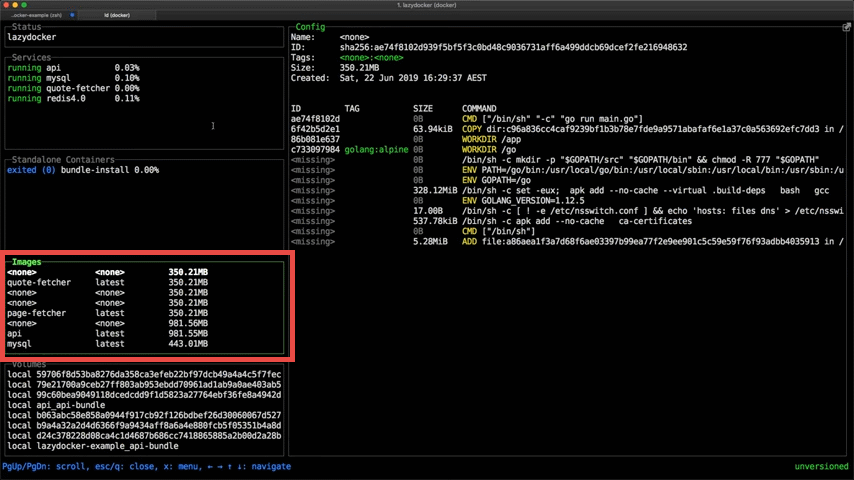
When you select an image, the image configuration will be displayed on the right side of the screen.
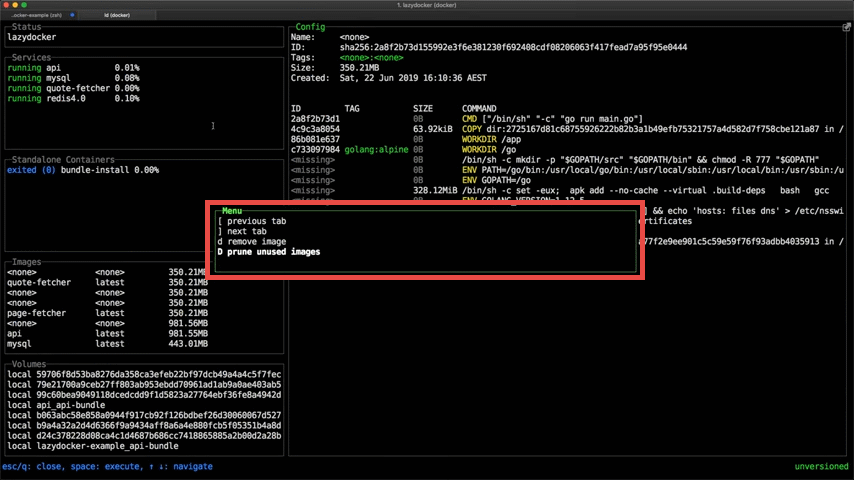
Pressing the m key displays a menu of commands you can use on images.
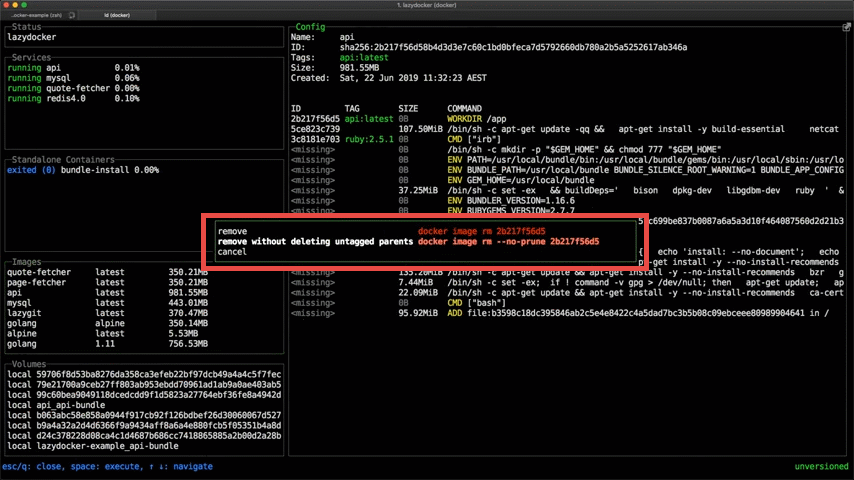
For the Delete command, a submenu will appear, allowing you to choose between 'Simply delete the image' and 'Delete only the specified image, leaving the images of the intermediate steps intact.'
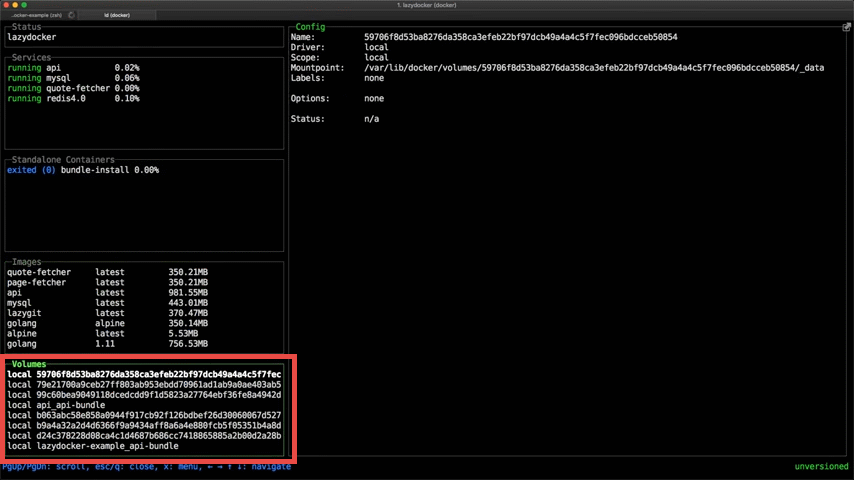
At the bottom left of the screen is a list of volumes.
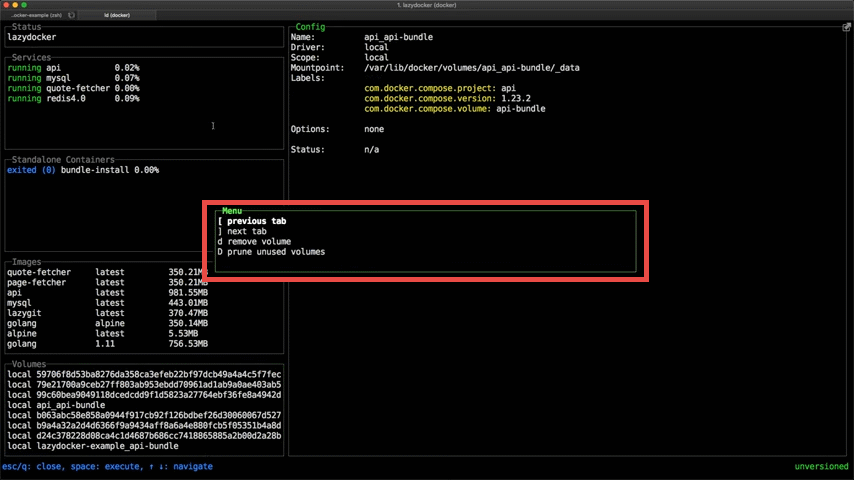
Pressing the m key displays a menu of commands available for volumes.
◆Multiple containers
It also supports services that consist of multiple containers using
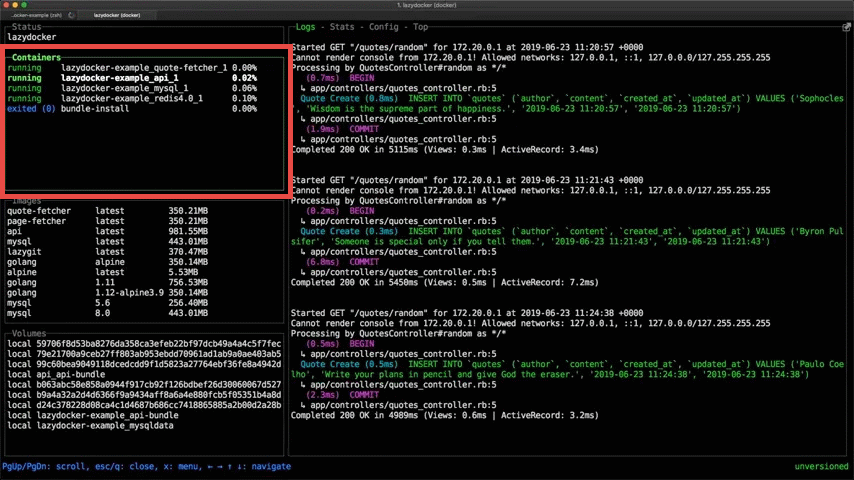
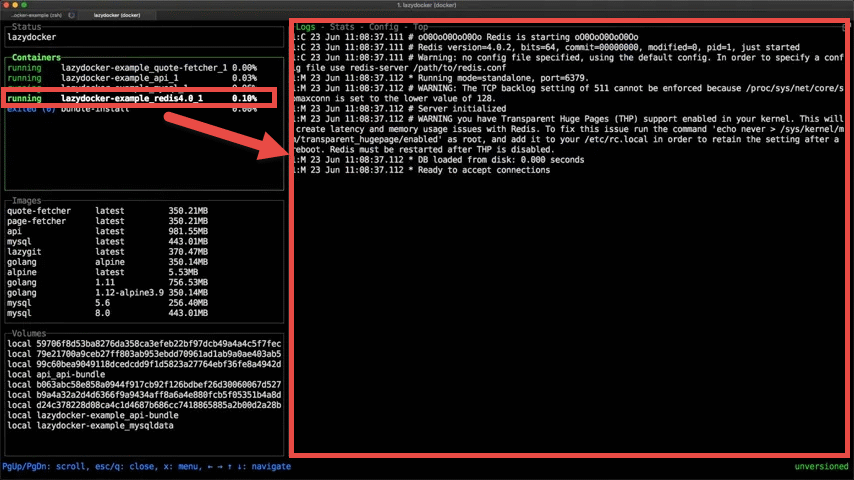
You can also view the logs for a specific container by selecting one of multiple containers.
From the impression I got after checking all the functions, it seems like it's still in the process of being implemented, but even at the time of writing this article it is highly functional and has great potential for the future, so if you're interested, be sure to check it out.
Related Posts: