Goose is a free, open-source AI agent that supports desktop applications, CLI, APIs, and various other uses including code, workflows, and more.
When you start using AI agents, you may want to use different providers such as
goose | Your open source AI agent
https://goose-docs.ai/
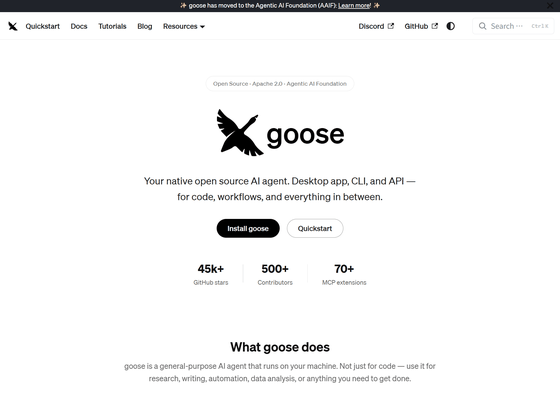
aaif-goose/goose: an open source, extensible AI agent that goes beyond code suggestions - install, execute, edit, and test with any LLM
◆How to use the desktop version of Goose
Editing files
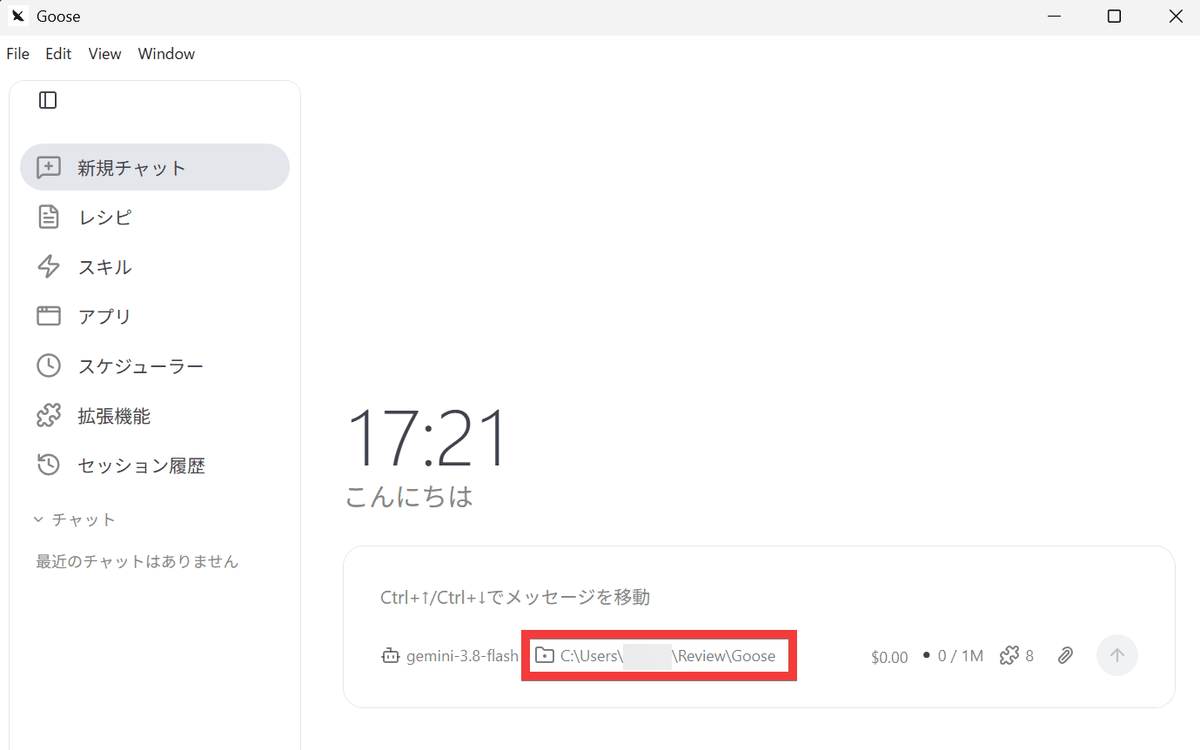
You can edit HTML, scripts, and other files by giving instructions via chat. First, launch the Goose app and set the folder where you will be working.
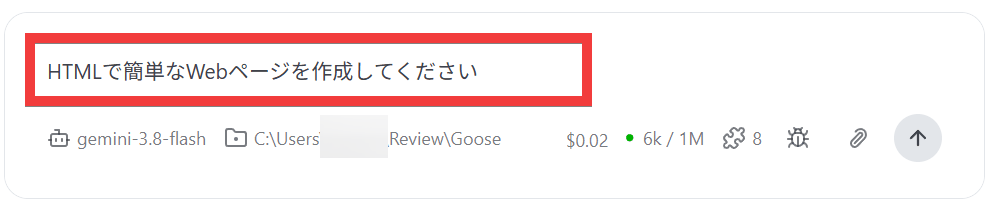
If you instruct someone in the chat to 'create a simple web page using HTML'...
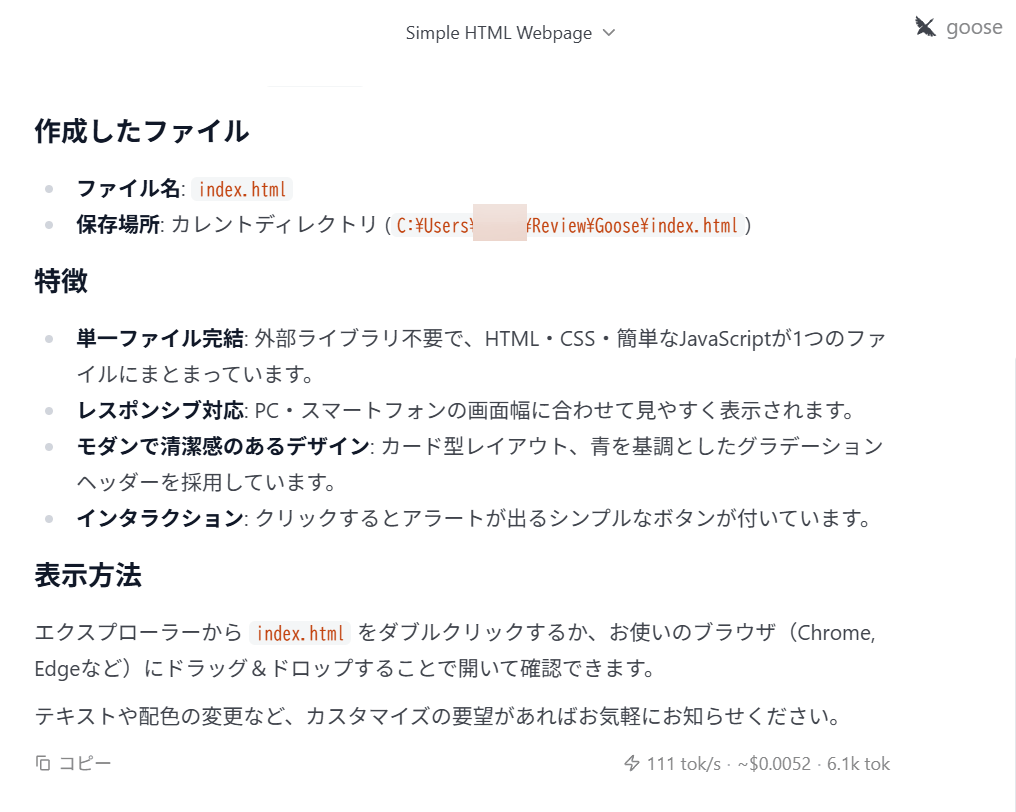
The file index.html has been created in the working folder.
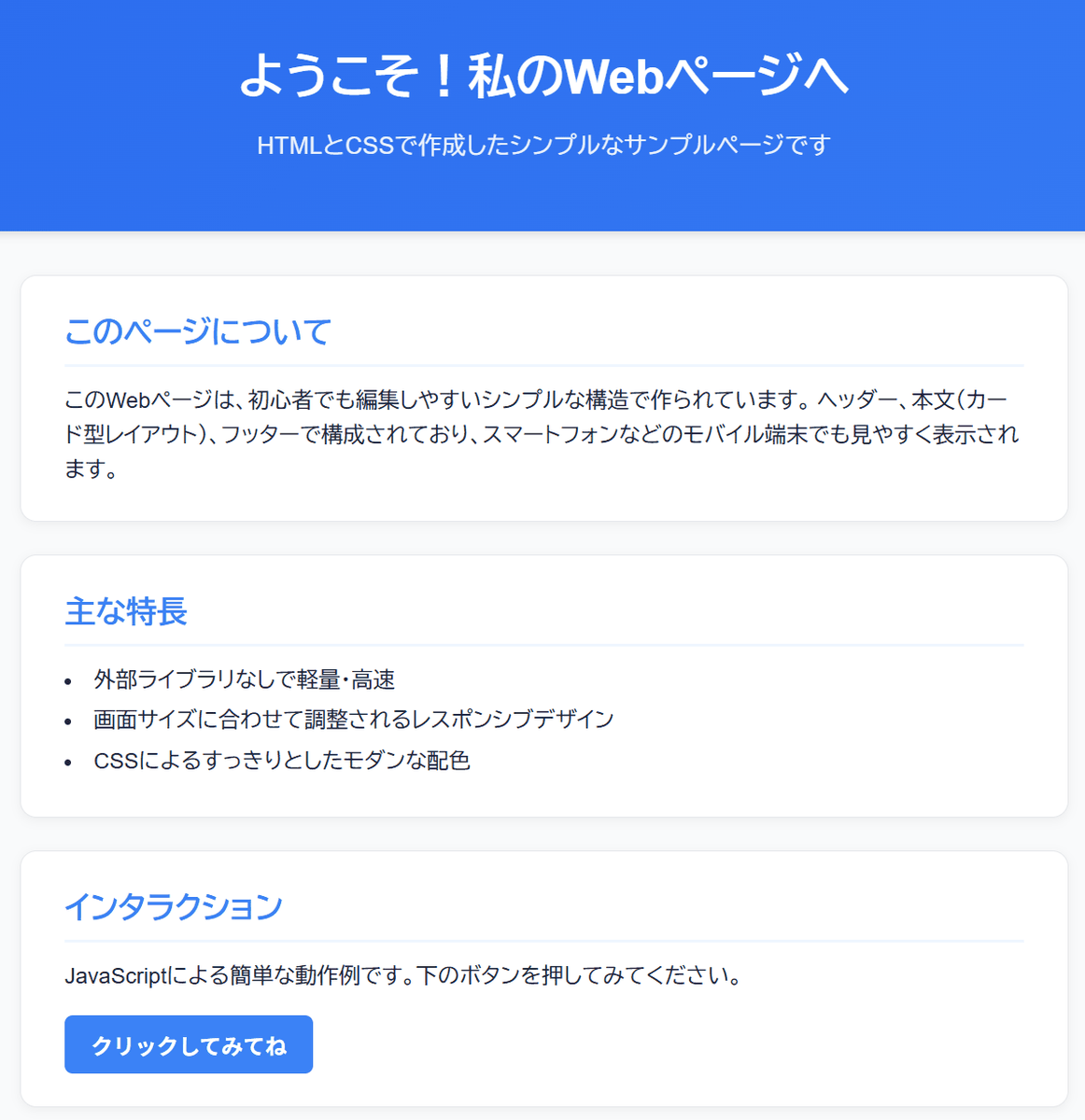
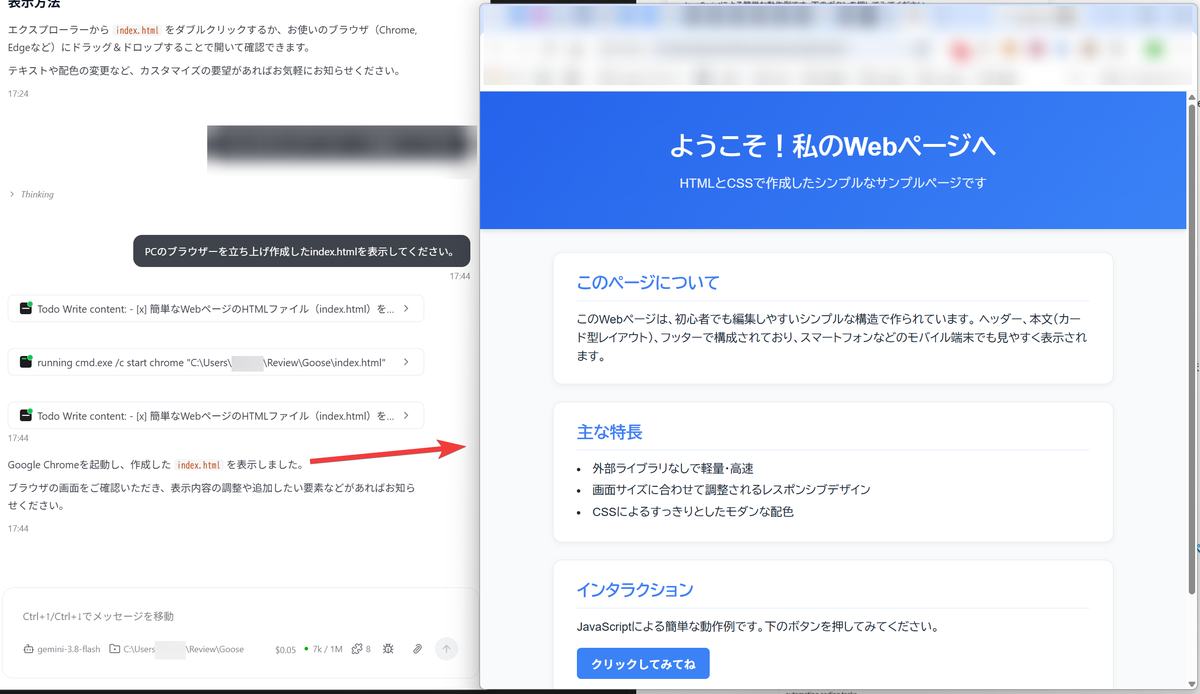
When you actually check it in a browser, the following page is created.
• Extensions
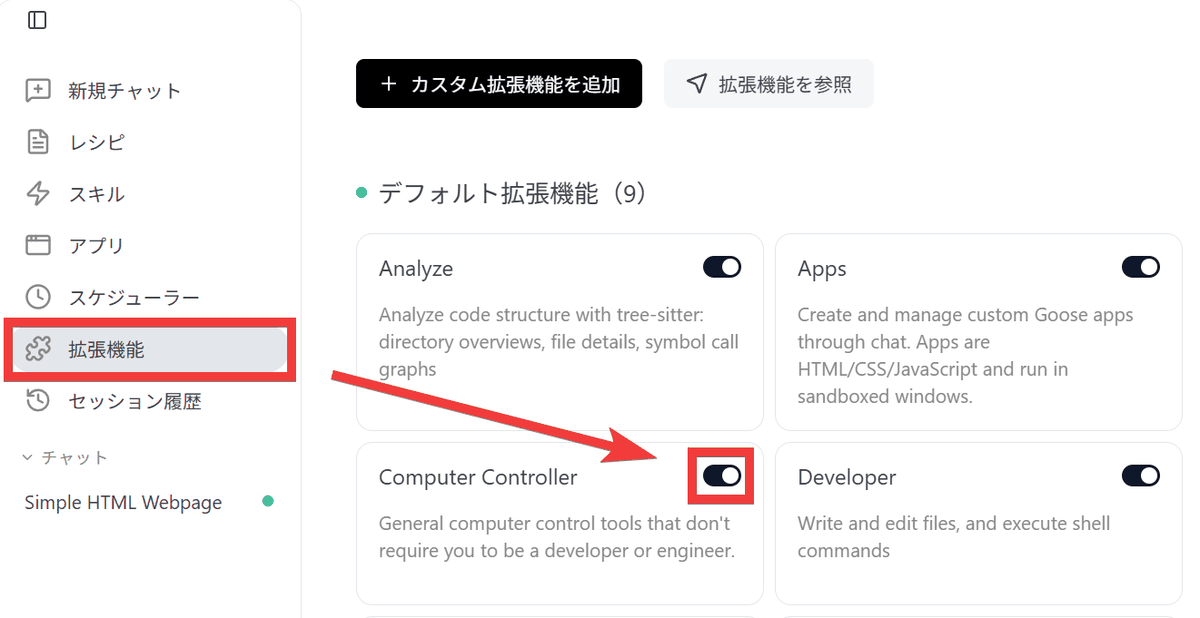
Goose offers its own extensions; for example, click 'Extensions' in the sidebar and turn on the 'Computer Controller' toggle.
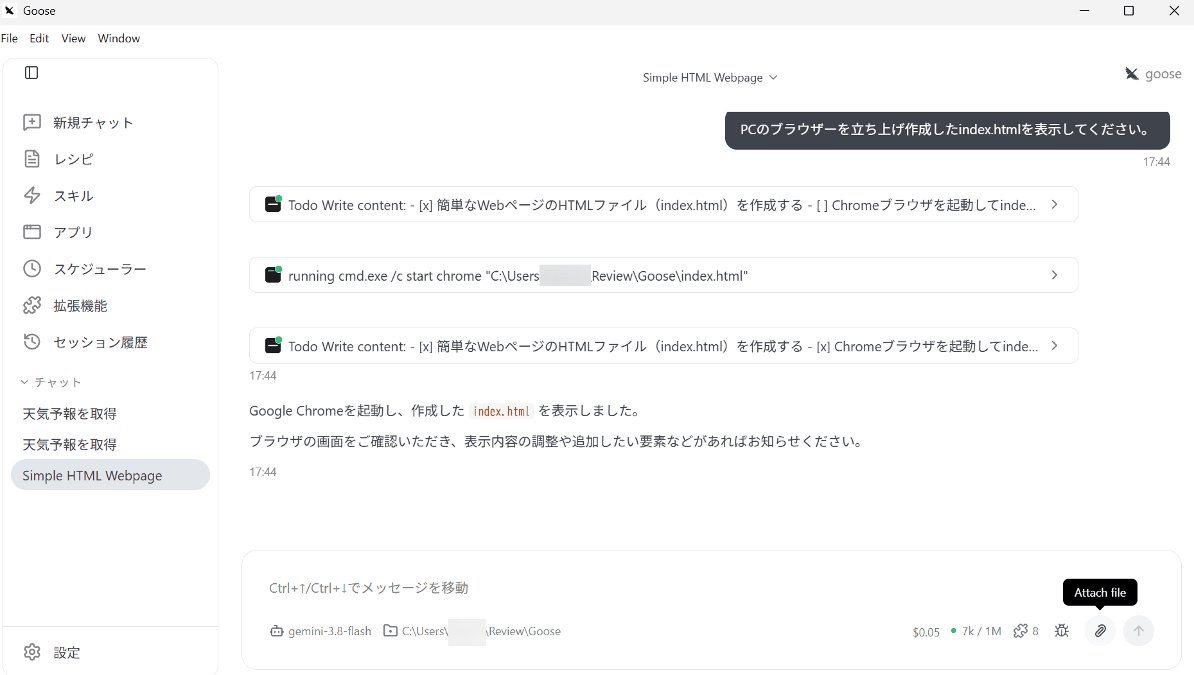
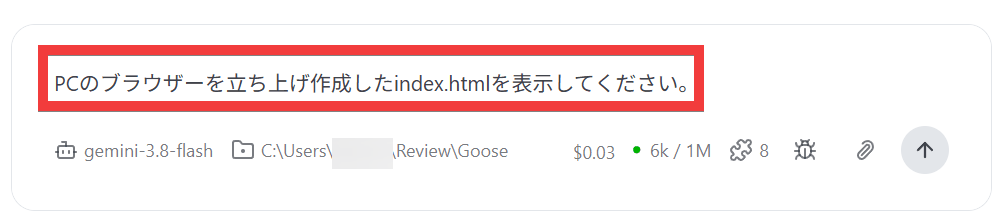
I'll go back to the chat and instruct them to 'Open your PC's browser and display the index.html file you created.'
The browser launched and the page was displayed. You can also operate the PC itself in this way.
These unique extensions are provided as '
• Recipe function
You can register prompts that you want to run repeatedly every day. For example, click the 'Run' button in a pre-registered recipe for retrieving weather forecasts.
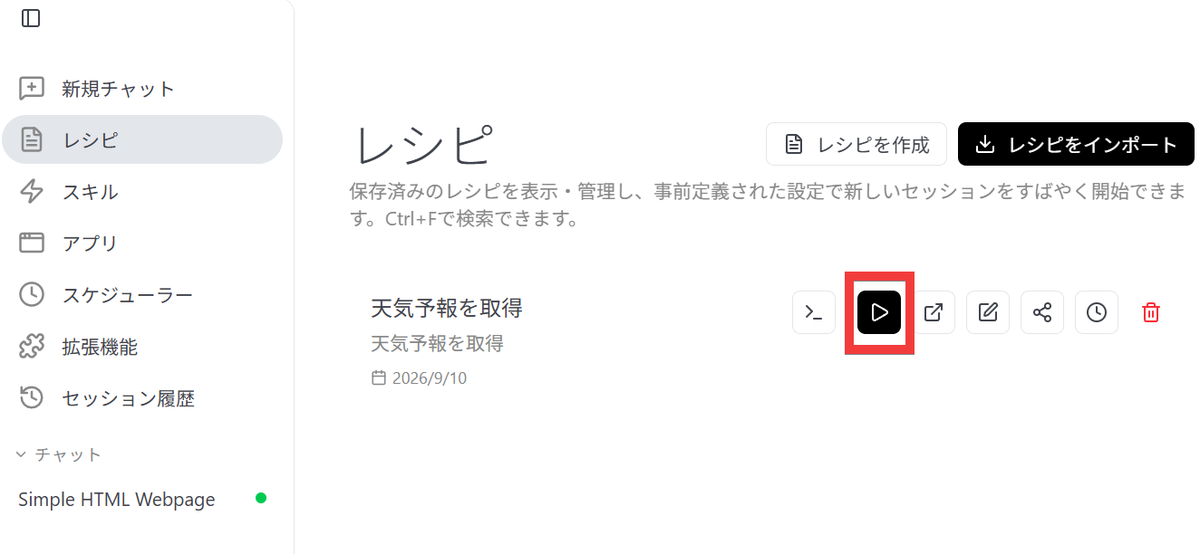
As of September 10, 2026, the recipe function was not working properly.
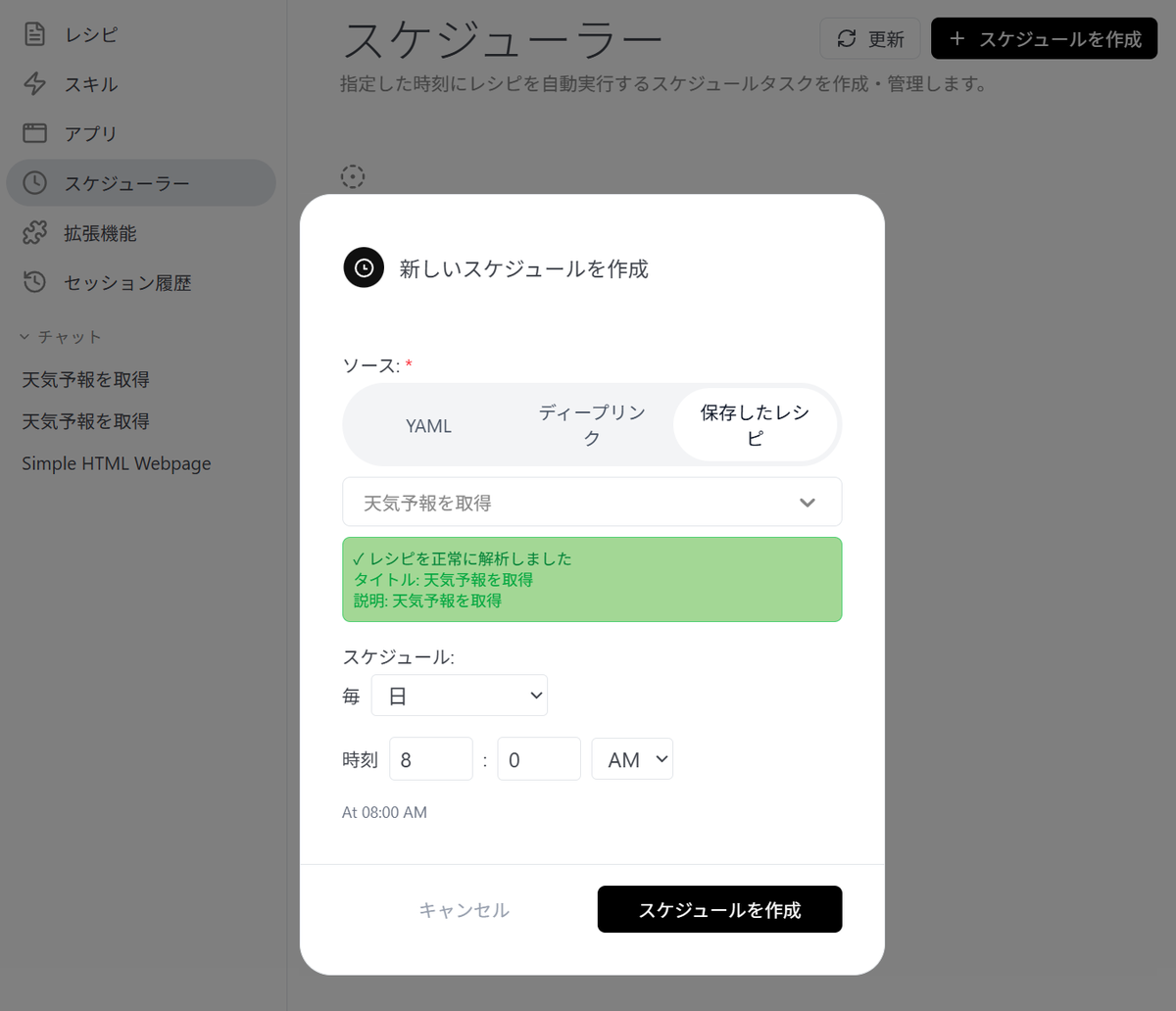
• Schedule function
You can register instructions and operations that you want to perform regularly.
◆Other features
• More than 15
- Claude Code, Codex, etc. can be used via ACP.
- Sub-agent function that distributes processing among multiple AIs
- MCP Apps function that displays the MCP operation screen within the Desktop.
- It is also possible to integrate AI agent functionality into other applications using APIs and SDKs.
Many other features are available, such as those mentioned above.
While there are services like Claude Cowork and ChatGPT Work that allow you to delegate tasks to AI agents from your desktop, goose's strength lies in its ability to freely select and use AI providers rather than being tied to a specific AI model.
◆How to install Goose
Desktop app version
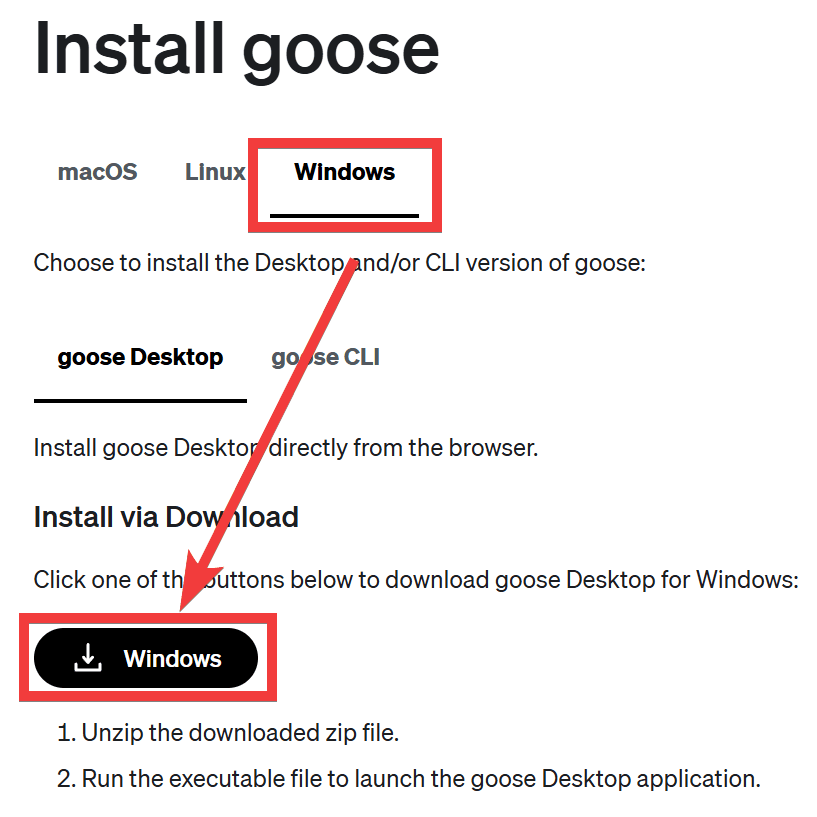
This time, we will set it up in an environment where Git for Windows Git Bash is installed on Windows. Click 'Windows' on the official website's Quickstart page , then click the 'Windows' button under 'goose Desktop' and save the file.
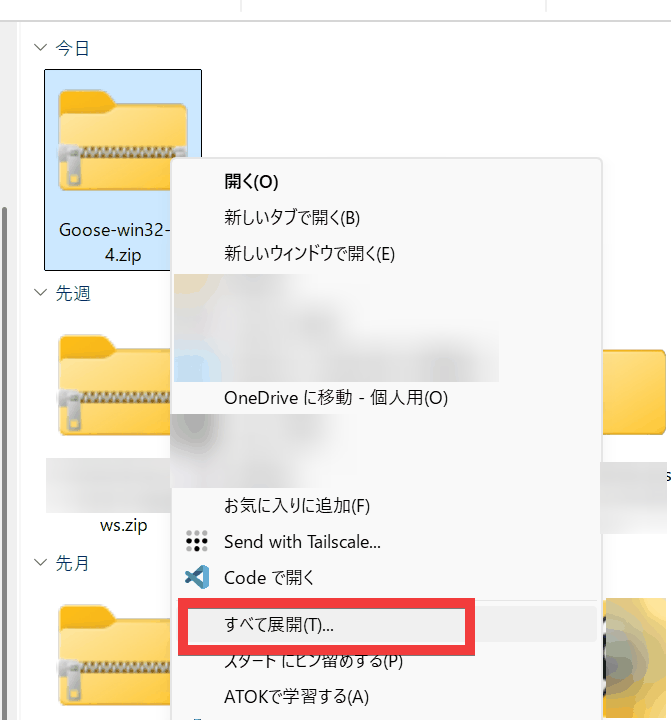
Right-click the saved file and select 'Extract All'.
Double-click 'Goose.exe' in the extracted folder.
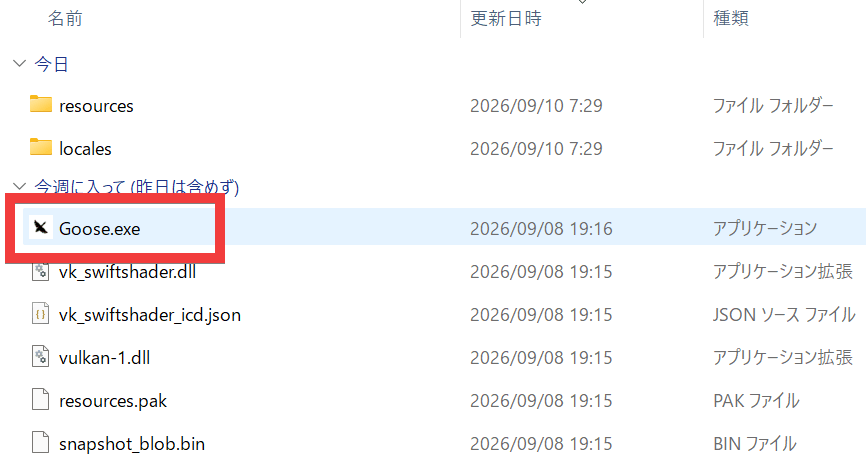
The installation is complete when Goose starts up and the initial screen is displayed.
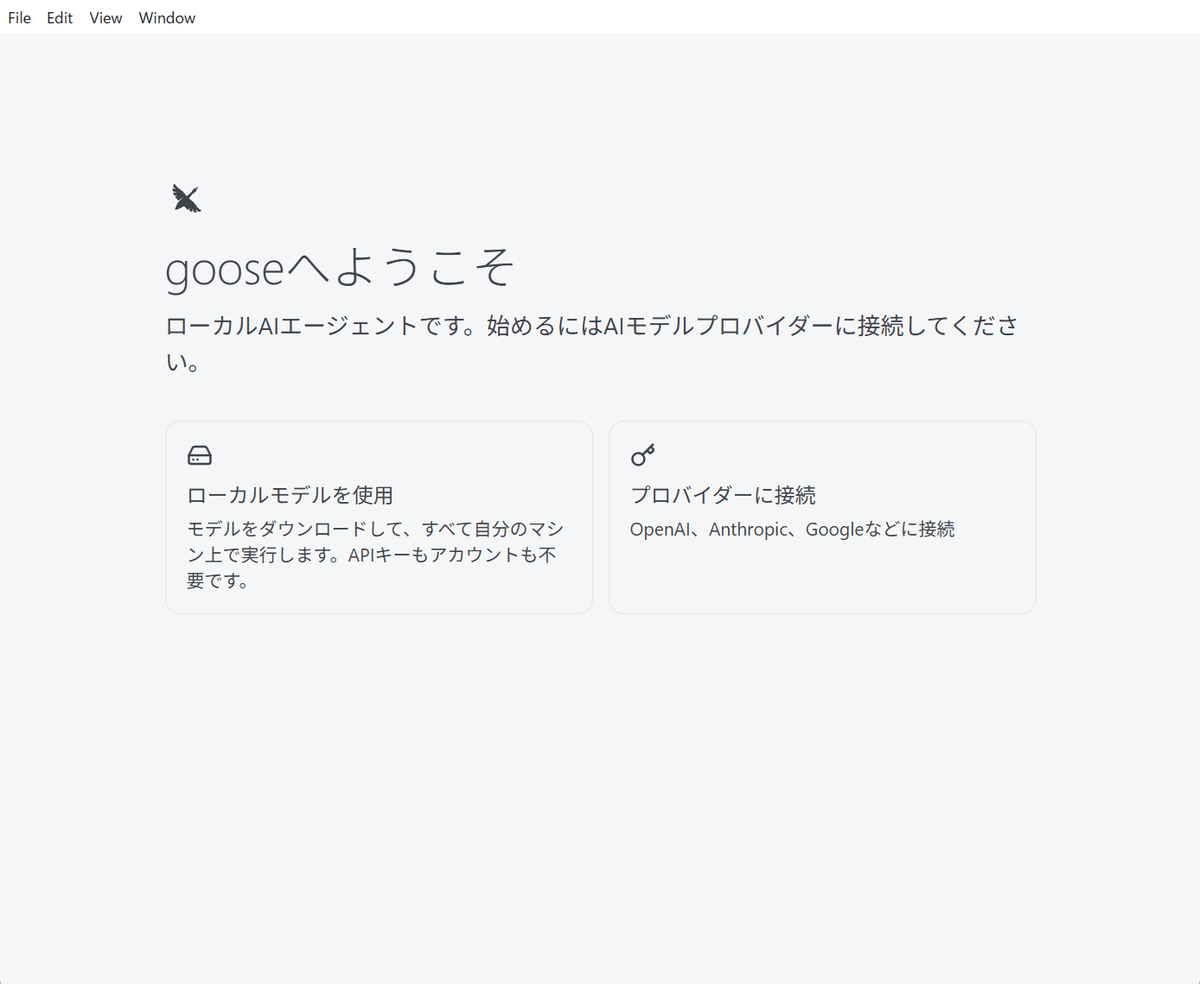
・CLI version
Open a GitBash prompt and execute the following command.
curl -fsSL https://github.com/aaif-goose/goose/releases/download/stable/download_cli.sh | bash
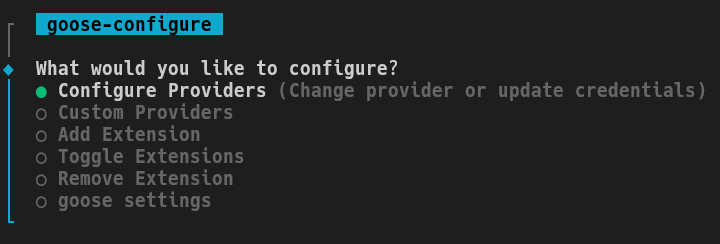
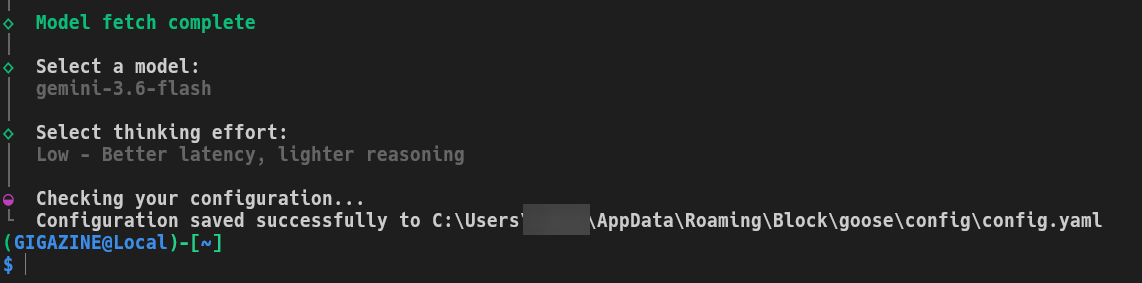
The setup wizard will start, so press the Enter key with the 'Configure Providers' option selected.
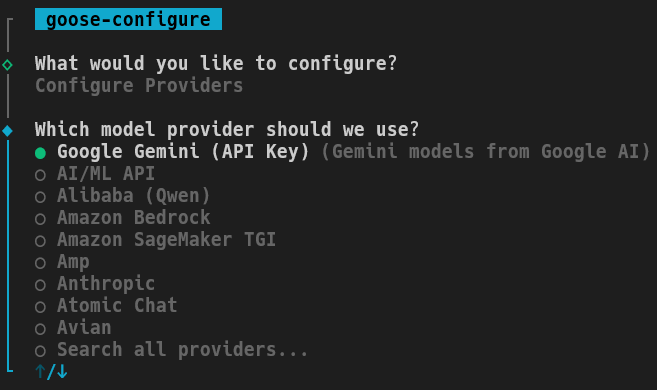
Select your contracted AI provider and configure the API key, etc.
If you're happy with the default settings, simply press the Enter key to proceed and complete the process.
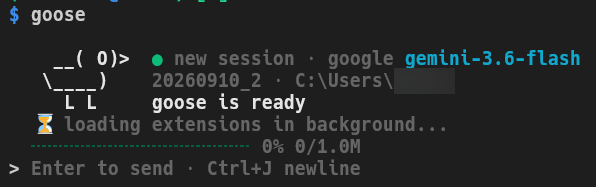
When you run the goose command...
goaddress
Goose will launch and a prompt input field will appear.
Related Posts: