DbGate is a free tool for managing databases such as MySQL, PostgreSQL, SQL Server, MongoDB, and SQLite, and it's available not only via a browser but also as Windows, Linux, and Mac apps.
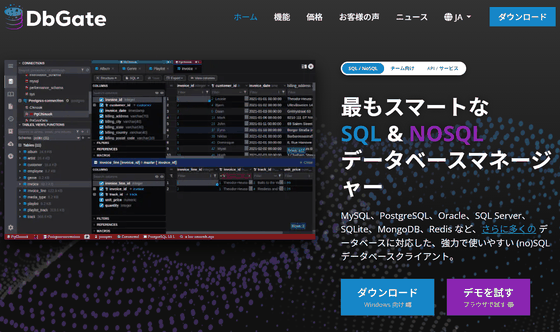
When dealing with multiple types of databases such as
SQL & noSQL database manager - DbGate
https://www.dbgate.io/ja/
dbgate/dbgate: Database manager for MySQL, PostgreSQL, SQL Server, MongoDB, SQLite and others. Runs under Windows, Linux, Mac or as web application
dbgate/dbgate - Docker Image
https://hub.docker.com/r/dbgate/dbgate
◆How to use DbGate
Connect to MySQL
This document describes how to connect to a database running as a Docker container on the same server using the Docker version of DbGate .
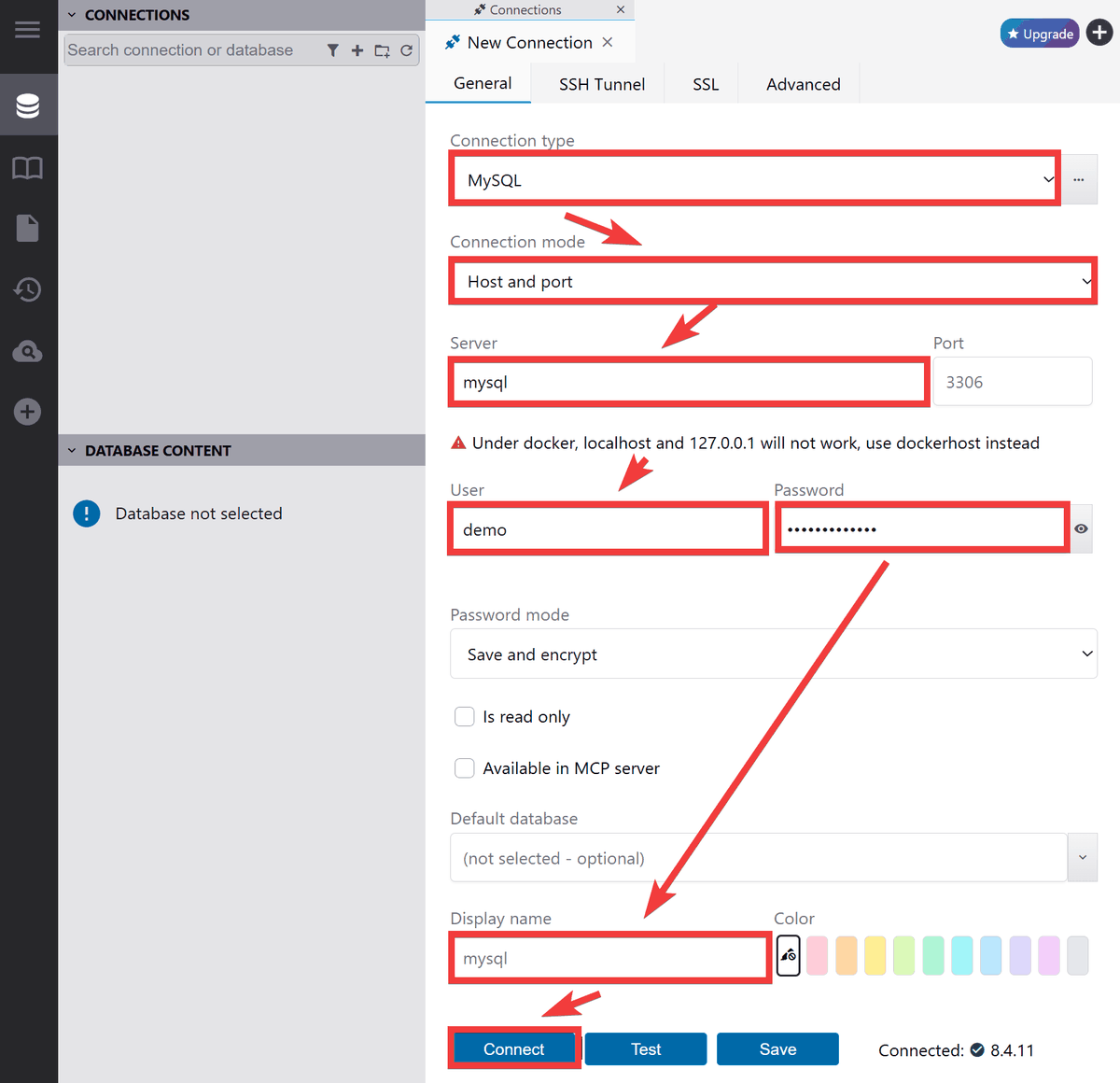
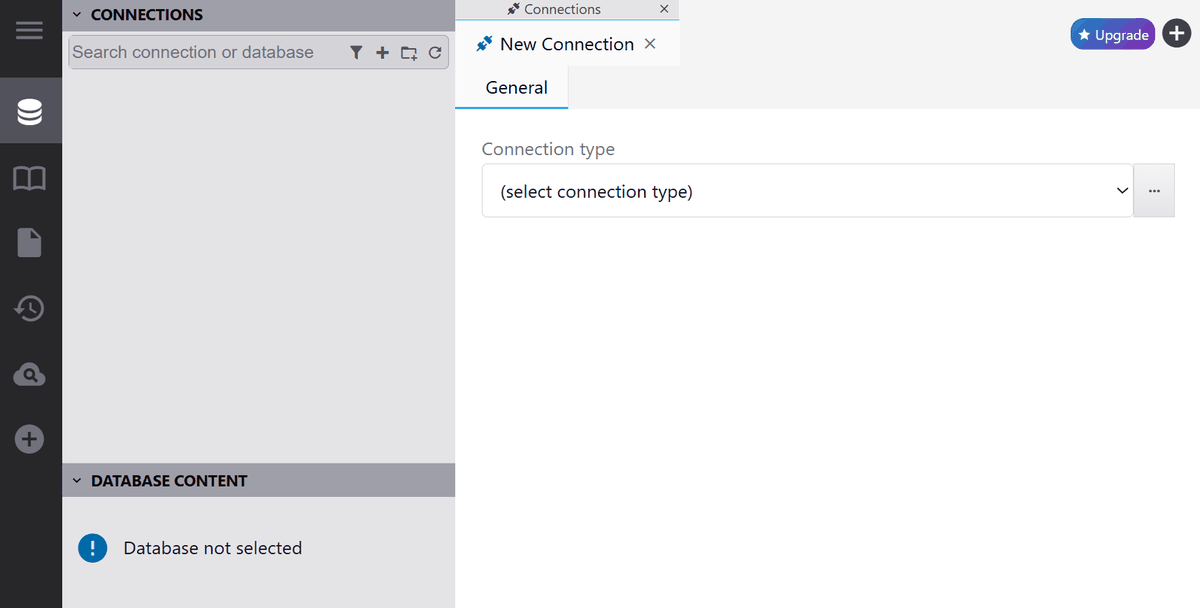
After launching your browser and accessing the DbGate URL, select 'MySQL' from 'Connection type' in the 'New Connection' form, select 'Host and port' for 'Connection mode', specify the container service name in 'Server', enter your username in 'User', your password in 'Password', enter a name of your choice in 'Display name', and click 'Connect'.
・Viewing tables
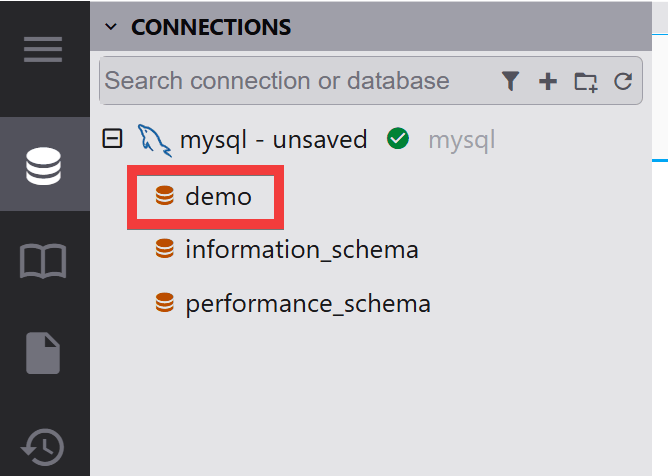
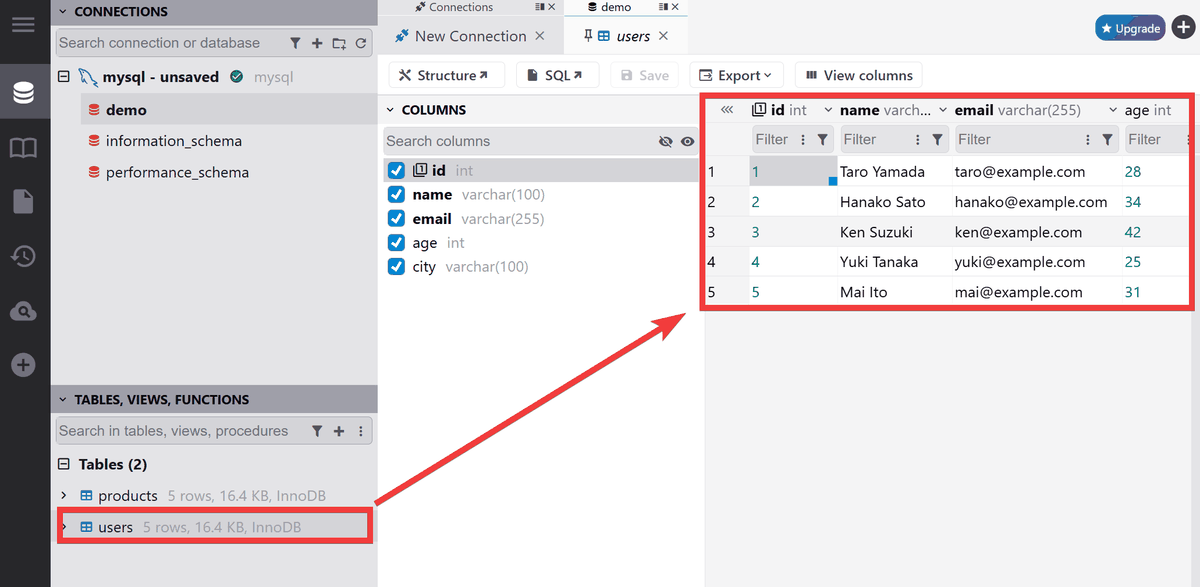
MySQL will be added to CONNECTIONS and a list of databases will be displayed, so click on 'demo' from the list.
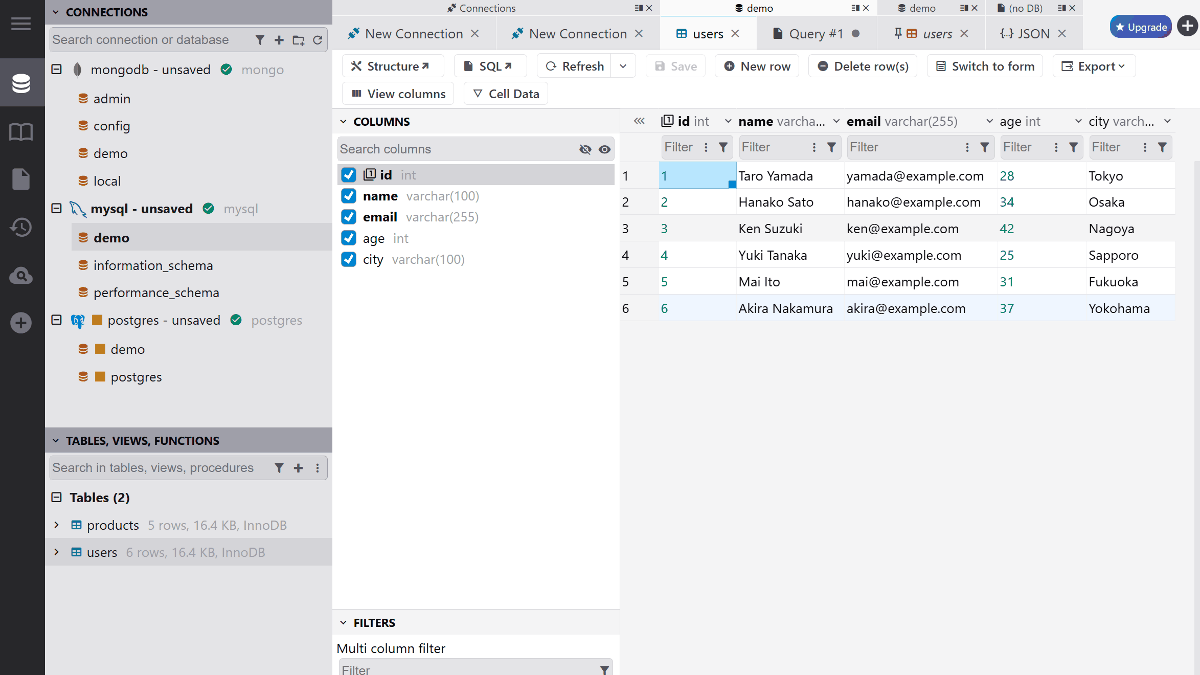
A list of tables in the demo database will be displayed. Clicking 'users' will show the table contents on the right.
Editing data
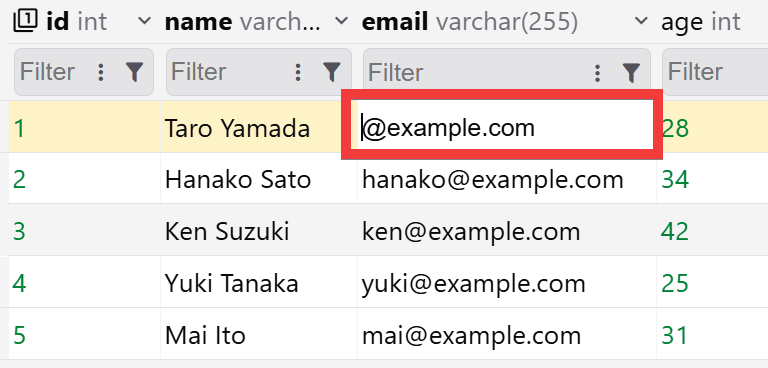
Double-clicking a cell enters edit mode, allowing you to directly modify it.
Execute SQL directly
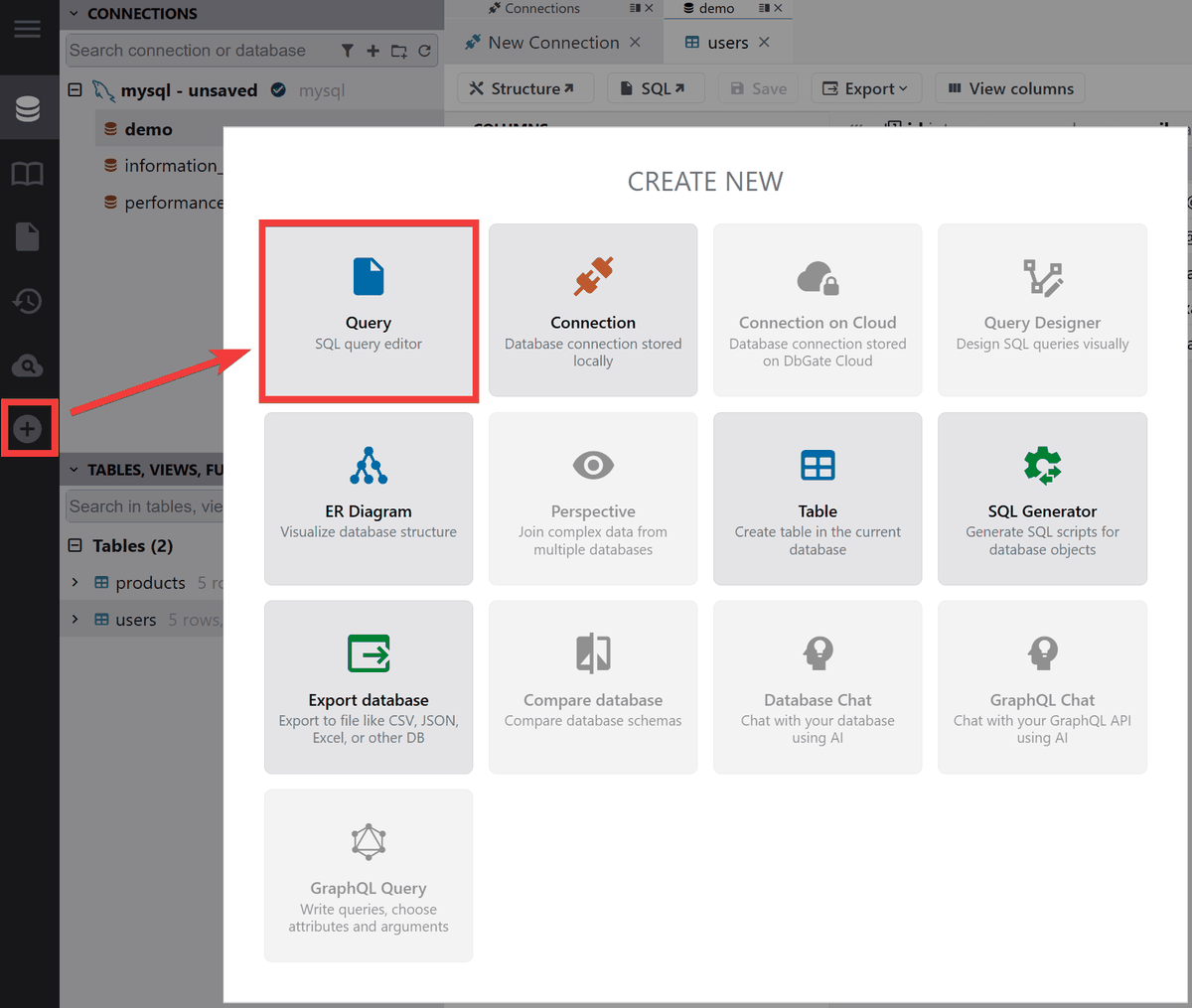
Click the '+' icon in the side menu, and then click 'Query' from the list of functions that appears.
A tab for entering the query will appear, so enter your SQL and click 'Execute'.
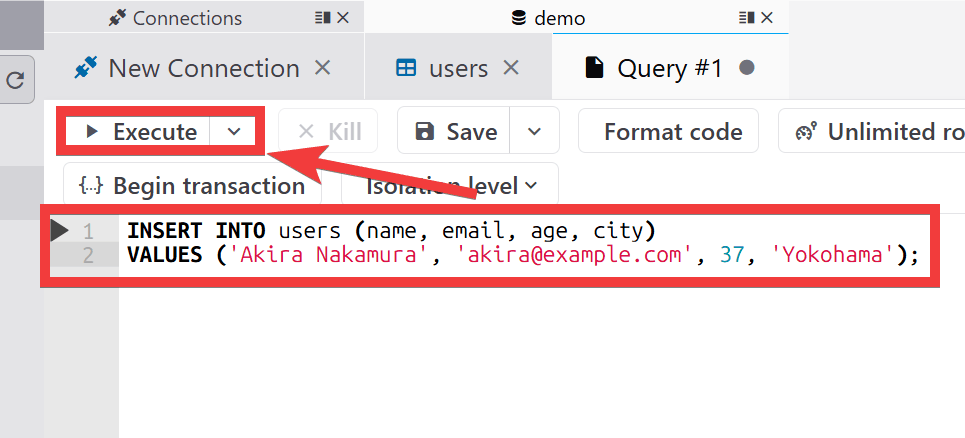
The SQL query is executed and the execution log is displayed in the 'Messages' tab.
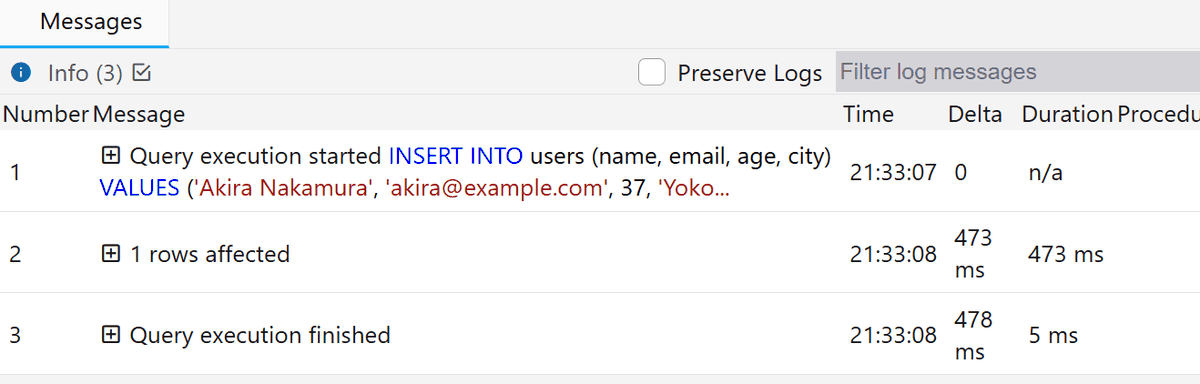
- Add PostgreSQL
Adding PostgreSQL using the same procedure as for MySQL will add it to the CONNECTIONS directory.
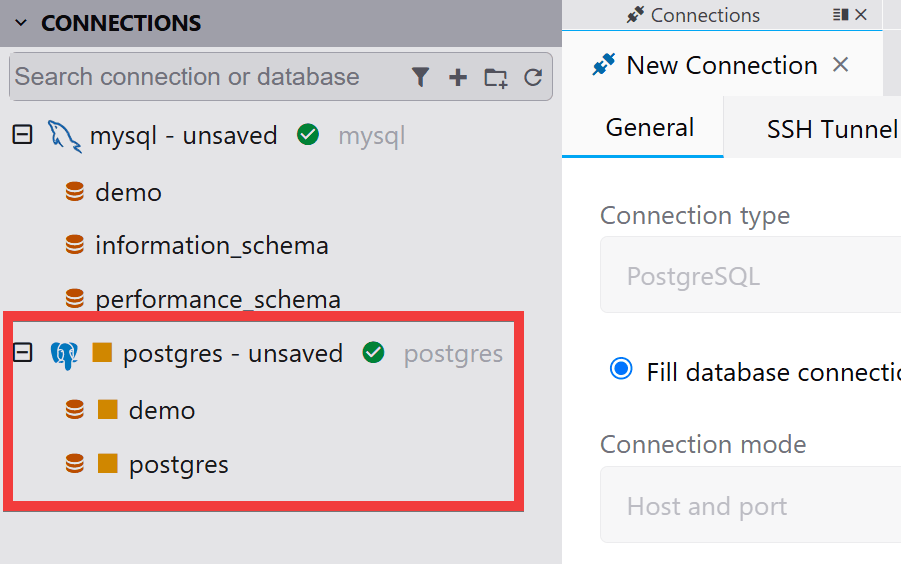
- Add MongoDB
MySQL and PostgreSQL are SQL databases that store data in tables with predefined structures such as columns and data types, while MongoDB is a NoSQL database that stores data in a document format similar to JSON objects. After adding it to CONNECTIONS with New Connection, click on the database 'demo' and then click on the 'USERS' table to view the stored data in JSON format.
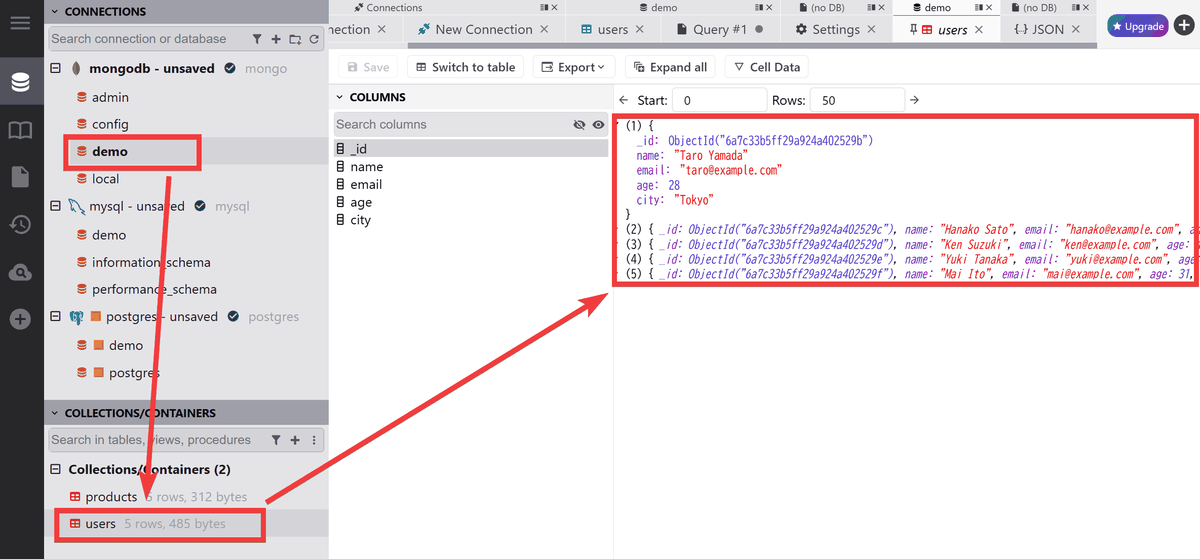
In this way, you can connect to multiple databases from a single database management screen and manage SQL and NoSQL databases together.
The free Community edition is for single-user use only. The paid
◆ How to build DbGate with Docker
This time, we will set it up in an environment where Docker Desktop and Git Bash for Windows are installed on Windows. Create a docker-compose.yml file with the following content in your working folder.
 services:
 dbgate:
 image: dbgate/dbgate
 restart: unless-stopped
 ports:
 - '3000:3000'
 environment:
 LOGIN: [Username]
 PASSWORD: [Any password you choose]
 volume:
 - dbgate-data:/root/.dbgate

 volume:
 dbgate-data:
Start the container.
docker compose up -d
When you access 'http://localhost:3000' in your browser, a login form will appear. Enter the username you set in 'Username' and the password in 'Password,' then click 'Log In.'
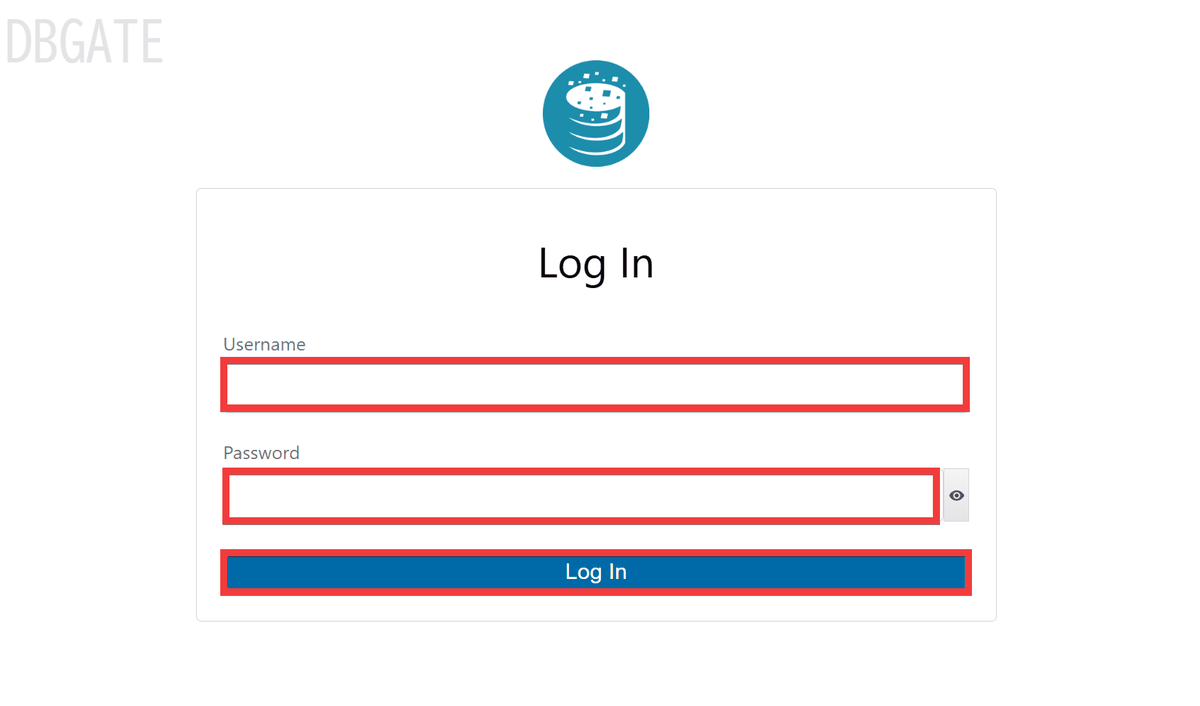
The setup is complete when the connection list screen is displayed.
Related Posts: