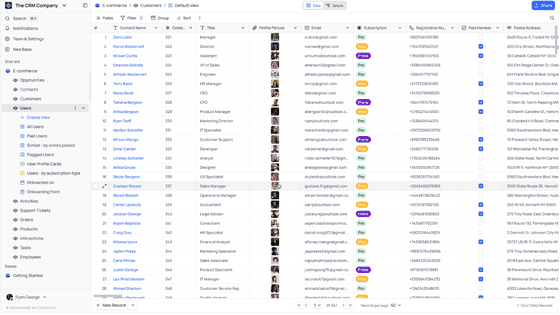
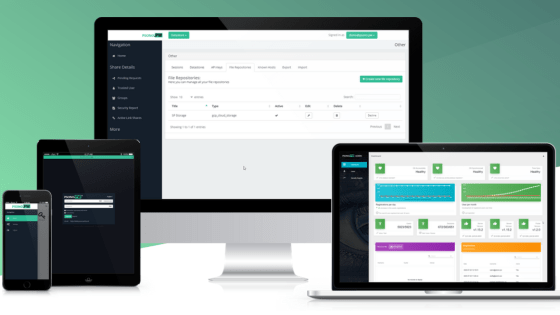
Pangolin is a free, open-source, self-hostable application that allows you to access SSH, RDP, and VNC from your browser.
Pangolin , a remote access platform that allows you to directly control SSH, RDP, and VNC within a firewall from a browser without needing a fixed IP address or port forwarding, and that also allows for easy port forwarding configuration, has been released as open-source software.
Pangolin | Zero Trust Remote Access Platform - Better VPN
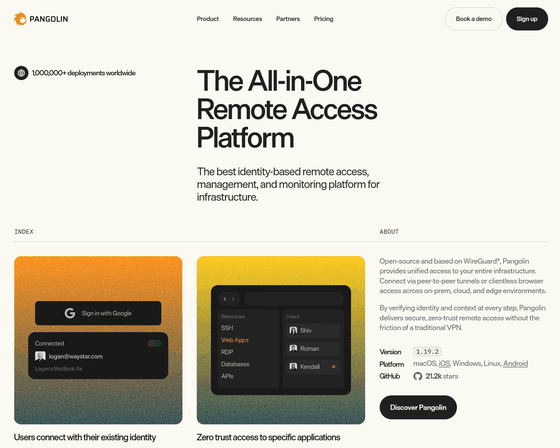
fosrl/pangolin: Identity-aware VPN and tunneled reverse proxy for remote access based on WireGuard.
◆Pangolin's Features
- Centralized management of settings
Normally, such systems require installing dedicated connection software on the connecting device and configuring the public ports and protocols. However, with Pangolin, by installing and running ' Newt ' on the connecting device, you can configure forwarding settings for SSH, RDP, VNC, etc., through the Pangolin management screen.
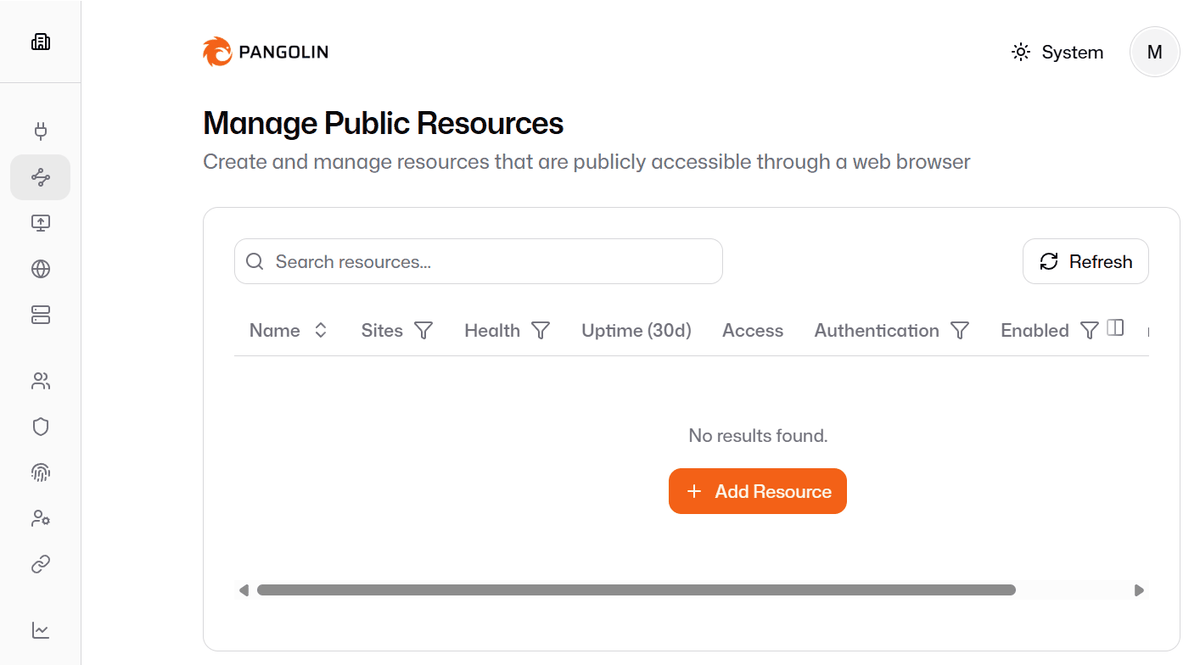
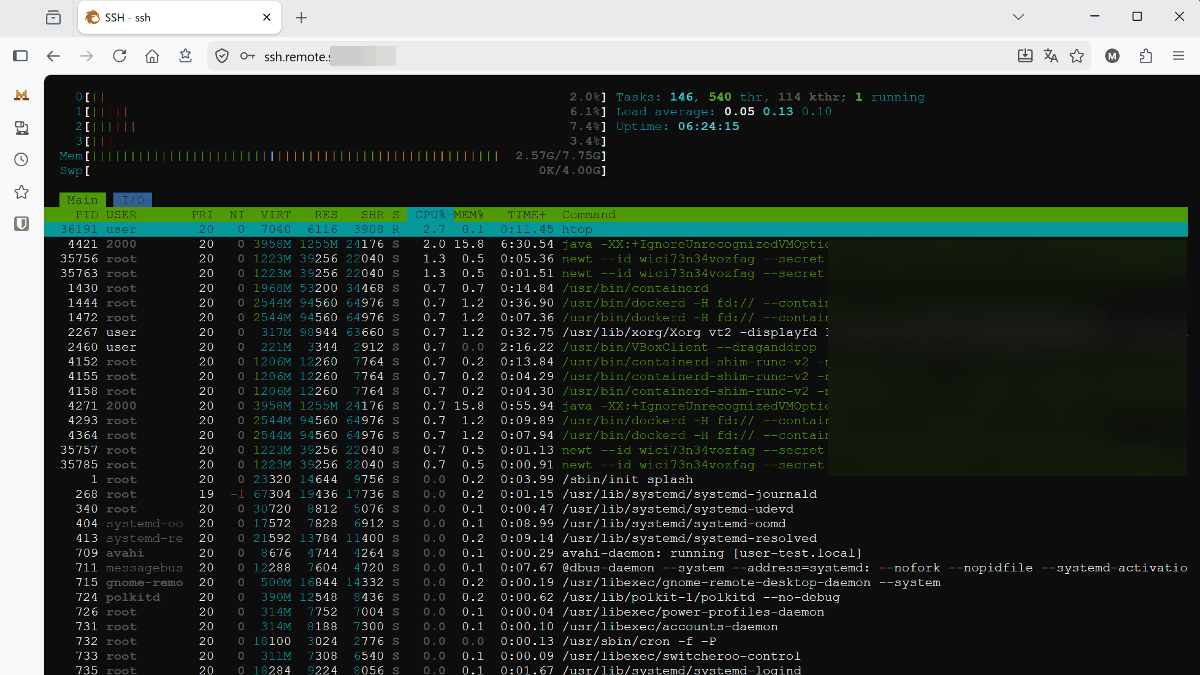
SSH connection is possible via browser.
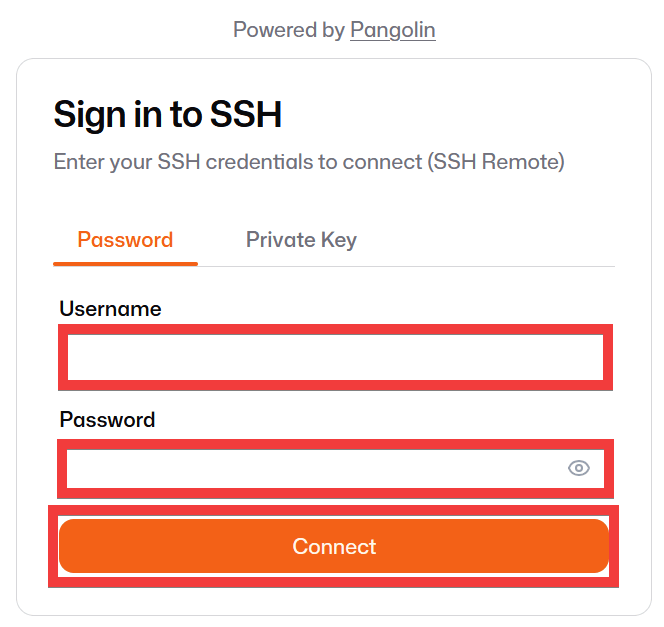
After creating the resource, access the specified URL to display the SSH connection form. If using password authentication, enter your SSH username in 'Username' and your SSH password in 'Password,' then click 'Connect.'
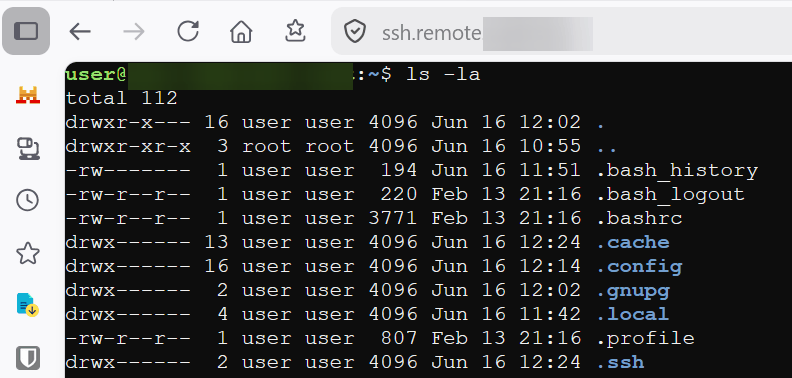
The SSH console is available in your browser.
◆Remote connection via RDP and VNC
Similar to SSH connections, accessing the created URL will display the RDP or VNC authentication form for remote connections. For VNC, enter your password in the 'Password' field and click 'Connect'.
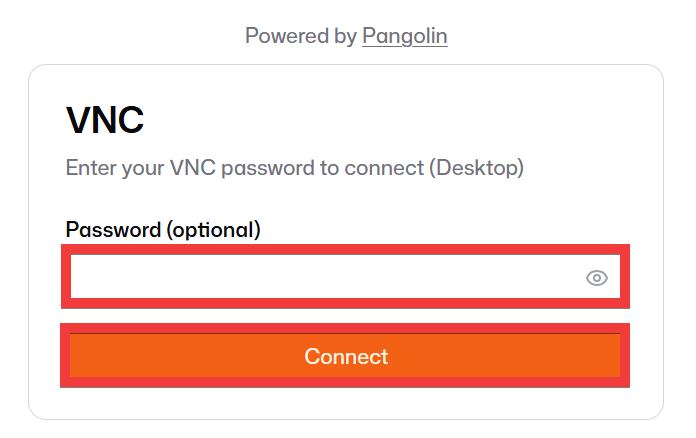
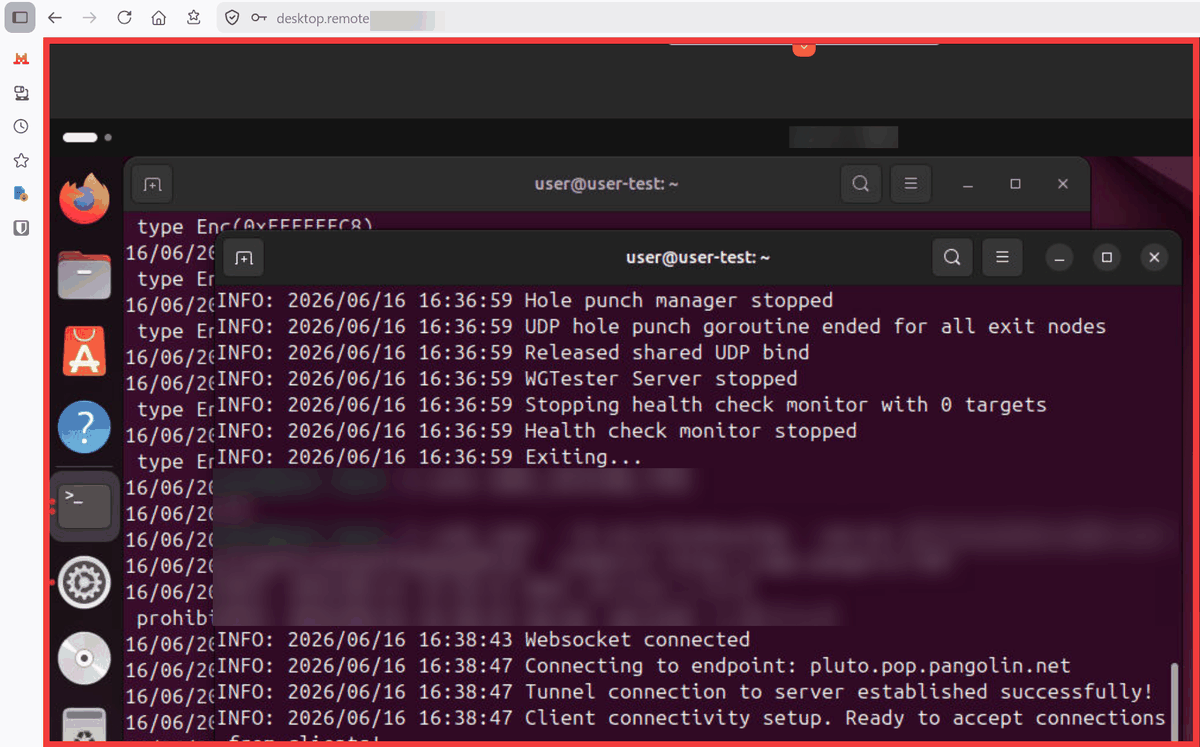
The desktop screen will appear in your browser, allowing you to operate windows and use tools.
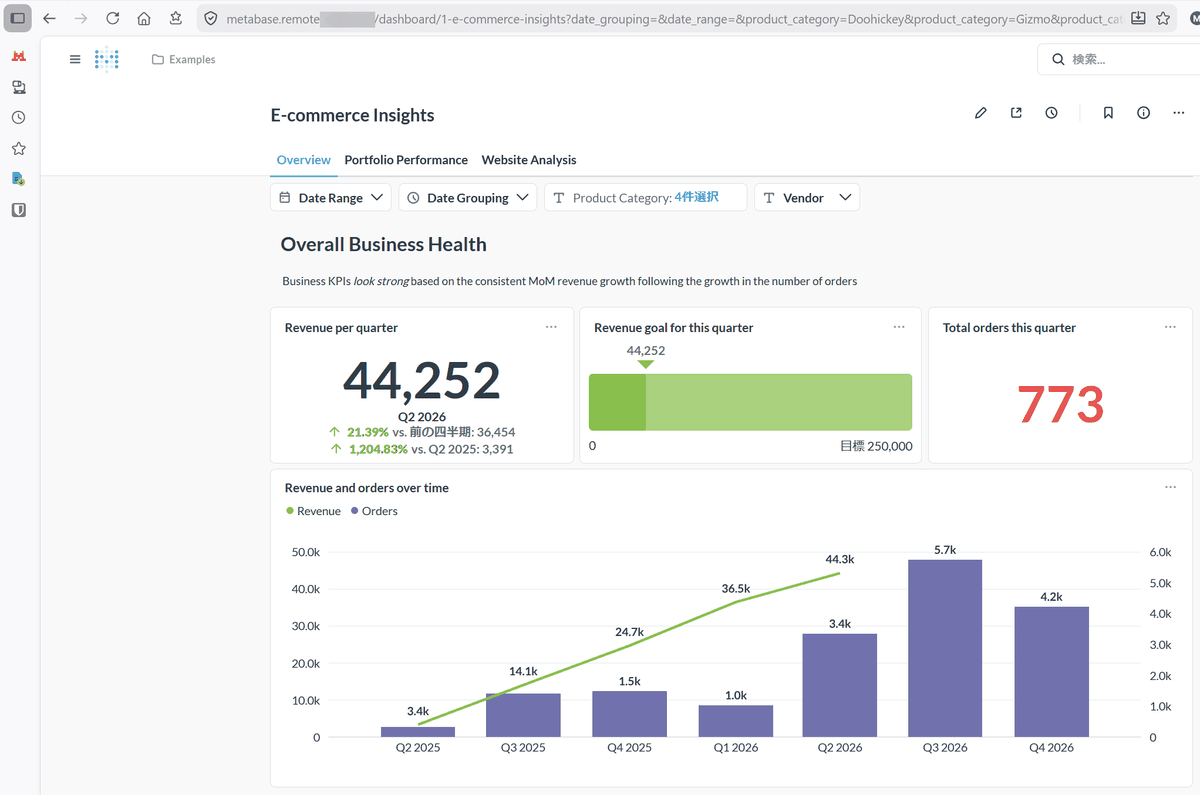
Port forwarding
This allows you to remotely operate applications that are not accessible via a browser from outside the network, such as web applications built on servers within the LAN or NAS configuration screens.
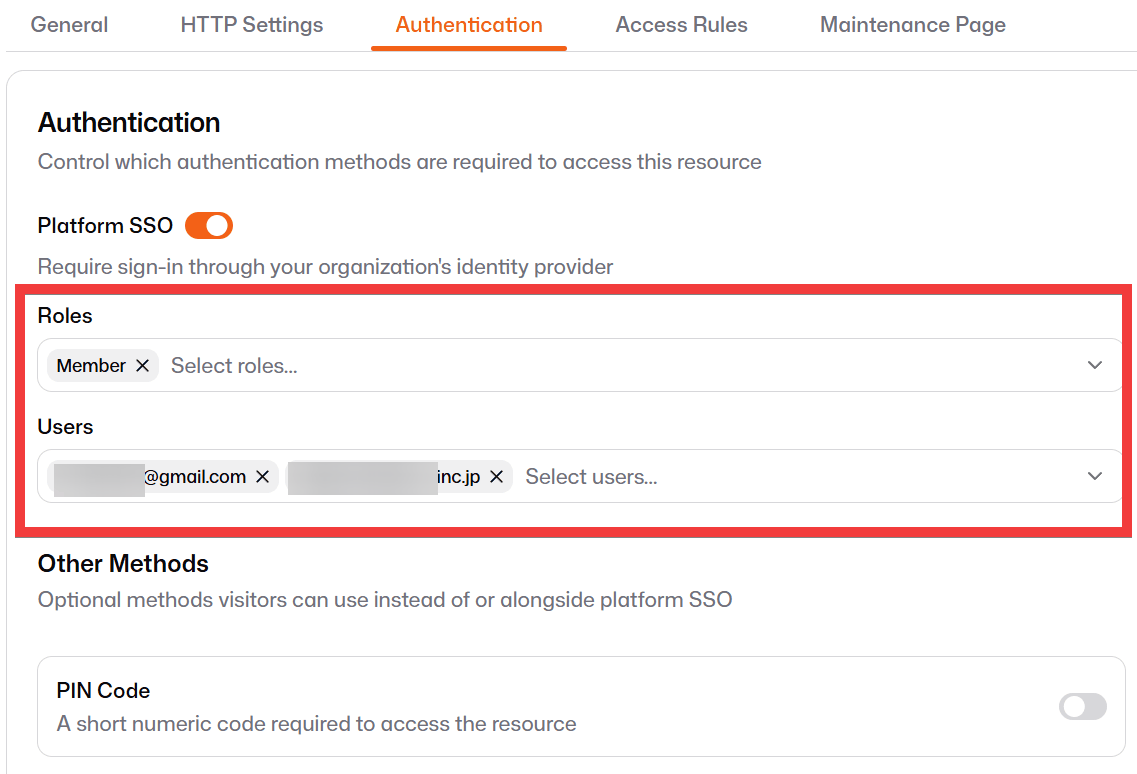
- Assigning permissions to multiple users
Using Pangolin authentication, permissions can be granted to each resource on a role- or user-by-user basis.
• Various authentication methods
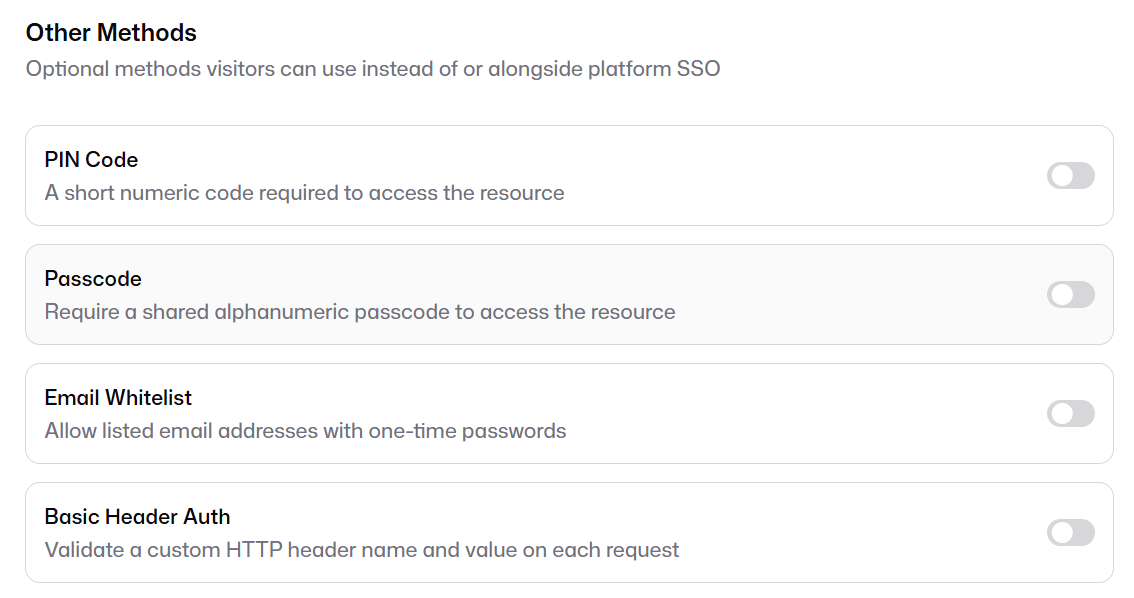
In addition to Pangolin authentication, you can choose from PIN code, shared passcode, email address whitelist, and BASIC authentication. If you turn off all authentication, it will become public and freely accessible.
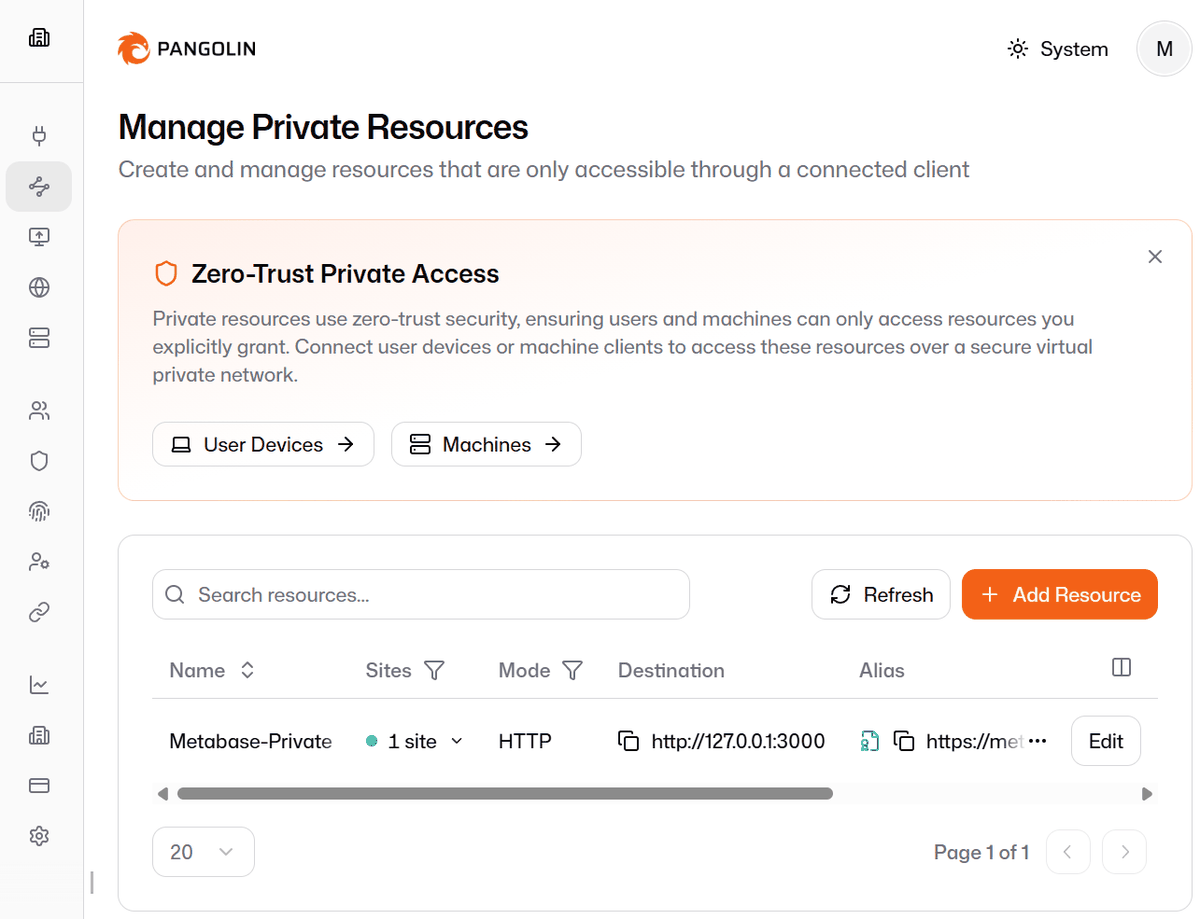
Private Resources accessed via the client
In addition to public resources accessible from a browser, you can also create 'Private Resources' that are not publicly accessible. These are accessed via the '
◆ How to register for the cloud version of Pangolin
The cloud version allows you to create accounts for
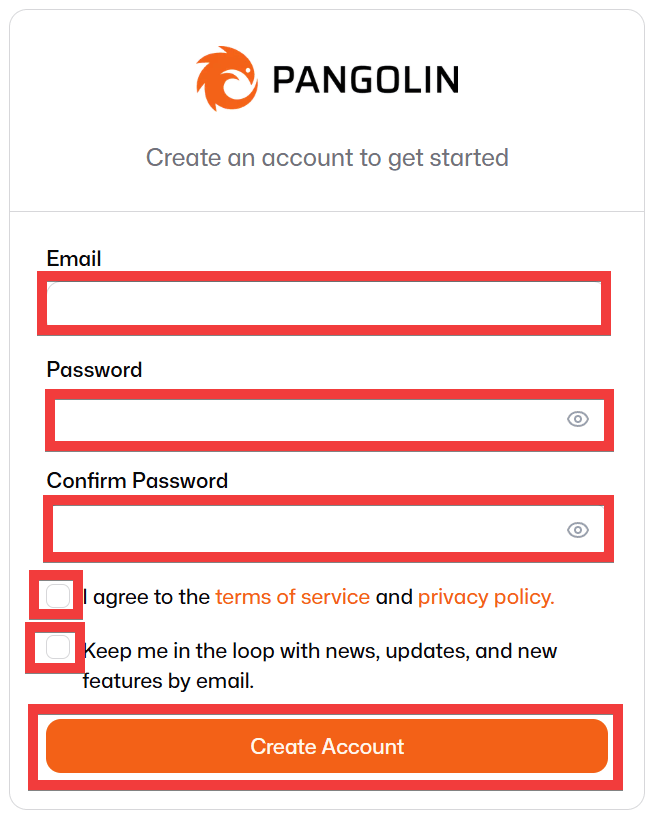
A registration form will appear. Enter your desired email address in the 'Email' field, your desired password in the 'Password' and 'Confirm Password' fields, check the box for 'I agree to the terms of service and privacy policy,' and check the box for 'Keep me in the loop with news, updates, and new features by email' (optional). Then click 'Create Account.'
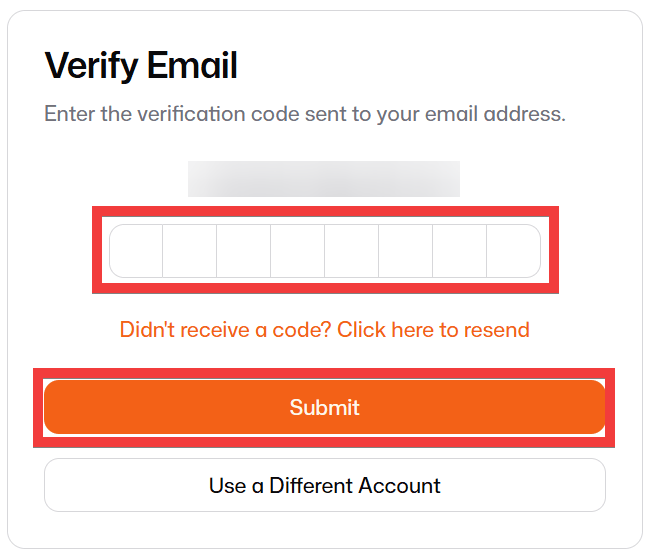
A verification code will be sent to the email address you registered. Enter the code in the 'Code' field under 'Verify Email' and click 'Submit'.
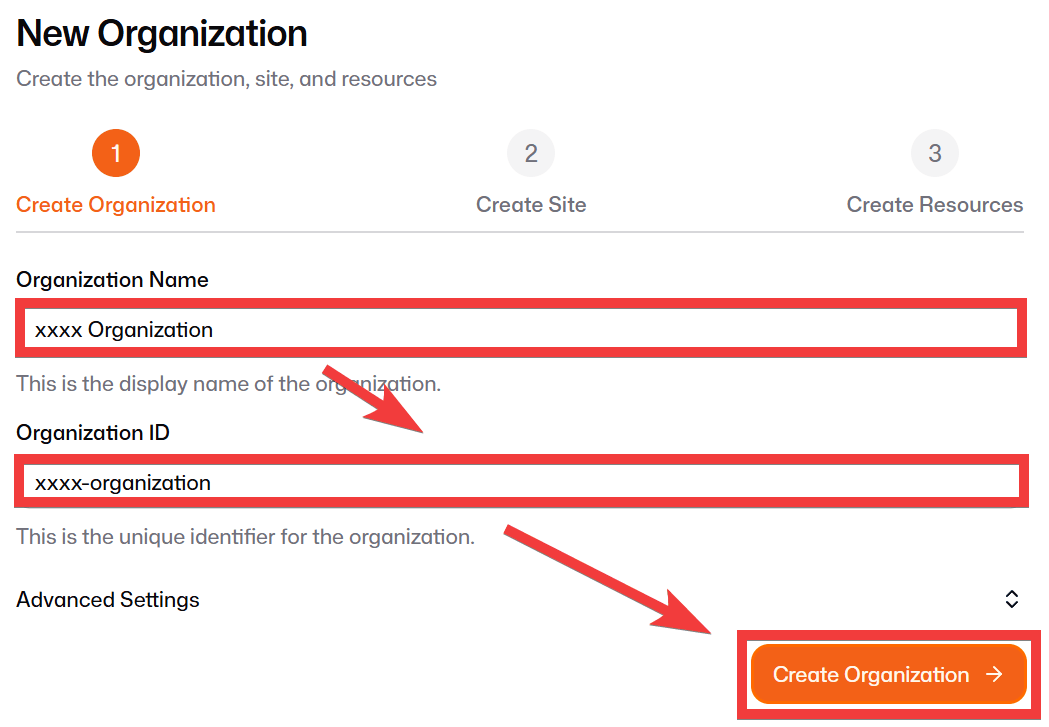
A registration form for your organization will appear. Enter your desired organization name in 'Organization Name' and your desired ID in 'Organization ID,' then click 'Create Organization.'
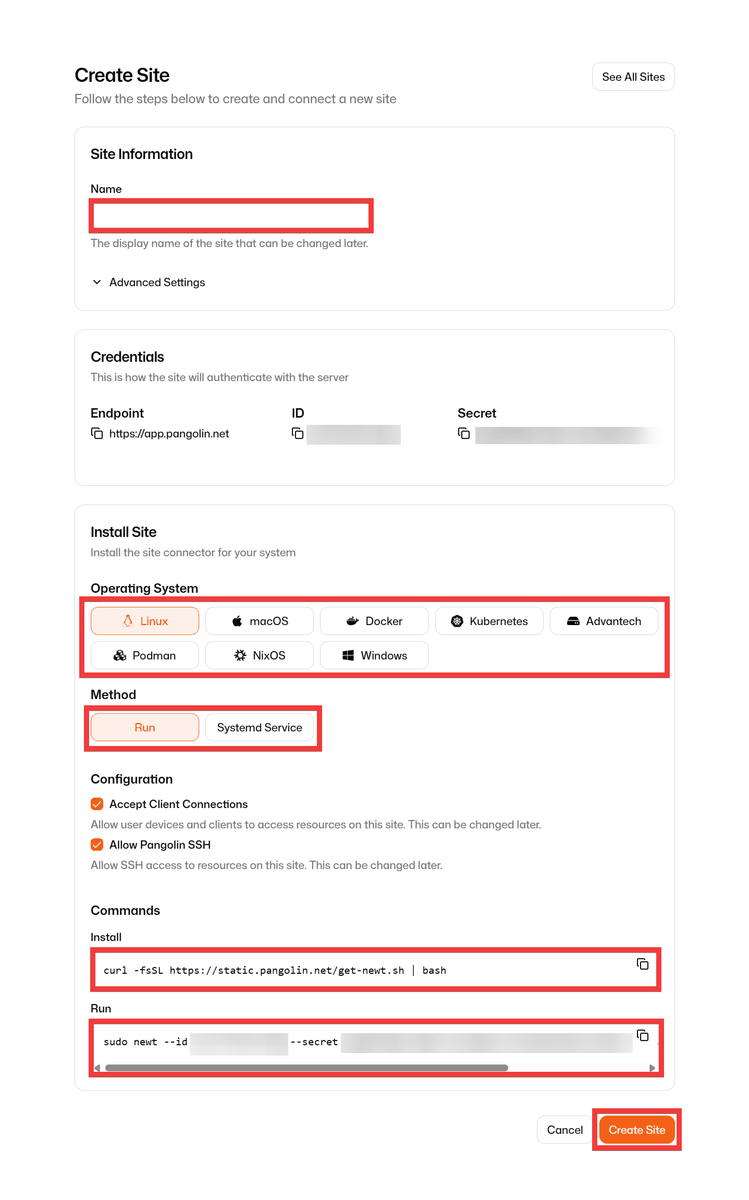
Next, enter a name for the source in 'Name,' select the source's OS in 'Operating System,' choose the execution method in 'Method,' and copy and save the installation and startup commands for the connector app 'Newt' that will be displayed on the source, then click 'Create Site.'
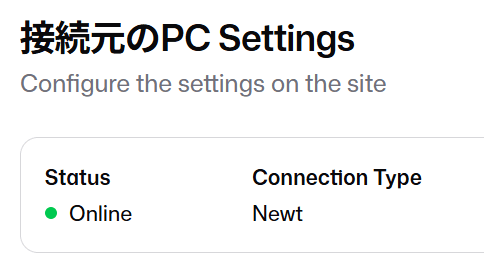
The connection status of the website you created will be displayed.
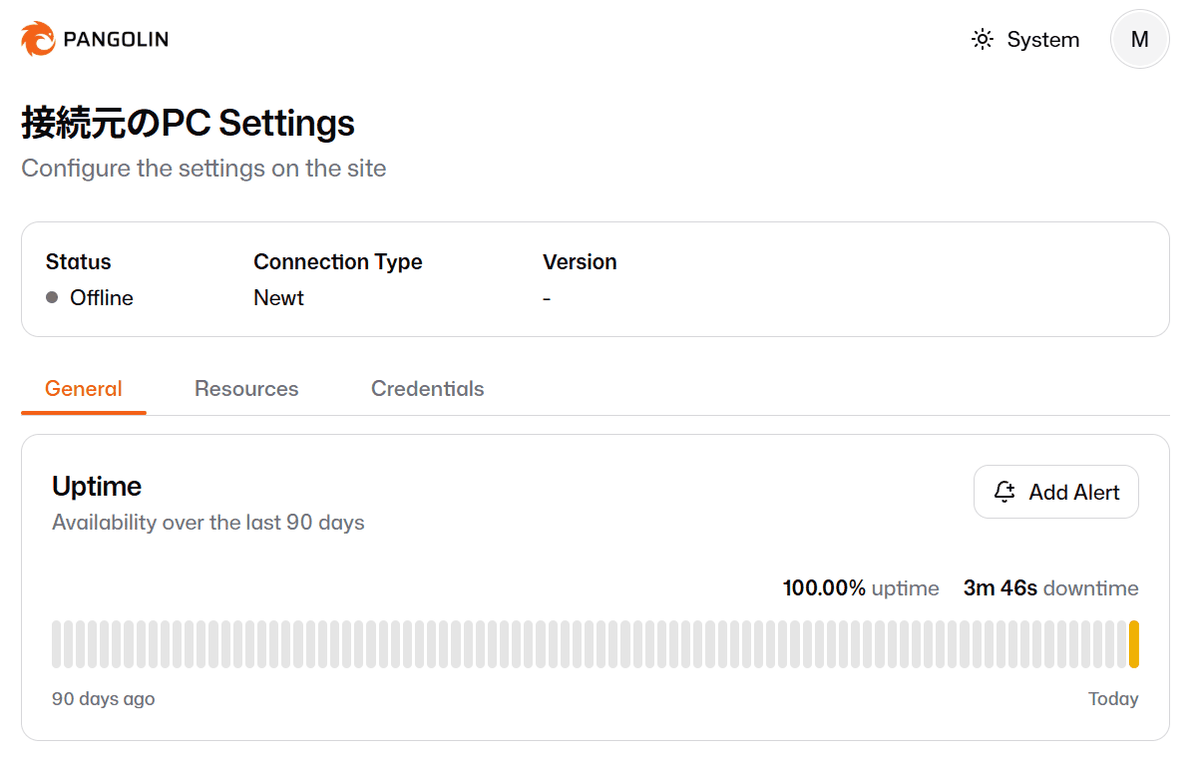
When you run the Newt installation and startup commands on the connecting device, the 'Status' will change to Online, indicating that the connection was completed successfully.
◆ How to register a domain
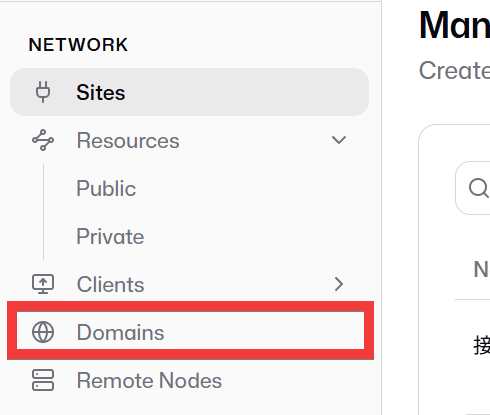
Register the domain that will be used for URLs to access public resources from your browser. Click the 'Domains' icon in the side menu of the administration screen.
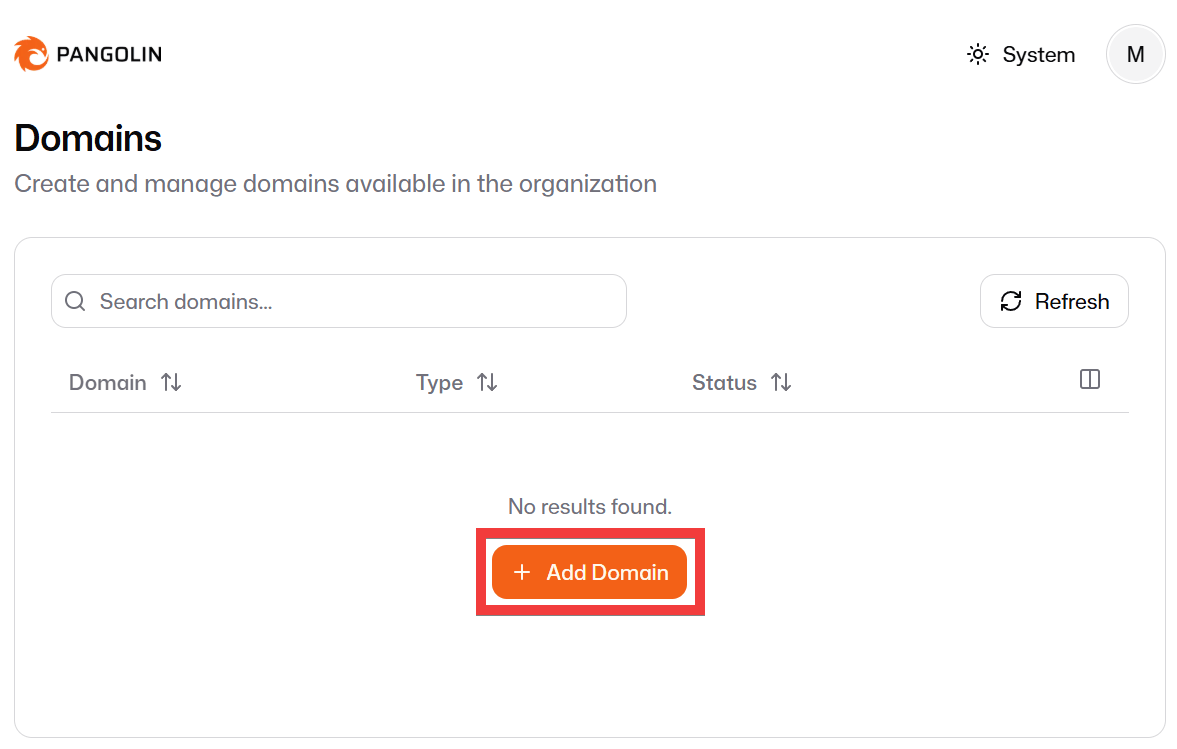
On the domain list screen, click 'Add Domain'.
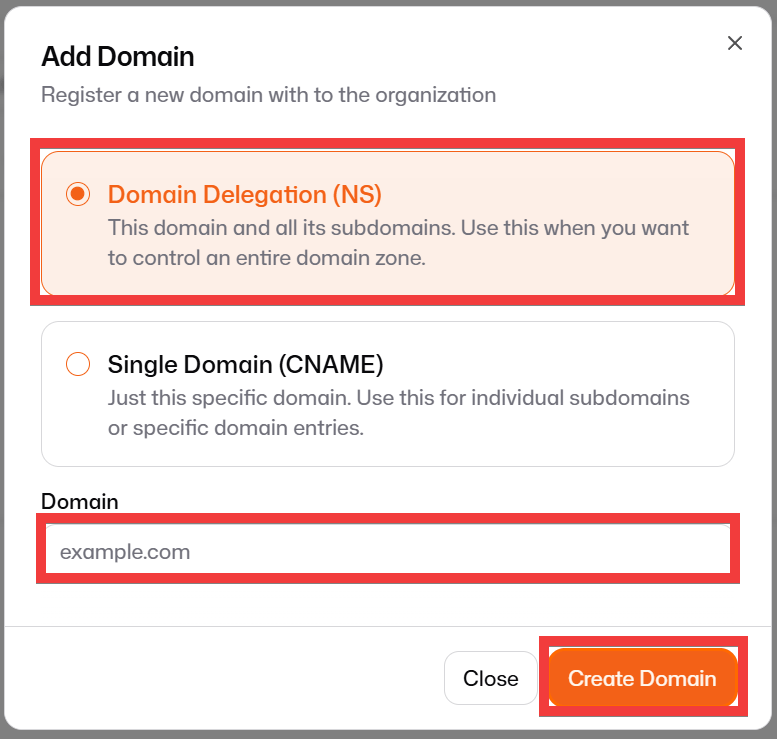
A domain registration form will appear. Select 'Domain Delegation (NS),' register the domain you want to use in 'Domain,' and click 'Create Domain.'
Once registration is complete, the contents of the record to be added to the DNS server managing the domain will be displayed.
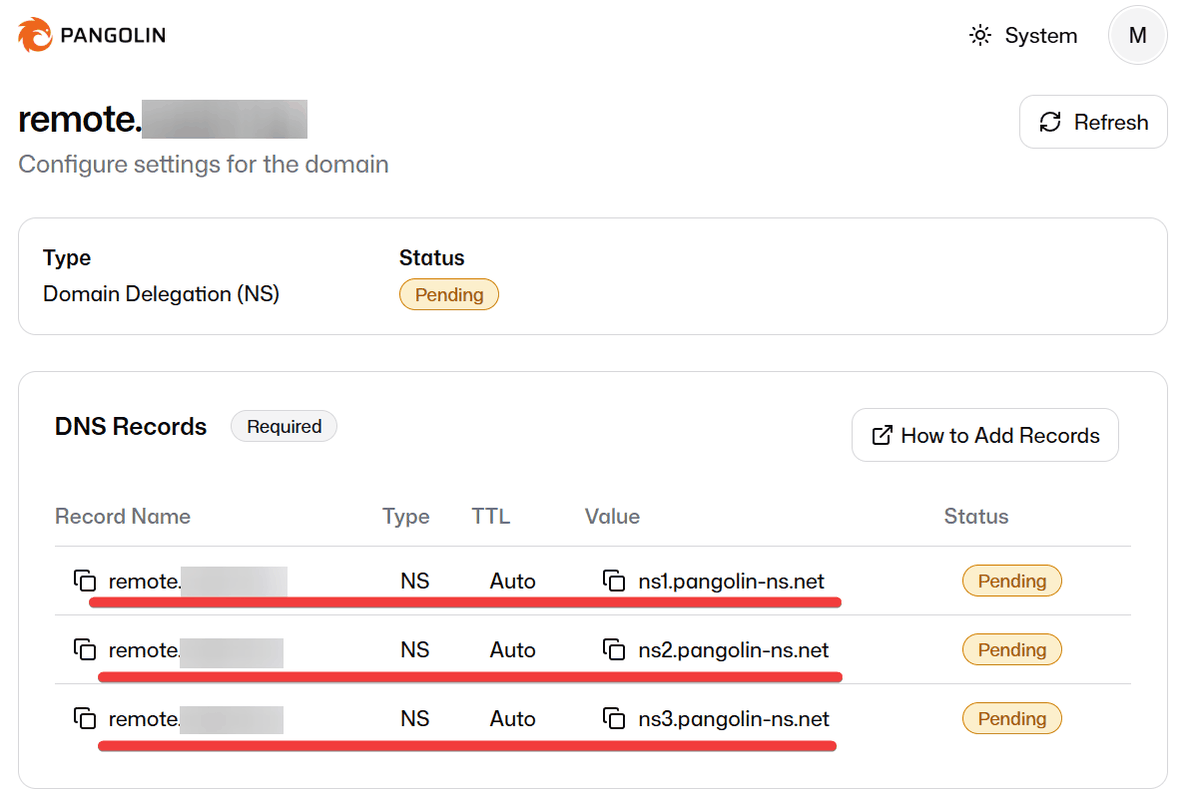
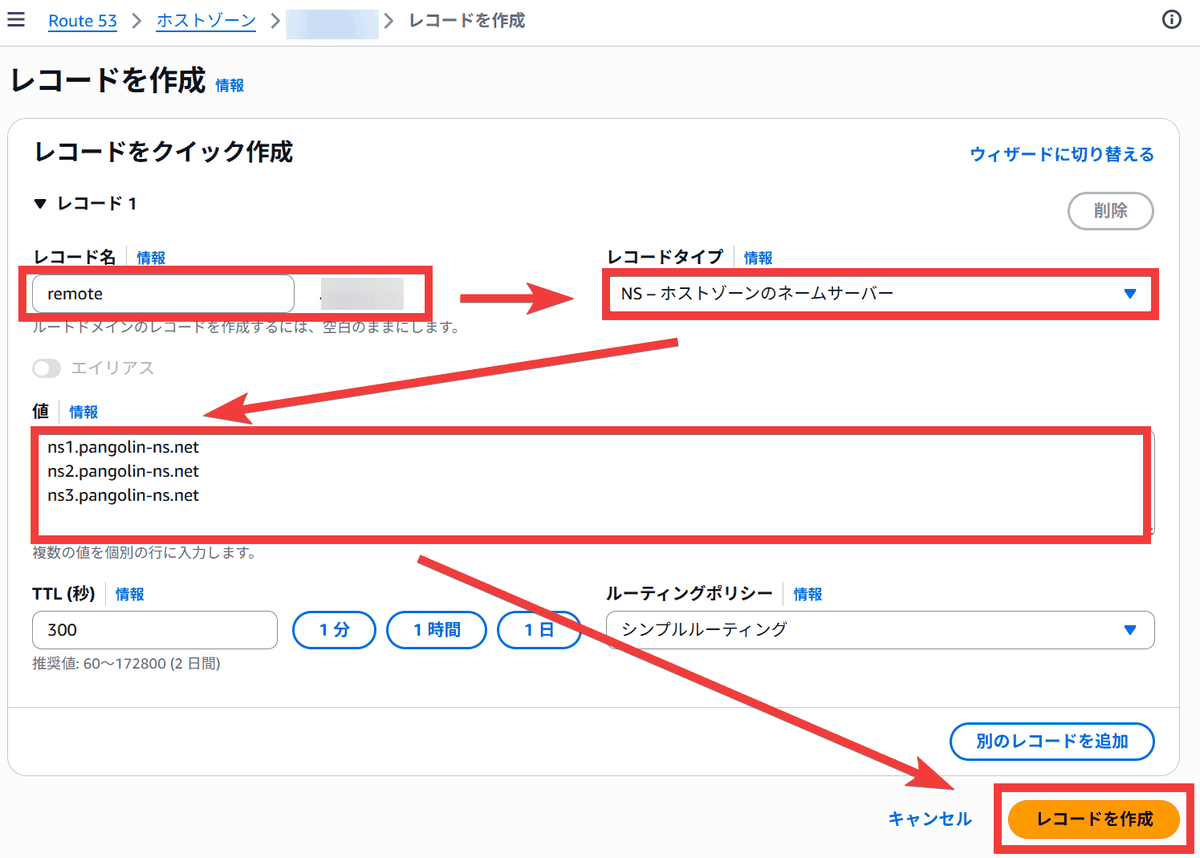
For example, in the case of
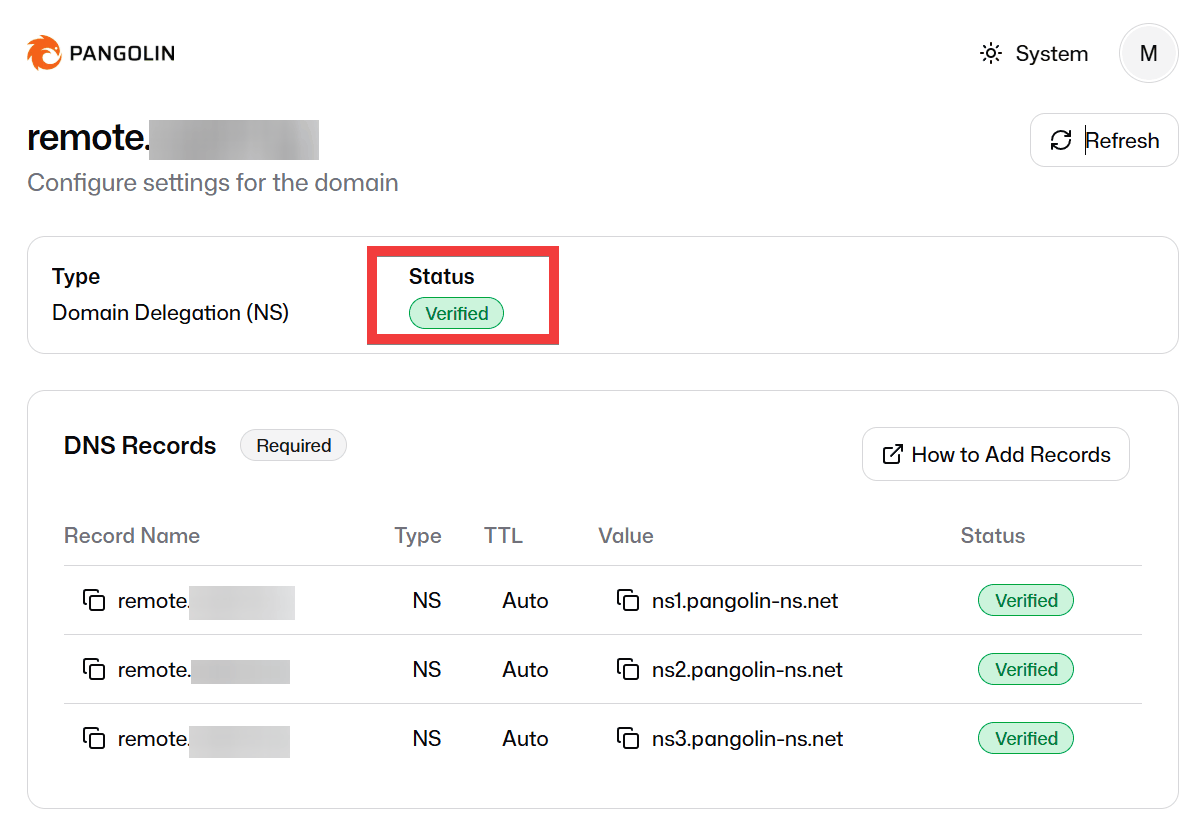
Return to the Pangolin control panel, and once the 'Status' displays 'Verified,' your domain registration is complete.
If you register 'example.com', Pangolin will use the entire domain name. However, if you specify a subdomain such as 'remote.example.com', you can use sub-subdomains like 'ssh.remote.example.com' as URLs for public resources, allowing you to operate them separately from existing sites like 'example.com' and 'www.example.com'.
◆ How to create public resources
SSH
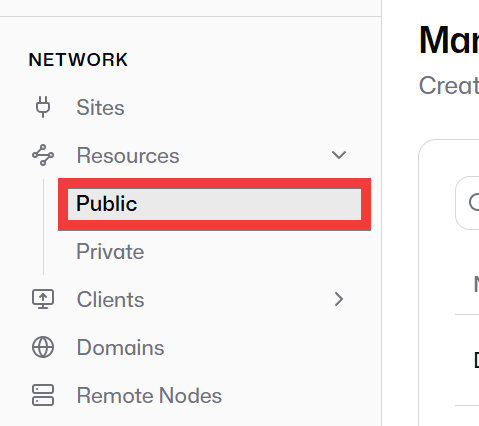
Click 'Public' under 'Resource' in the side menu.
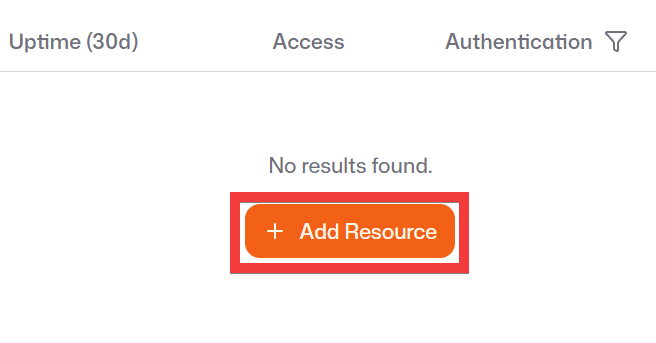
On the resource list screen, click 'Add Resource'.
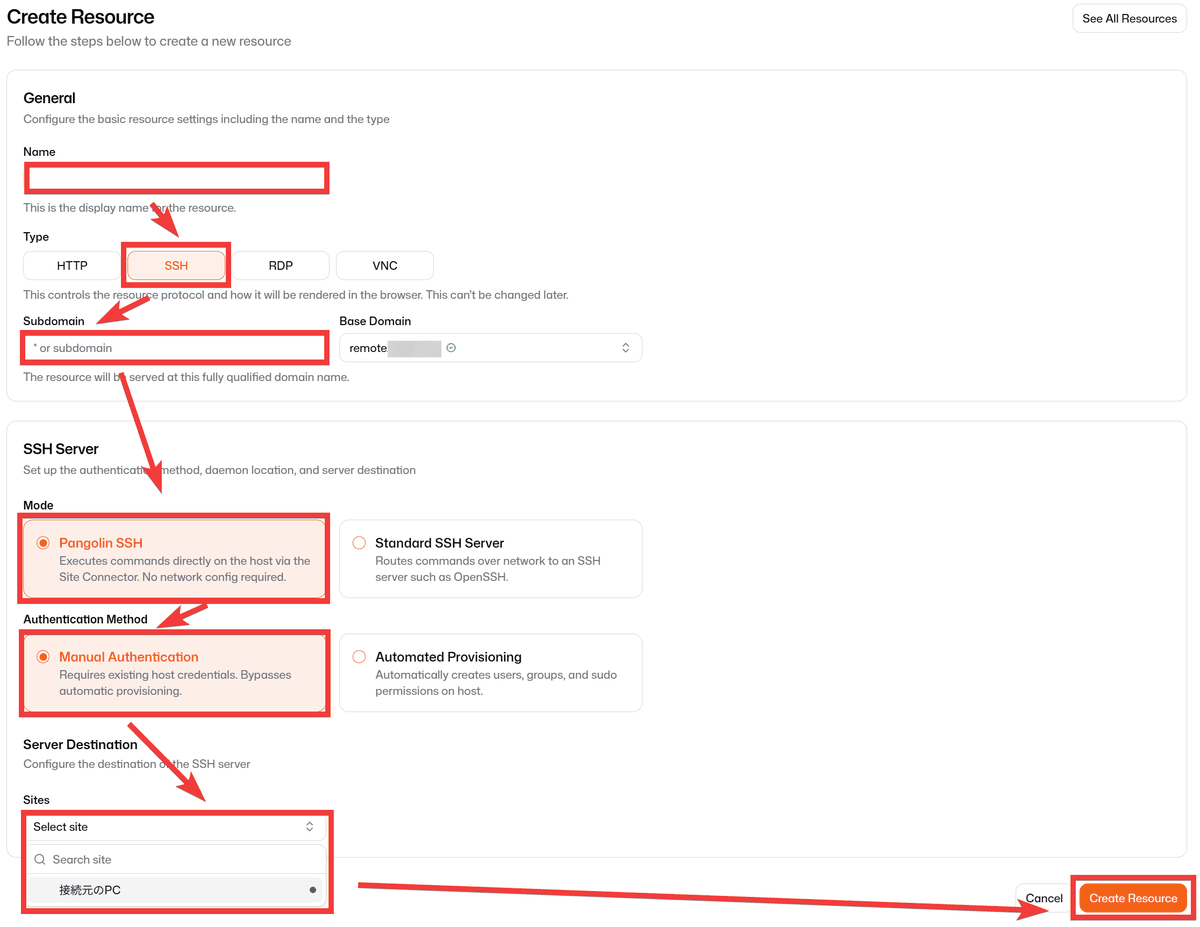
On the 'Create Resource' screen, enter a name of your choice in 'Name,' 'SSH' in 'Type,' and a subdomain in 'Subdomain.' In the SSH Server settings, set 'Mode' to 'Pangolin SSH' and 'Authentication Method' to 'Manual Authentication.' Select the site you want to connect from under 'Sites,' and then click 'Create Resource.'
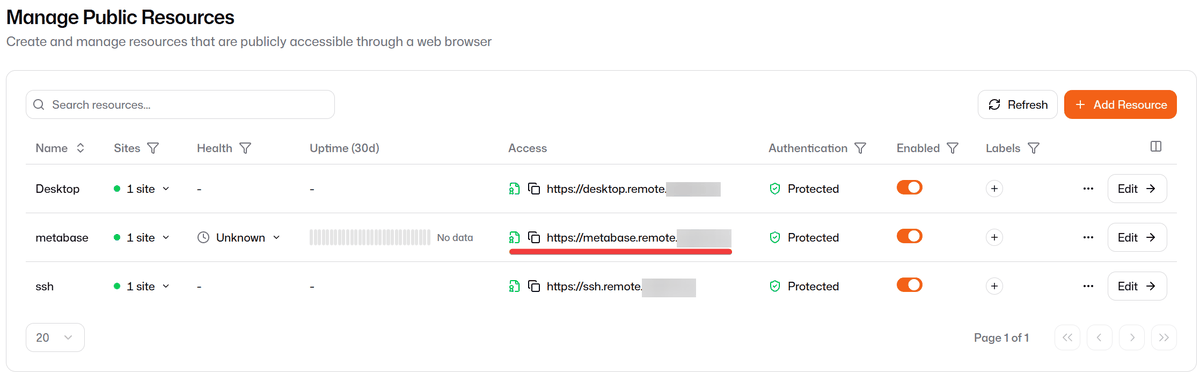
Once registration is complete, the resources you created and their public connection URL will be displayed in the resource list.

Remote connection
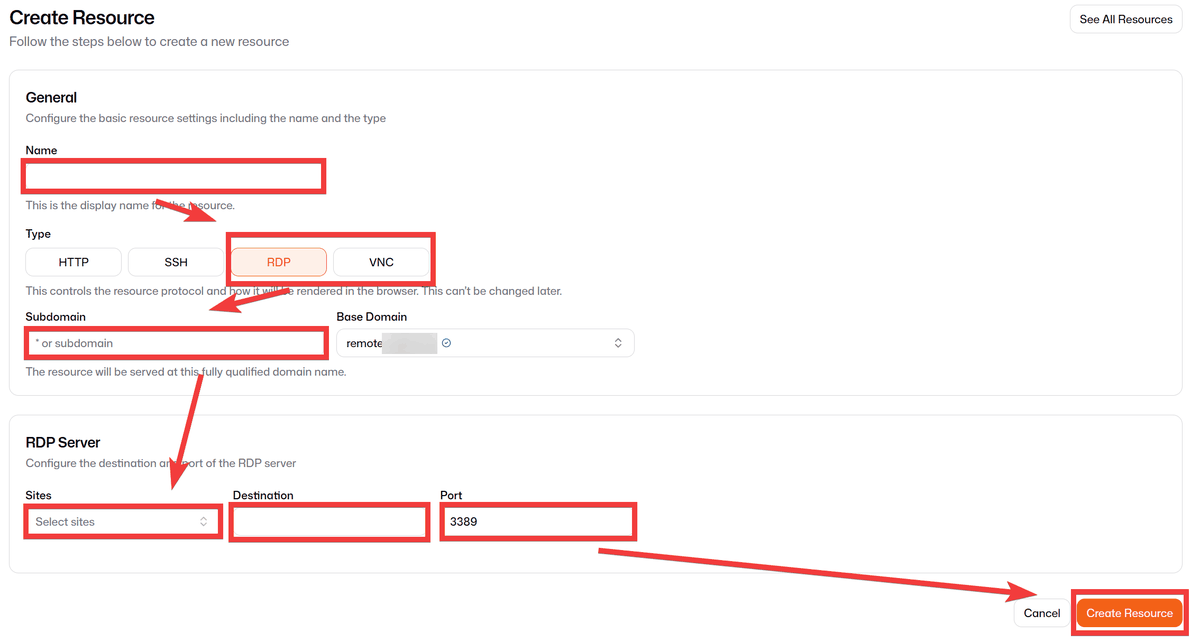
Following the same procedure as above, click 'Add Resource,' then on the 'Create Resource' screen, enter a name of your choice in 'Name,' select the appropriate protocol for 'Type' (RDP or VNC), enter a subdomain in 'Subdomain,' and in the server settings, select the source site in 'Sites,' enter the destination IP address or hostname in 'Destination,' enter the configured port in 'Port,' and click 'Create Resource.'
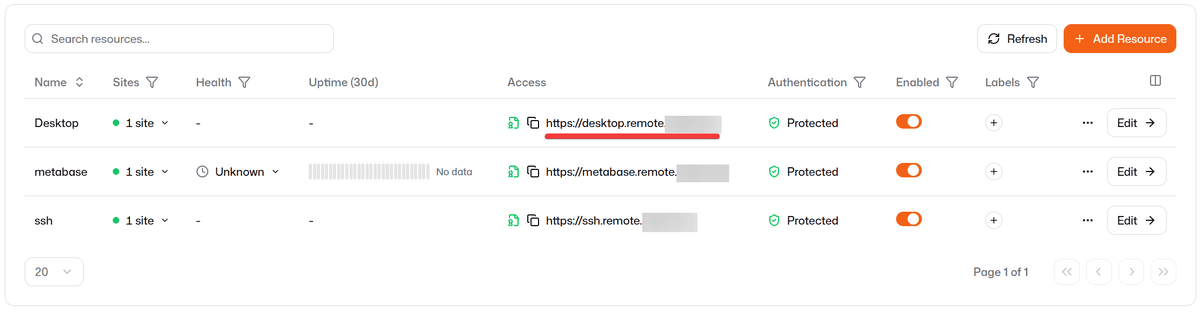
Once registration is complete, the resources you created and their public connection URL will be displayed in the resource list.
Port forwarding
Following the same procedure as above, click 'Add Resource,' then on the 'Create Resource' screen, enter a name of your choice in 'Name,' select 'HTTP' for 'Type,' enter a subdomain of your choice in 'Subdomain,' select the source site in 'Site' under 'Targets Configuration,' enter the IP or hostname and port for the web application or device you are connecting to in 'Address' and 'Port,' and click 'Create Resource.'
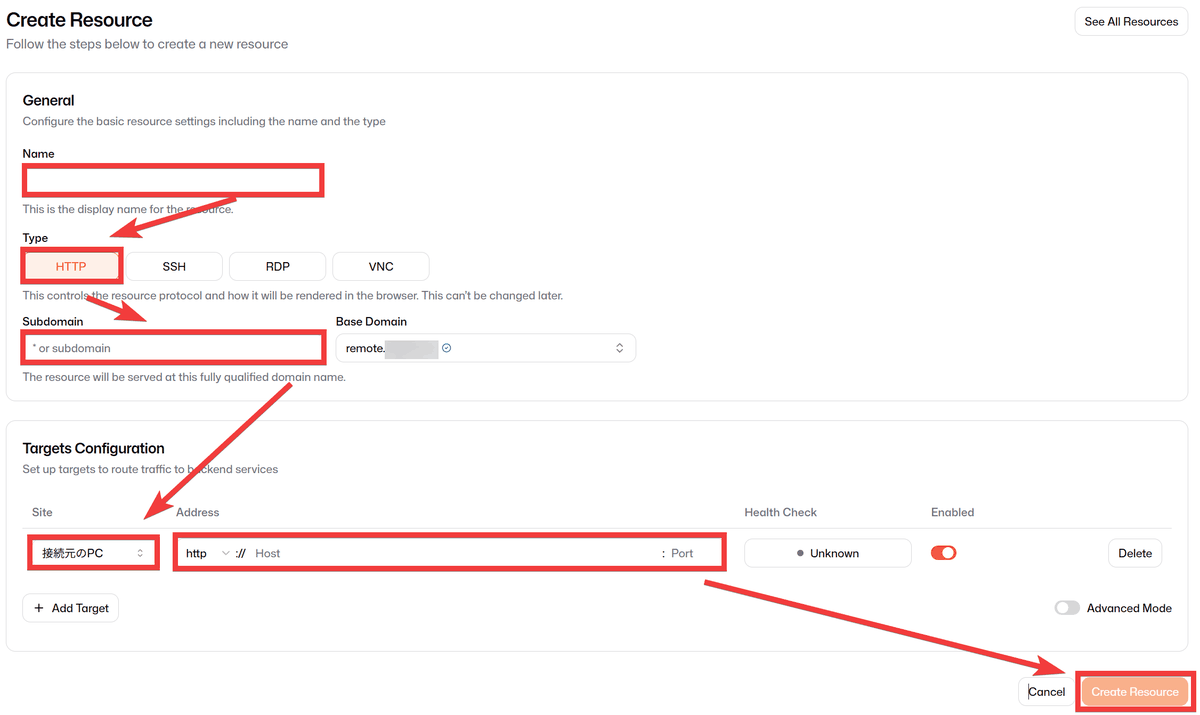
Once registration is complete, the resources you created and their public connection URL will be displayed in the resource list.
◆ How to register for the self-hosted version of Pangolin
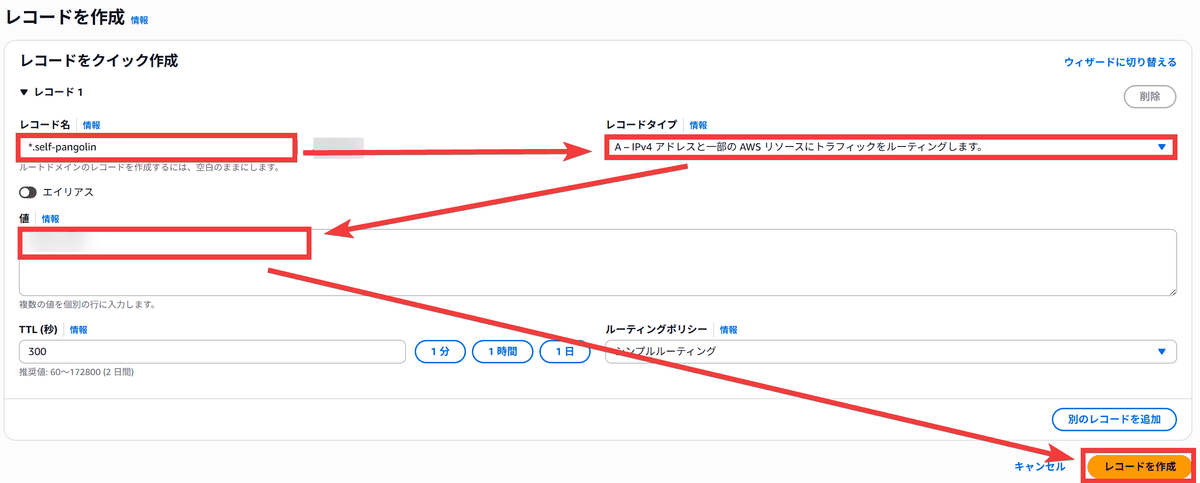
Even with a self-hosted version, a domain is required if you want to forward using a public URL. As an example of registering in Route 53 DNS using a sub-subdomain format, on the 'Create Record' page, enter '*.[Any subdomain]' in the 'Record name' field, select 'A' for the 'Record type', enter the self-hosted IP address in the 'Value' field, and click 'Create Record' to register and prepare the subdomain you will be using.
This time, we will set up an environment where
 sudo mkdir -p /opt/pangolin
 sudo chown '$USER':'$USER' /opt/pangolin
 cd /opt/pangolin

 curl -fsSL https://static.pangolin.net/get-installer.sh | bash
Execute with the sudo command.
sudo ./installer
For reference, I answered the installation questions as follows:
 # Installation location
 Installation directory: /opt/pangolin

 # Whether to use the Enterprise Edition
 # Free for personal use, hobby use, and businesses with annual sales of less than US$100,000 (approximately 16 million yen).
 do you want to install the Enterprise version of Pangolin?
 The EE is free for personal use or for businesses making less than 100k USD annually.: No

 # Should we use PostgreSQL?
 Do you want to use PostgreSQL (not recommended for most users)?: No

 # The subdomain I prepared says 'no subdomain,' but it can be used.
 Enter your base domain (no subdomain, e.g., example.com): [Your prepared subdomain]

 # Dashboard address
 Domain for the Pangolin dashboard: pangolin.【Prepared subdomain】

 # Email address for Let's Encrypt
 Enter email address for Let's Encrypt certificates:

 # Using Gerbil to create tunnels
 Do you want to use Gerbil to allow tunneled connections: Yes

 # Use an SMTP server
 Enable email functionality (SMTP): No

 # Use IPv6
 Is your server IPv6 capable?: No

 # Use country-specific and ASN-specific restrictions
 want to download the MaxMind GeoLite2 Country and ASN databases for blocking functionality?: No

 # Install and start containers
 Would you like to install and start the containers?: Yes

 # Docker or Podman?
 Would you like to run Pangolin as Docker or Podman containers?: docker
Once all the questions are answered, the Pangolin container will start and display the 'Setup token' required for the initial connection, so make a note of it.
 === Setup Token ===
 Waiting for Pangolin to generate setup token...
 Setup token: xxxxxxxxxxxxxxxxxxxxxxxxxxxxxxxx

 This token is required to register the first admin account in the web UI at:
 https://[dashboard domain]/auth/initial-setup
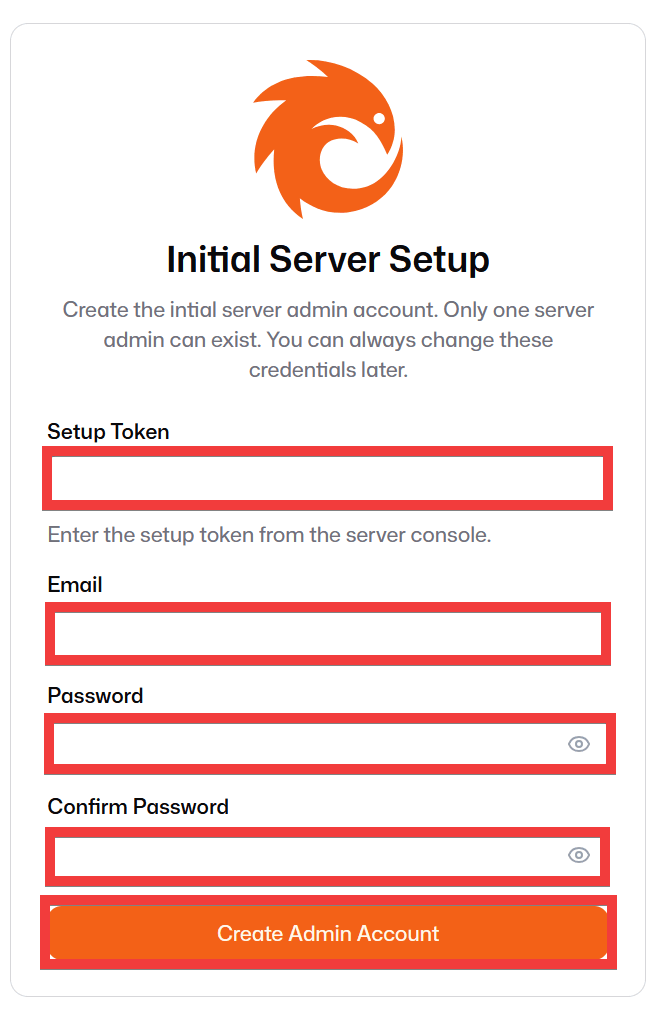
When you access the dashboard domain in your browser, an administrator registration form will appear. Enter the token you obtained in 'Setup token,' your desired email address in 'Email,' and your desired password in 'Password' and 'Confirm Password,' then click 'Create Admin Account.'
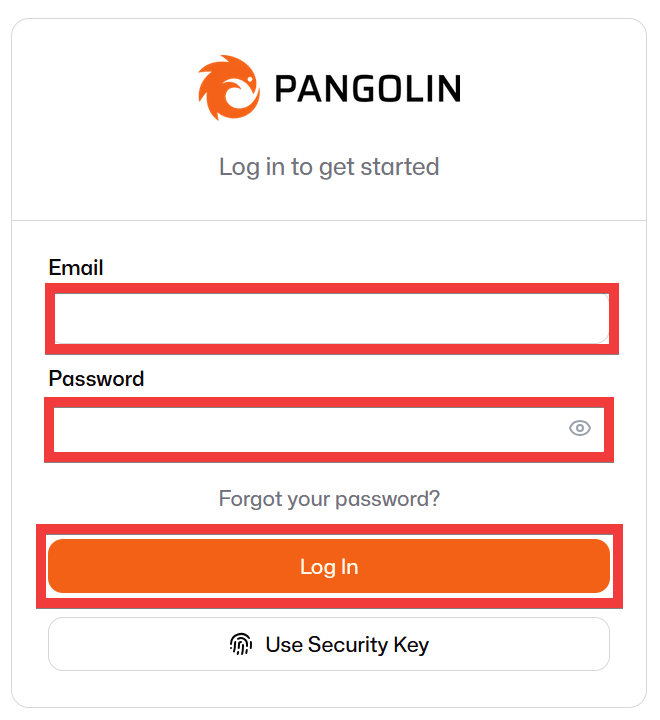
A login form will appear. Enter the email address you entered in the 'Email' field and your password in the 'Password' field, then click 'Log In'.
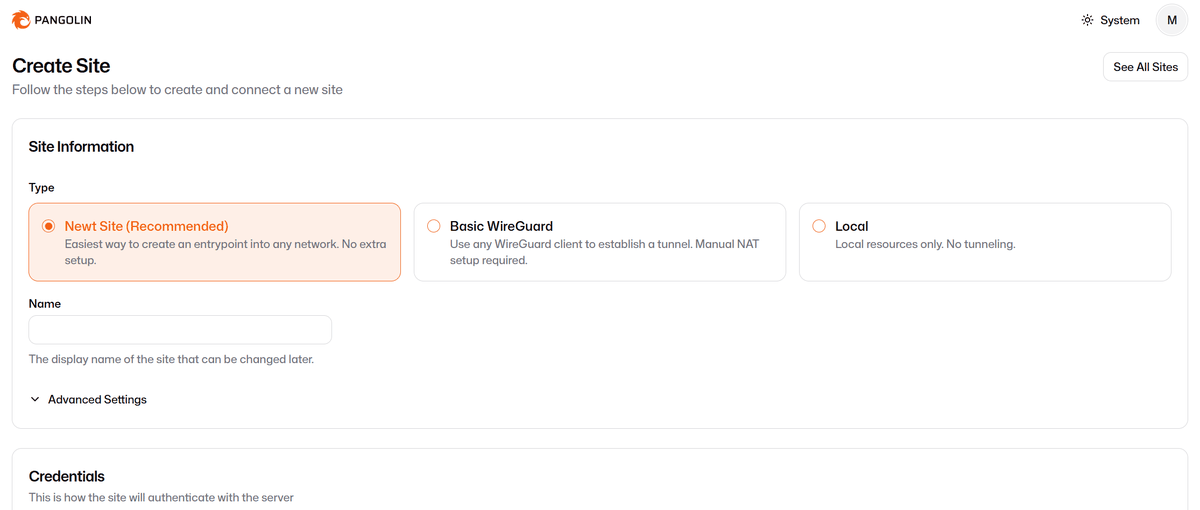
Once you reach the registration screen for the new site, the setup is complete, and you can then use it with the same operations as the cloud version.
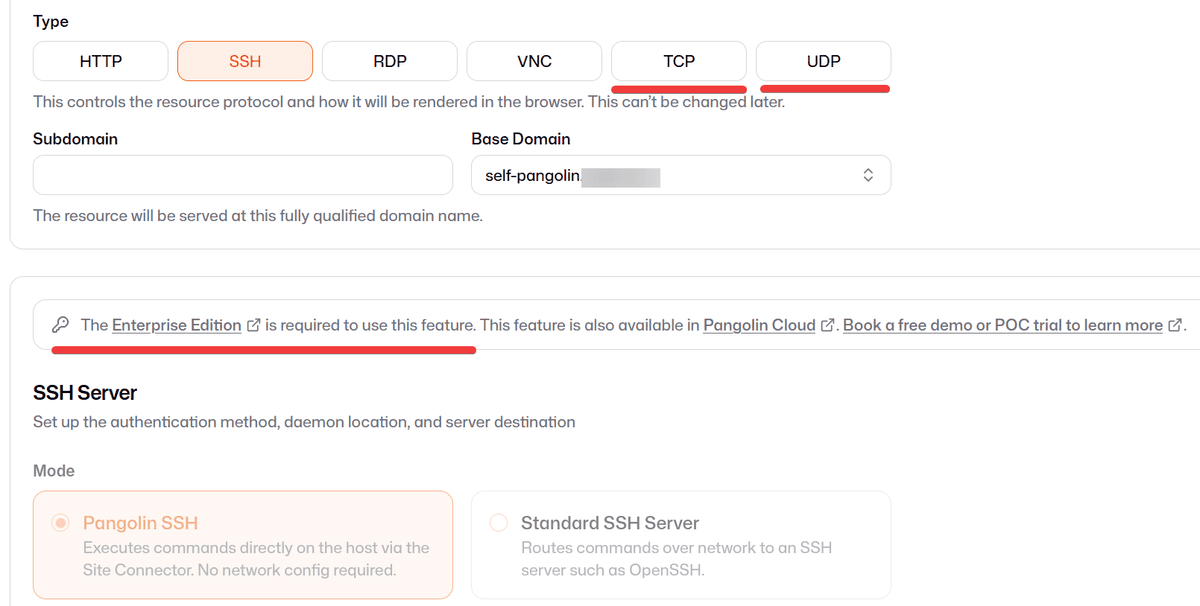
Note that while browser-based SSH and remote connections are not available in the open-source version, port forwarding of TCP and UDP ports is possible, so SSH, RDP, and VNC can be used via port forwarding if you have client software.
Related Posts: