Google's local AI, 'Gemma 4,' is now available for free to anyone to try out using the official Google app, 'AI Edge Gallery,' and can run locally on iPhones as well.
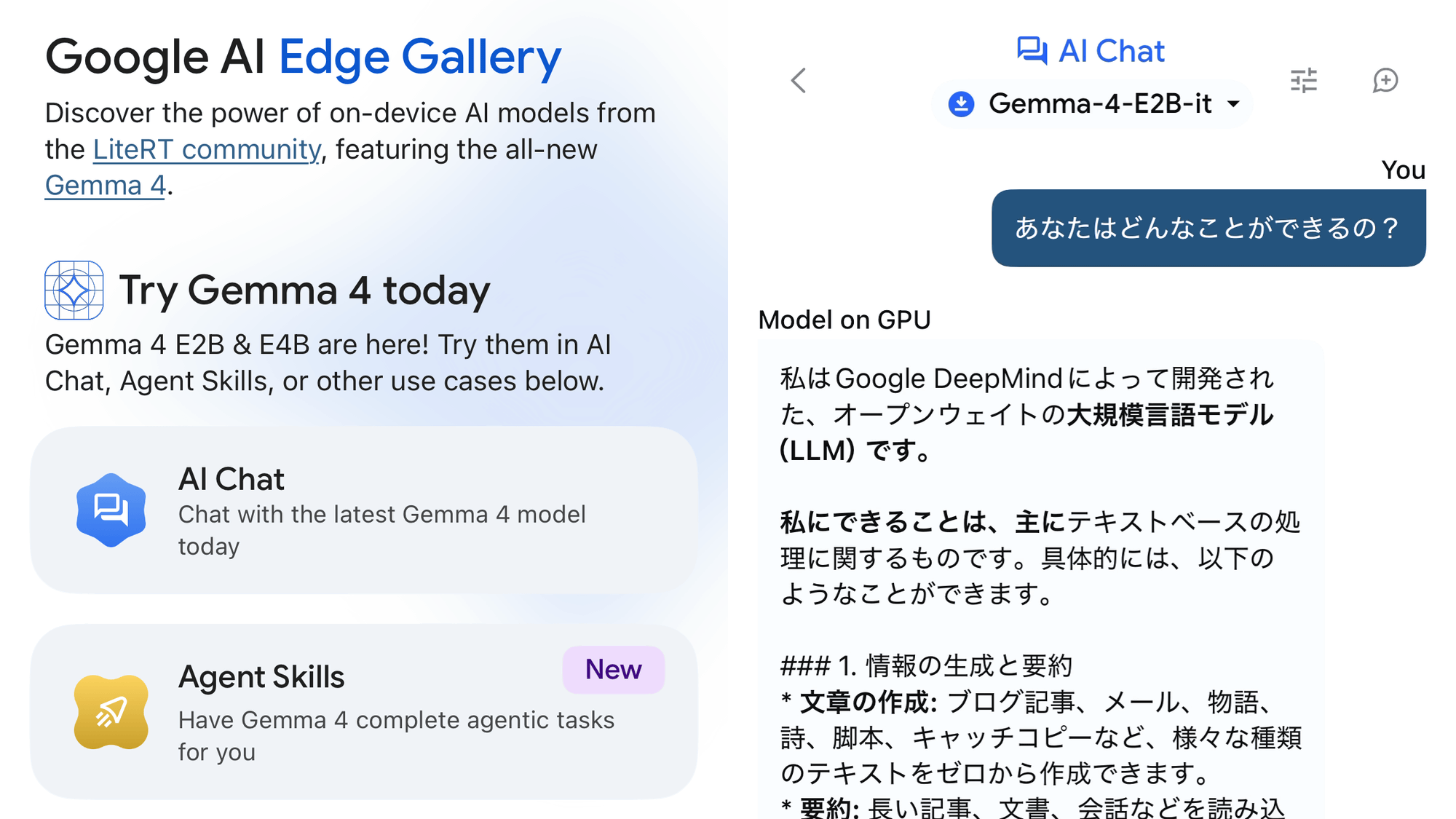
Google's open-source AI model '
Gemma 4 can run on phones without an internet connection! ????
— Google Gemma (@googlegemma) April 6, 2026
It can perform local agentic tasks, such as logging and analyzing trends. When connected, it can also make API calls.
Want to try it yourself? Get the Google AI Edge App on iOS or Android. (???? Sound on for the demo!) pic.twitter.com/eUy0lmtqBE
Google AI Edge Gallery for iOS is available at the following link:
Google AI Edge Gallery app - App Store
https://apps.apple.com/jp/app/google-ai-edge-gallery/id6749645337
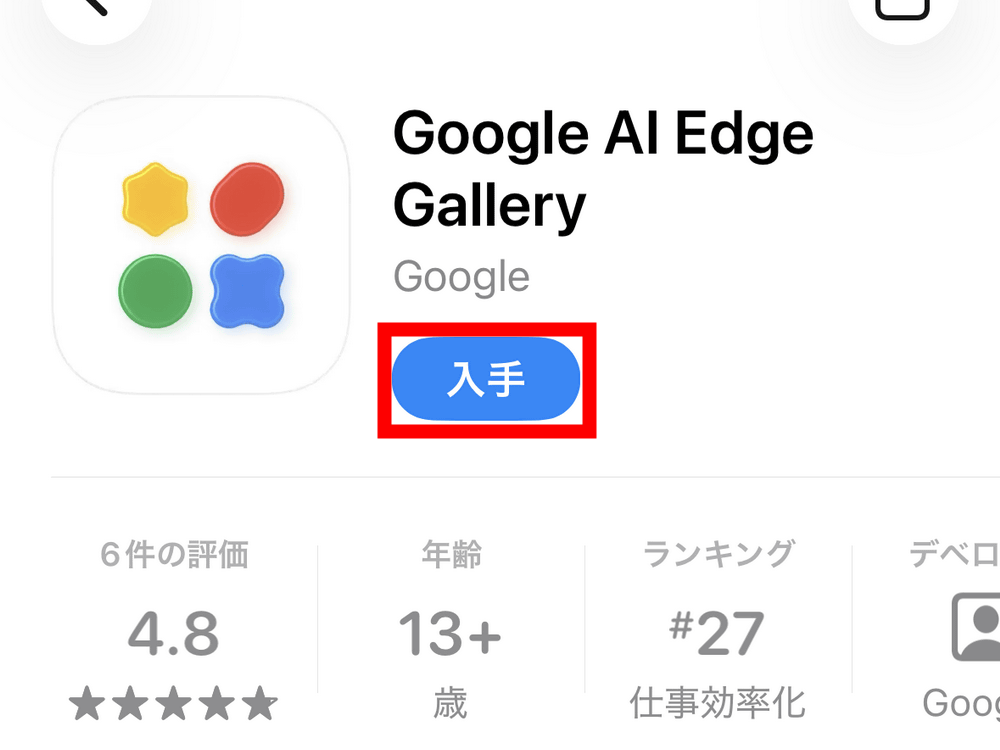
Tap 'Get' to install AI Edge Gallery. Note that this was installed on an iPhone 15 Pro.
When I launched AI Edge Gallery, Gemma 4 was advertised. I tapped 'Dismiss'.
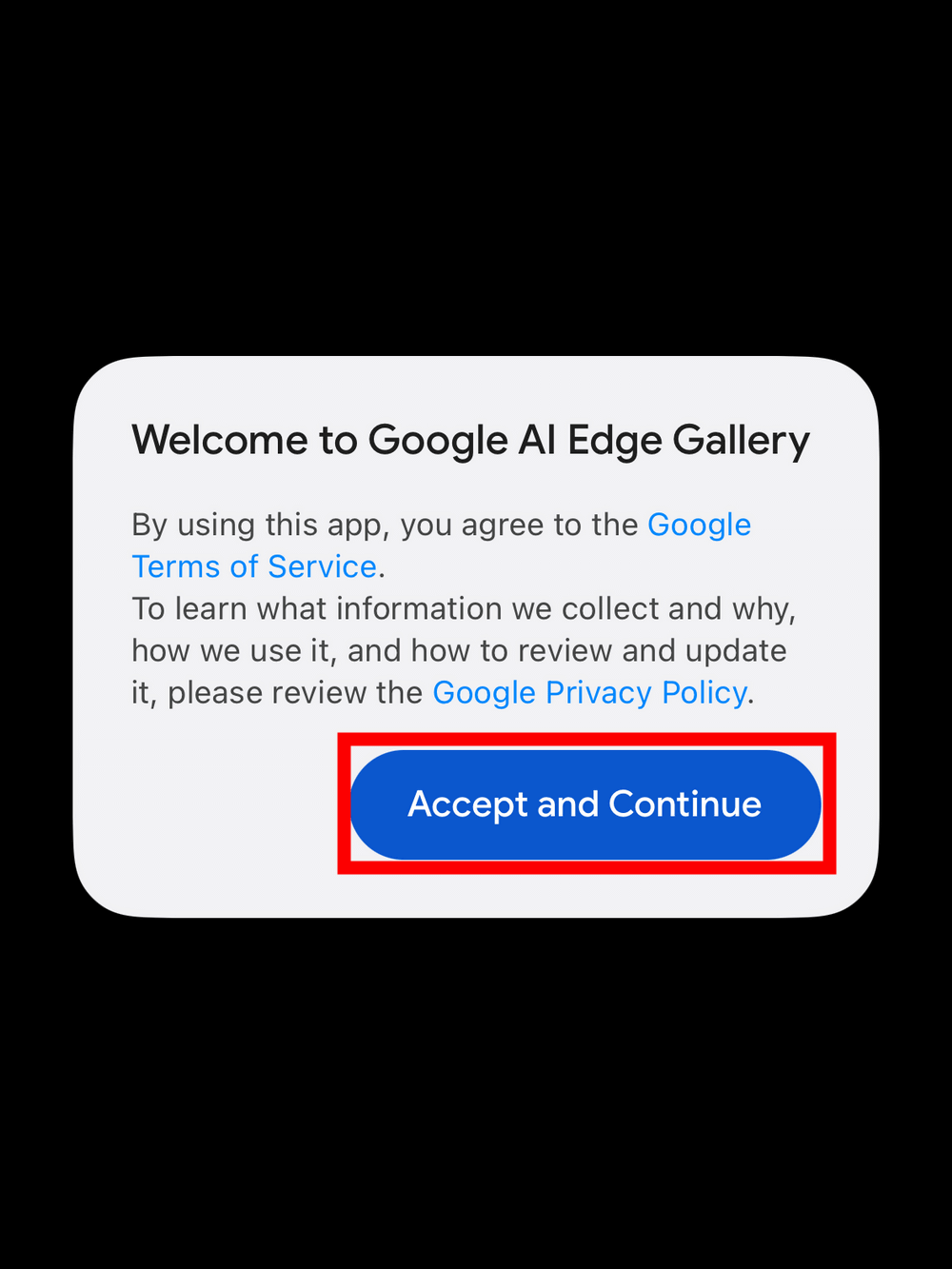
Google's Terms of Service and Privacy Policy will be displayed, so tap 'Accept and Continue'.
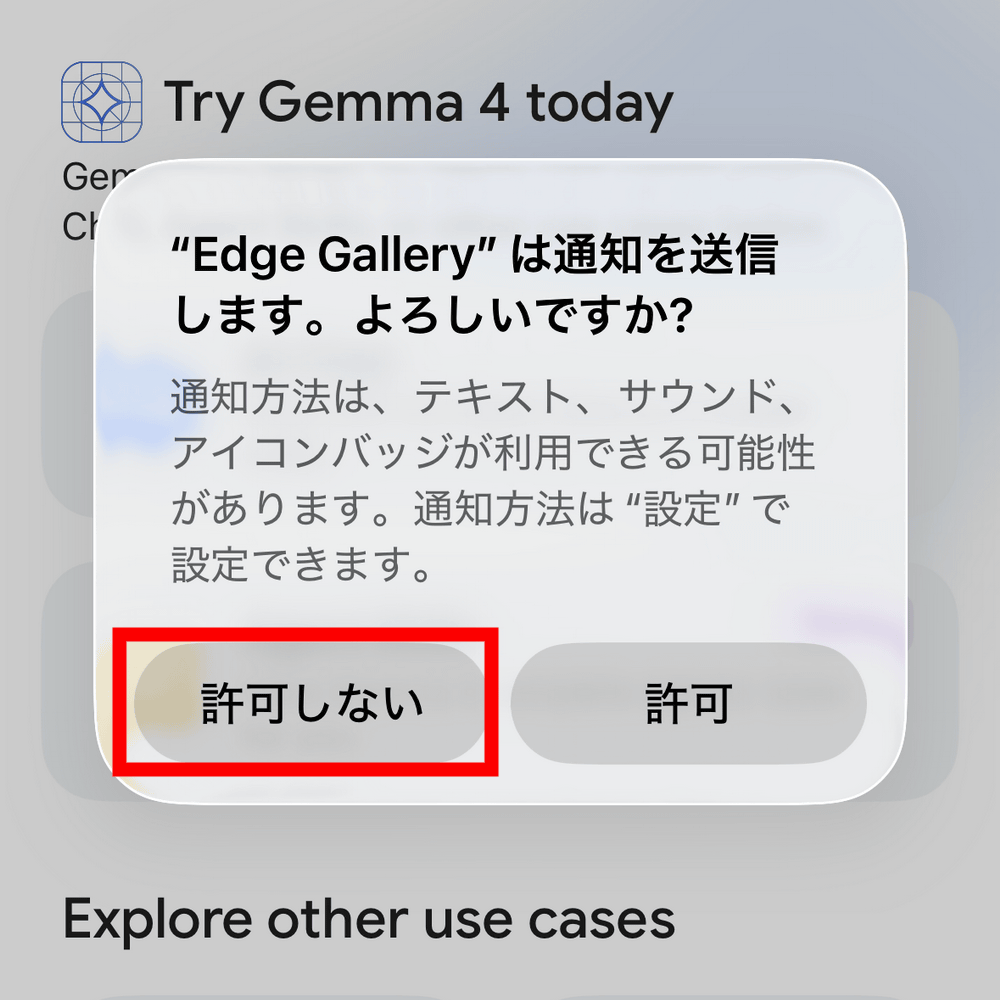
You will be asked if you want to allow notifications, so this time tap 'Do not allow'.
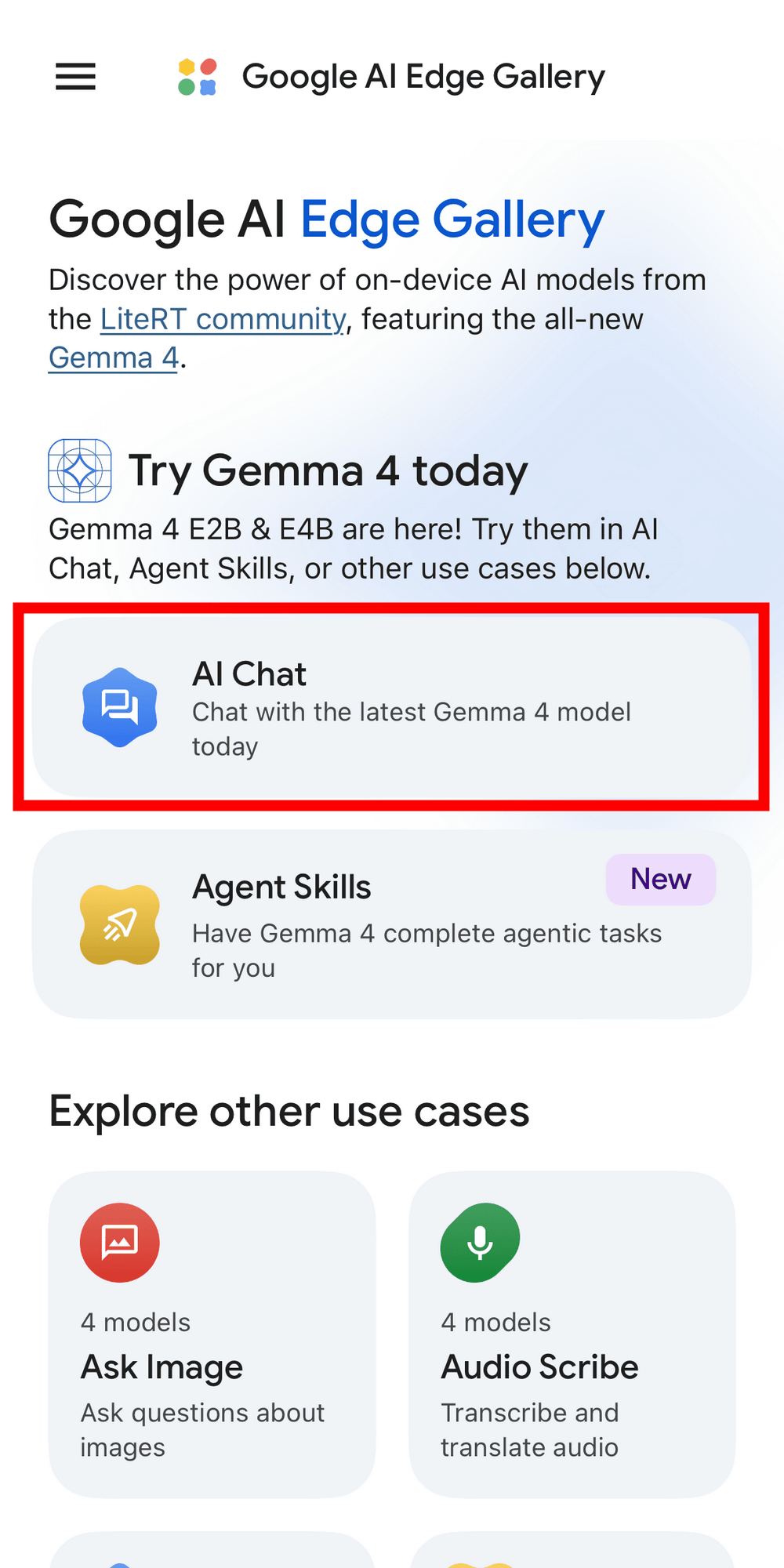
On the Google AI Edge Gallery homepage, tap 'AI Chat'.
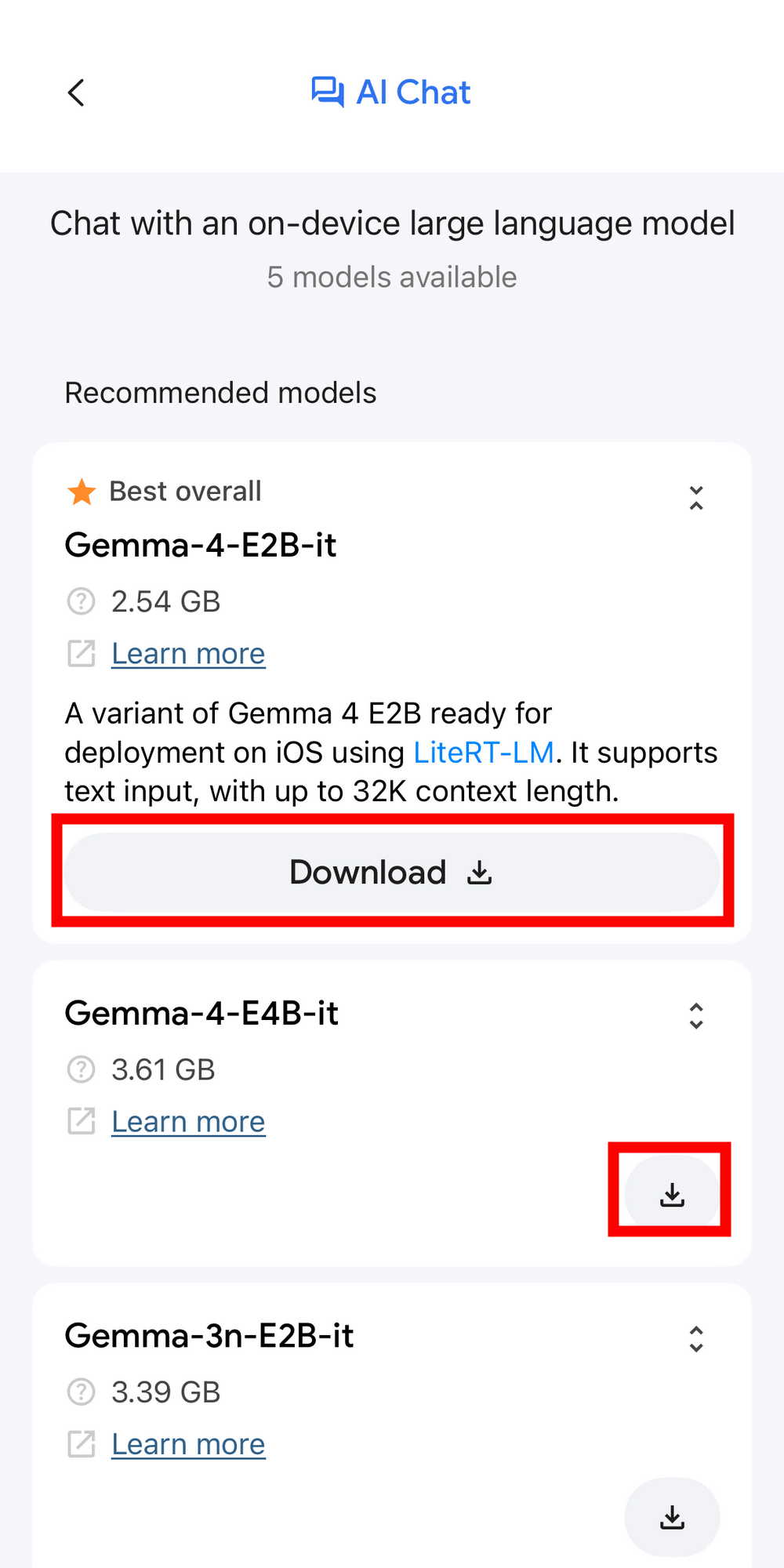
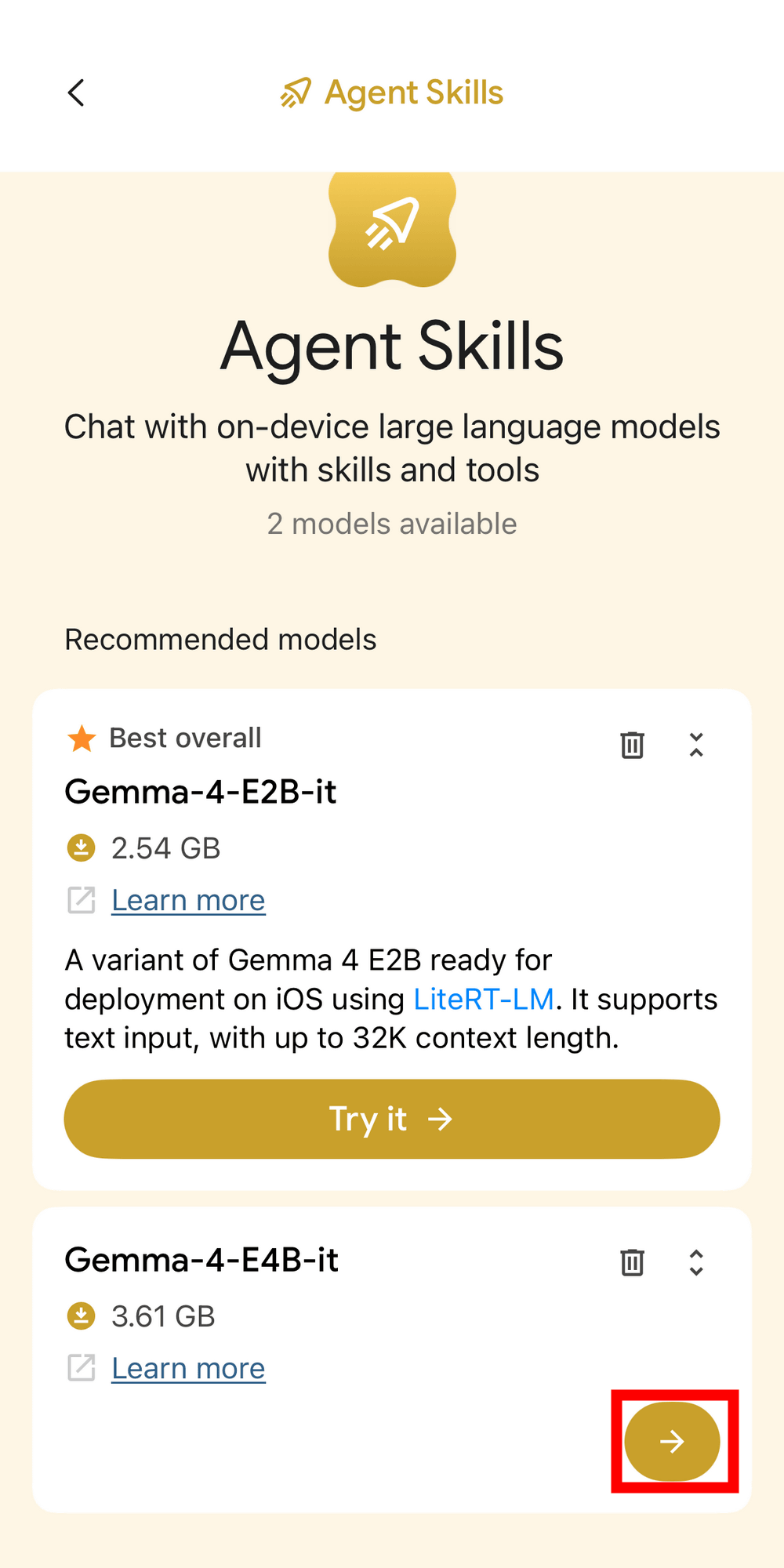
A list of models will be displayed. At the time of writing, the E2B and E4B models of Gemma 4 were displayed at the top. The E2B and E4B models are Effective models designed for mobile and IoT devices, and are characterized by being considerably smaller than the 31B Dense and 26B MoE models. Tap the 'Download' or '↓' button to download the model. Note that the model size is 2.54GB for the E2B model and 3.61GB for the E4B model, so please be mindful of your data usage and remaining storage capacity.
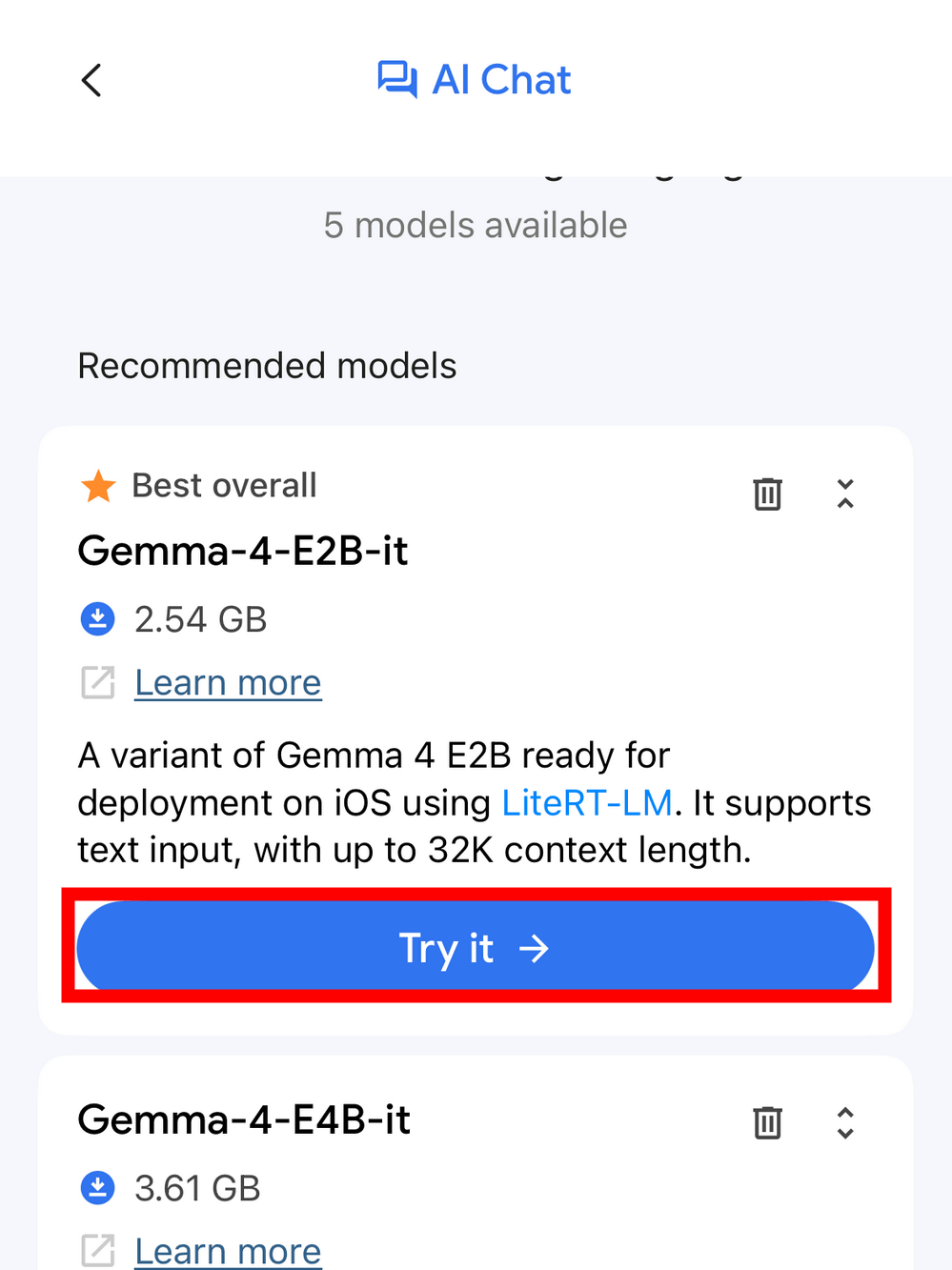
Once the download is complete, tap 'Try it →' and try the E2B model first.
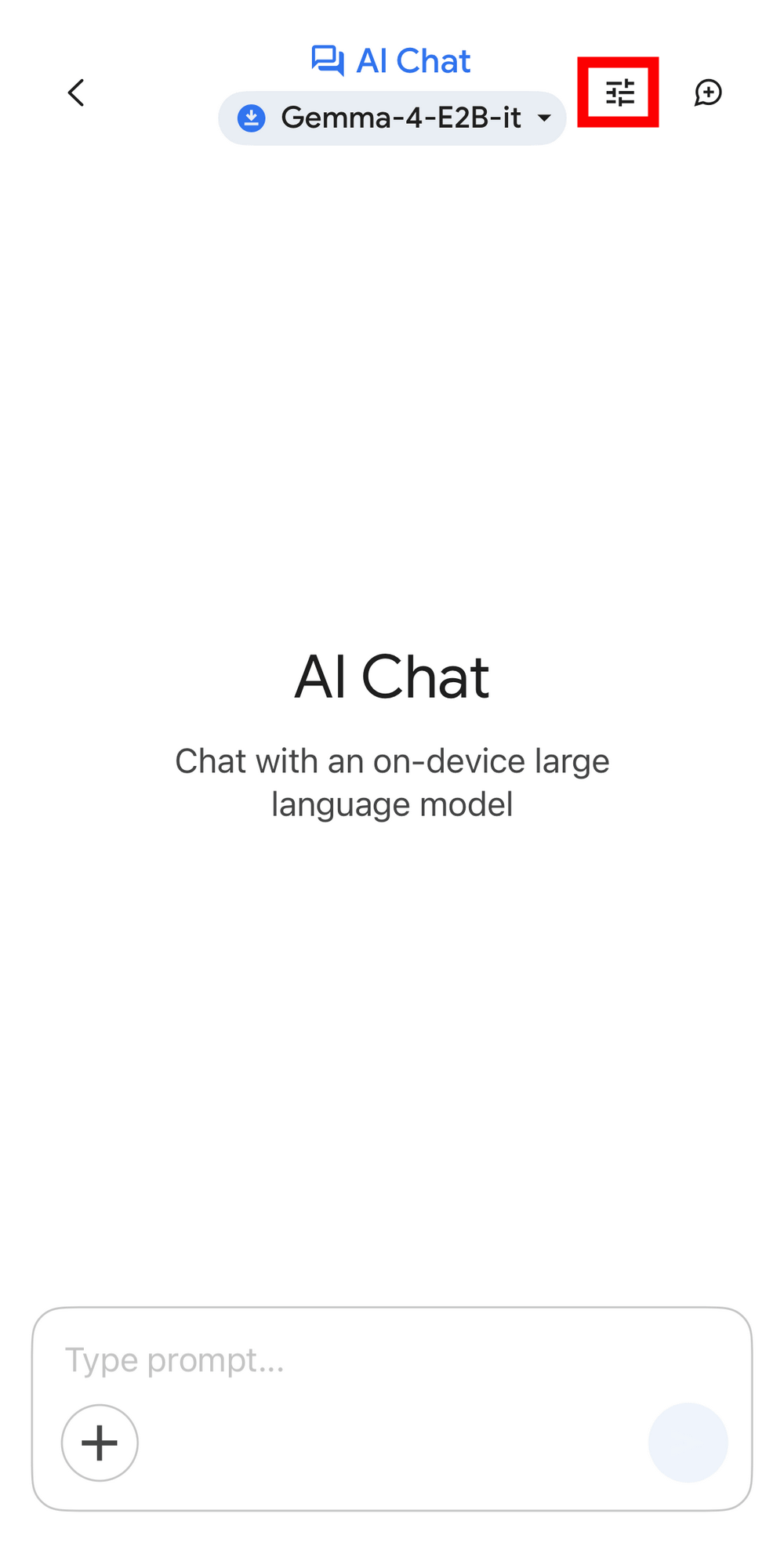
The AI chat screen looks like this. You can change the settings by tapping the slider bar icon in the upper right corner.
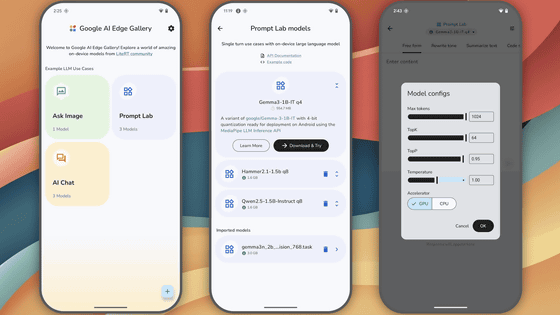
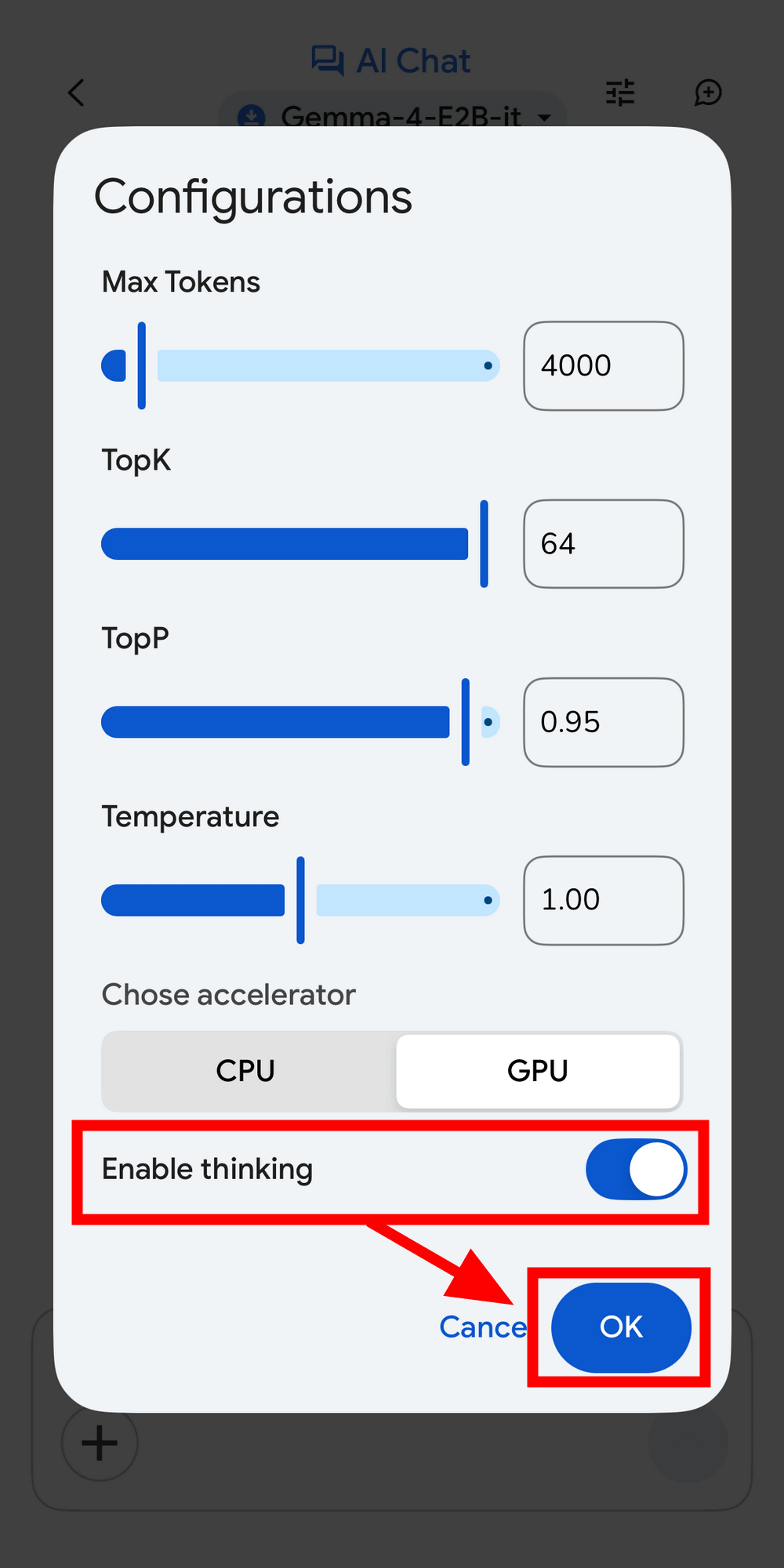
You can change the maximum number of tokens, the TopK (token filtering limit), the TopP (function tuning), and the Temperature. You can also choose whether to use the CPU or GPU for computing resources. 'Enable thinking' turns inference mode on or off, and is off by default. To turn it on, flip the switch and tap 'OK'.
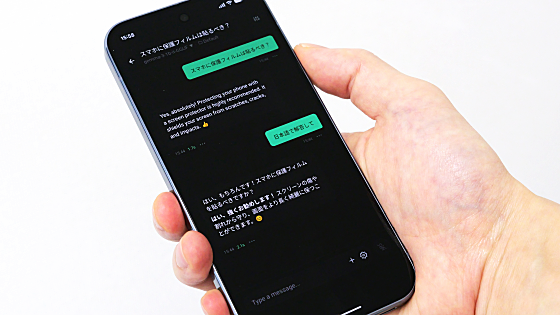
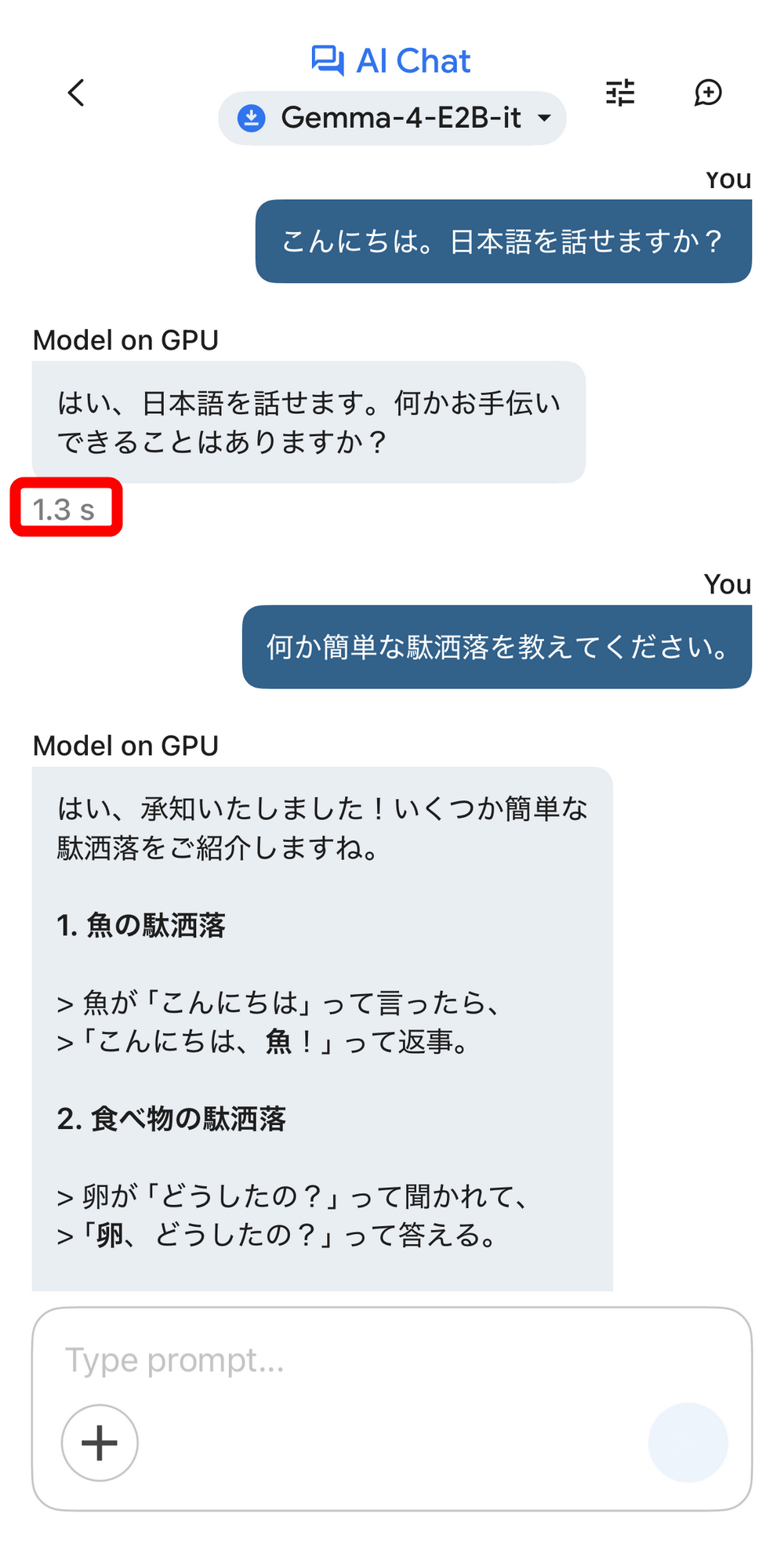
Gemma 4 supports Japanese. When you speak to it, it responds within seconds, even though it's running locally on an iPhone 15 Pro. The E2B model has a smaller parameter size, and as you can see from its pun-based responses, the quality of the content isn't particularly high, but the operation itself is quick.
The following video shows what happens when you ask the Gemma 4 E4B model 'What can you do?' in Japanese. The response is quick, and the Japanese in the reply is perfectly natural.
In addition, alongside the release of Gemma 4, Google has implemented 'Agent Skills' in the Google AI Edge Gallery, which enables fully multi-step autonomous agent workflows to be executed on devices.
Bring state-of-the-art agentic skills to the edge with Gemma 4 - Google Developers Blog
https://developers.googleblog.com/bring-state-of-the-art-agentic-skills-to-the-edge-with-gemma-4/
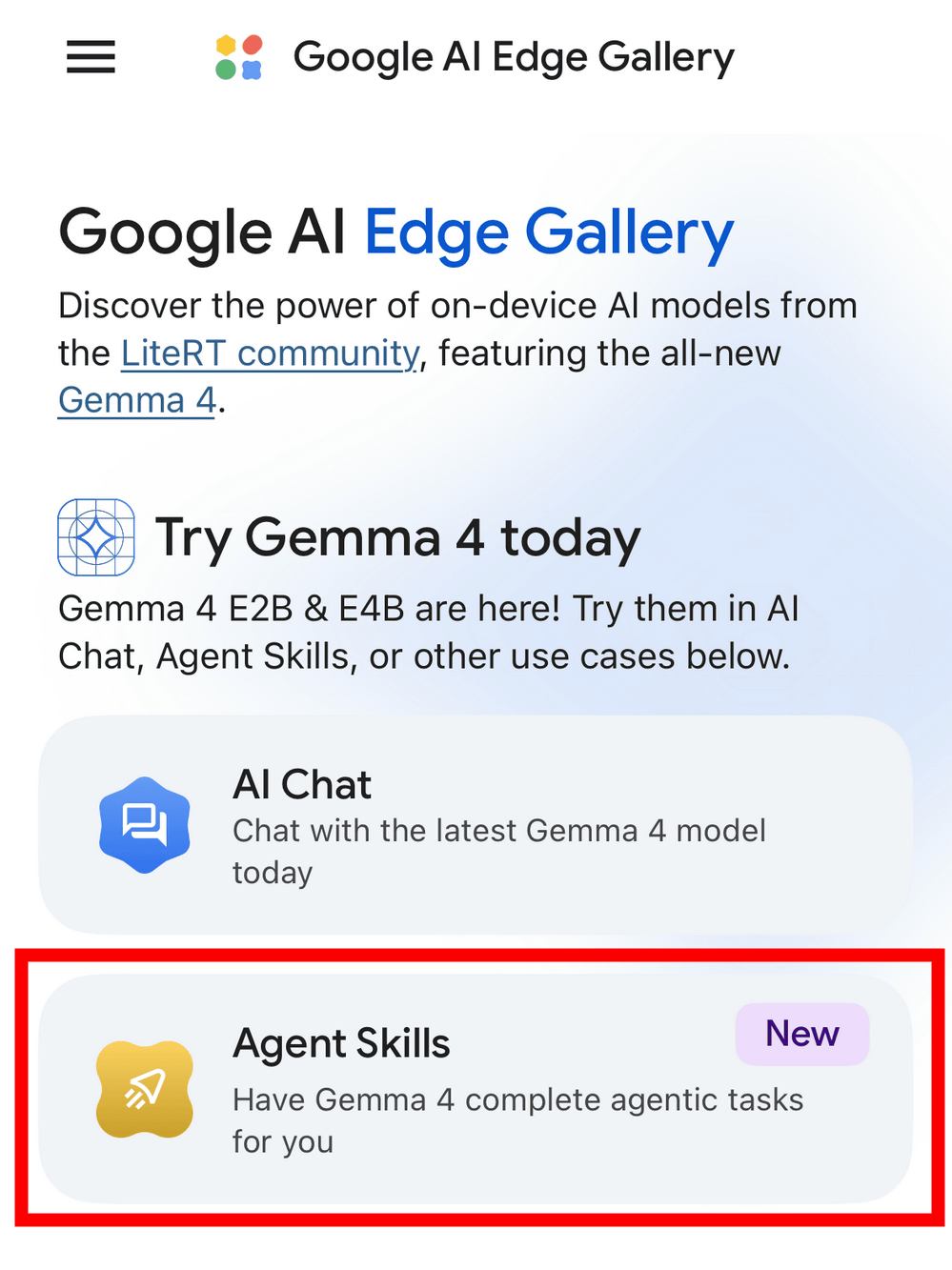
Tap 'Agent Skills' from the Google AI Edge Gallery.
This time, we'll try it with the E4B model. Tap '→'.
For example, when we had the E4B model perform the task of 'searching for the location of Tokyo Tower on Google Maps and displaying it as an embedded map,' it displayed the map in just over ten seconds, as shown in the video below. To see a list of agent skills, tap 'Skills' in the prompt input field.
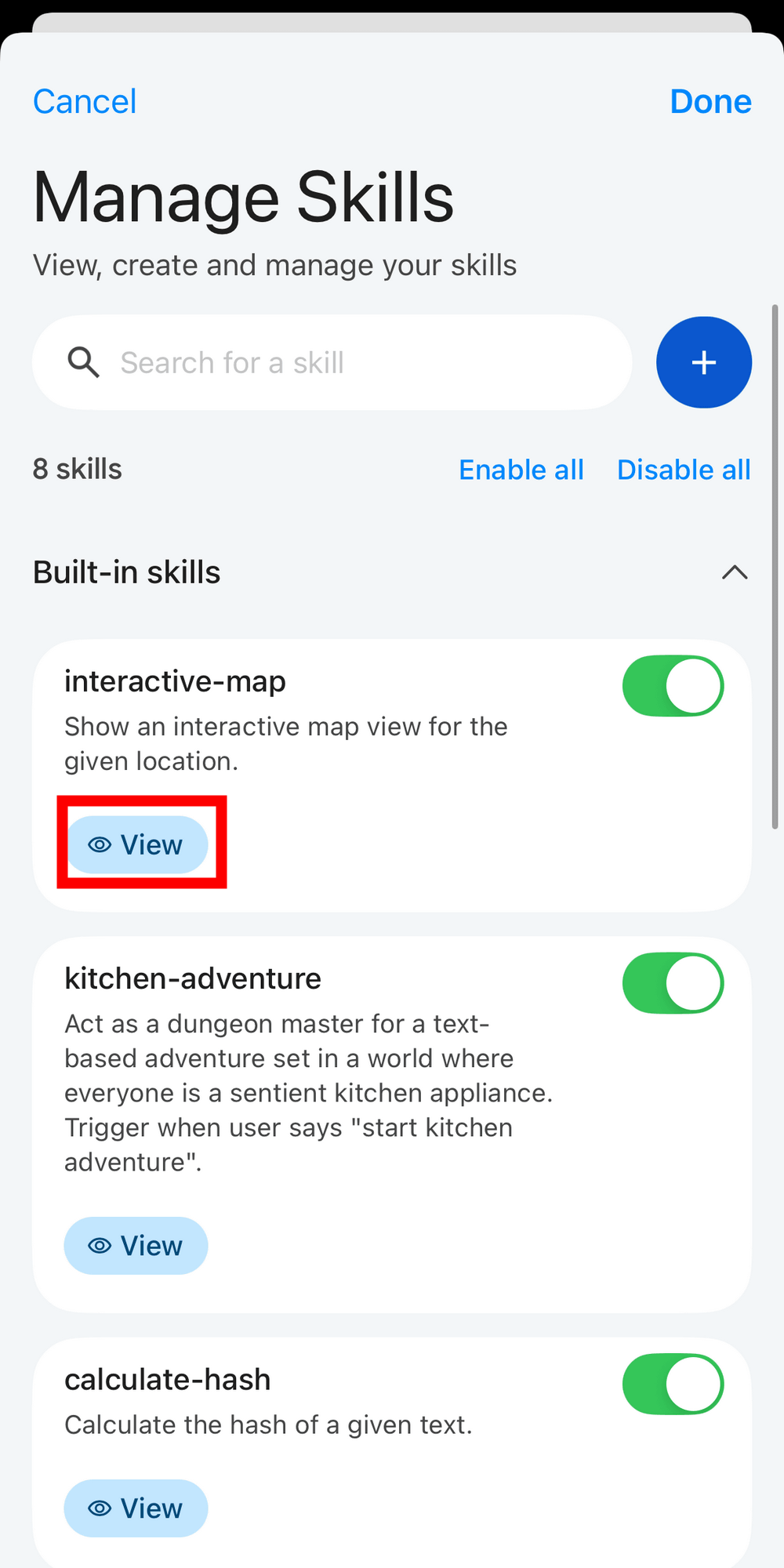
By default, eight skills are enabled. To see the details of the 'interactive-map' skill used this time, tap 'View'.
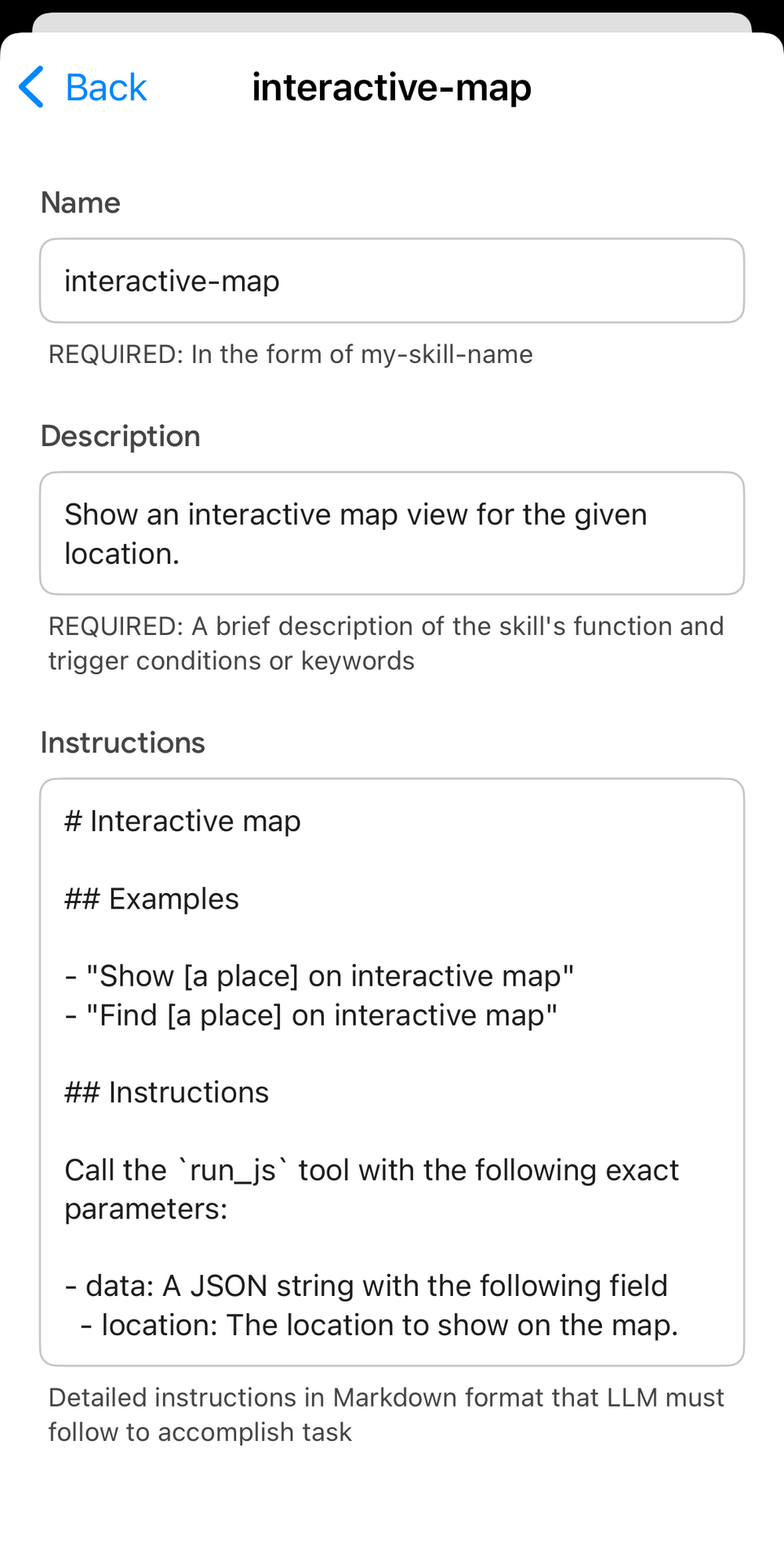
This is what the interactive-map looks like. You can also add new skills yourself.
Related Posts: