BookOrbit is an open-source, self-hostable app that allows you to share manga, ebooks, PDF files, and audiobooks for free with multiple users, and also offers features like Kobo two-way synchronization and Kindle email sharing.
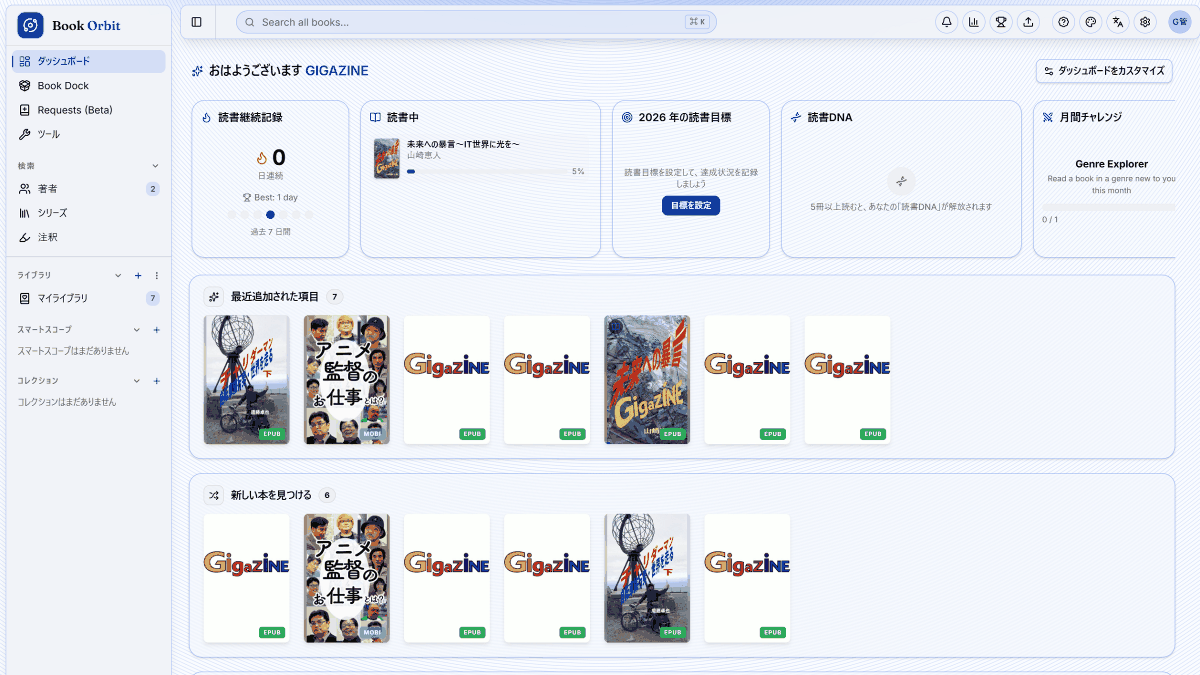
As the number of ebooks, manga, PDF files, audiobooks, etc. saved on your PC increases, it becomes a hassle to search for the save location of each work or transfer files to other devices. To eliminate this hassle, BookOrbit, a free, open-source, self-hosted ebook management tool, has been released that allows you to consolidate various files into a single library and share it with multiple users. It also supports two-way synchronization of reading positions with
BookOrbit - Your reading space
https://bookorbit.app/
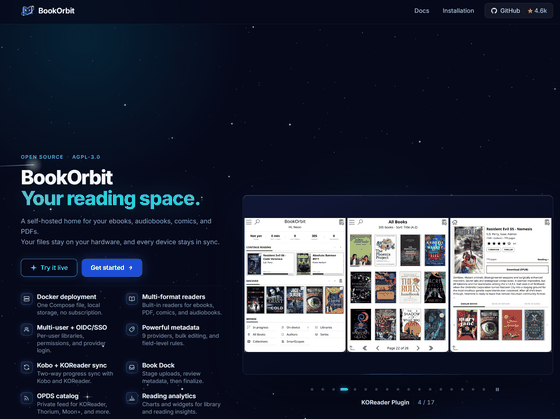
bookorbit/bookorbit: BookOrbit: Your Reading Space
◆How to use BookOrbit
- Creating a library
By accessing the URL of the server where BookOrbit is running in your browser and logging in, you will be shown a dashboard where you can check the covers of the books you have registered, your reading status, and more.
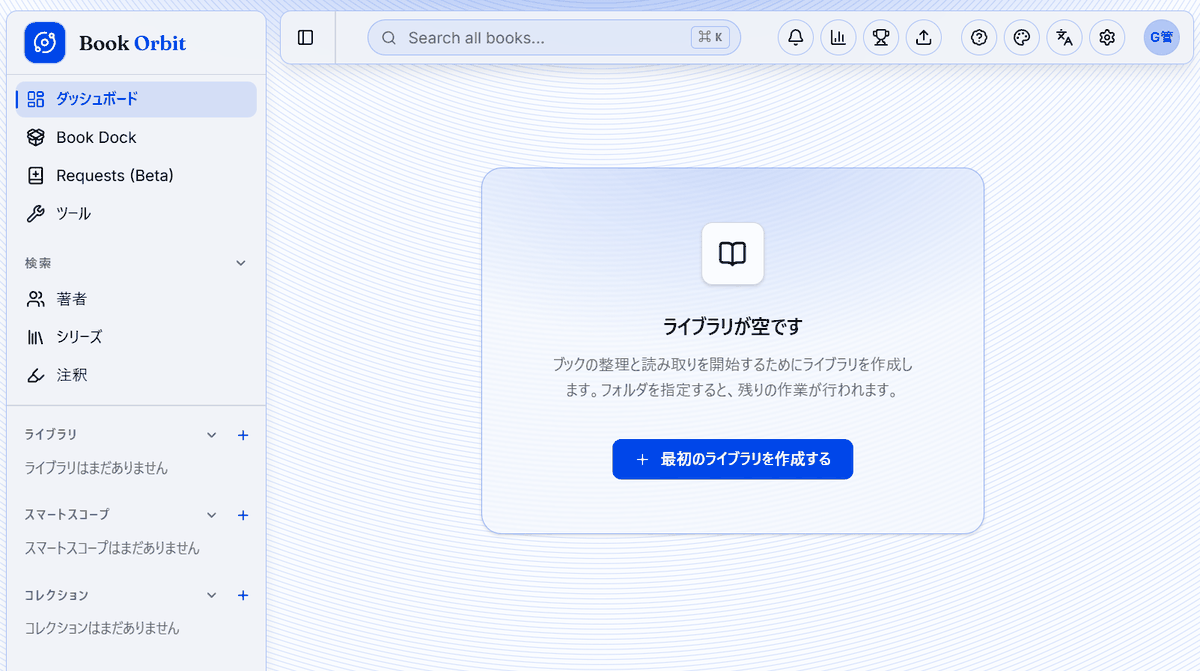
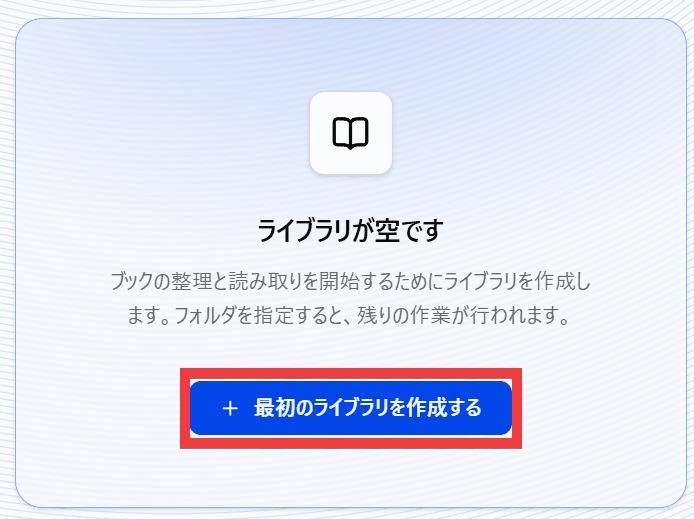
Click 'Create your first library' to prepare a library for registering books.
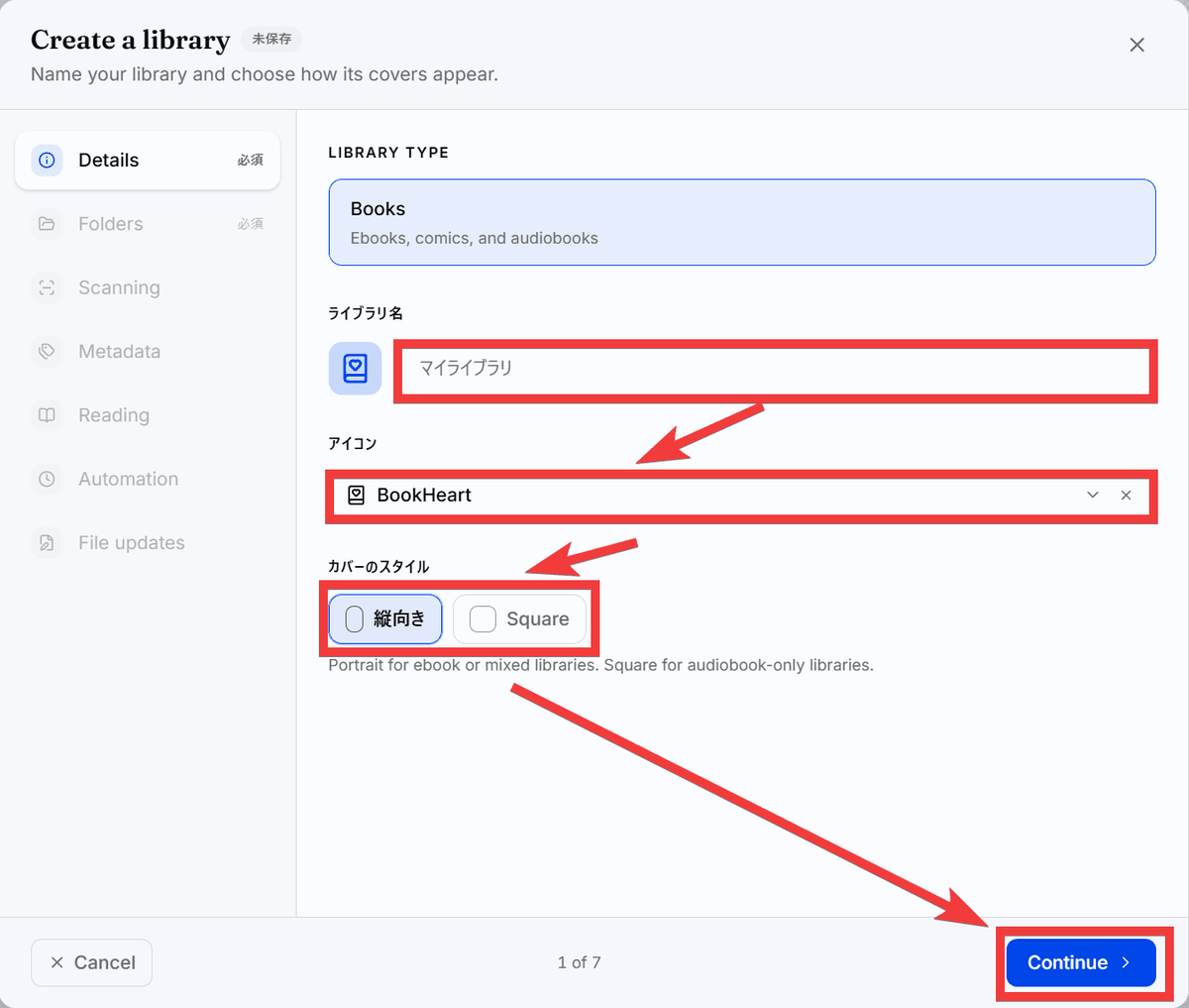
The Library Creation Wizard will appear. Enter a name for your library in 'Library Name,' select an icon in 'Icon,' choose whether to display the cover portrait or landscape in 'Cover Style,' and then click 'Continue.'
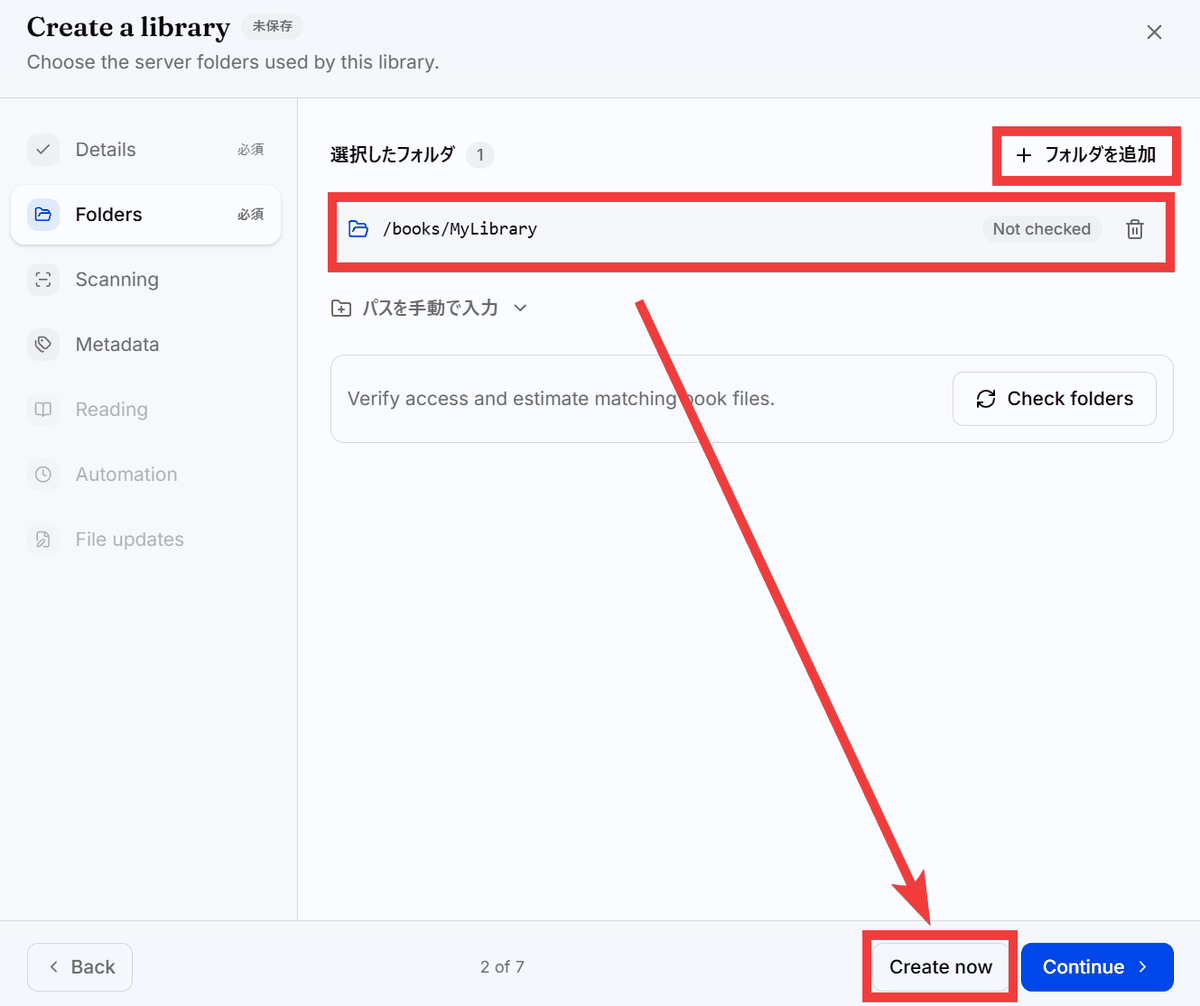
Click 'Add Folder' to create a folder for your library under '/books'. This step is required, so for now, click 'Create now'.
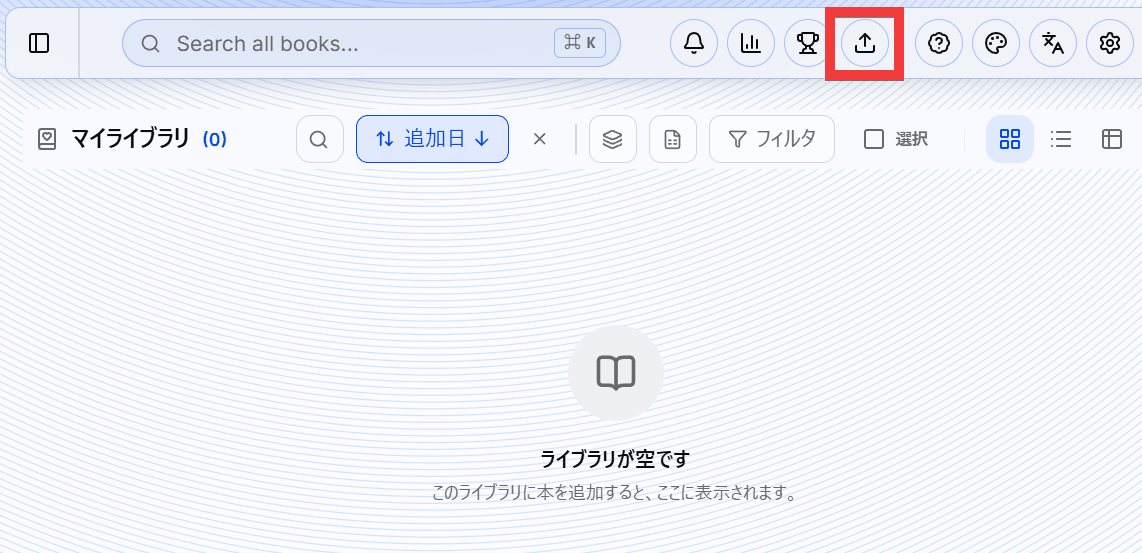
The library will be created.
• Book registration
To register a book, click the 'Upload' icon in the top menu of the library management screen.
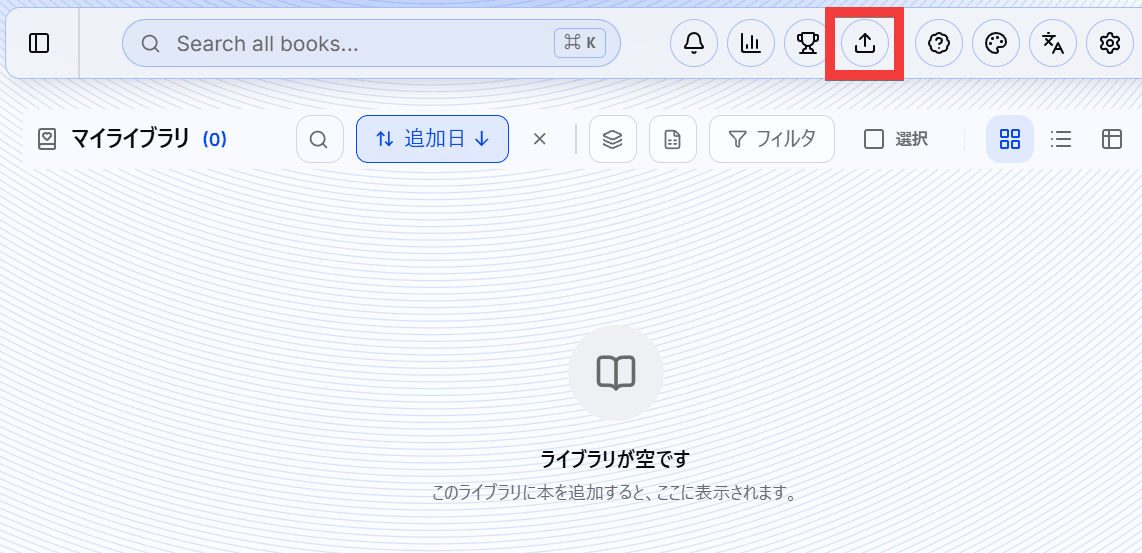
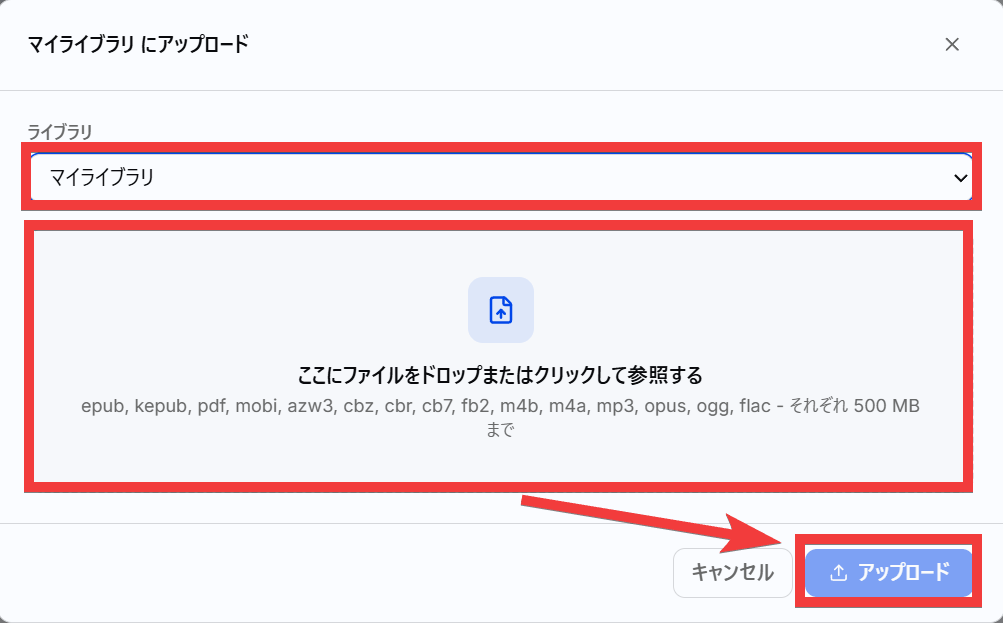
An upload form will appear. Select the library where you want to upload the file under 'Library,' drag and drop the file into the 'File Registration Area' or click to select the file from the source, and then click 'Upload.'
The uploaded books will be displayed in a list.

From the list of books, click on '

The contents of the book were displayed as shown in the image below.
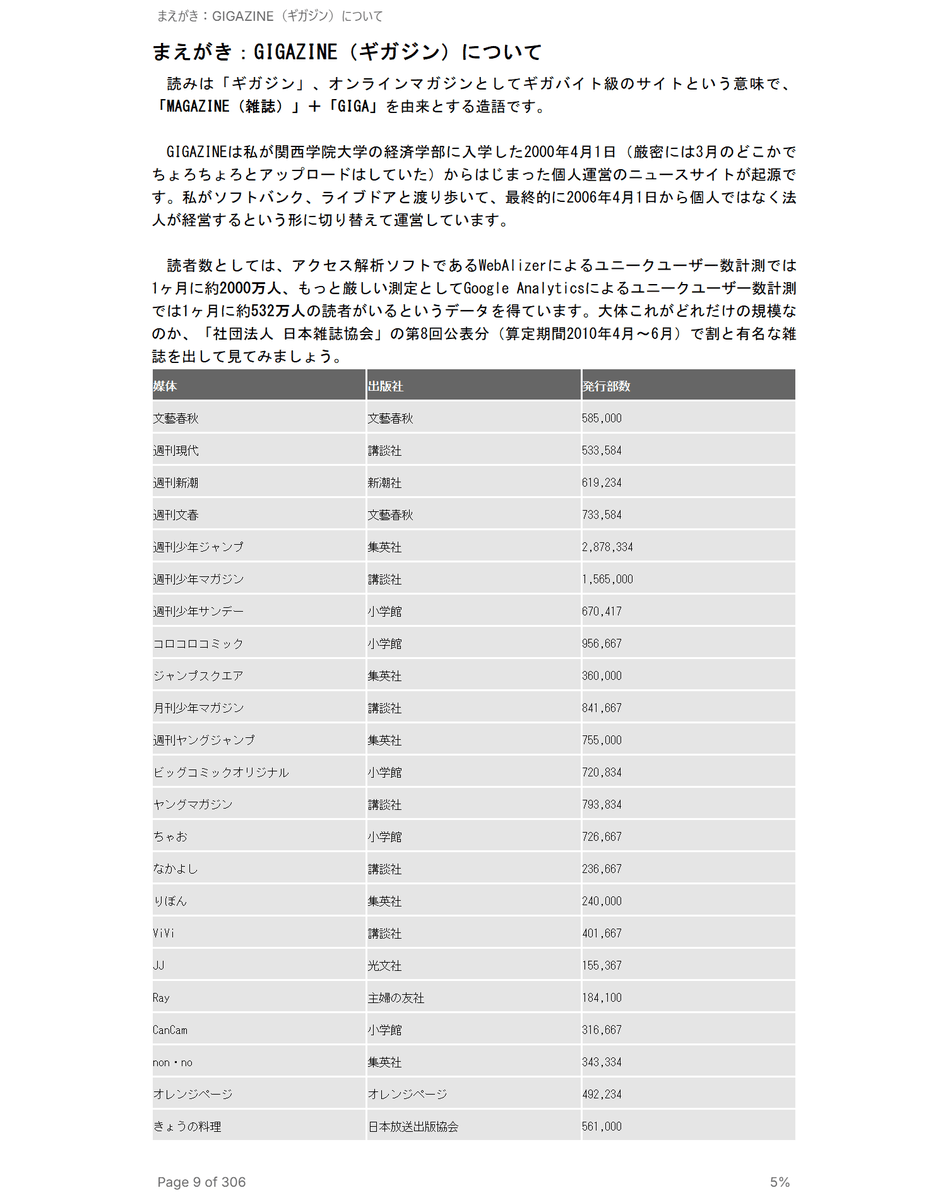
BookOrbit supports viewing and playing ebooks in formats such as EPUB, MOBI, and AZW3, PDF files, manga in CBZ, CBR, and CB7 formats, and audiobooks in M4B, MP3, M4A, OPUS, OGG, and FLAC formats.
◆ Share books with multiple users
You can create multiple user accounts and manage reading positions and highlights for each user while sharing the same library.
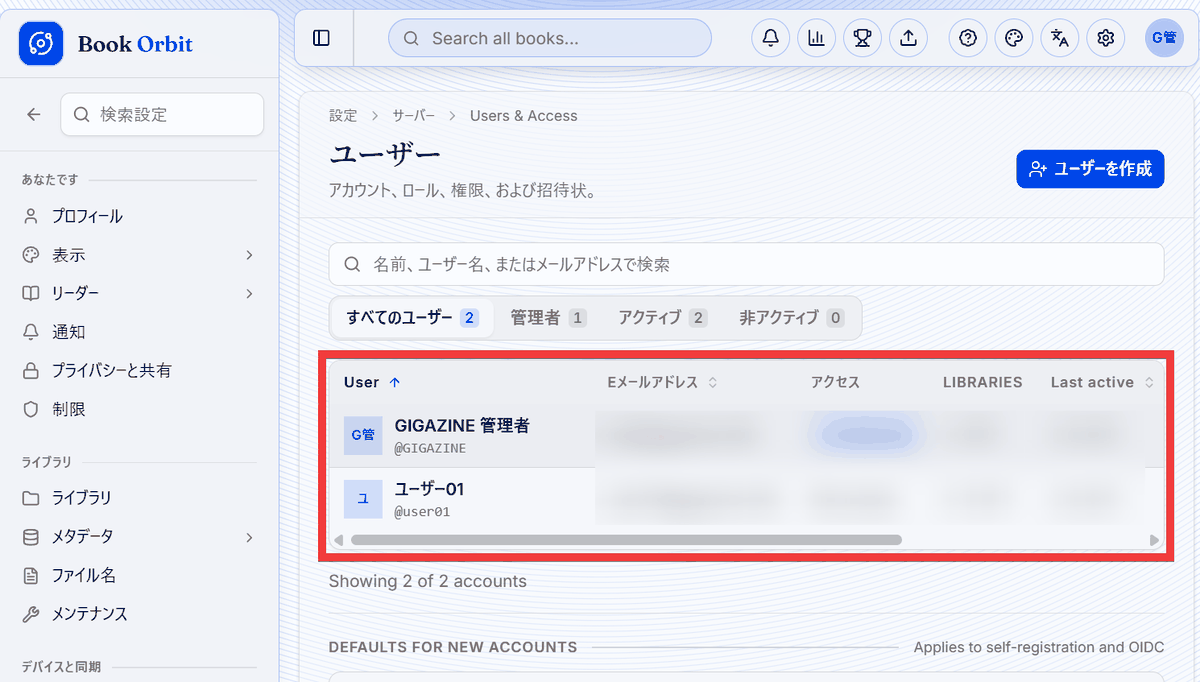
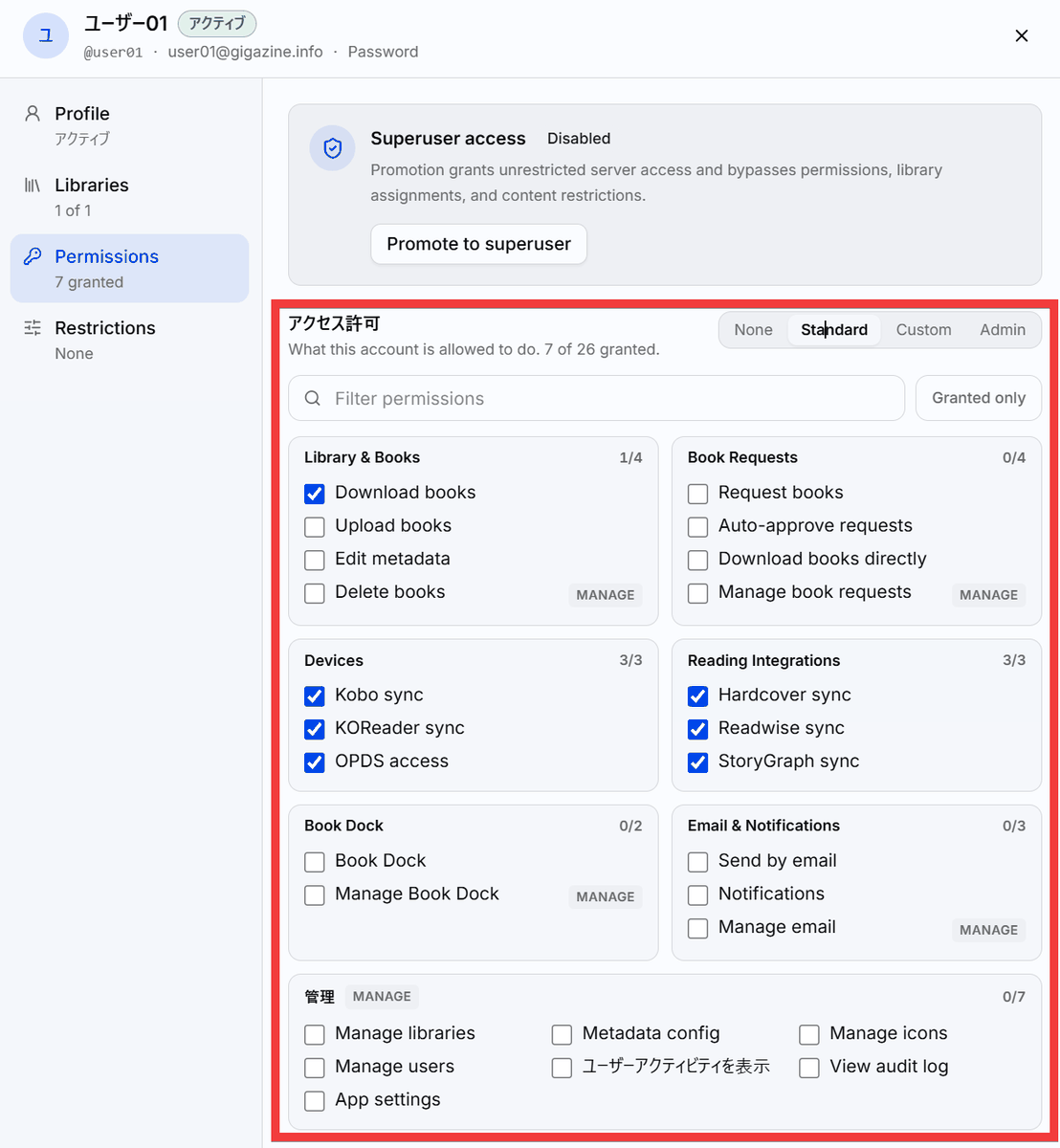
Each user can have their own individual permissions, such as viewing, uploading, and deleting books, making it suitable for managing shared books within a family or group.
◆Other features
- Supports multilingual interfaces, including Japanese.
- It allows for bidirectional synchronization of reading position and highlights with e-readers such as Kobo and
- Supports emailing to Kindle, allowing you to transfer books registered with BookOrbit to your Kindle.
- By downloading to a dedicated app for iPhone and Apple Watch, you can view ebooks and play audiobooks offline.
- Record reading time, consecutive reading days, and annual reading goals, and check your reading progress with graphs and heatmaps.
- Manage highlights and annotations added to text in one place and export them in Markdown, CSV, and JSON formats.
- Information such as book titles and authors is retrieved from 14 different sources, including Google Books , Open Library , and Amazon .
- Features include SmartScope, which narrows down books based on specified conditions, and Collections, which groups books together.
- Books added to a dedicated folder called Book Dock are automatically imported into the library.
- Supports OPDS , allowing you to search and download books from your library using compatible e-book apps.
- Hardcover and The StoryGraph can sync reading status and progress, and highlights and notes can be sent to Readwise.
- Supports single sign-on using authentick , Keycloak , and Authelia .
◆How to set up BookOrbit
This time, we will set it up in an environment where Docker Desktop and Git Bash for Windows are installed on Windows. After creating and moving the bookorbit folder, create a data storage folder.
 mkdir bookorbit && cd bookorbit
 mkdir -p books data/app data/postgres
Download the .env and docker-compose.yml files from the repository.
 curl -fsSLo .env https://raw.githubusercontent.com/bookorbit/bookorbit/main/.env.example
 curl -fsSLo docker-compose.yml https://raw.githubusercontent.com/bookorbit/bookorbit/main/docker-compose.yml
Open the .env file with a text editor and set the IP address in 'APP_URL', the database password in 'POSTGRES_PASSWORD', and random strings in 'JWT_SECRET' and 'SETUP_BOOTSTRAP_TOKEN'.
 APP_URL=http://your-server-ip:3000 # the URL you'll open in your browser
 BOOKS_HOST_PATH=./books # folder on your server where your book files live

 POSTGRES_PASSWORD= # database password - openssl rand -hex 24
 JWT_SECRET= # signs login tokens - openssl rand -hex 32
 SETUP_BOOTSTRAP_TOKEN= # one-time setup wizard token - openssl rand -hex 16
Start the container.
docker compose up -d
When you access the address set in APP_URL in your browser, an administrator account creation form will appear. Enter your username in 'Username', your full name in 'Full Name', your email address in 'Email Address', your password in 'Password' and 'Confirm Password', and the string set in SETUP_BOOTSTRAP_TOKEN in 'Token Setup', then click 'Create Administrator Account'.
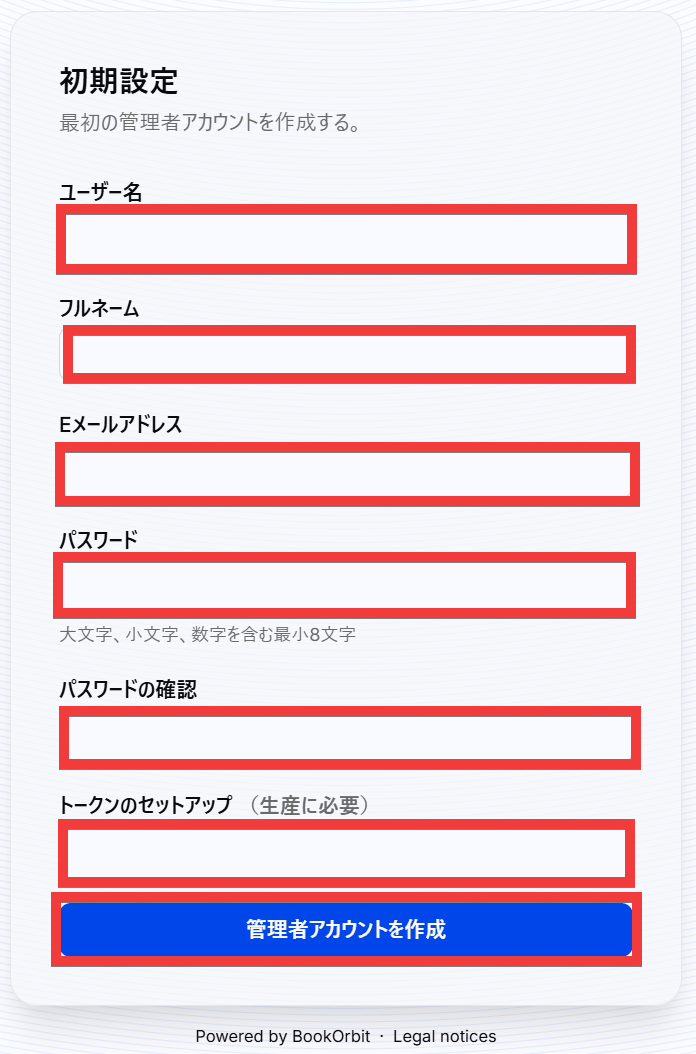
Once the administrator account is created and the dashboard is displayed, the setup is complete.
Related Posts: