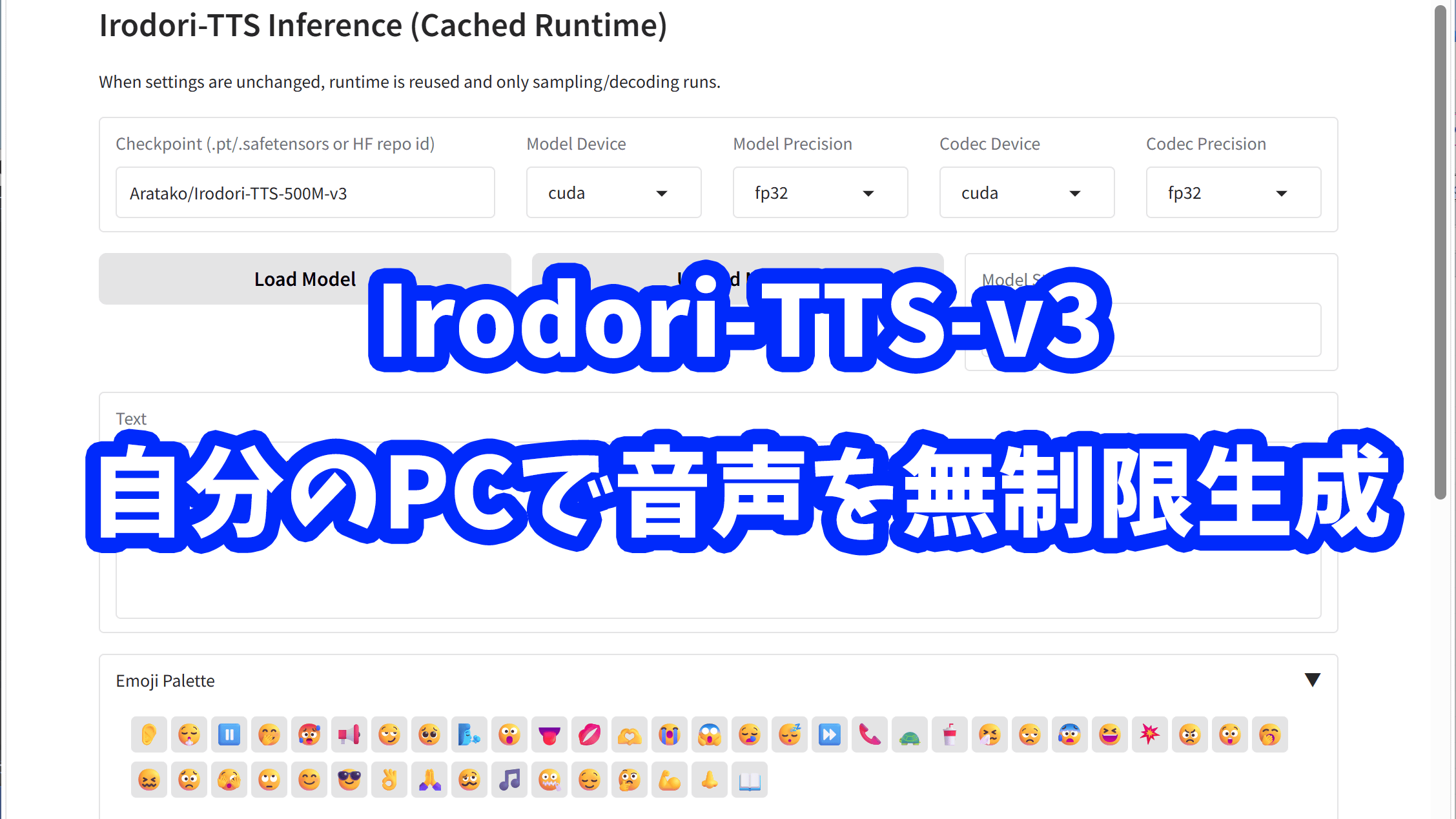
I tried out Irodori-TTS V3, a local AI that lets you specify a voice and have it speak your favorite lines. You can specify the length of the voice and easily control emoji emotions.
'
Irodori-TTS - a Aratako Collection
https://huggingface.co/collections/Aratako/irodori-tts
GitHub - Aratako/Irodori-TTS: A Flow Matching-based Text-to-Speech Model with Emoji-driven Style Control · GitHub
https://github.com/Aratako/Irodori-TTS
·table of contents
◆1: Installing Irodori-TTS
◆2: Steps to generate dialogue audio
◆3: Specify the voice tone using the reference audio.
◆4: Generate by specifying the length
◆5: Expressing emotions with emojis
◆6: Specify the voice tone in the description.
◆1: Installing Irodori-TTS
To use Irodori-TTS on a PC, you need to have the programming language 'Python,' the Python package management tool 'uv,' and the version control system 'Git' installed beforehand. Python can be downloaded and installed from the official website , and Git and uv can be installed using the standard Windows command 'winget.' The installation procedure for Git and uv is explained in detail in the Irodori-TTS-V2 review article below.
How to use 'Irodori-TTS,' a local AI that lets you make your favorite lines spoken in your favorite voice: Japanese language specialized and runs locally, so you can generate unlimited text - GIGAZINE
Once Python, Git, and uv are installed, we will proceed with the installation of Irodori-TTS. The installation command for Irodori-TTS has changed slightly from before, so we will explain it again.
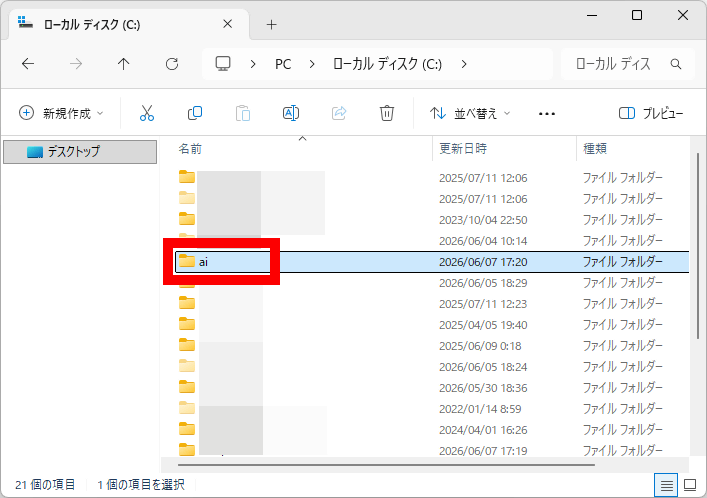
First, create a folder of your choice to install Irodori-TTS. In this example, we created a folder named 'ai' directly under the C drive.
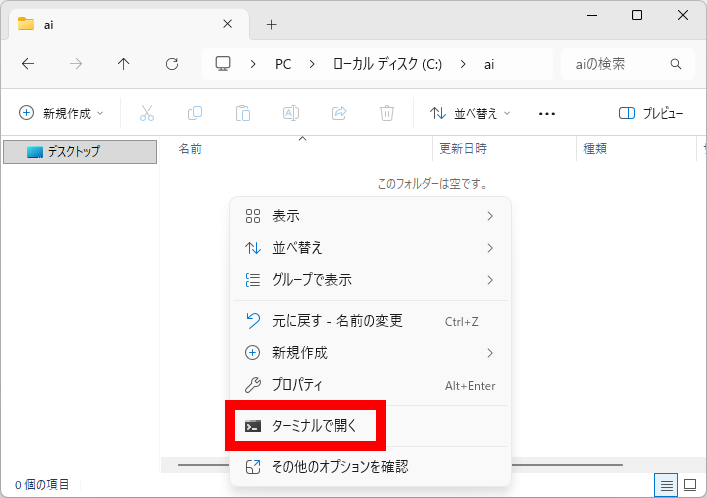
Open the folder you created and click 'Open in Terminal' in the right-click menu.
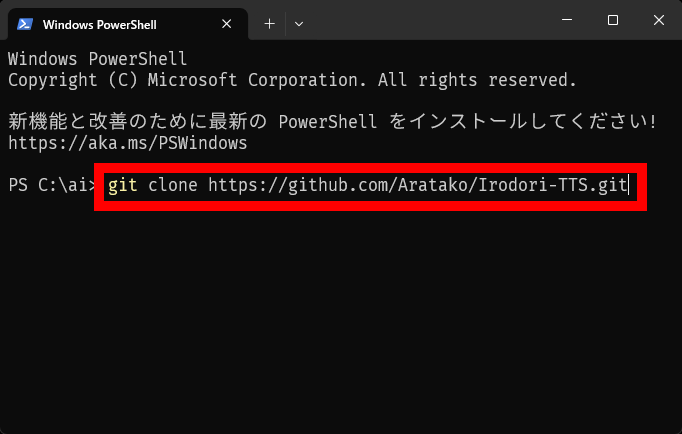
Once the terminal is open, enter the command ' git clone https://github.com/Aratako/Irodori-TTS.git ' and press Enter to download the files necessary for installing Irodori-TTS.
Once the download is complete, execute ' cd Irodori-TTS ' to move to the Irodori-TTS folder.
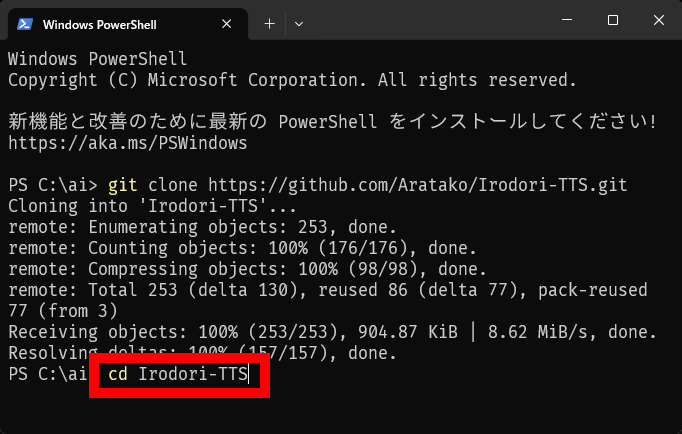
Next, execute the installation command appropriate for your environment. The environment and command combinations are as follows:
When using an NVIDIA GPU on Windows or Linux: uv sync --extra cu128
When using an AMD GPU on Linux or WSL: uv sync --extra rocm
To use Intel XPU on Windows or Linux: uv sync --extra xpu
For CPU-only environments or when running on macOS: `uv sync --extra cpu`
Since this is being run on a Windows PC equipped with an NVIDIA GPU, I executed ' uv sync --extra cu128 '.
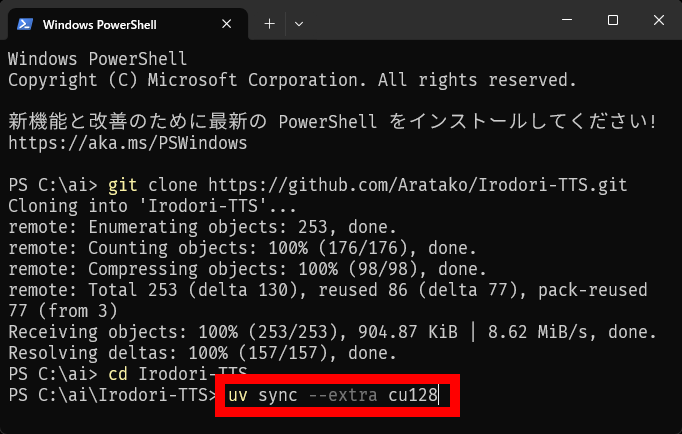
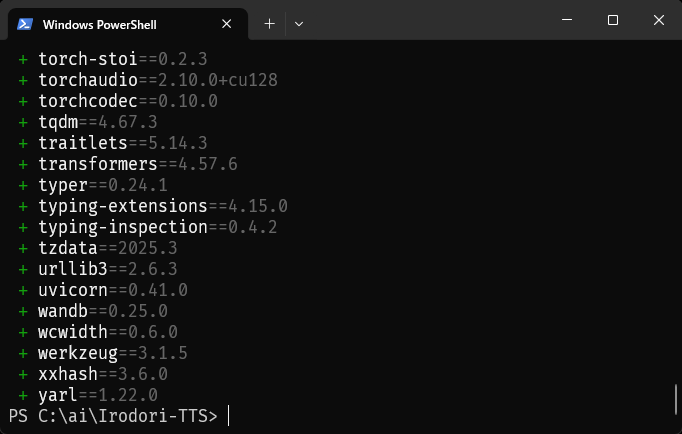
Wait a while, and when 'C:\ai\Irodori-TTS' appears at the bottom, the installation is complete.
◆2: Steps to generate dialogue audio
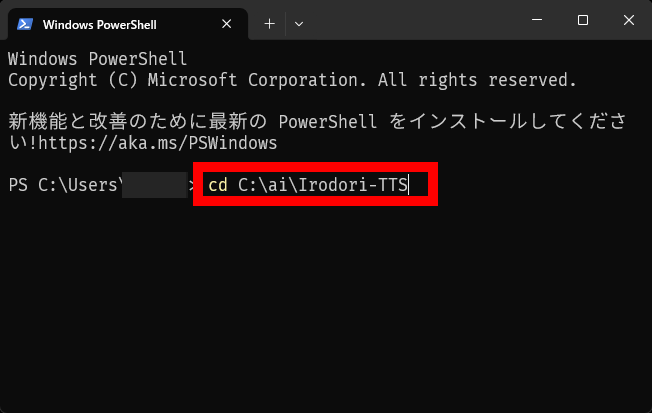
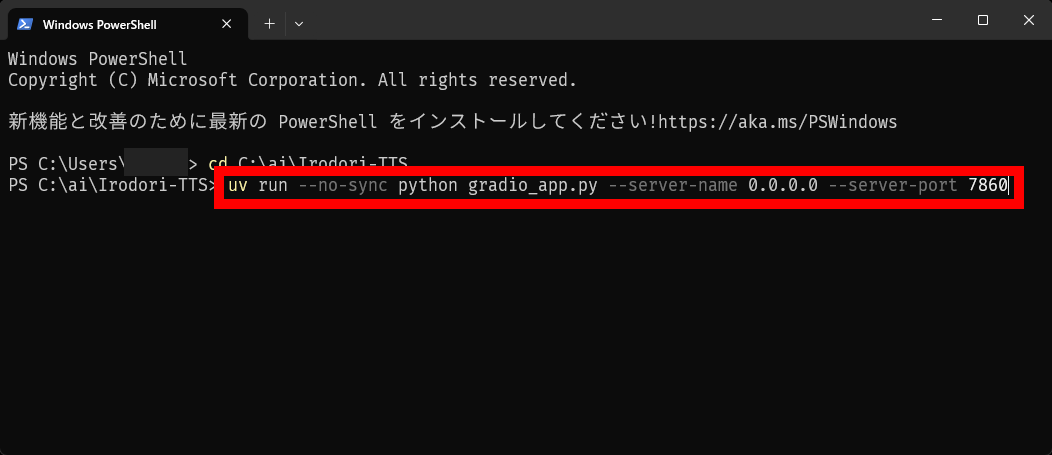
Irodori-TTS can be run from the command line, or you can open a web UI in your browser and run it using the mouse. To open the web UI, first launch Terminal and execute ' cd C:\ai\Irodori-TTS ' to navigate to the Irodori-TTS folder.
Next, run ' uv run --no-sync python gradio_app.py --server-name 0.0.0.0 --server-port 7860 ' to start the Irodori-TTS server. With the release of V3, the execution environment has also been updated, and the '--no-sync' option is now required to fix the environment.
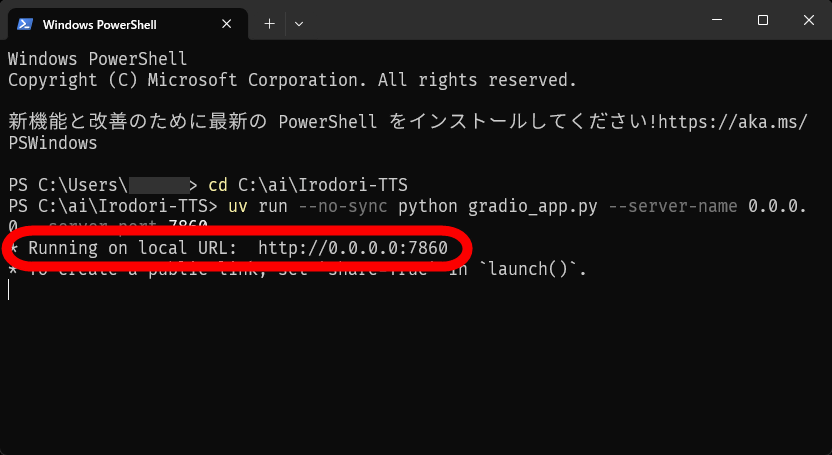
Wait a while, and when you see 'Running on local URL ○○○', you're ready.
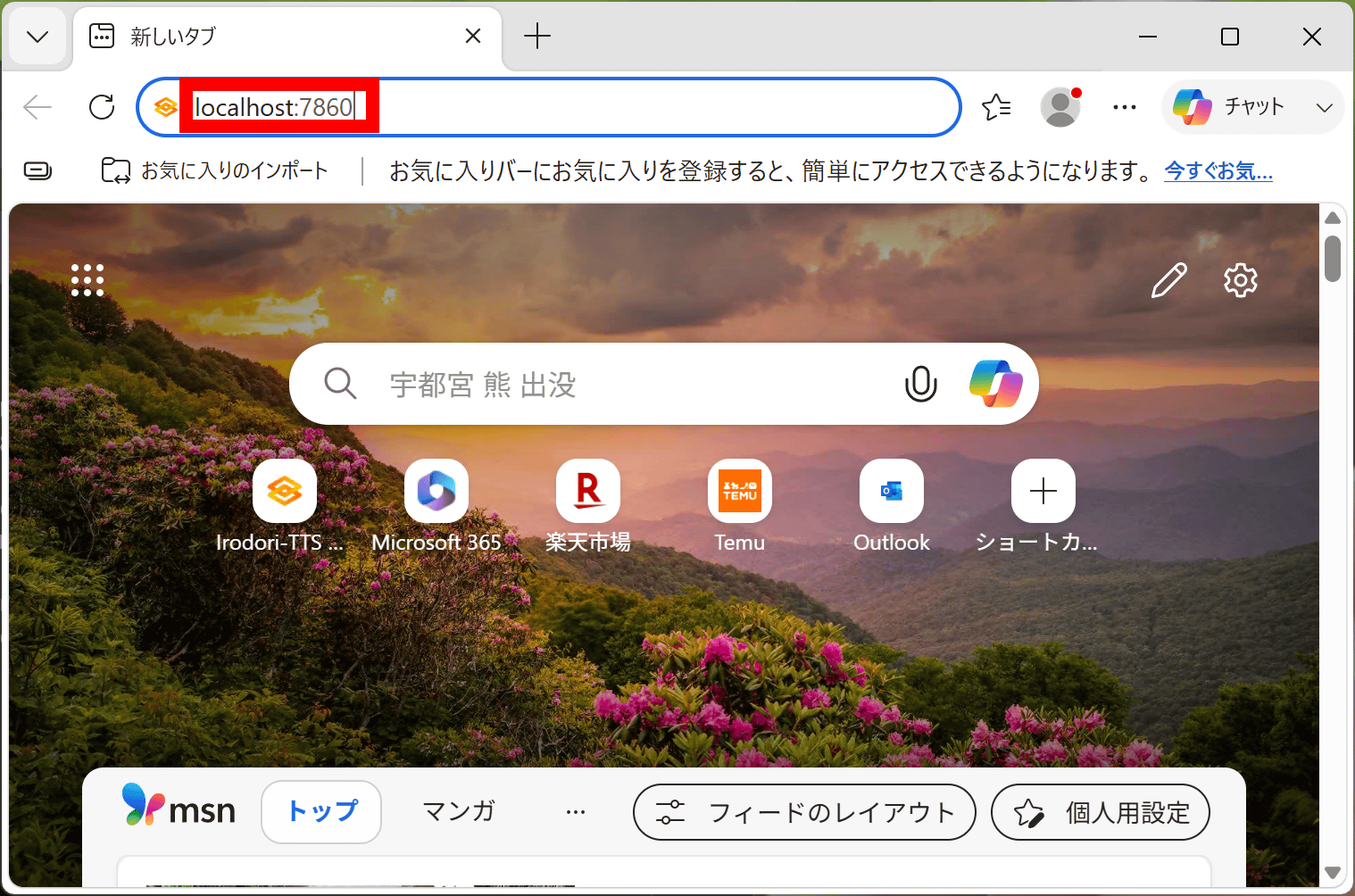
Open your browser and enter ' localhost:7860 ' in the address bar.
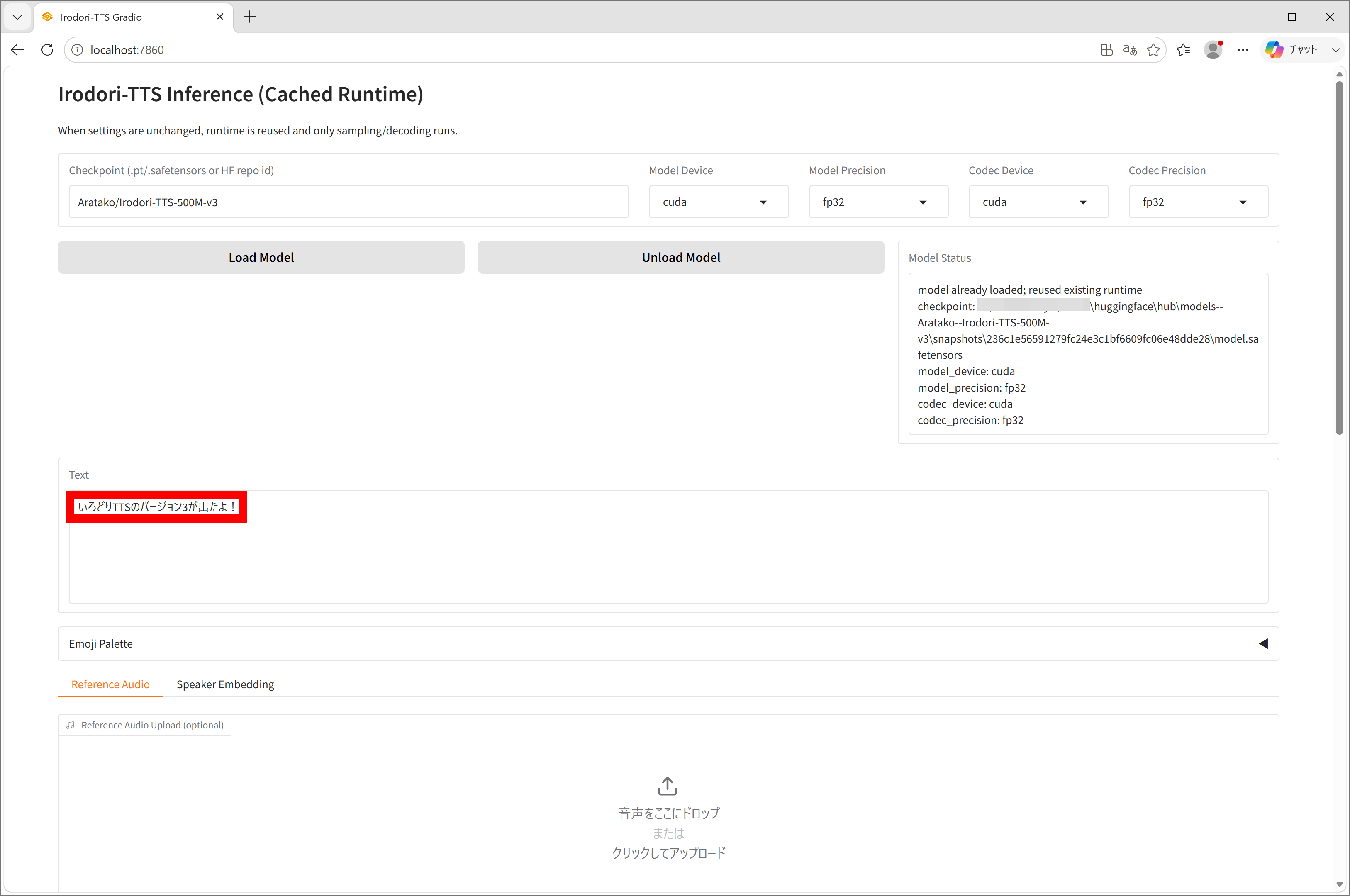
This is the Irodori-TTS web UI. Clicking 'Load Model' will download and load '
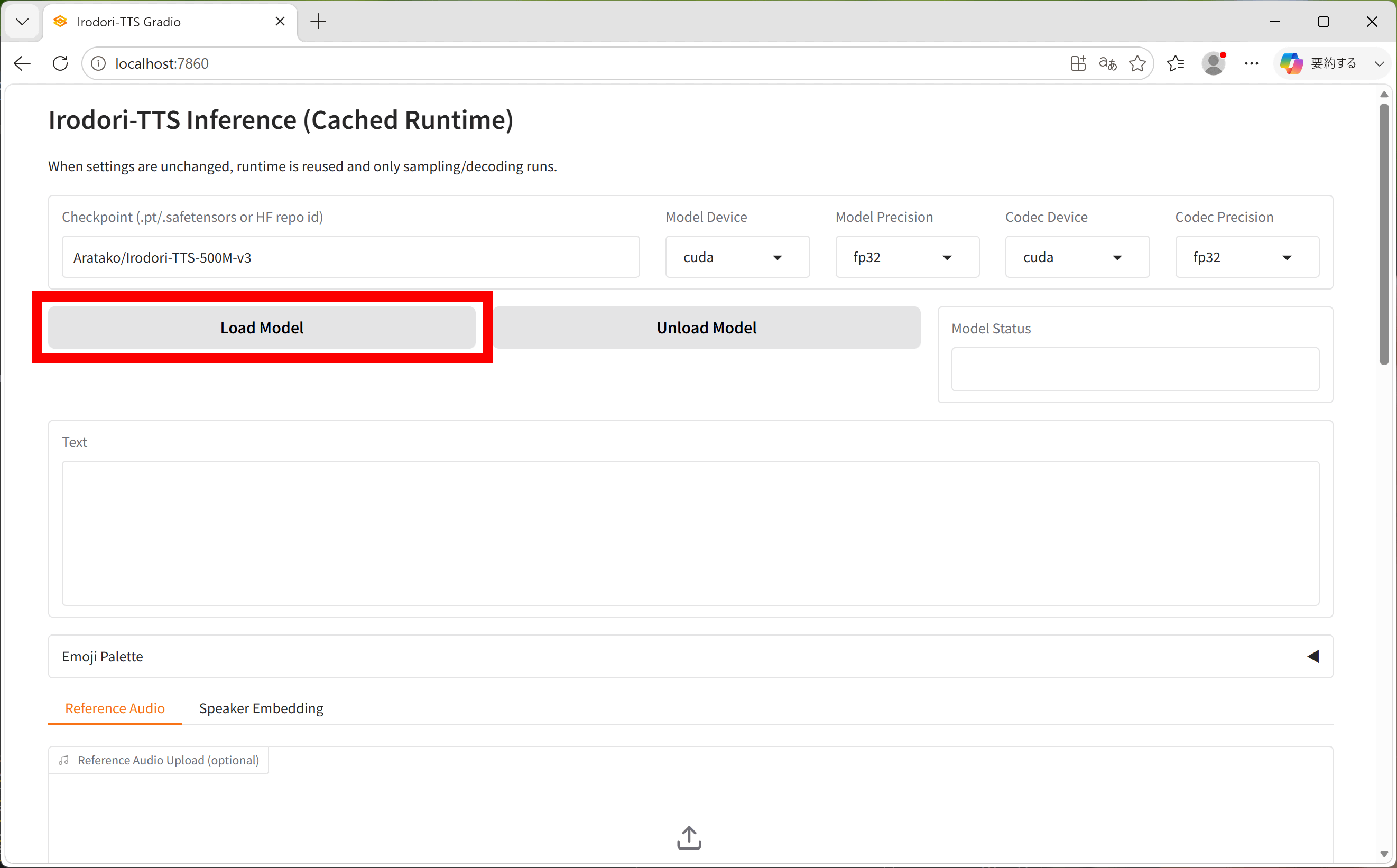
Once the model has finished loading, enter the dialogue in the 'Text' field.
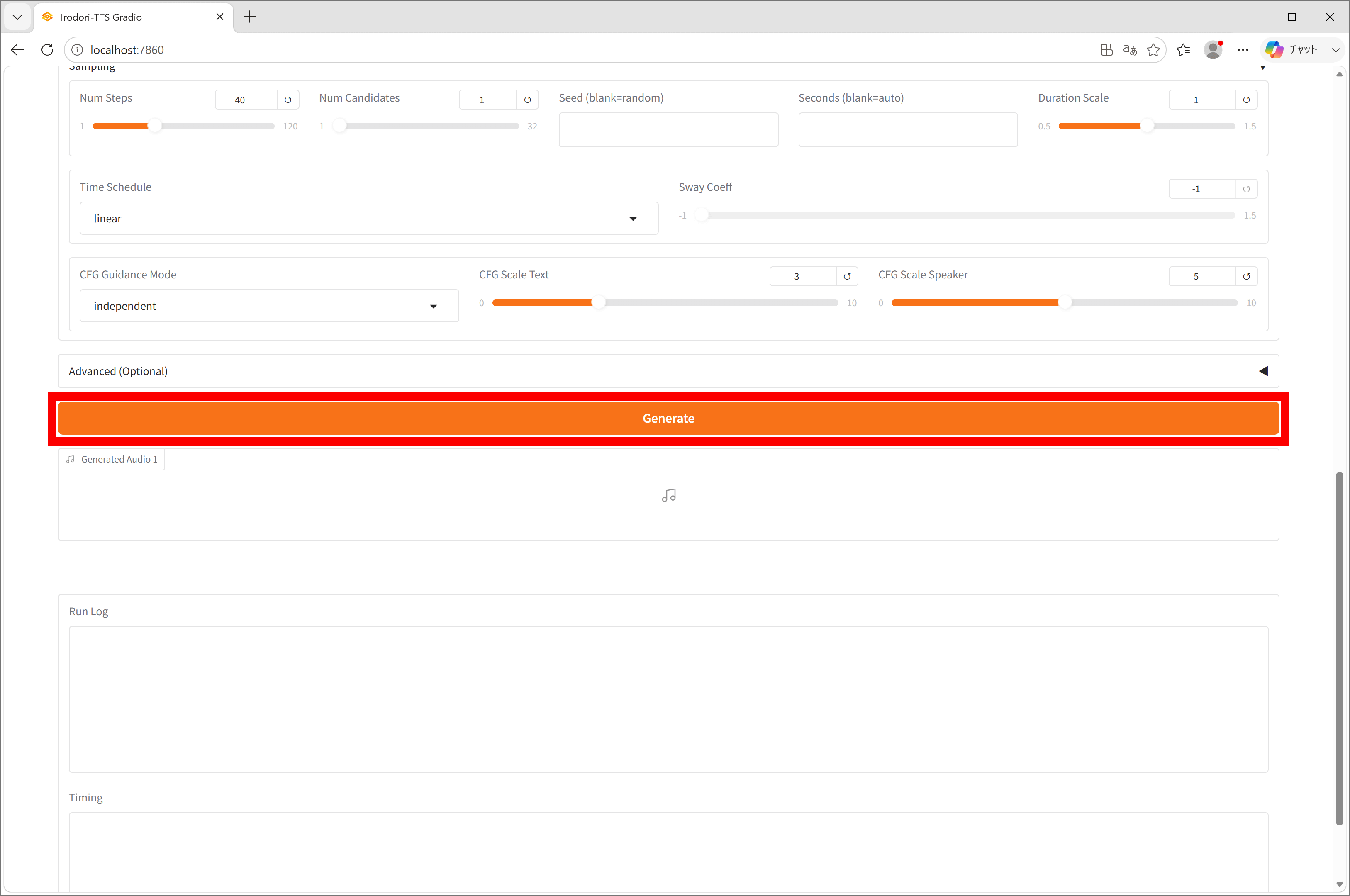
Scroll down and click 'Generate' to start the generation process.
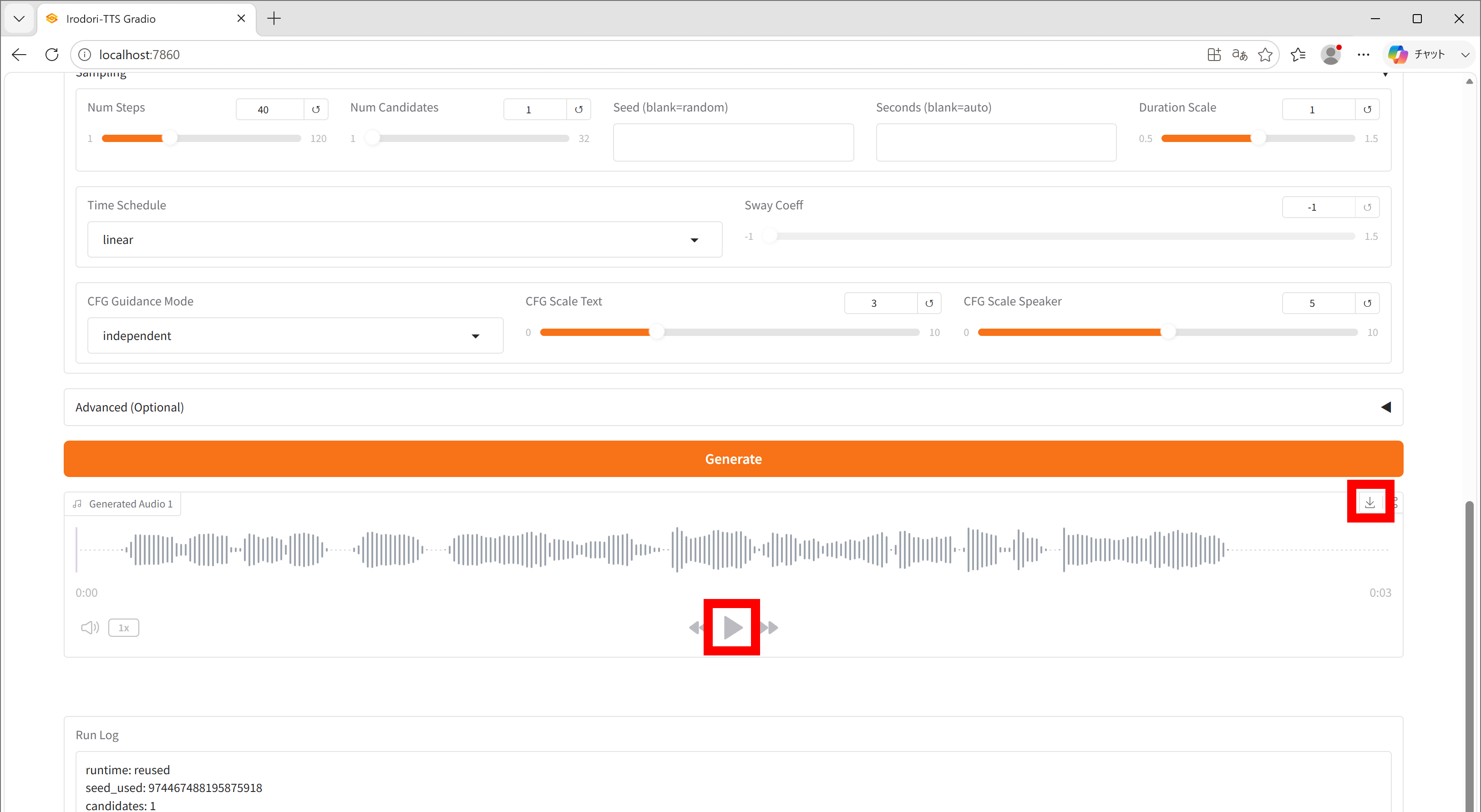
Once generation is complete, you can play it using the play button. You can save it by clicking the download button.
I recorded a video showing the process of actually generating dialogue audio. On a Windows PC equipped with a GeForce RTX 5070Ti, it can generate audio in just a few seconds.
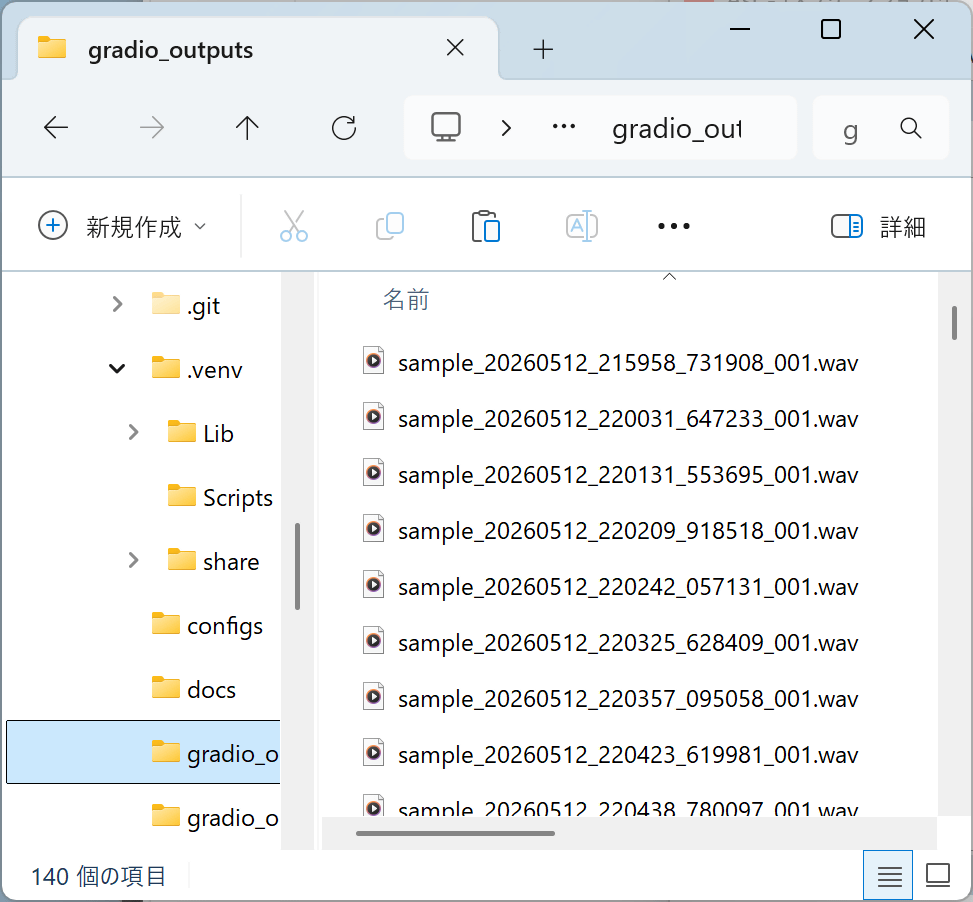
Please note that all generated videos are saved to 'C:\ai\Irodori-TTS\gradio_outputs\' without needing to click the download button.
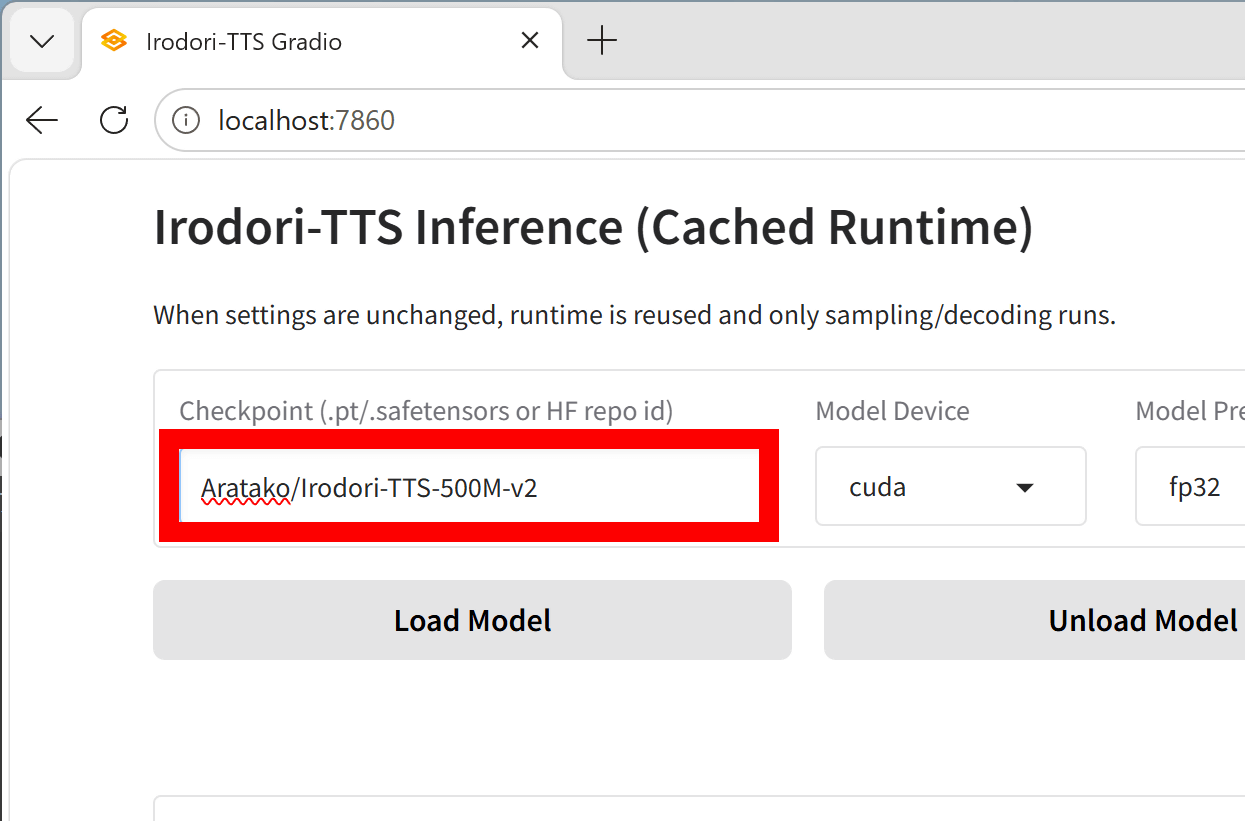
While Irodori-TTS-v3 offers improved voice quality, it leans more towards a formal voice. If you want to generate an anime-style voice, you might consider switching to Irodori-TTS-v2. To use Irodori-TTS-v2, simply change the 'Checkpoint' field in the upper left corner to 'Aratako/Irodori-TTS-500M-v2'.
◆3: Specify the voice tone using the reference audio.
By dragging and dropping a reference audio file into the 'Reference Audio Upload' field, you can generate audio with the same voice tone as the reference audio.
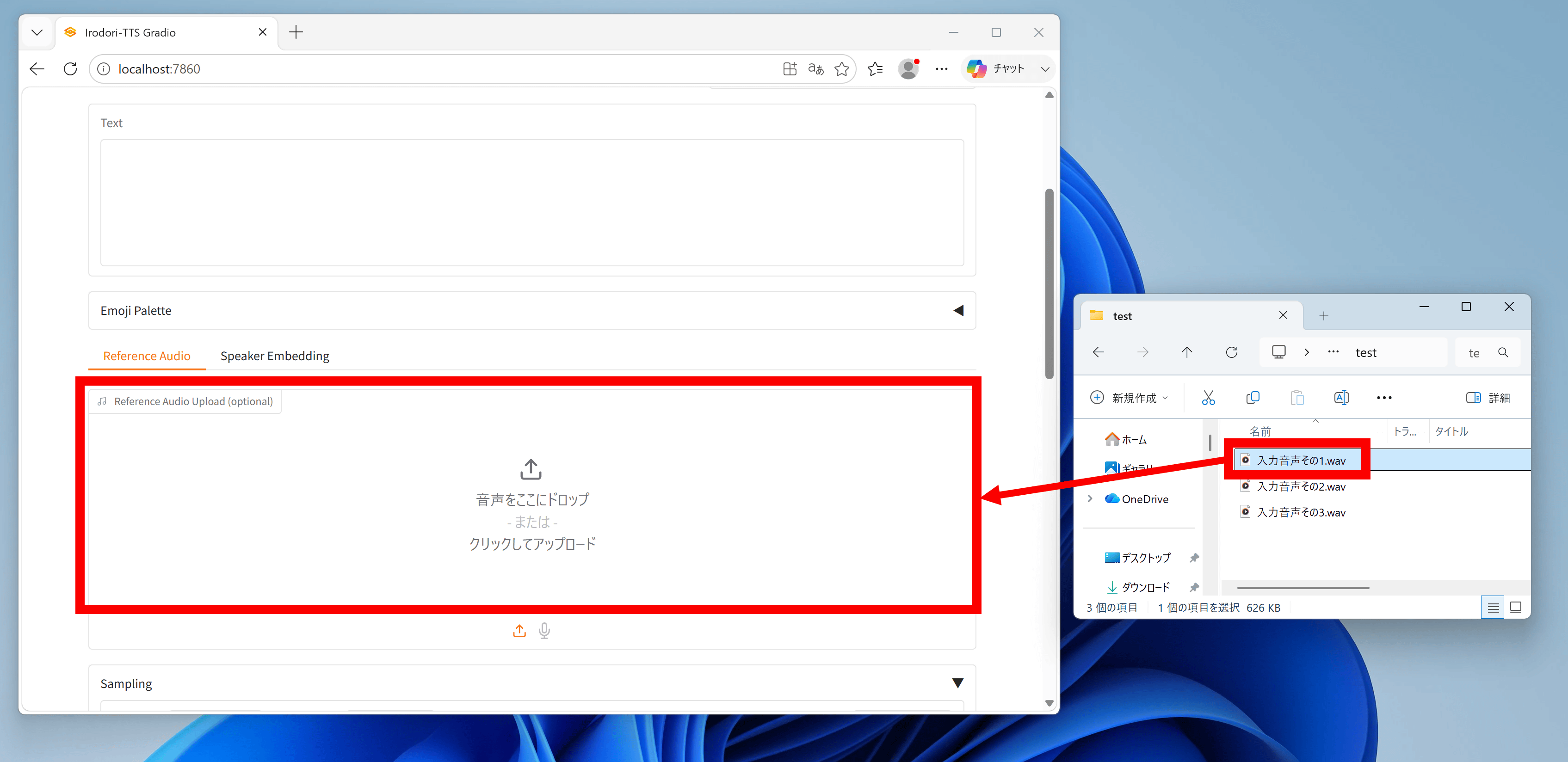
The following is an example of generation using a reference audio. It reproduces the tone of the original voice quite well.
◆4: Generate by specifying the length
You can also specify the length of the generated audio by entering the number of seconds in the 'Seconds' field.
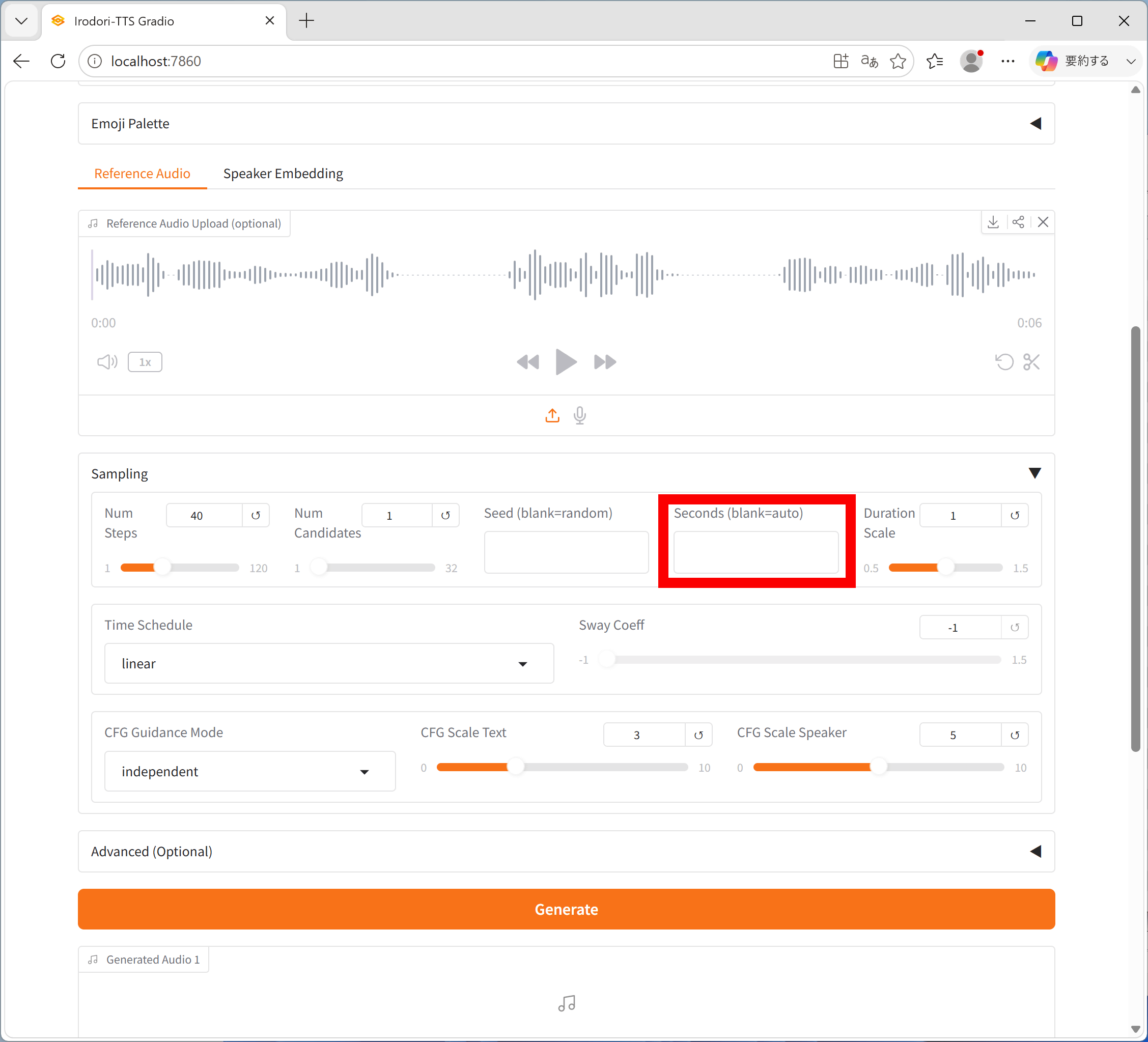
Examples of specifying length are shown below. Shorter durations result in faster speech, while longer durations result in slower speech. If the duration is too short or too long, the audio may become distorted.
◆5: Expressing emotions with emojis
Irodori-TTS also allows you to specify emotions by mixing emojis into your dialogue. An update in May 2026 added an emoji palette to the web UI, making input easier. The emoji palette can be opened by clicking 'Emoji Palette' at the bottom of the dialogue input field.
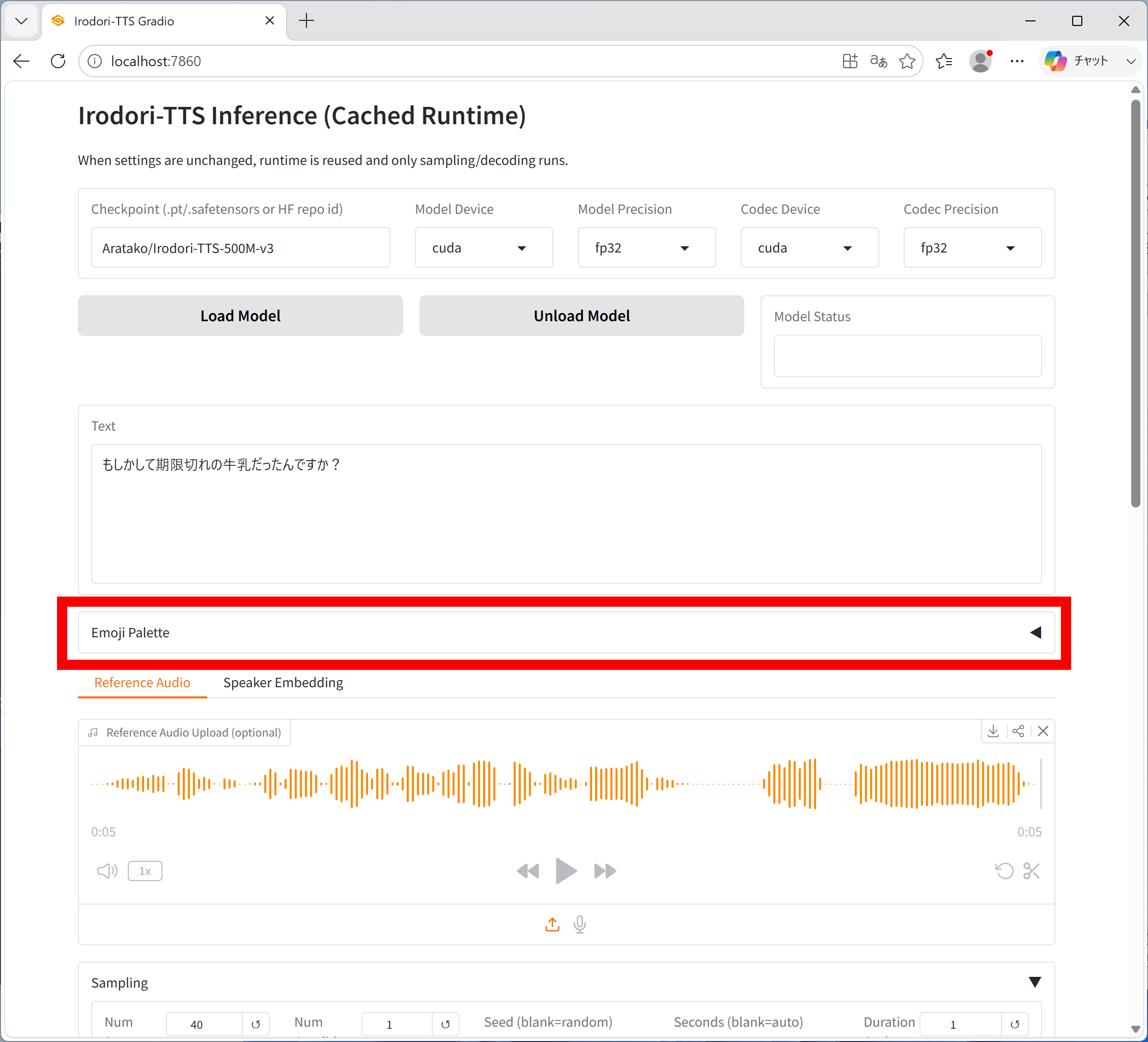
This is the emoji palette. It supports various emojis, such as '😏' for a teasing voice or '😪' for a sleepy voice.
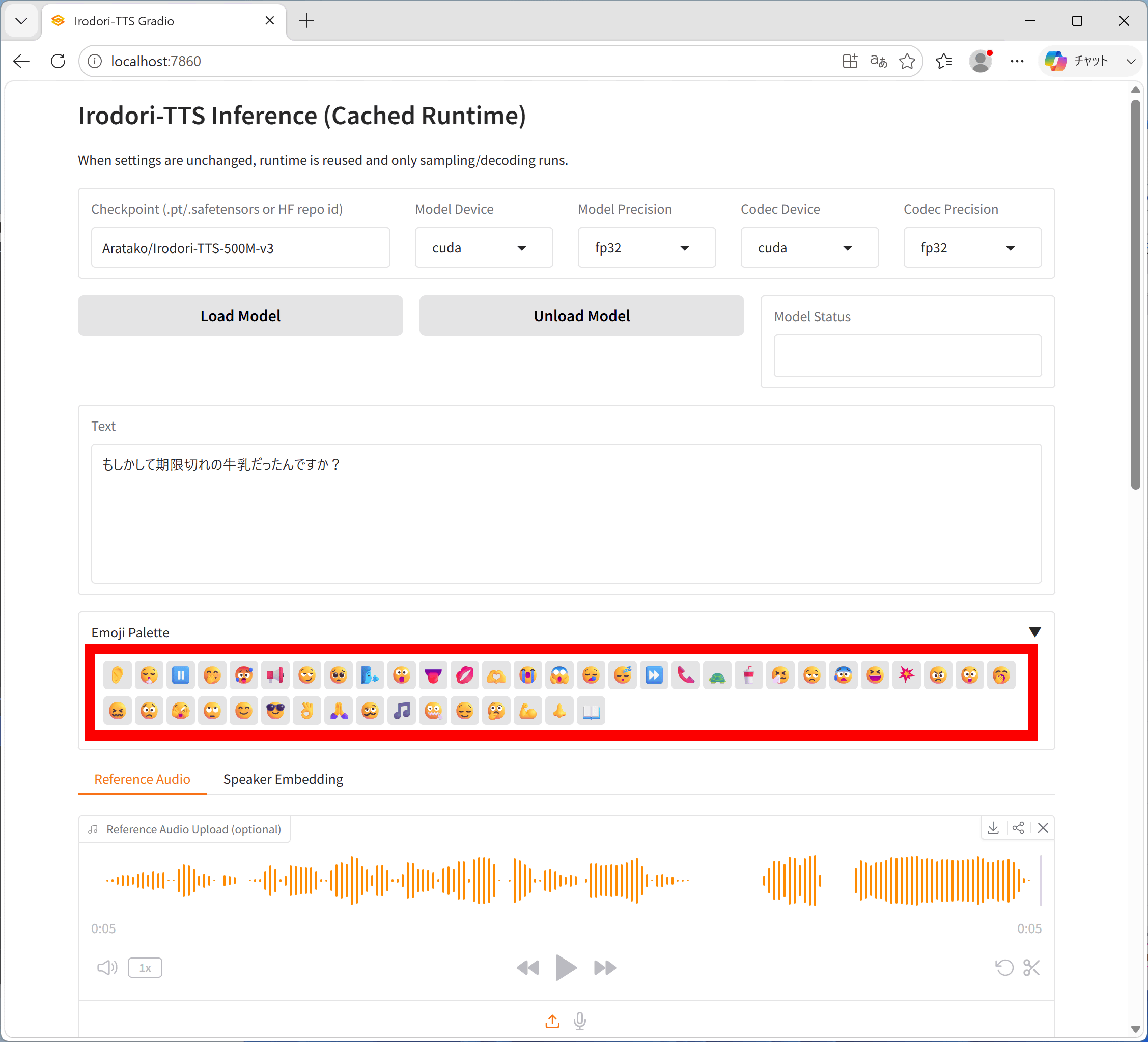
Here are some examples of how to control emotions with emojis. Many emojis are available for various emotions such as 'surprise,' 'anger,' 'over the phone,' 'gasping,' 'humming,' and 'clicking your tongue,' so please refer to
Generate dialogue audio while specifying emotions using the local speech synthesis AI 'Irodori-TTS-v3' - YouTube
◆6: Specify the voice tone in the description.
Using ' Irodori-TTS-600M-v3-VoiceDesign ', you can specify the voice tone in the description. To run the VoiceDesign version via the web UI, simply execute the following commands one line at a time.
[code]cd C:\ai\Irodori-TTS
uv run --no-sync python gradio_app_voicedesign.py --server-name 0.0.0.0 --server-port 7861[/code]
Enter the dialogue in 'Text' and a description of the voice in 'Caption' to generate the output.
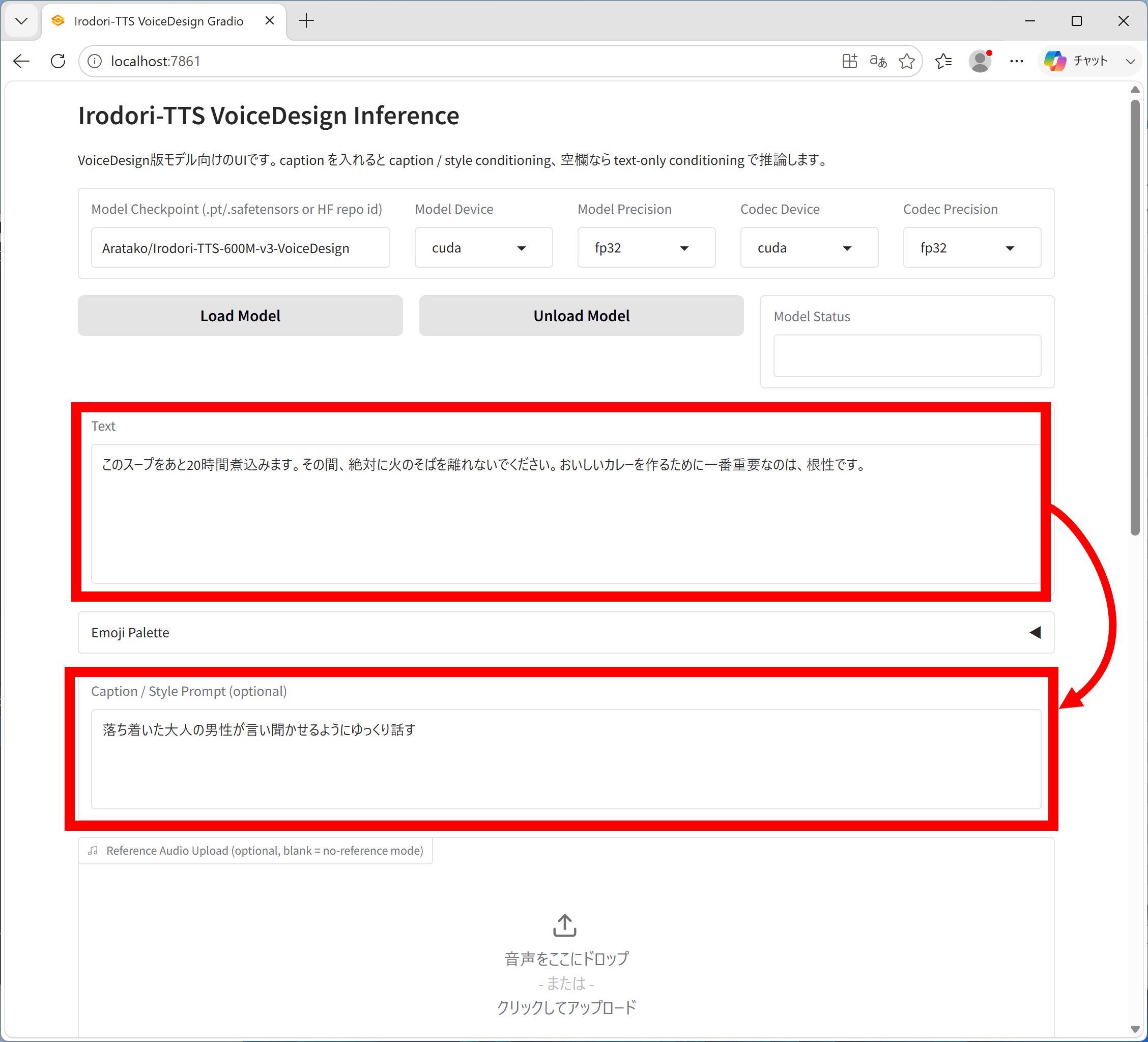
An example of generation using Irodori-TTS-600M-v3-VoiceDesign is shown below. Even if you cannot prepare a reference audio, you can control the result to some extent using explanatory text.
Generate dialogue audio while specifying voice tone using the local speech synthesis AI 'Irodori-TTS-v3--VoiceDesign' - YouTube
The source code for Irodori-TTS and other information useful for creating LoRA files can be found at the following link.
GitHub - Aratako/Irodori-TTS: A Flow Matching-based Text-to-Speech Model with Emoji-driven Style Control · GitHub
https://github.com/Aratako/Irodori-TTS
Related Posts: