LANraragi is an open-source app for collecting and reading manga and doujinshi (self-published comics).
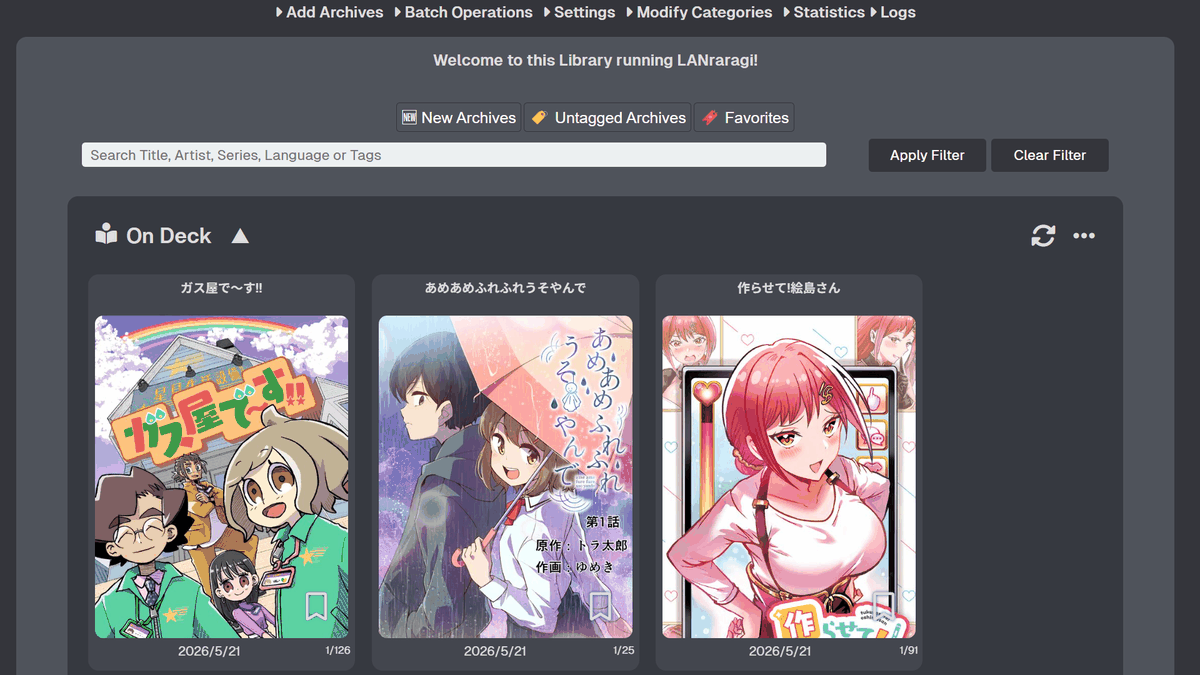
LANraragi, an open-source manga and doujinshi archive server, has been released. Simply upload archives in various formats such as ZIP, CBZ, and PDF, and they will be readable from browsers and smartphone reader apps.
LANraragi Documentation | LANraragi
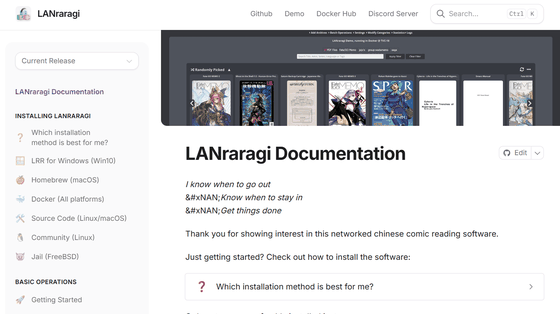
Difegue/LANraragi: Web application for archival and reading of manga/doujinshi. Lightweight and Docker-ready for NAS/servers.
◆Main features of LANraragi
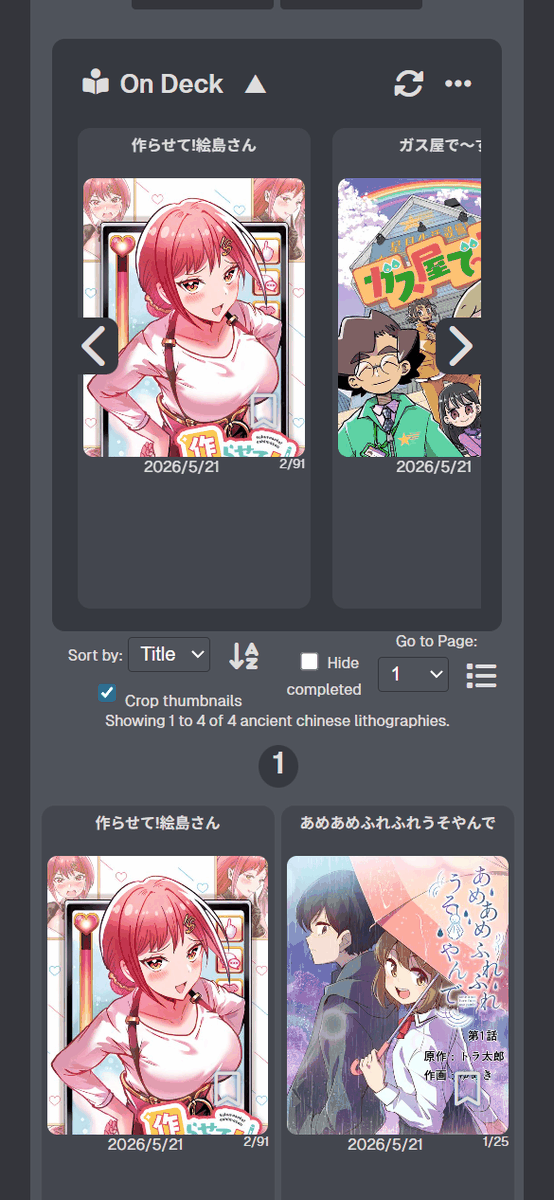
To test the functionality, I registered the following GIGAZINE ebooks in PDF format.
・We're the gas company!!



Supported archive formats
Supports ZIP, RAR, TARGZ, LZMA, 7Z, XZ, CBZ, CBR, and PDF formats; EPUB format is supported for images only.
- Can be viewed directly from the archive
Saved files can be viewed directly without needing to be extracted.
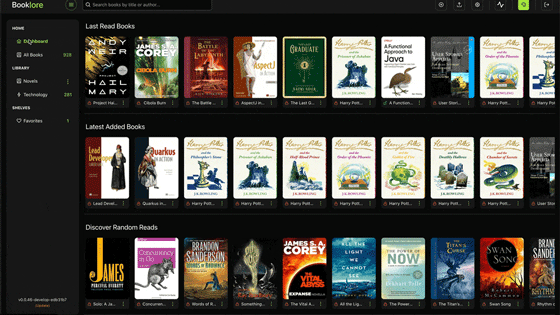
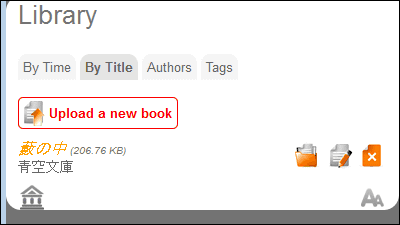
OPDS compatible
It supports the catalog distribution format ' OPDS ,' allowing archives to be viewed using dedicated viewing software.
API support
The API allows for integration with other programs.
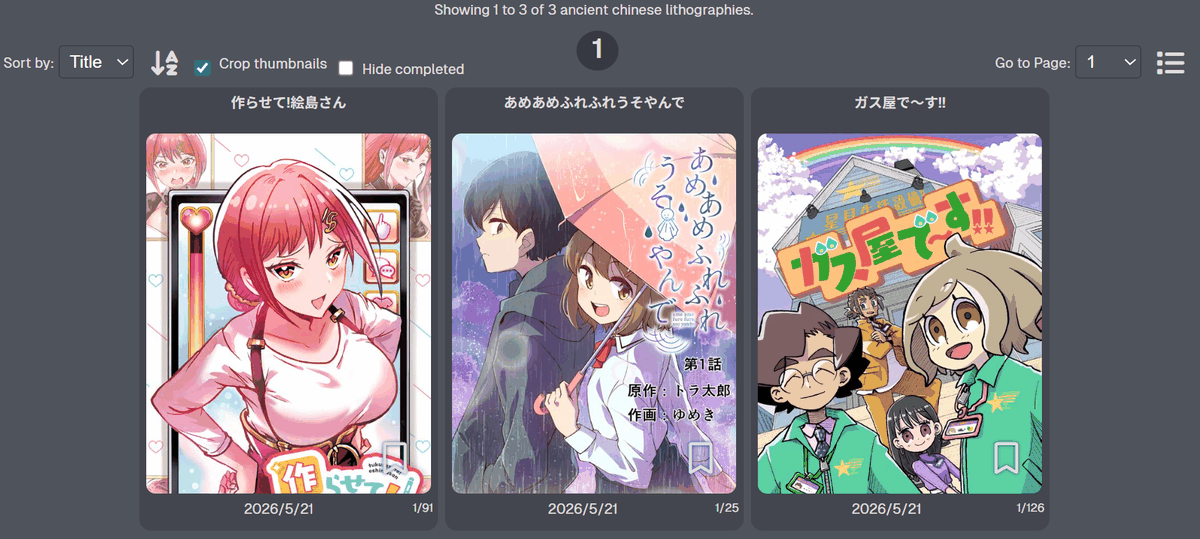
- Automatic thumbnail creation
A thumbnail is automatically created when an archive is registered.
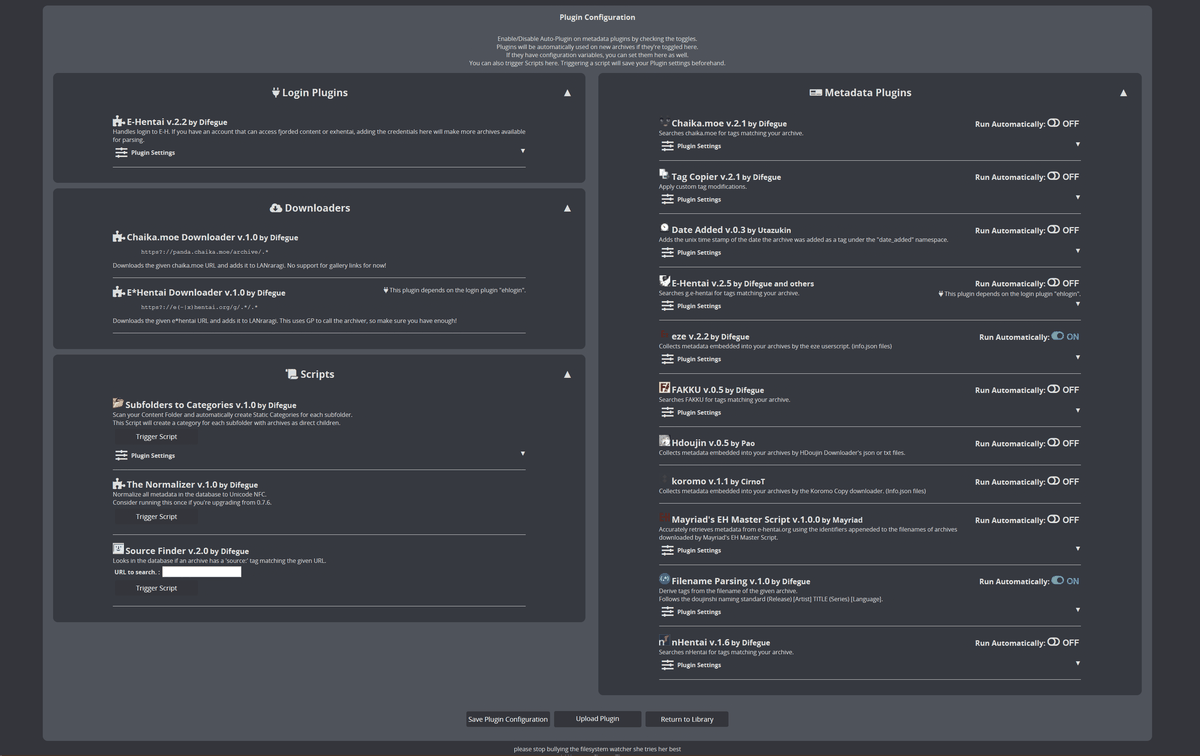
- Automatically import metadata
By using a plugin, book metadata can be automatically imported from the distribution site.
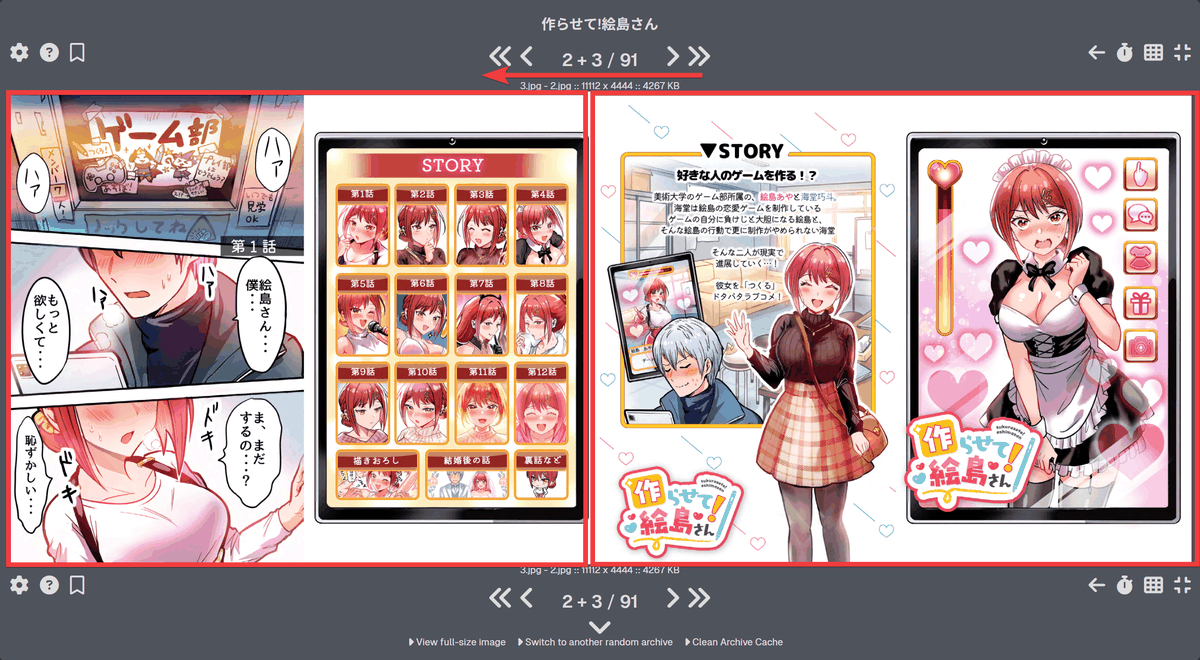
• A freely customizable reader
The default setting is one page per screen, but it also supports two-page spreads, left-to-right and right-to-left layouts, infinite scrolling, and full-screen mode.
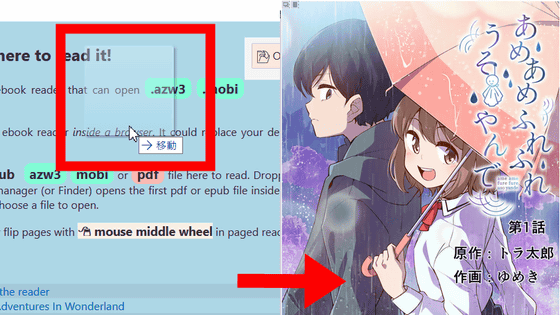
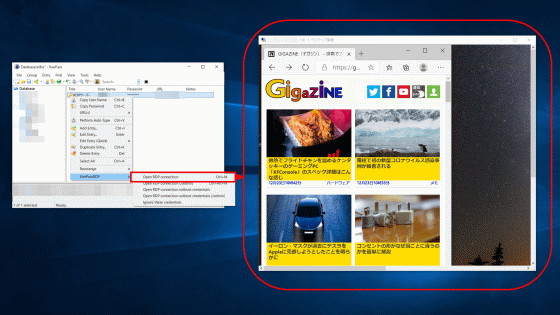
- One-click import via browser extension
The browser extension '
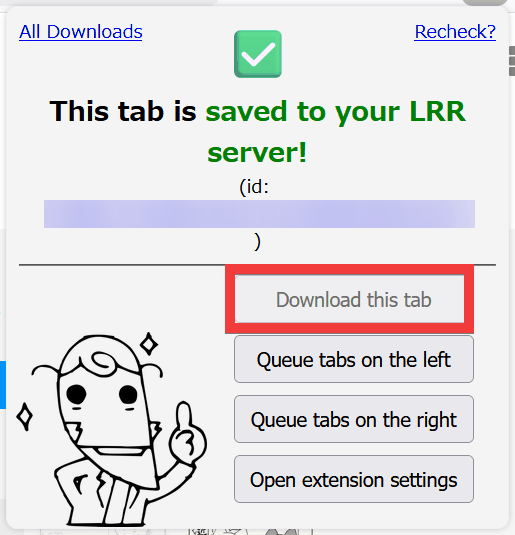
Import directly from URL
Enter the URL in the form and click 'Add from URL(s)' to download and save the book. Books already registered will be excluded.
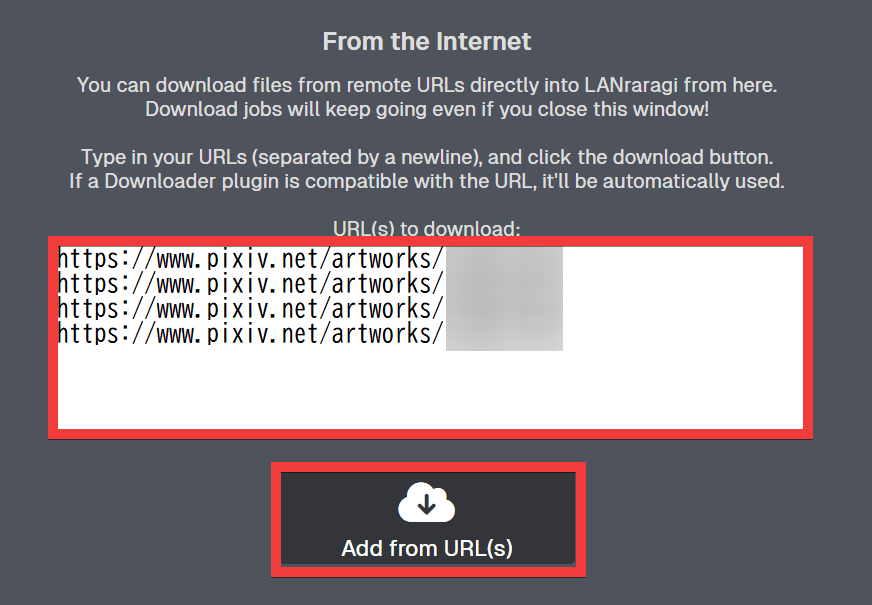
As described above, you can easily download and manage ebooks.
◆How to set up LANraragi
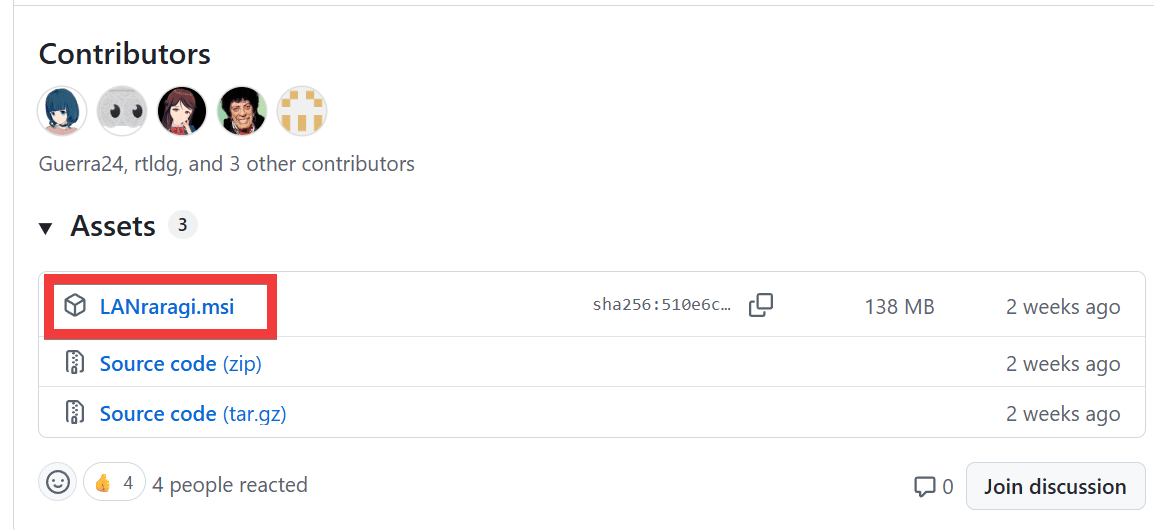
This time, we will set up a management server on Windows 11. Click the installer in the official
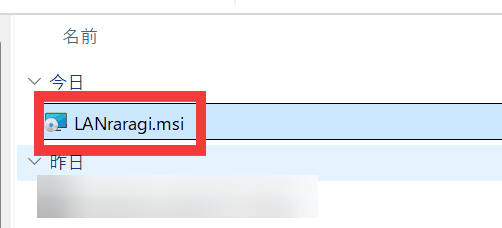
Double-click the saved installer.
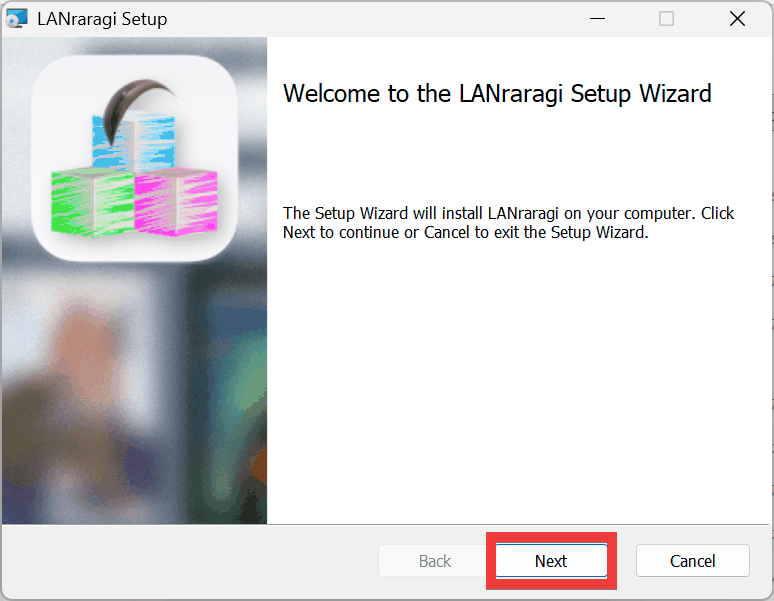
The setup wizard will start, so click 'Next'.
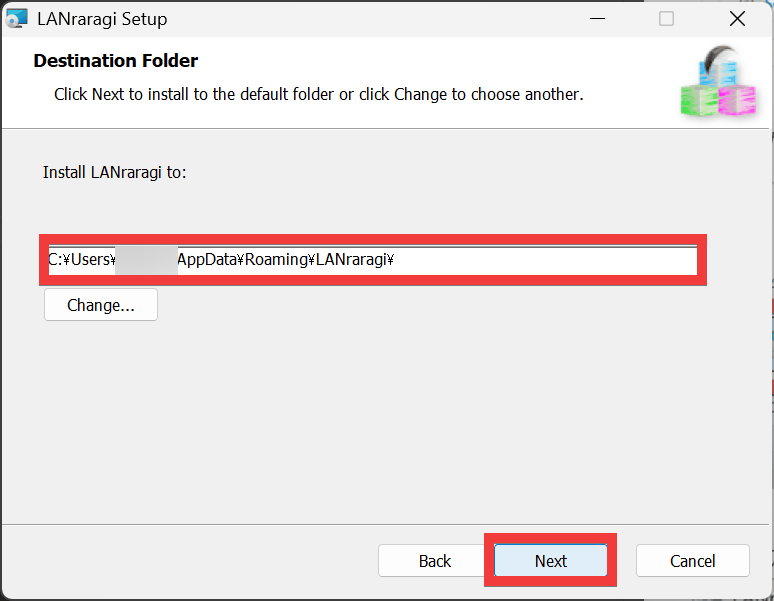
Select a save location and click 'Next'.
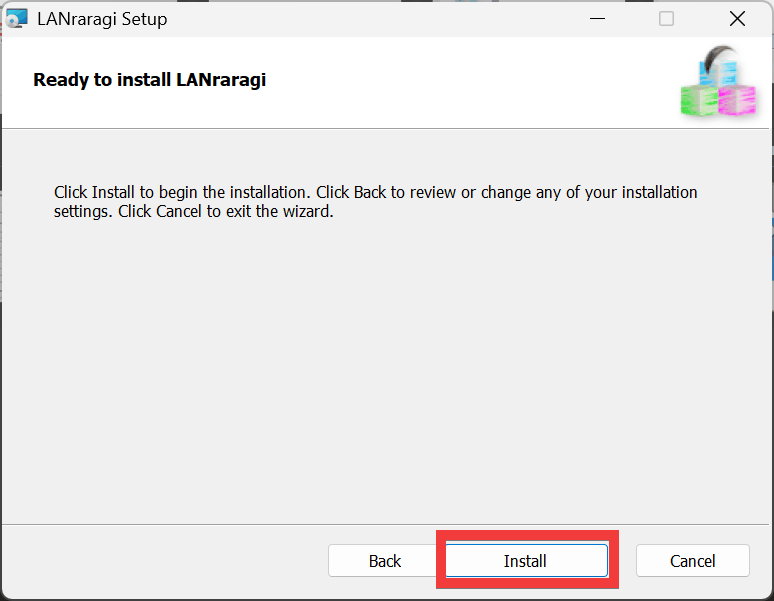
A confirmation screen will appear, so click 'Install'.
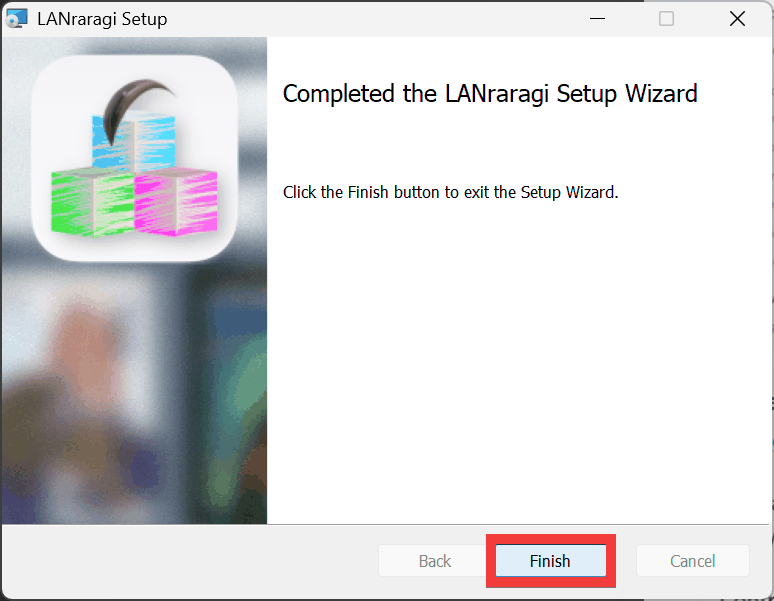
Once the installation is complete, click 'Finish'.
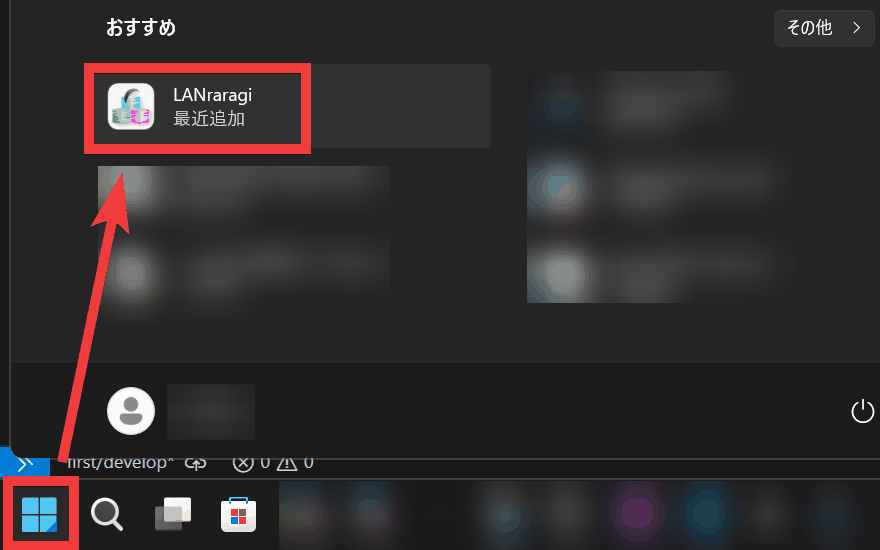
Click the 'Start' button and then click the 'LANraragi' icon.
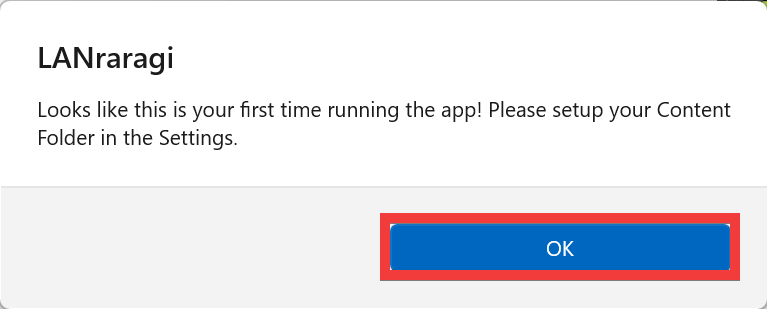
A dialog box will appear when you first launch the application; click 'OK'.
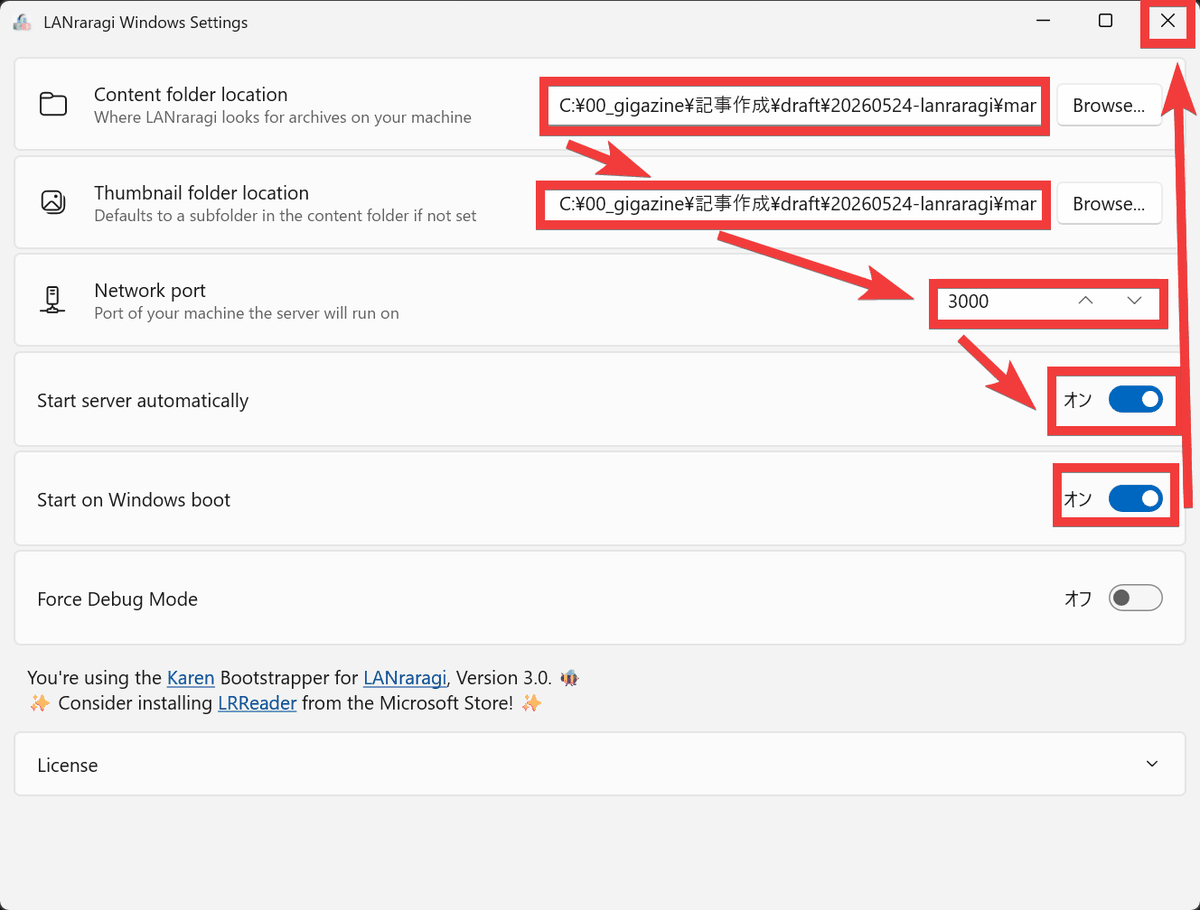
Enter the folder where you want to save book files in 'Content folder location,' the folder where you want to save thumbnail images in 'Thumbnail folder location,' change 'Network port' to an available port if another app is using the same port, turn 'Start server automatically' to 'On' if you want the server to start automatically when the app starts, and turn 'Start on Windows boot' to start the app when Windows starts. After checking all items, close the settings window with the 'Close' button.
Click the 'LANraragi' icon in the taskbar.
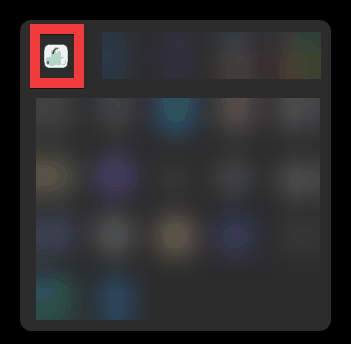
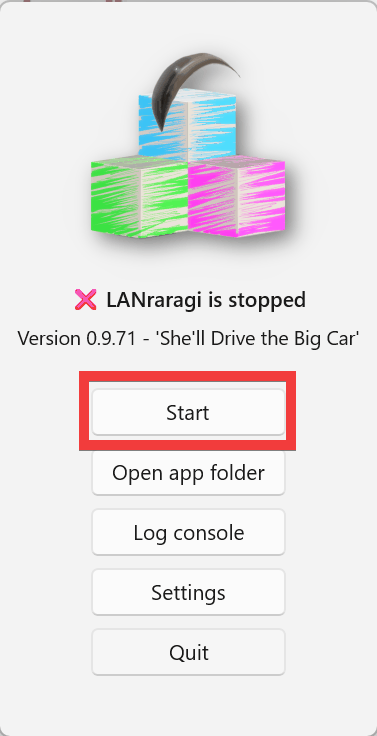
A menu will appear, so click 'Start' to launch the server.
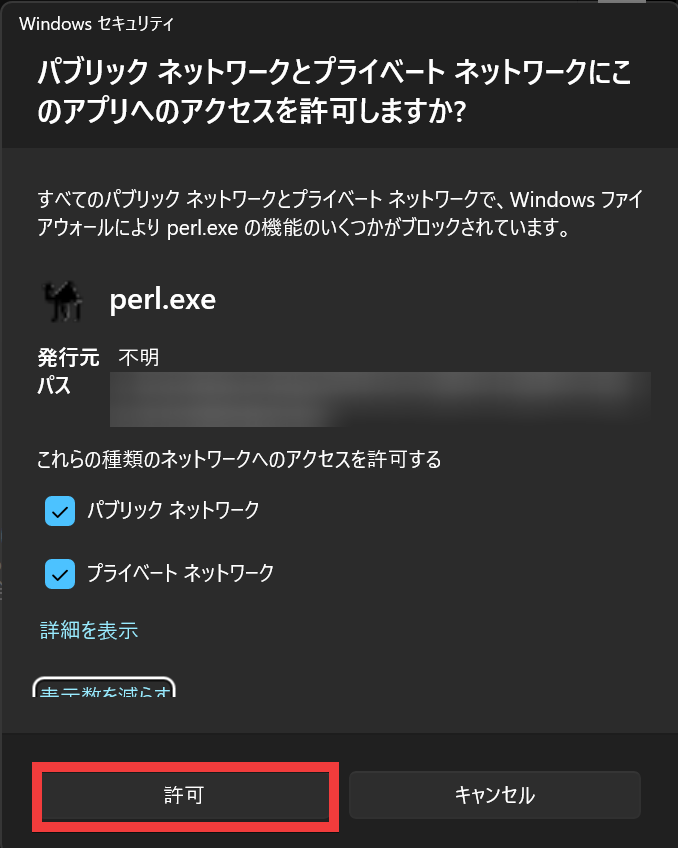
When the dialog box requesting permission to access the app appears, click 'Allow'.
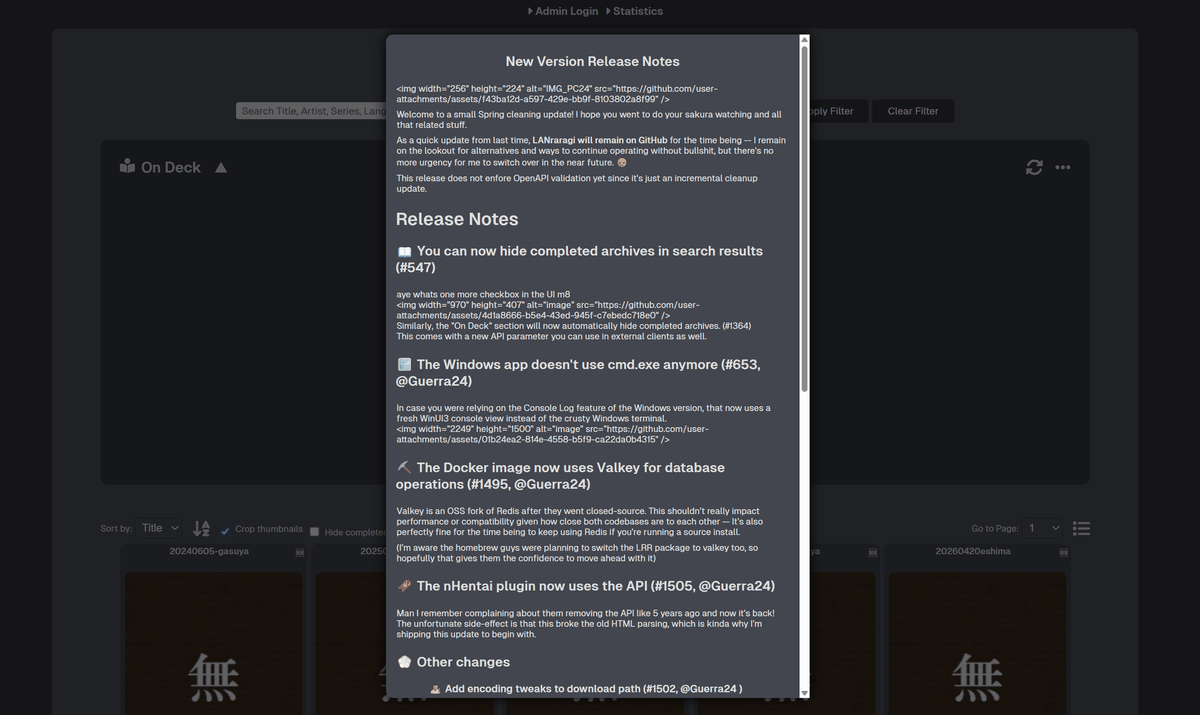
When you access 'localhost:3000' in your browser, 'CHANGE LOG' will be displayed, so click anywhere outside the dialog box.
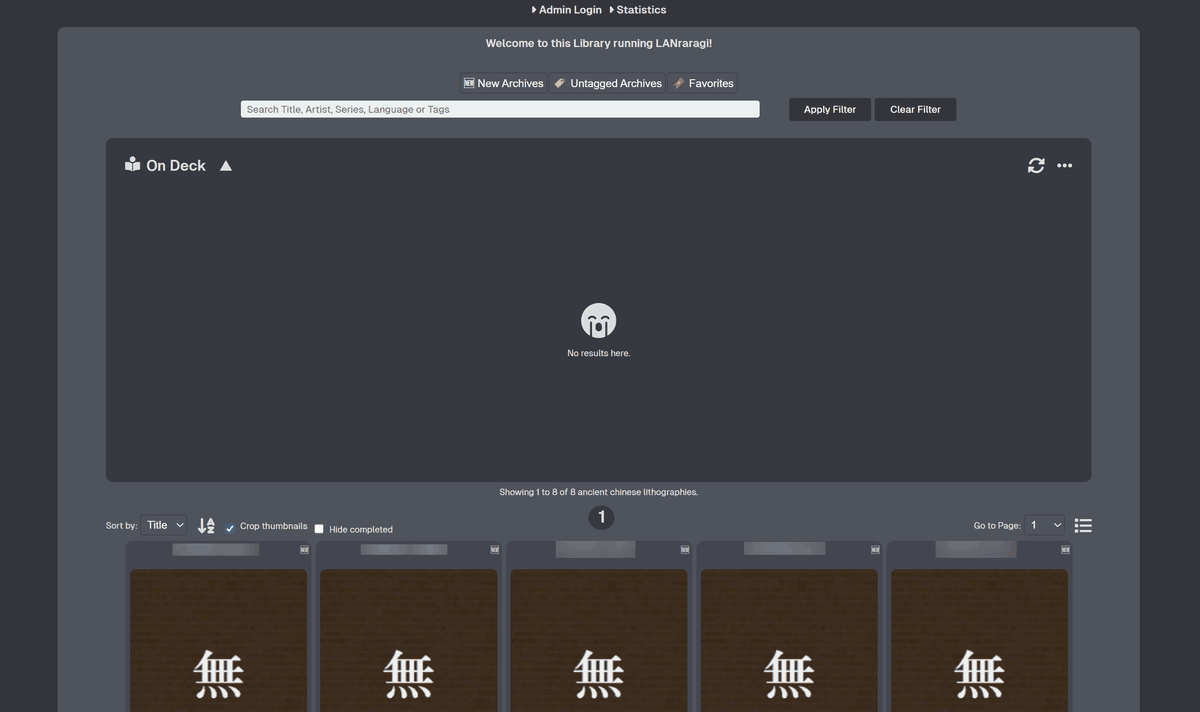
The initial screen will be displayed.
◆ How to view from other devices
The app is available for iOS as a paid download from
Related Posts: