Review of 'Aves,' a free, ad-free Android image viewer that supports multi-page TIFF, SVG, AVI, motion photos, panoramic images, and 360-degree videos.

While the image viewer pre-installed on Android is sufficient for viewing images taken with the smartphone's camera app, it sometimes fails to display downloaded images due to unsupported formats. The image gallery viewer 'Aves' is free to use and supports many formats and media types, so I decided to test its performance.
GitHub - deckerst/aves: Aves is a gallery and metadata explorer app, built for Android with Flutter. · GitHub
◆Features
According to the official GitHub repository, the features of Aves are as follows:
• Supports a wide range of formats : In addition to common image and video formats, it supports a wide range of formats including multi-page TIFF , SVG , and AVI.
• Special media type identification : Capable of identifying special media types such asmotion photos , photospheres (panoramas) , 360-degree videos , and GeoTIFFs.
• Navigation and Search : Easily navigate between albums, photos, tags, and maps, and enjoy powerful search functionality.
• Android Integration : Seamlessly integrates with Android (including Android TV) to provide features such as widgets, app shortcuts, screen savers, and global search, and also functions as a media viewer and picker.
To fully utilize Aves' features, you need to grant the following permissions.
- Read the contents of the shared storage
- Read location information from media collection
Network access
- Check the network connection status
◆Installation
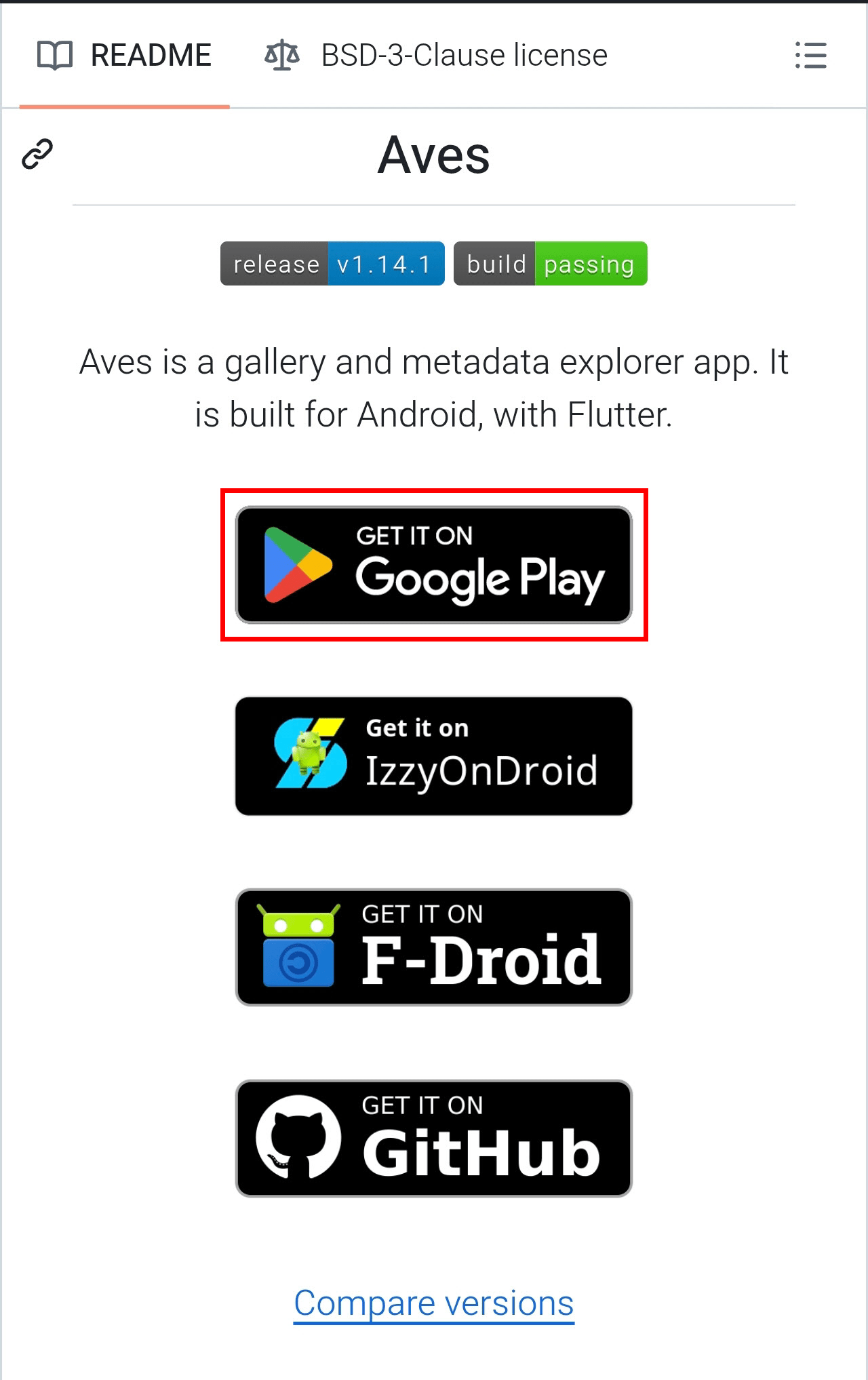
The official GitHub page provides links to Google Play, IzzyOnDroid, F-Droid, and GitHub, but this time we will install from Google Play, so tap the Google Play banner.
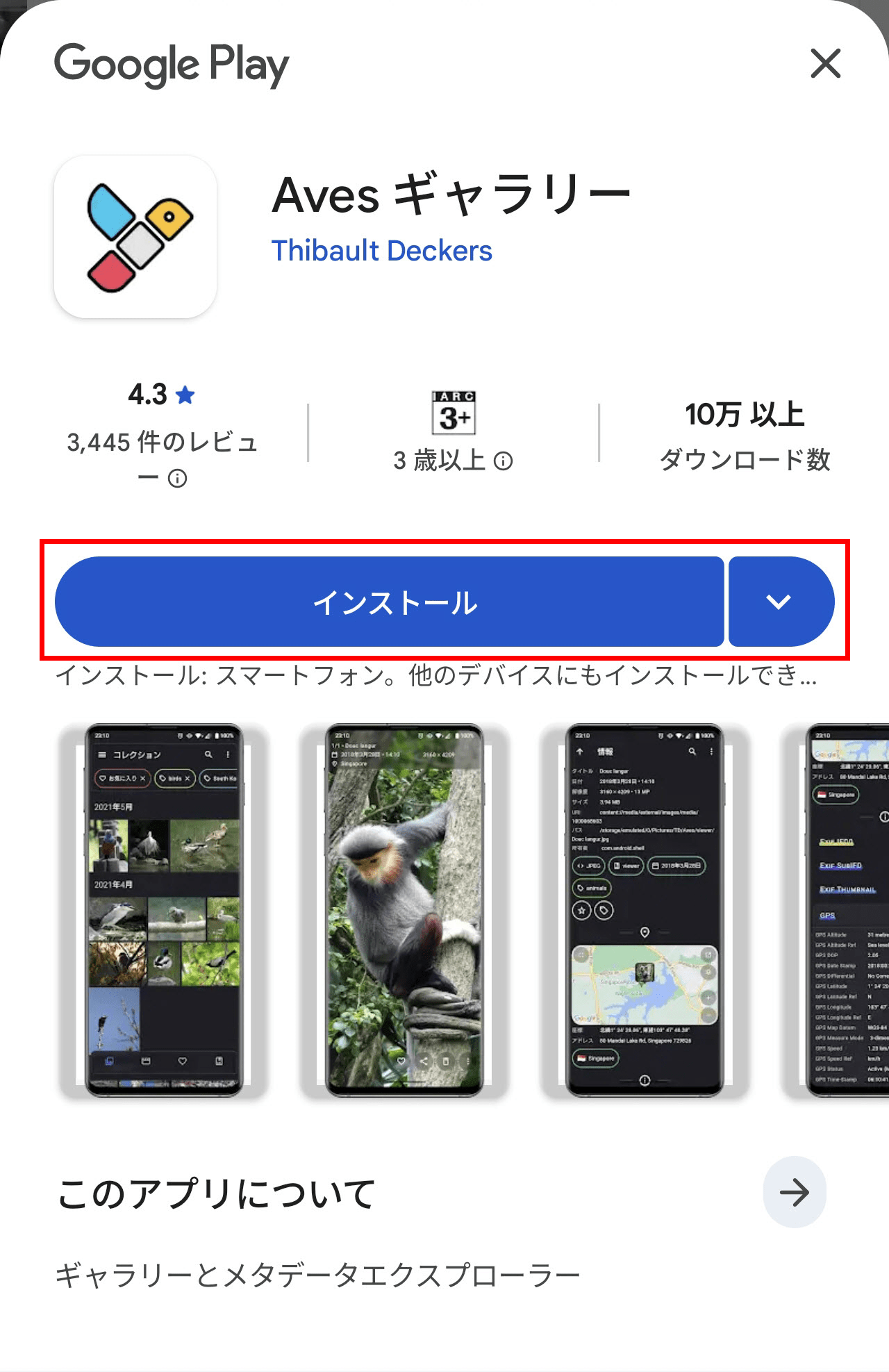
You will be redirected to the Aves store on Google Play, so tap 'Install'.
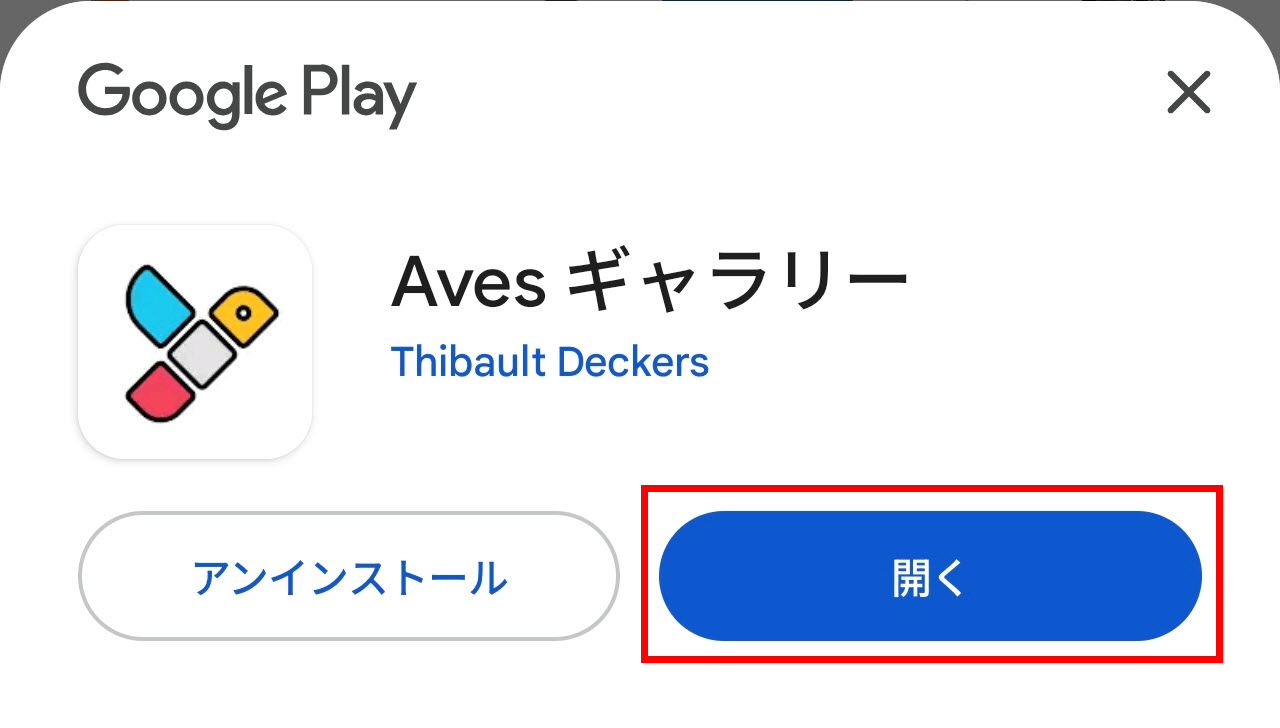
Once the installation is complete, the 'Open' button will become enabled, so tap it.
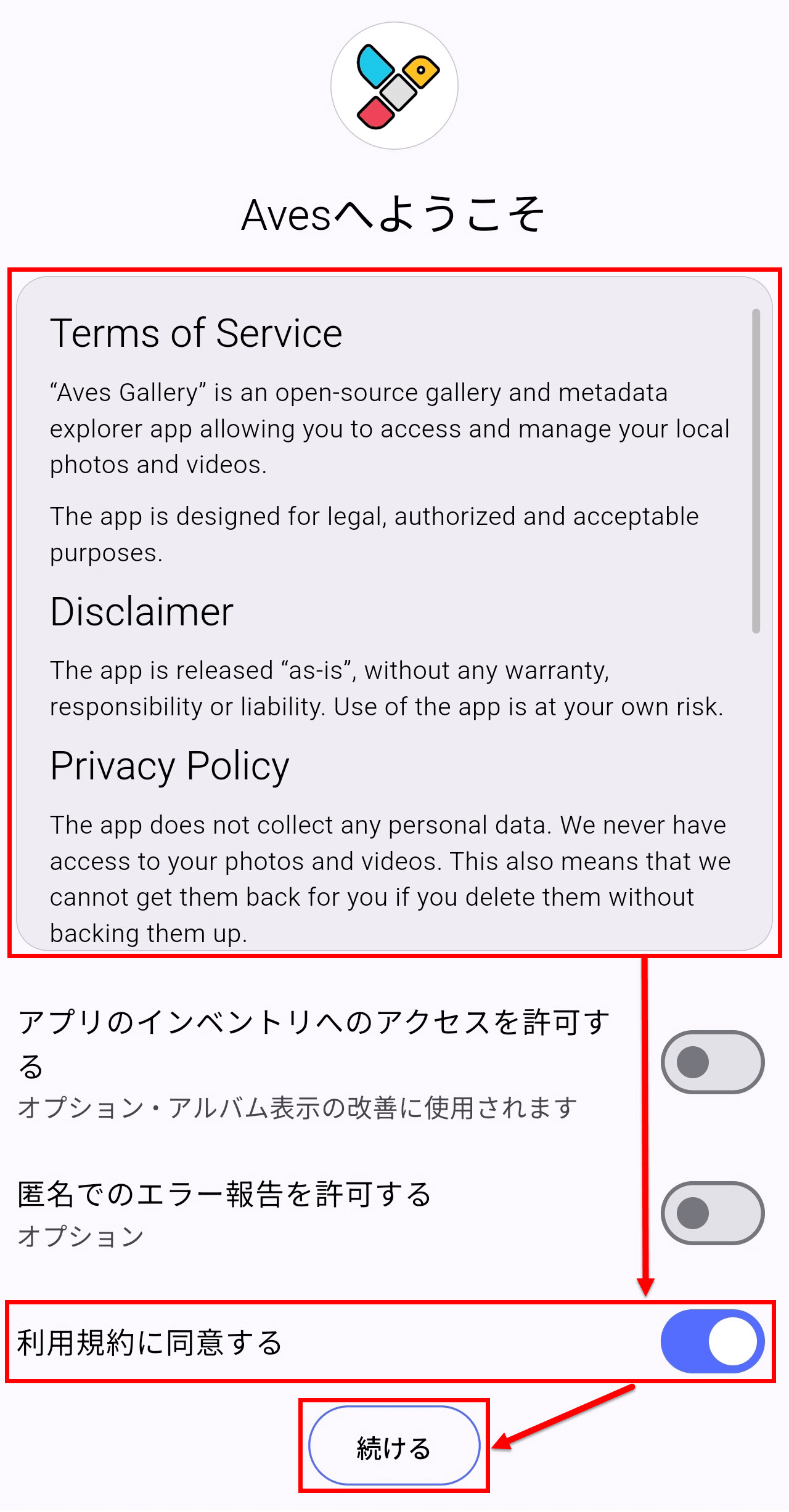
The 'Welcome to Aves' screen will appear. Read the Terms of Service (in English), and if you agree, turn on 'I agree to the Terms of Service' to enable the 'Continue' button, then tap it.
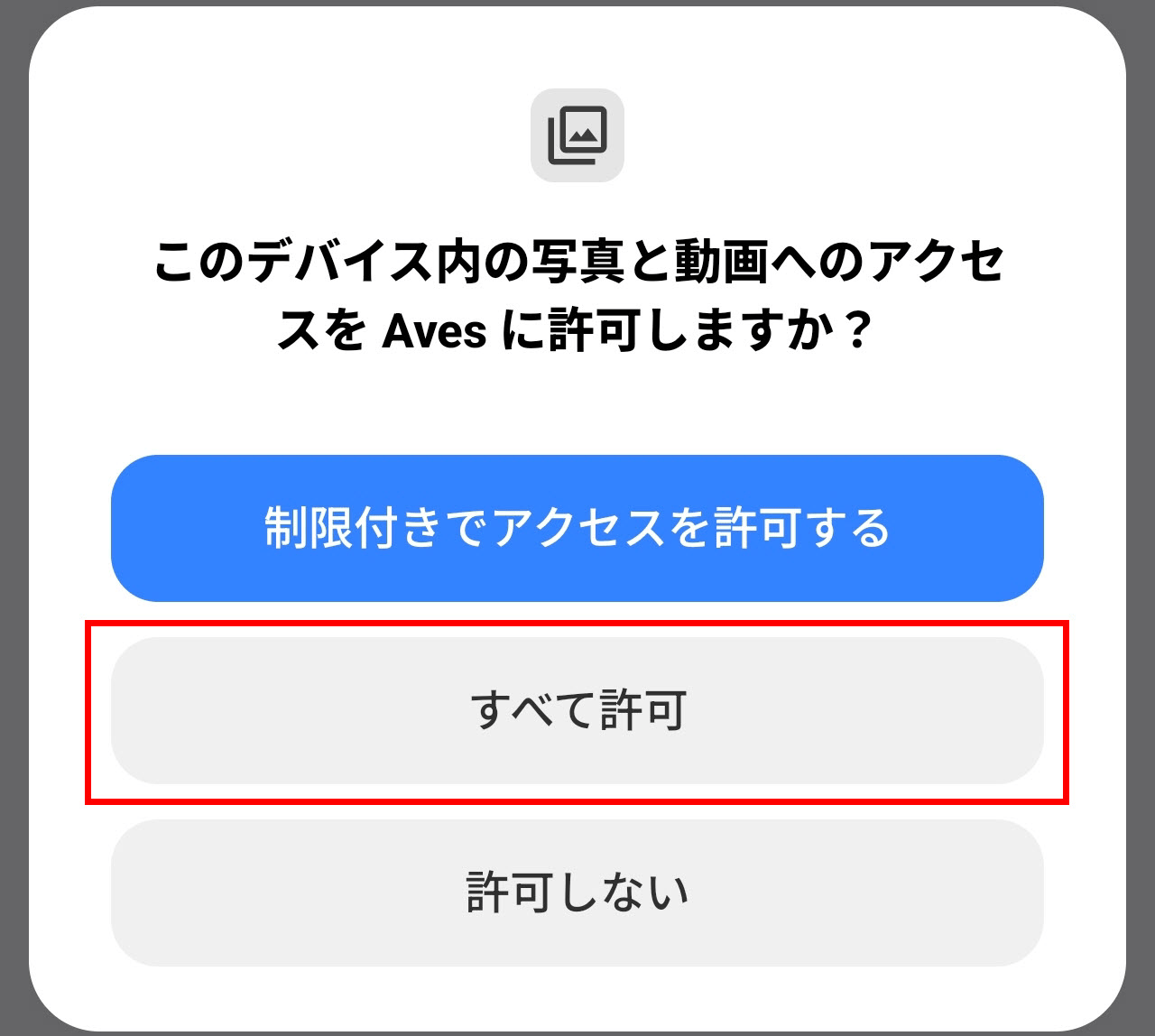
A pop-up will appear asking, 'Do you want to allow Aves to access the photos and videos on this device?' Tap 'Allow All'.
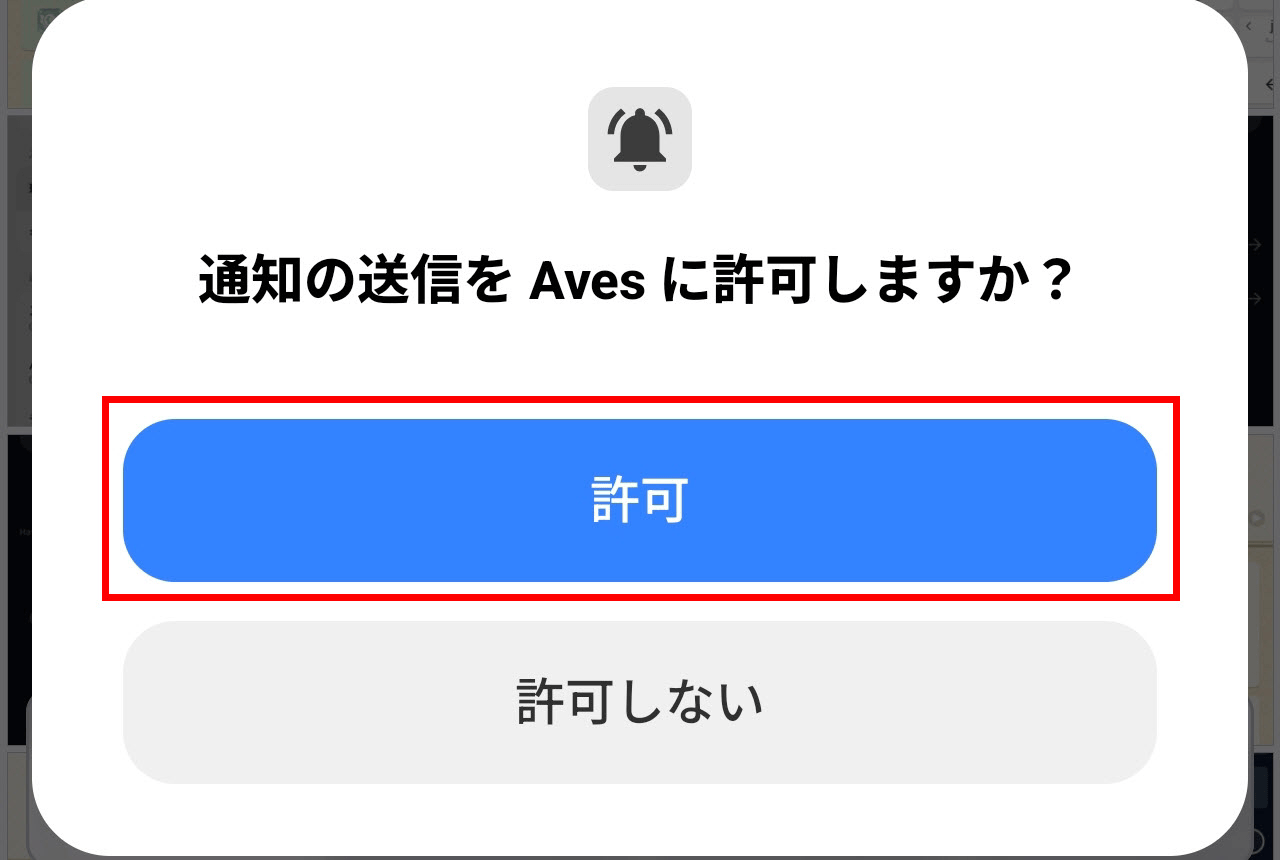
Next, a pop-up will appear asking, 'Do you want to allow Aves to send notifications?' Tap 'Allow'.
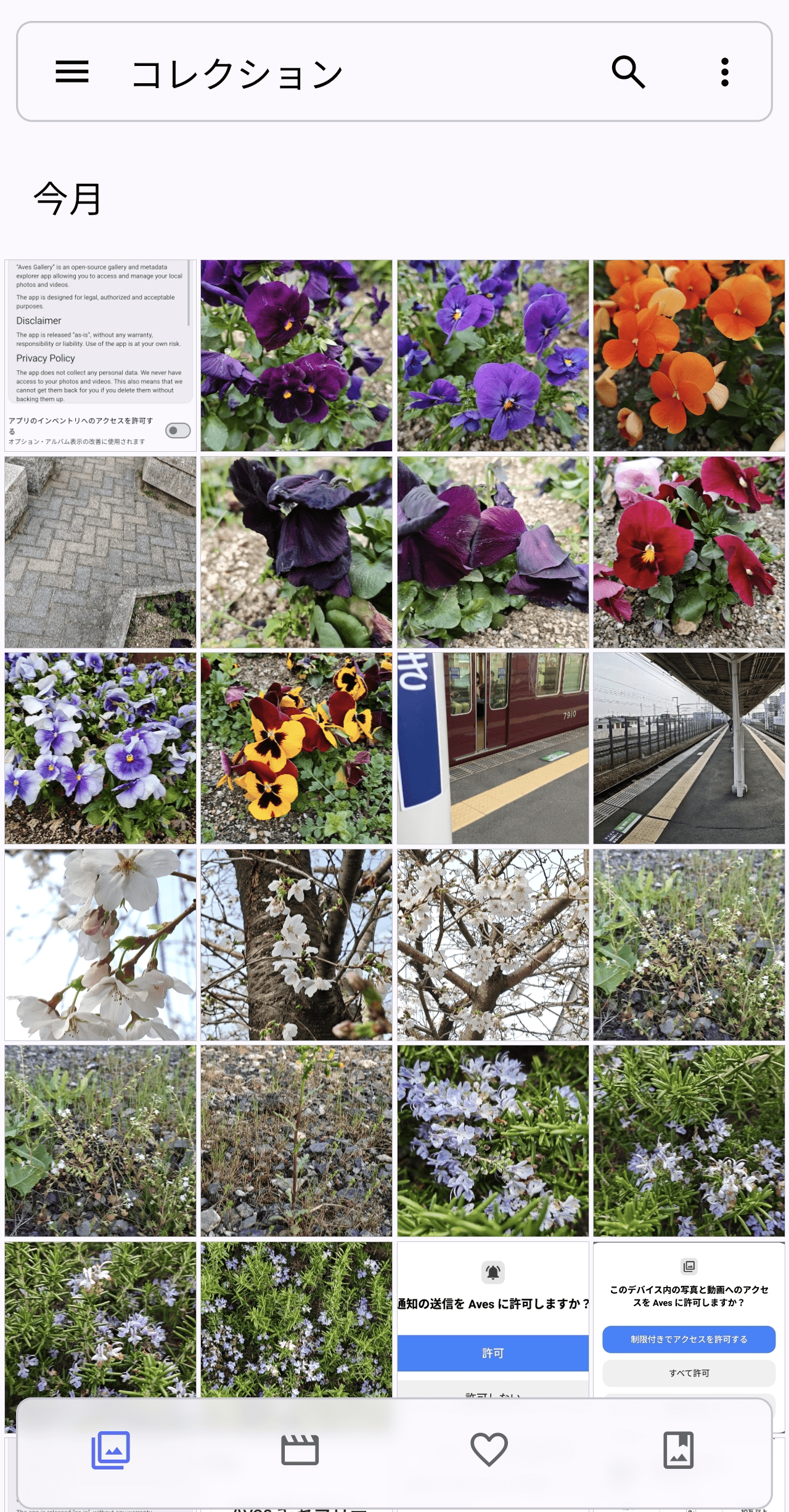
Installation and permission settings are now complete, and the Aves collections screen will be displayed.
◆Try it out
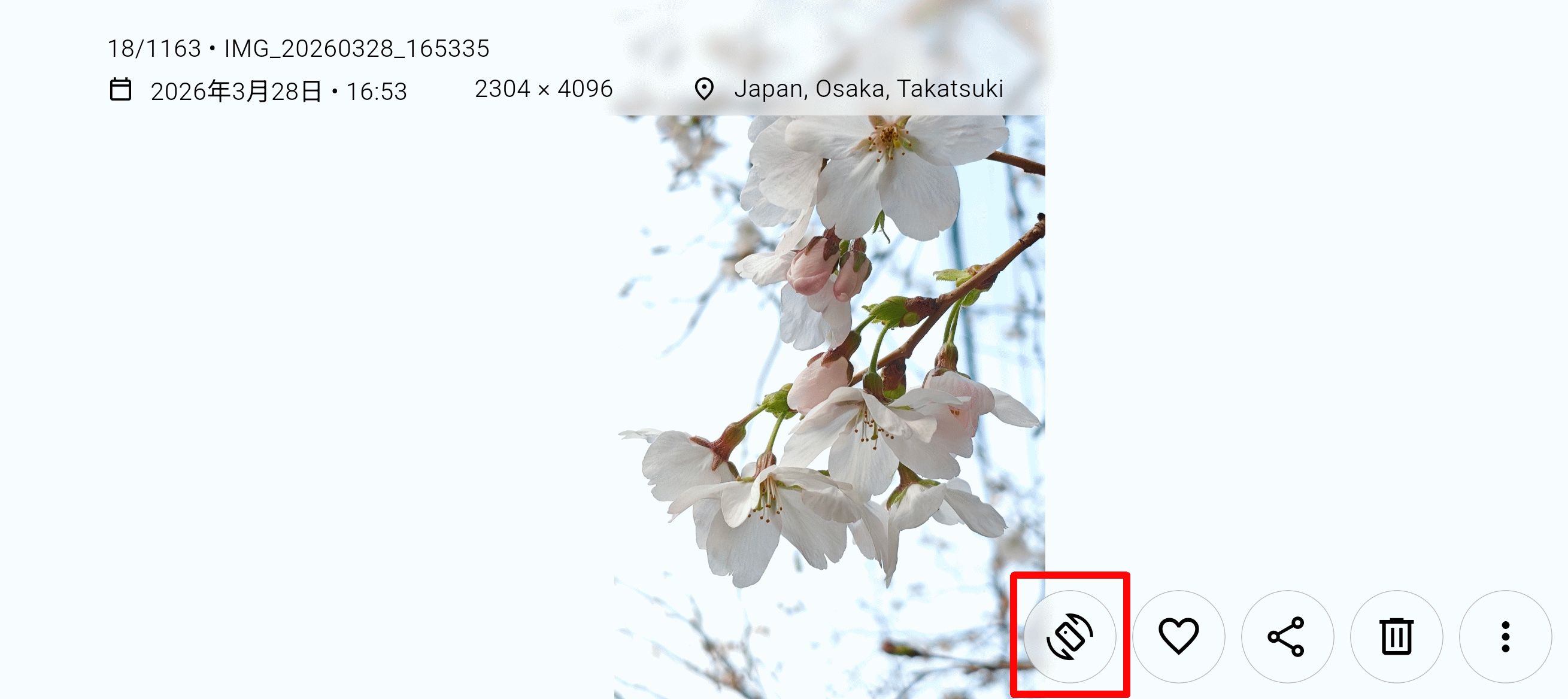
First, let's tap an image from the collection screen to display it. You'll see that the image is displayed in full screen, and at the top, the image properties, including geolocation information, are displayed.
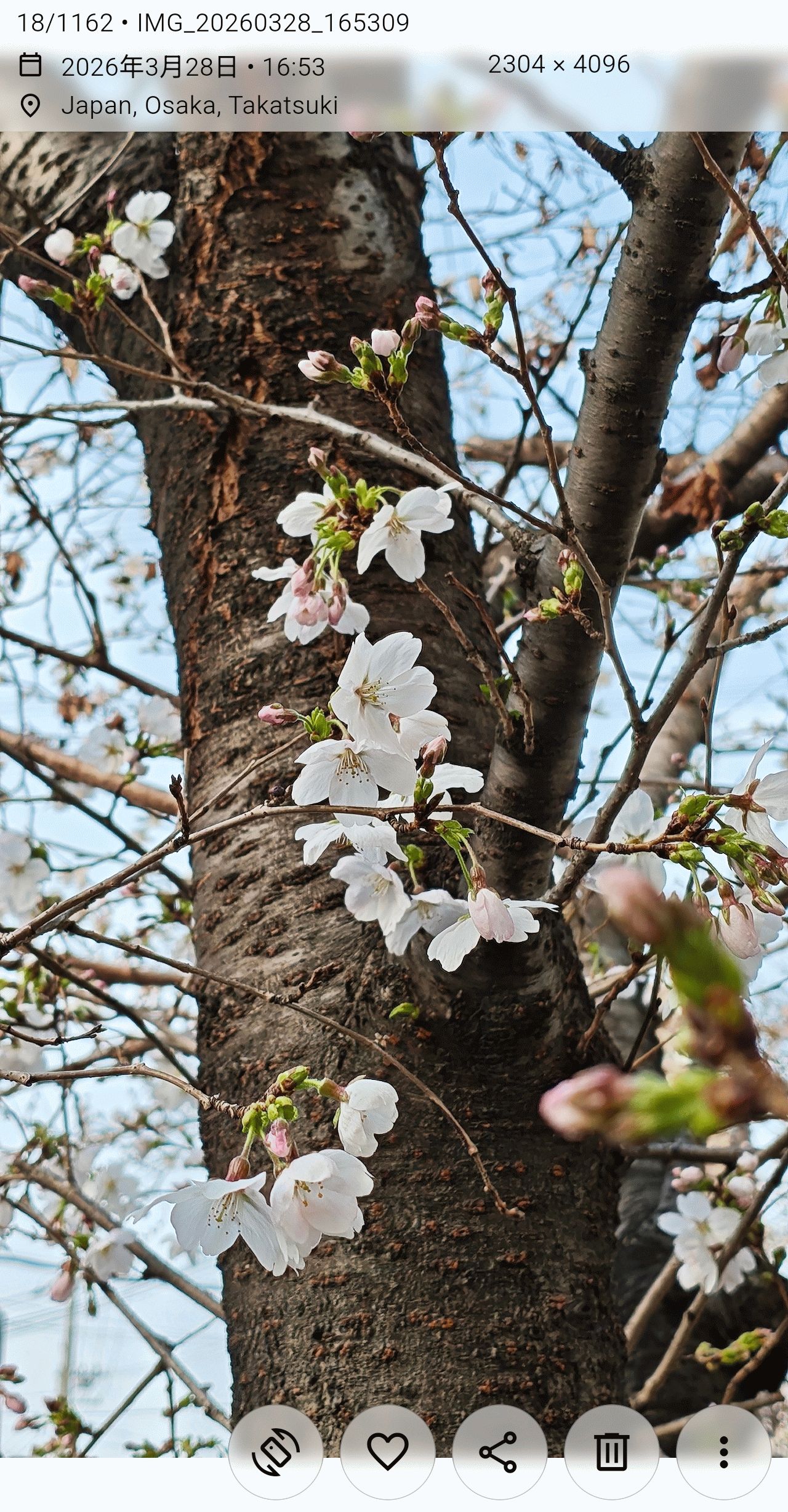
At the bottom of the screen, icons indicating available functions based on the photo's state are displayed. In this case, the 'Rotate Screen' icon is displayed, and the image is rotated 90 degrees. Tapping the same icon again returns the image to its original view.
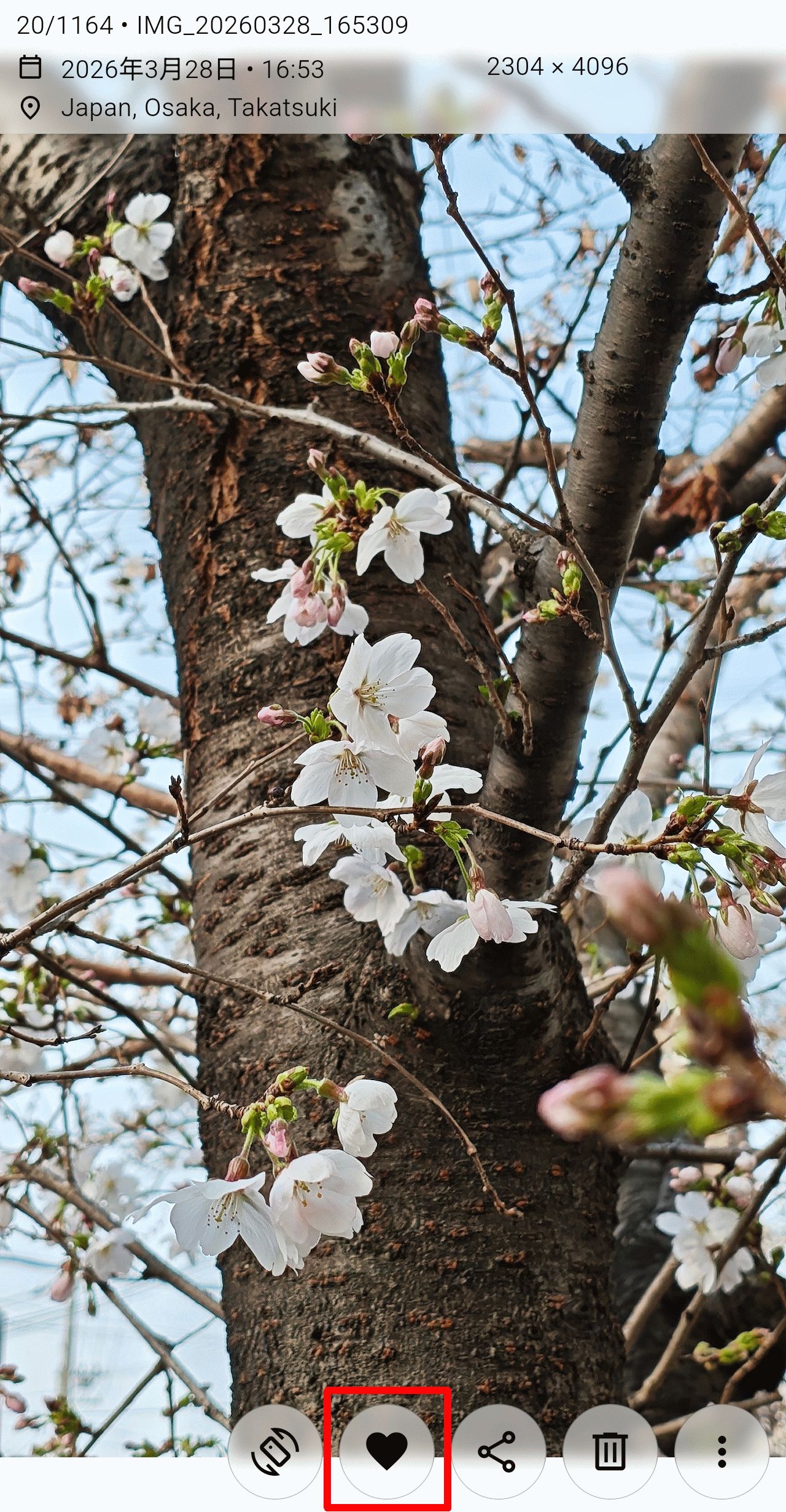
Tapping the second icon from the left will add the image to your 'favorites.'
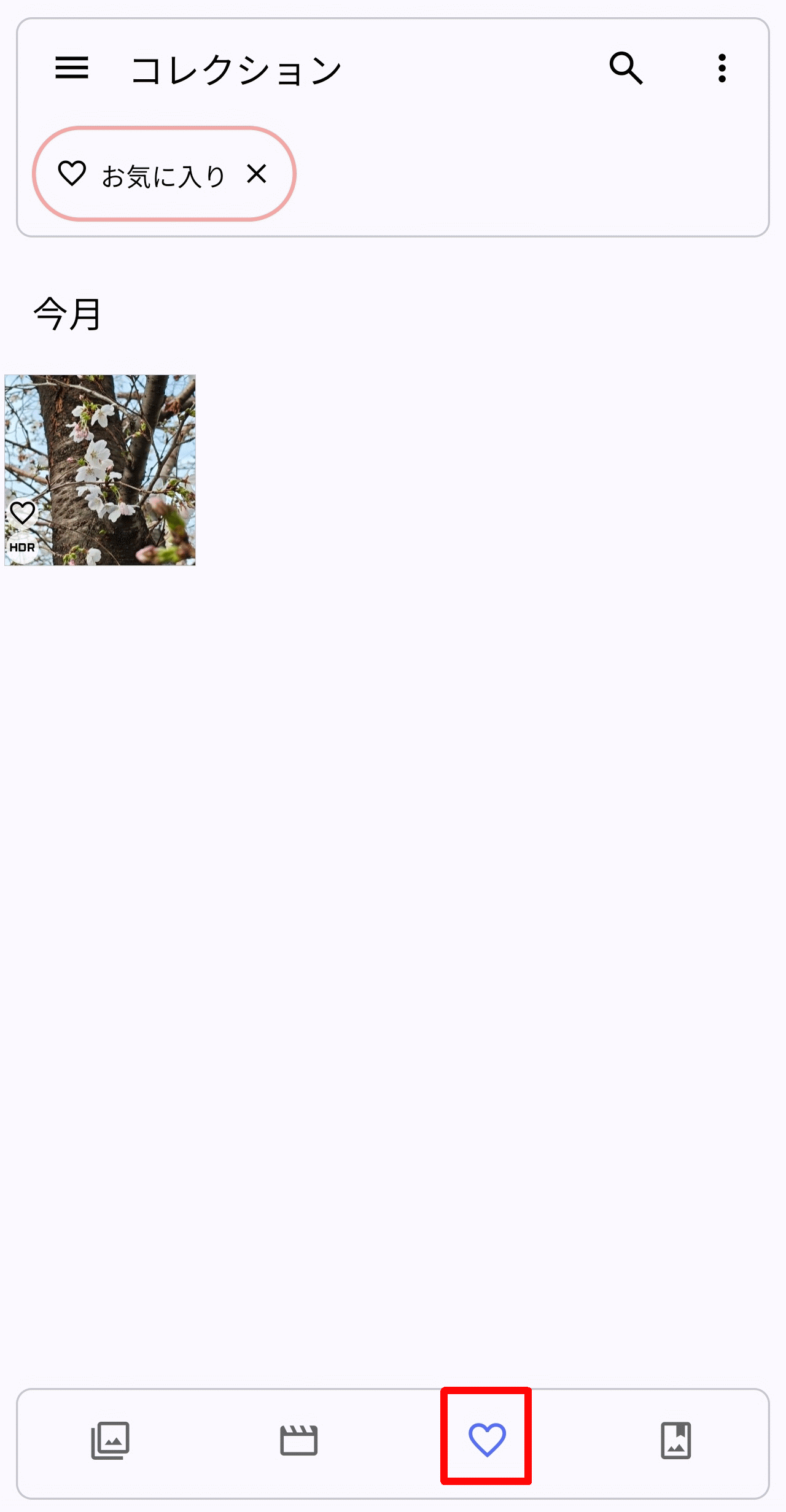
Images you 'like' can be filtered and displayed by tapping the heart-shaped icon at the bottom of the collection screen.
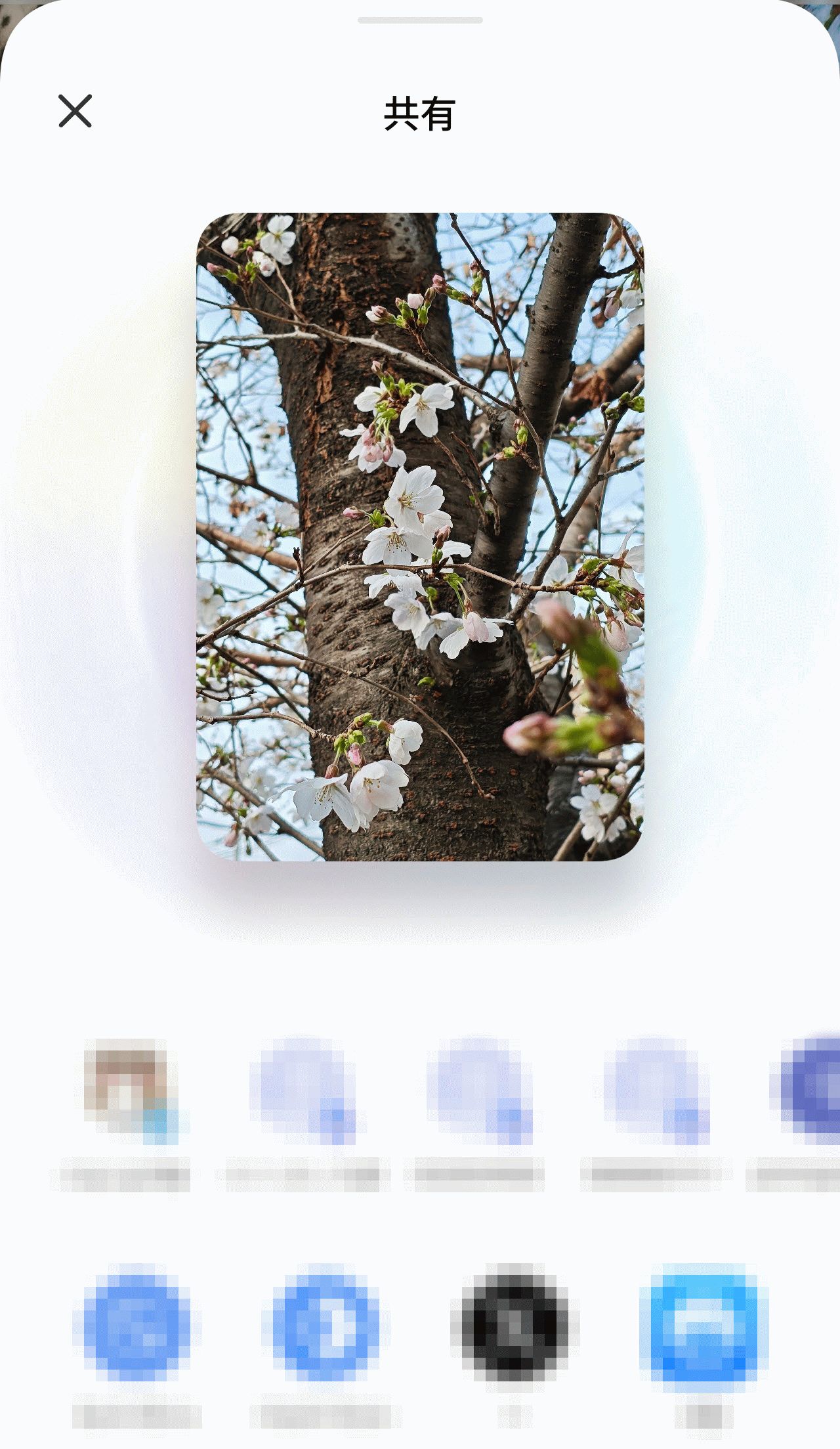
Let's try tapping the 'Share' icon.
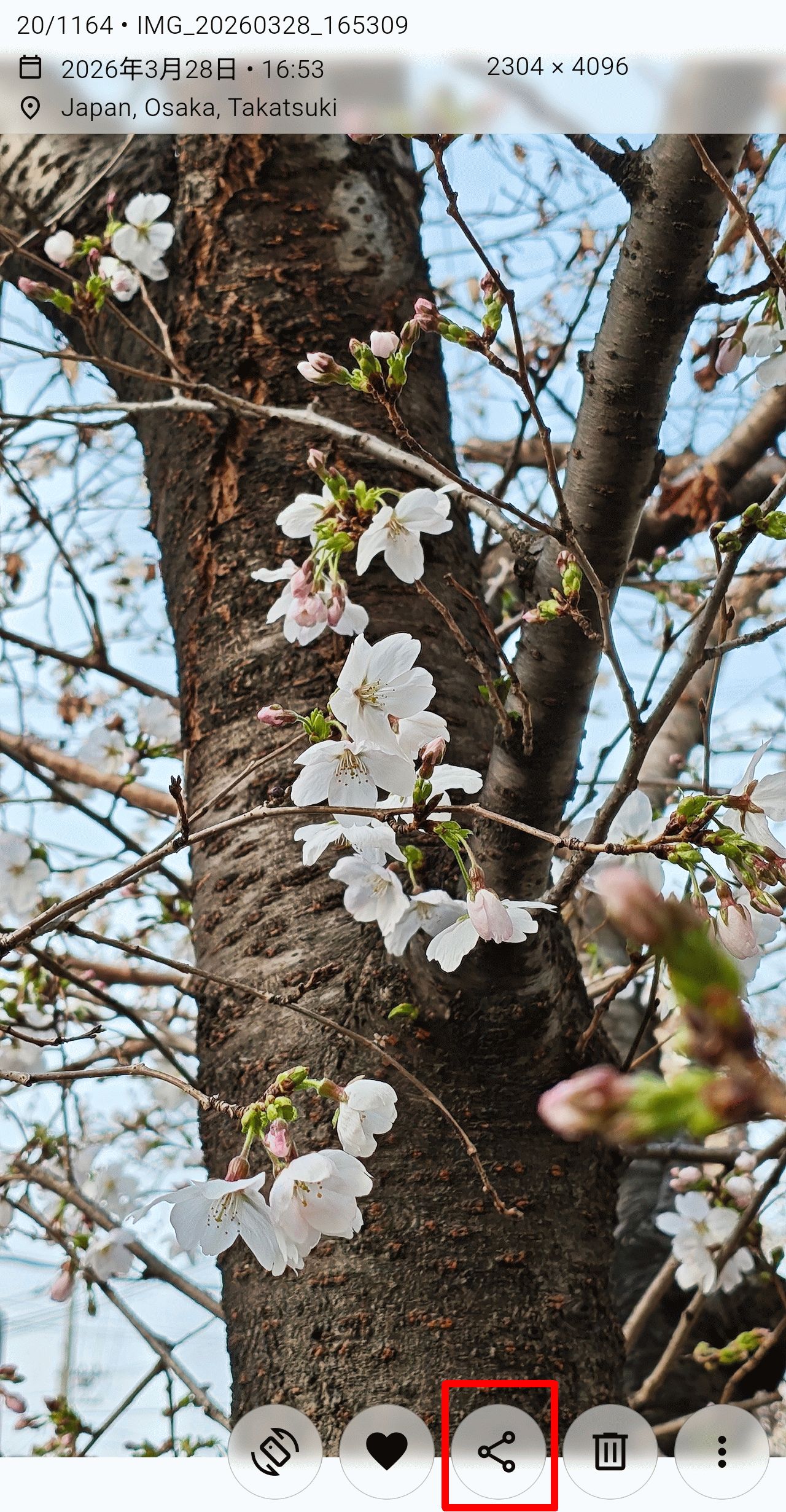
A 'Share' pop-up will appear, allowing you to select who you want to share the image with.
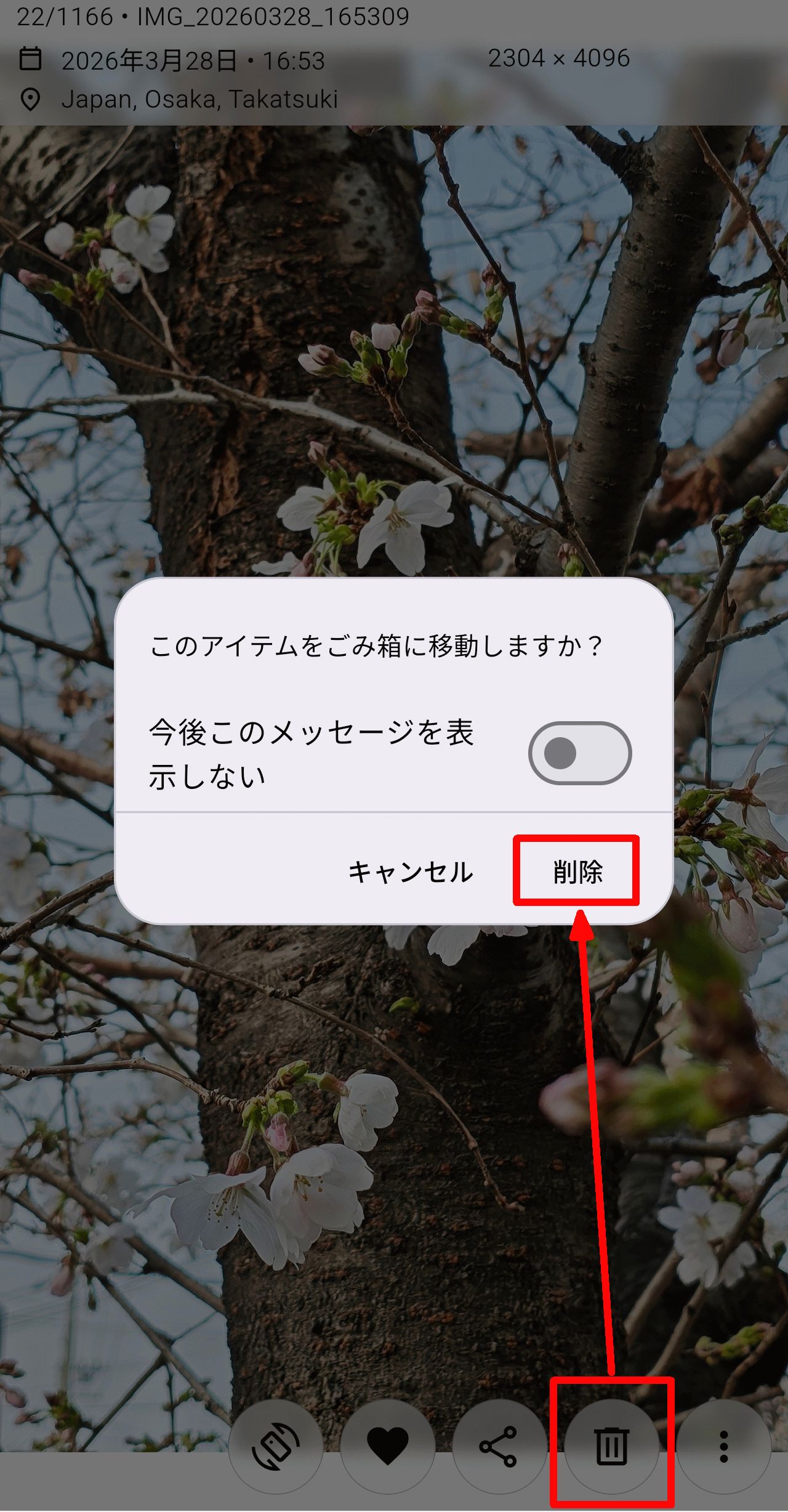
Tapping the 'Delete' icon will bring up a prompt asking if you want to move the image to the 'Trash.' If you tap 'Delete' again, the image will be removed from the collection screen and moved to the trash.
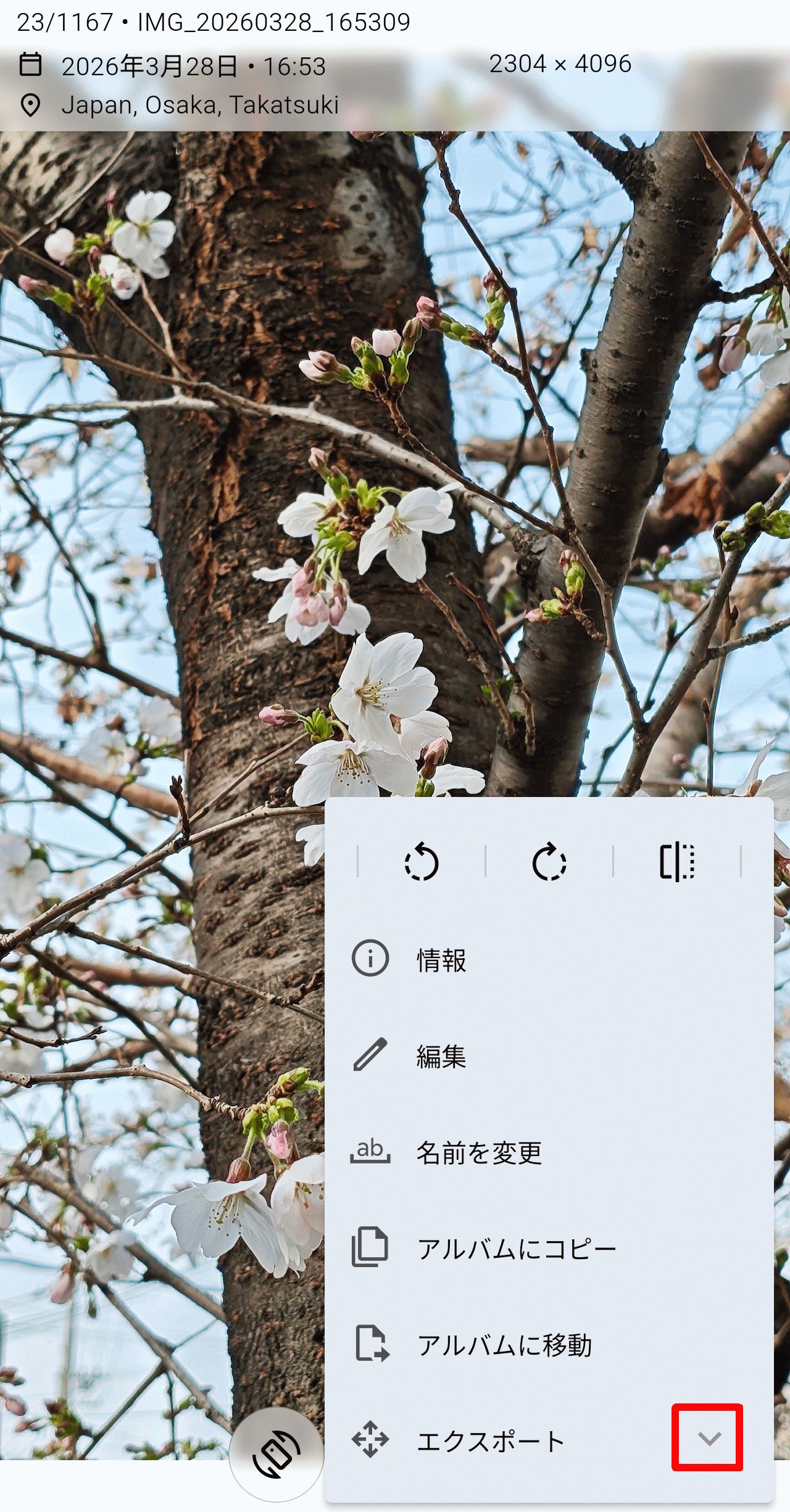
Tapping the rightmost icon will display a submenu. The items displayed initially are as follows:
• Top left icon: Rotate 90 degrees counterclockwise.
• Top center icon: Rotate 90 degrees clockwise.
• Top right icon: Flip horizontally
• Information: Image information displayed as text.
- Edit: Launch the image editing app.
- Change name
Copy to album
Move to album
·export
A 'v' icon is displayed to the right of 'Export.' Tapping this icon expands the submenu and allows you to add items.
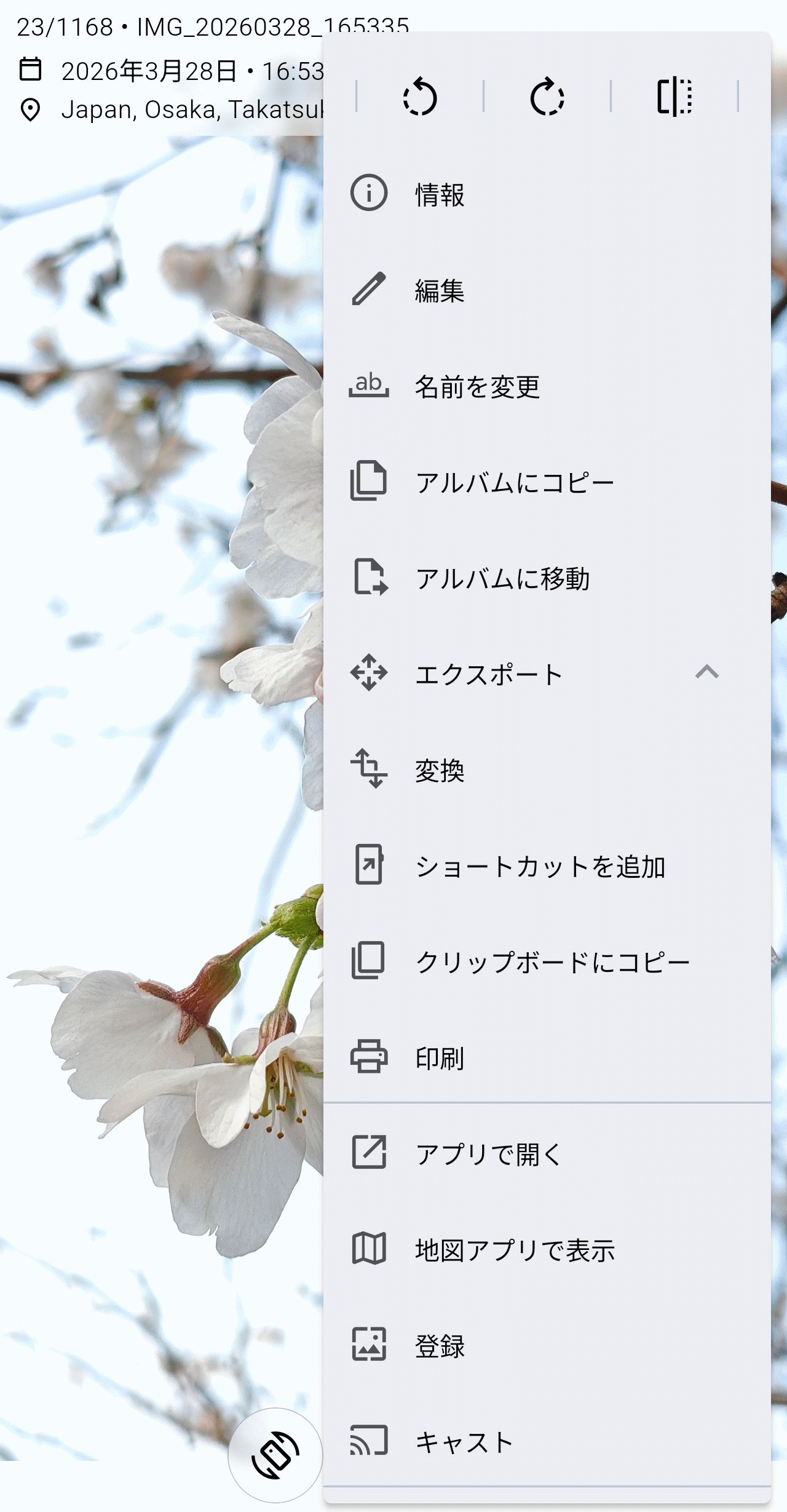
The submenu has been enlarged. The added items are as follows:
·conversion
- Add shortcuts
Copy to clipboard
·printing
Open in app
·Registration
·cast
◆Format
Let's try opening some image formats that aren't widely supported by other image viewers.
• Multipage TIFF
A multi-page TIFF is a format that holds multiple images as pages within a single TIFF file. When I downloaded
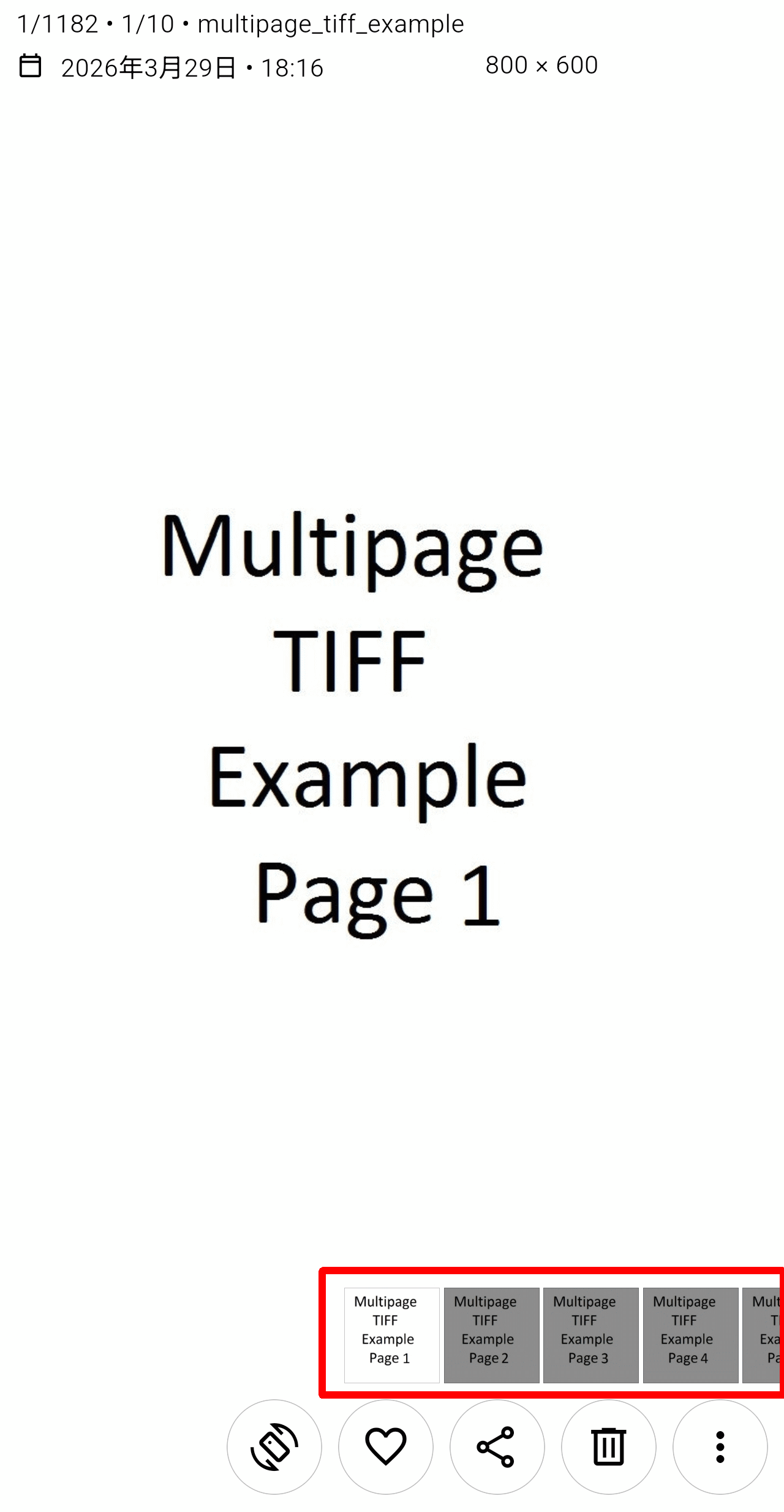
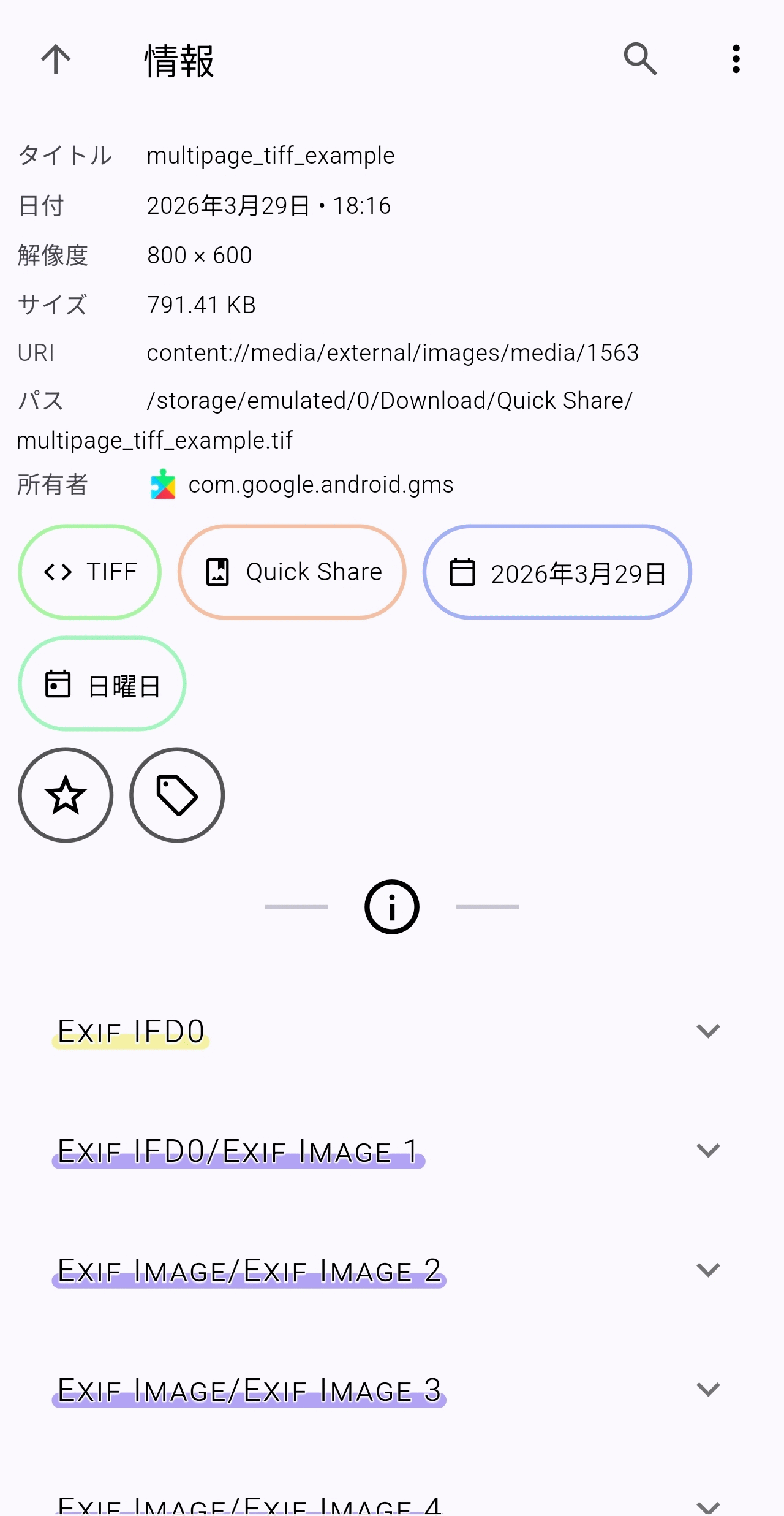
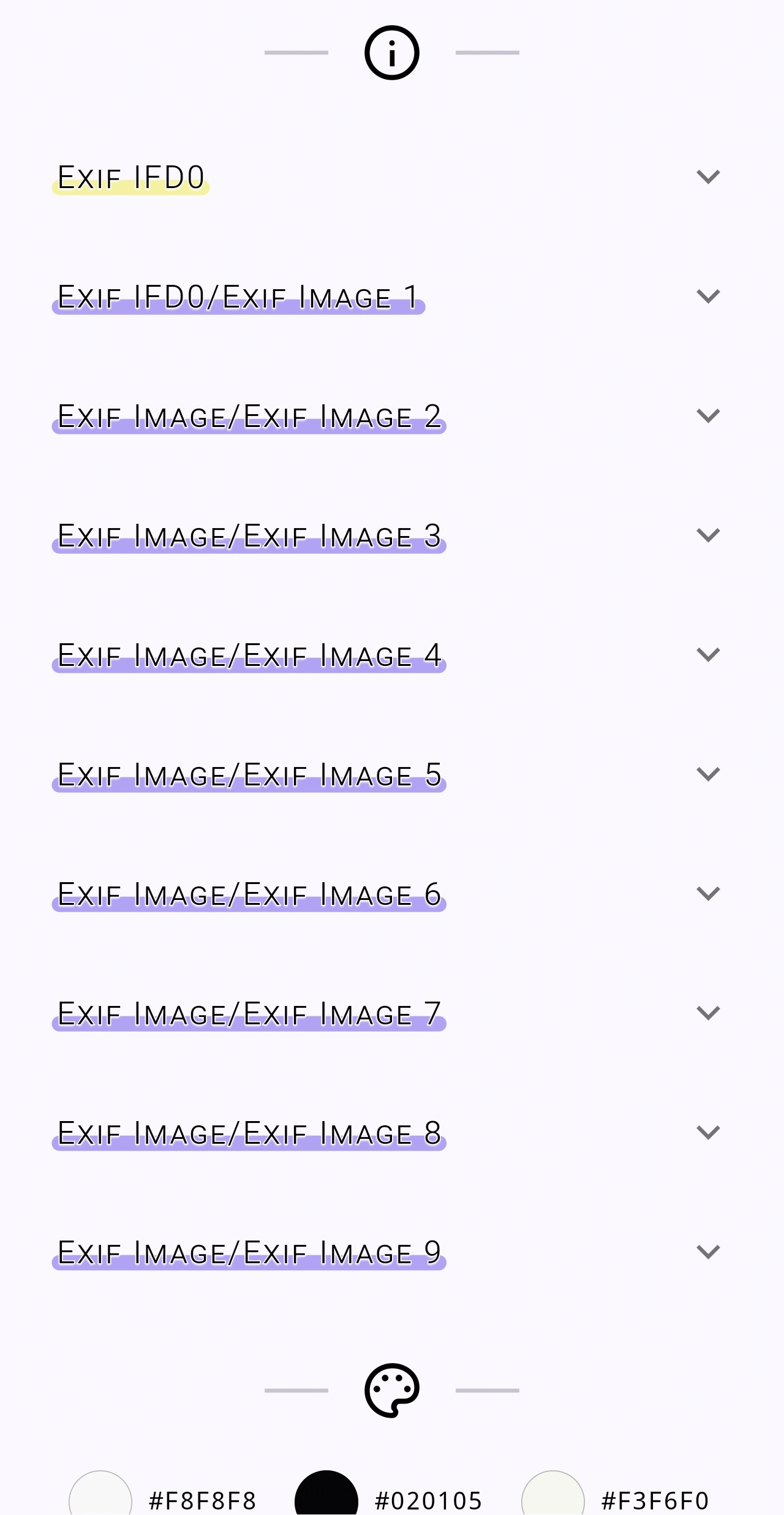
If you check the 'Information' screen, you will see that it indicates that it contains multiple images.
SVG
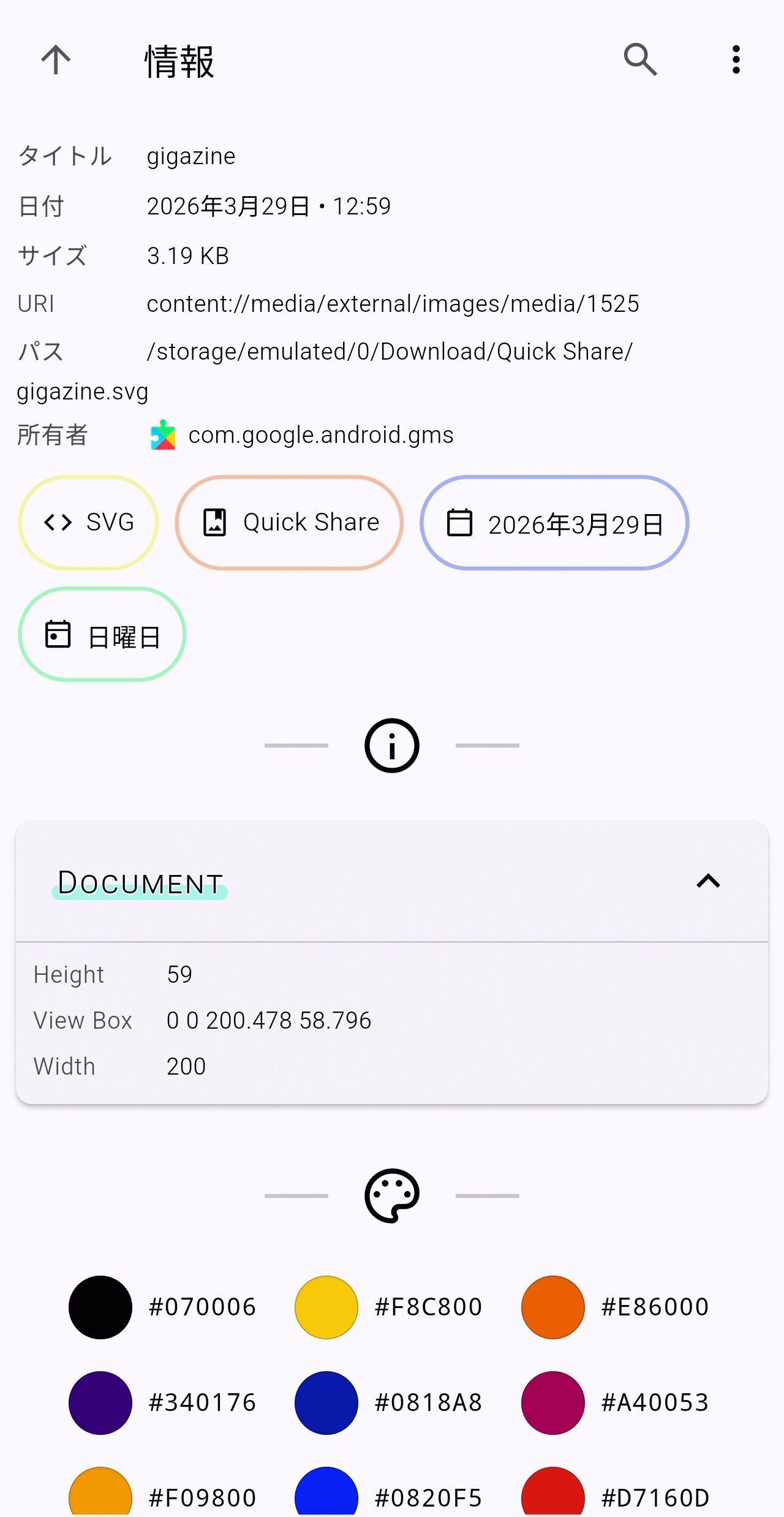
SVG files are often not treated as image files, and this is especially true for smartphone apps. This time, we'll transfer the GIGAZINE logo to a smartphone and display it.
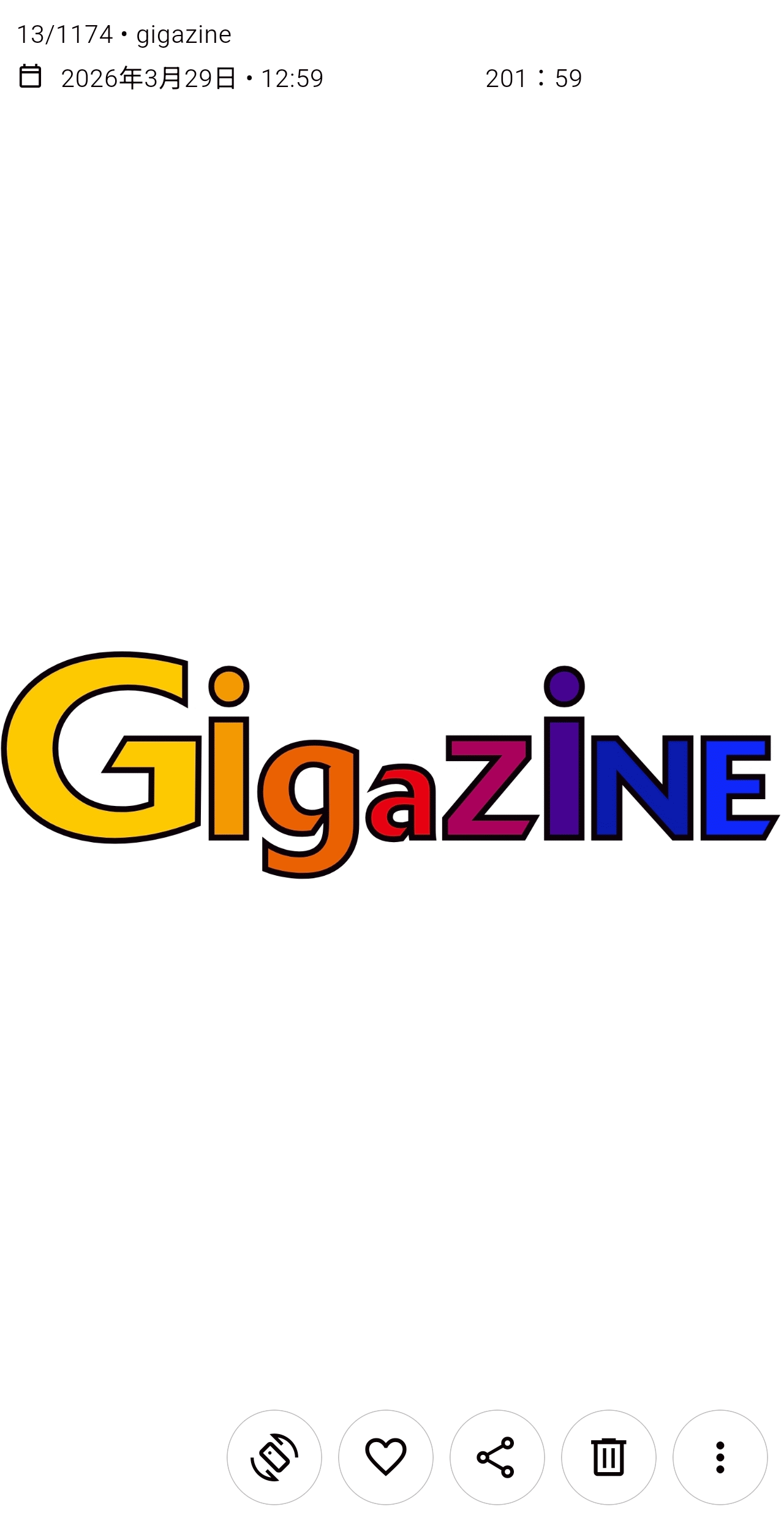
Upon checking again on the 'Information' screen, it is correctly recognized as an SVG image.
◆Special media type
Let's take a look at how special media types are handled in Aves.
Motion photo
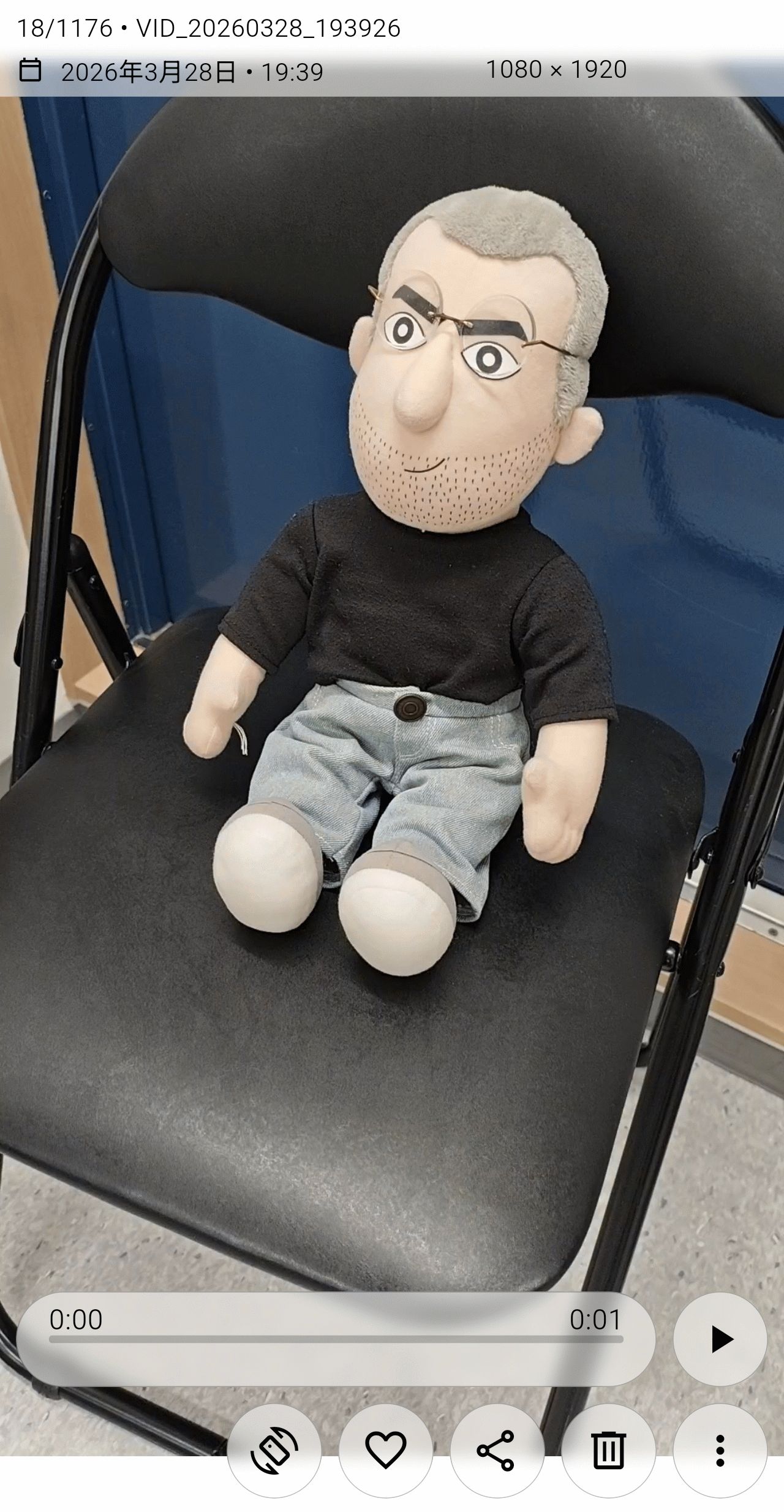
Motion photos record for a certain period of time, not just the moment of capture, allowing you to later select the best shot. When viewing images taken with motion photos selected on a smartphone in Aves, they appear to be treated as short videos.
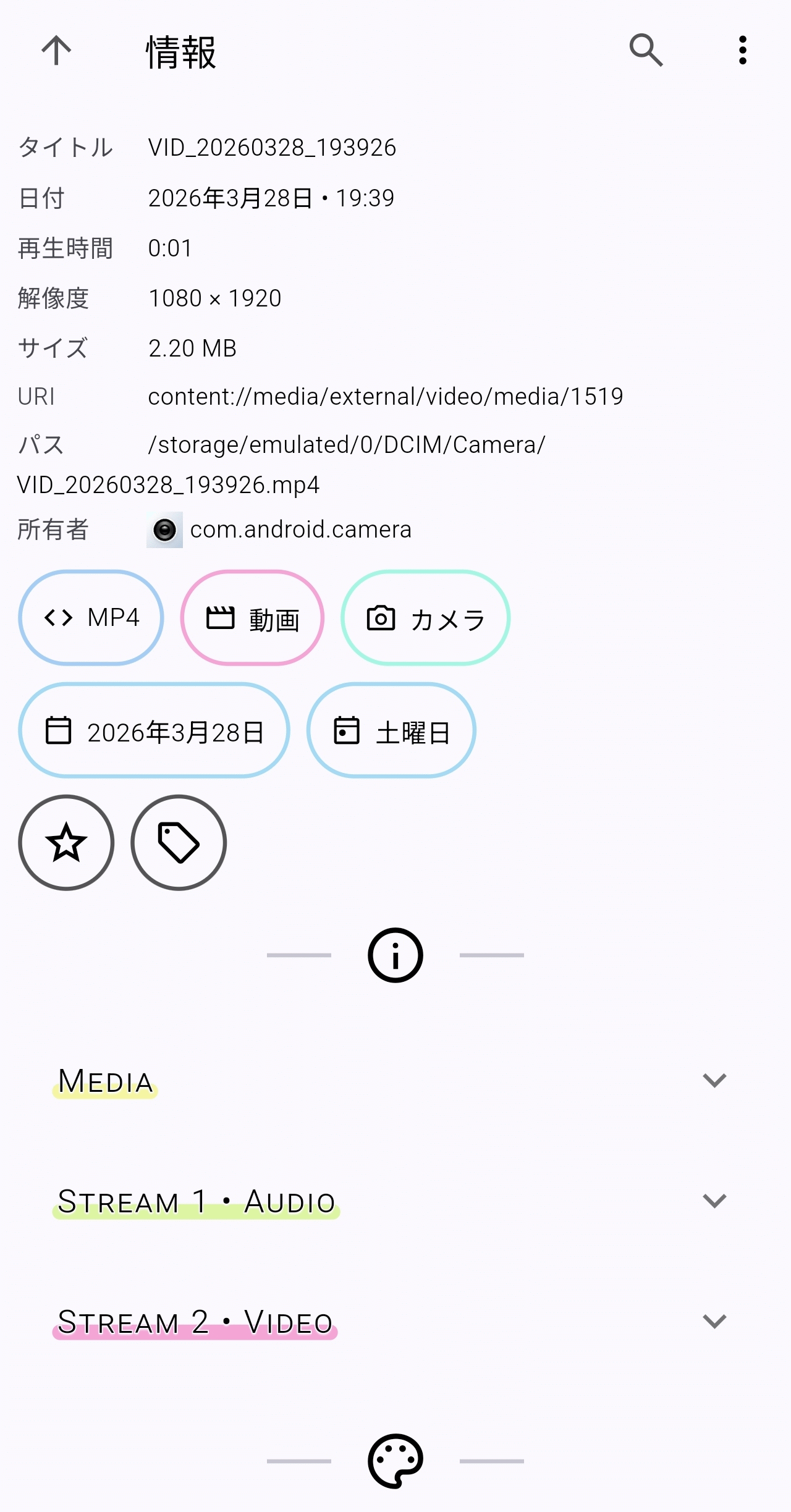
The 'Information' screen also displayed a short MP4 video.
Photosphere
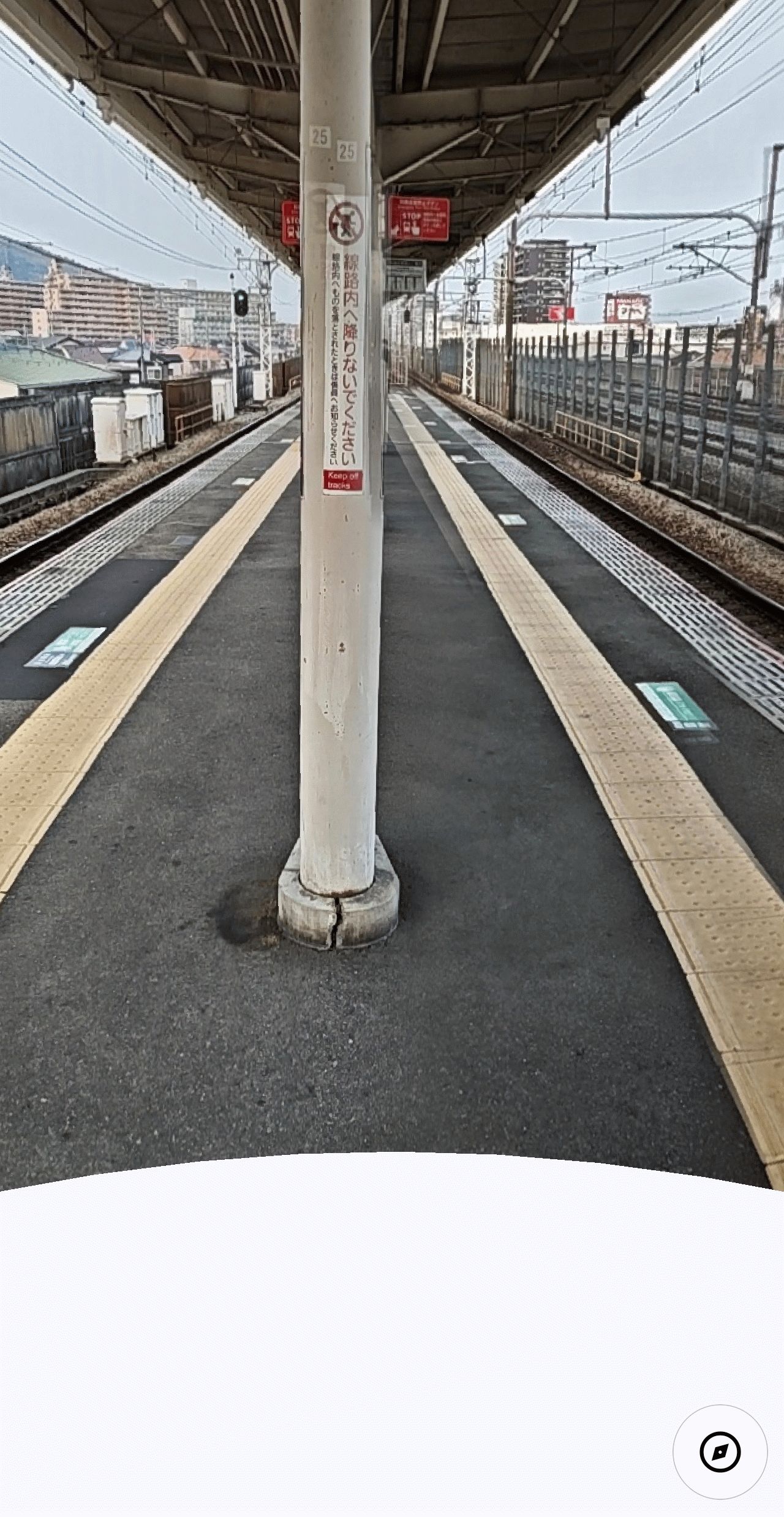
I opened a 360-degree image taken with PhotoSphere in Aves. There's an 'Open Panorama' button in the bottom right, so I'll tap it.
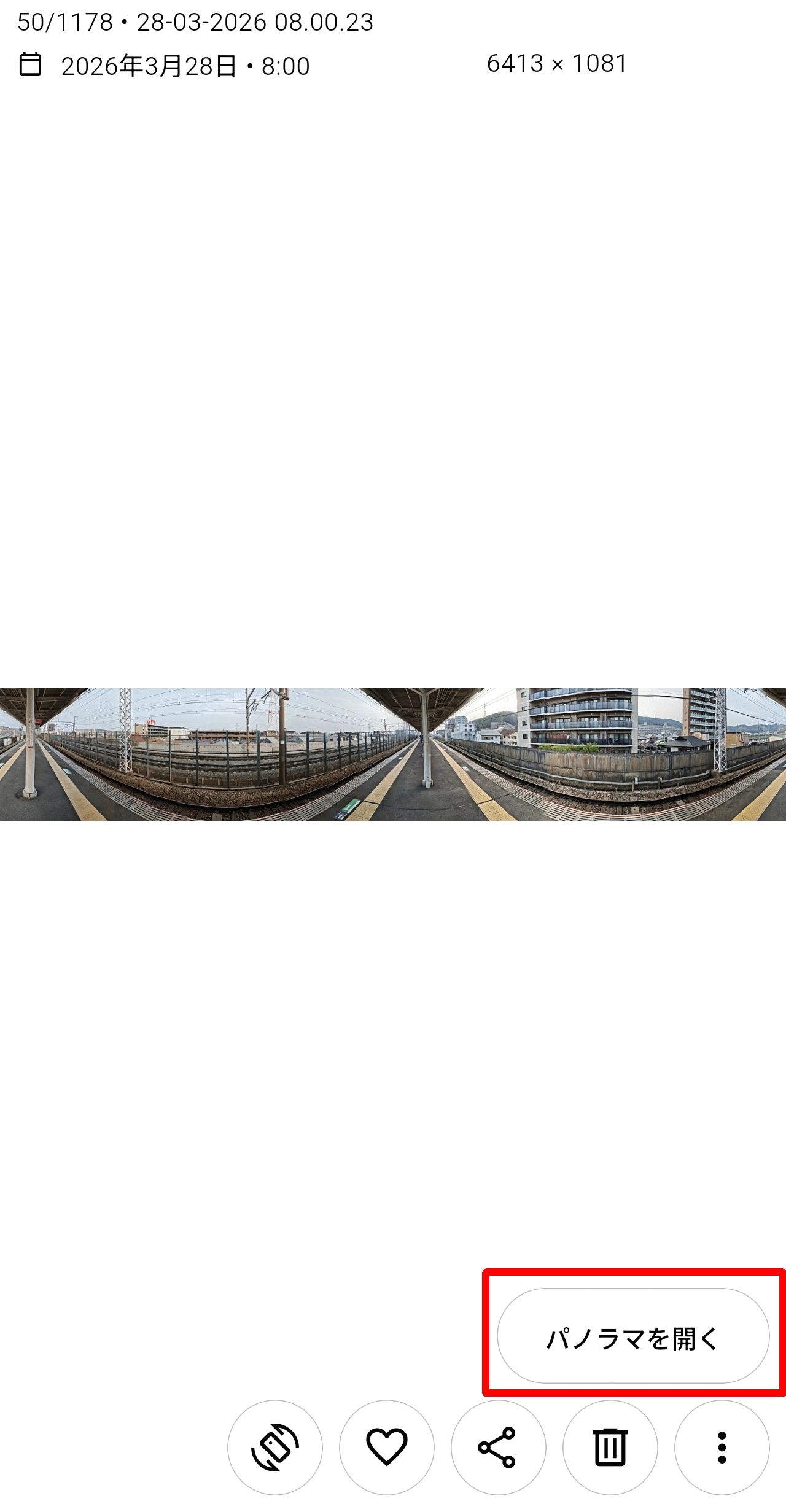
You could view 360-degree scenery by swiping the screen or by using the smartphone's gyroscope.
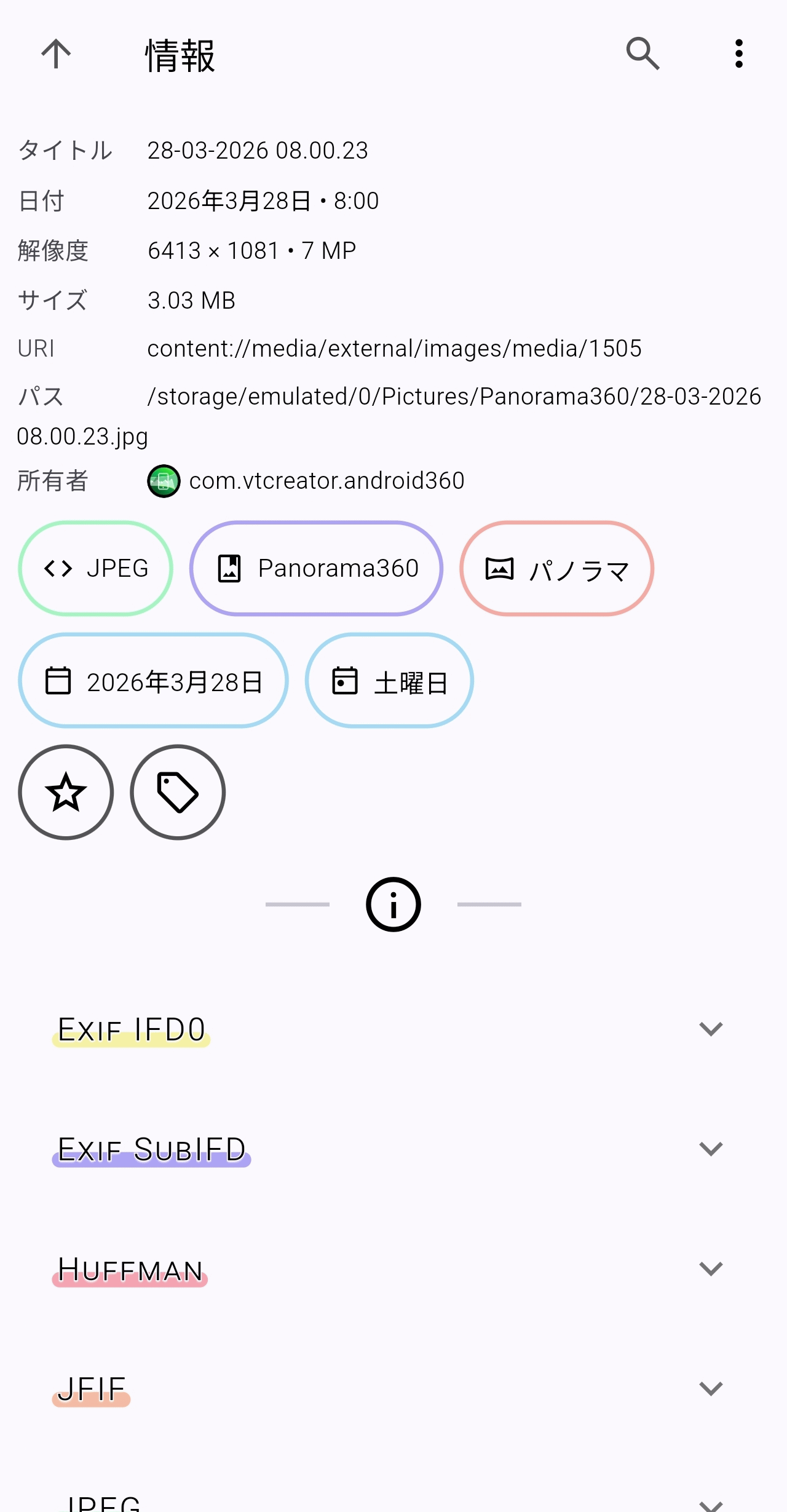
The 'Information' screen also confirmed that it was in 'Panorama' mode.
◆Summary
Aves supports a wide range of image formats and offers more features than you might expect from an Android image viewer. It's easy to install, so if you're dissatisfied with the standard viewer, I highly recommend giving it a try.
Related Posts: